A:AnswerWhen I first got the monitor plugged into my main laptop, I had to go into the audio settings on my laptop and set the speakers for the monitor. Not sure if you've tried that yet.
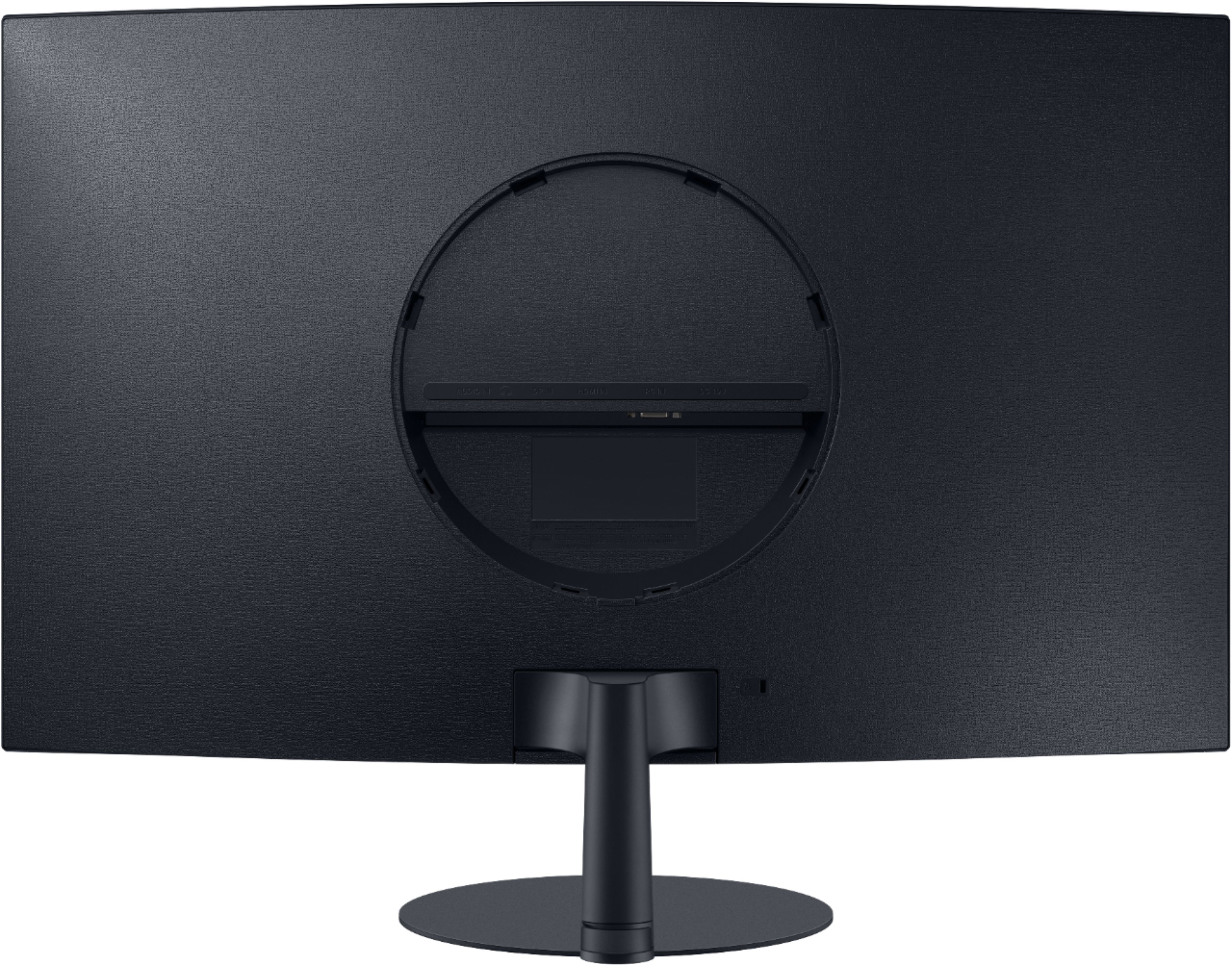
A:AnswerI'm currently running two of these next to each other. Using windows and a video card with two dvi outputs, i just needed a special dvi-hdmi cable. there are only two options on the back of this monitor: display port and hdmi.
A:AnswerIt depends on your computer ports. If you have a HDMI and a DVI port or any combanation of the two you can connect directly to each monitor from your computer. All you need is the HDMI and/or DVI cable for each one. I attached a video that explains it better. Good luck if you haven't figured this out already.
https://youtu.be/DjT4kGvG-1s
A:AnswerYou may have your screen setup for extended view. You will need to set your display setting for duplicate view if you want to view what's on your MacBook screen.
A:AnswerUnfortunately, this monitor is not compatible with your PC as it does not support the video output connections this monitor requires. You can purchase a DVI to Display Port converter to use the monitor in order for it to work.
A:AnswerAt the bottom,click DISPLAY Adapter Properties for the display you are looking to change,Select the MONITOR tab,and then select the screen refresh rate that suits your needs.