Customers are delighted by the exceptional build quality and versatile connectivity options offered by this motherboard. Users frequently praise the intuitive BIOS design and the straightforward installation process, which simplifies system assembly and debugging. While the board is highly regarded for its aesthetics and efficient heat dissipation, some users noted that it offers fewer PCIe lanes compared to higher-tier models. Overall, it is viewed as a reliable and well-designed component that supports modern hardware effectively.
Customers are sayingCustomers are delighted by the exceptional build quality and versatile connectivity options offered by this motherboard. Users frequently praise the intuitive BIOS design and the straightforward installation process, which simplifies system assembly and debugging. While the board is highly regarded for its aesthetics and efficient heat dissipation, some users noted that it offers fewer PCIe lanes compared to higher-tier models. Overall, it is viewed as a reliable and well-designed component that supports modern hardware effectively.
This summary was generated by AI based on customer reviews.
Build Quality (14)
Connectivity (14)
BIOS (10)
Installation (9)
Aesthetics (6)
PCIe Lanes (3)
Customer Images
The vast majority of our reviews come from verified purchases. Reviews from customers may include My Best Buy members, employees, and Tech Insider Network members (as tagged). Select reviewers may receive discounted products, promotional considerations or entries into drawings for honest, helpful reviews.
Rated 5 out of 5 stars
Excellent AM5 Motherboard for Next-Gen Builds
Picked up the GIGABYTE X870 EAGLE WIFI7 for my Ryzen 9950X build, and I’ve been extremely impressed. Setup was smooth, BIOS was easy to navigate (with Expo and PBO support out of the box), and the overall design is clean and well laid out. Tons of rear I/O, fast Wi-Fi 7 and Bluetooth 5.4, plus futureproof PCIe 5.0 support made this board a no-brainer at this price.
Running DDR5 6000 RAM with zero issues, and VRMs stay cool even under load. It also looks great in a windowed case with its matte black finish and subtle accents. Not overdone... and not boring either.
GIGABYTE’s BIOS updates have been stable so far, and driver support was seamless on Windows 11.
If you're going AM5 and want a solid board with all the modern features without going overboard on price, this one nails the sweet spot.
Excellent motherboard! It really blends in with the dark gray interior of the Fractal North (White).
I did have a couple issues that gave me small heart attacks while building though:
The BIOS that came with the motherboard was outdated, so I had to update it to ensure it supported the 9800X3D. Thankfully, Gigabyte makes it super easy to update with their Q-Flash Plus.
The other issue is that the motherboard would simply not post to the BIOS, even after updating. I kept getting the VGA LED whenever I tried booting, which usually signifies a GPU error. I spent several hours troubleshooting, and the only thing that fixed it was plugging in my USB Boot Drive to install Windows. Once Windows was installed, everything seems to have been fixed.
I’ve only had this board for a couple months but so far so good, haven’t had any issues.
Quality seems good and it was easy to build on.
9800x3D
Peerless Assassin cooler
32gb Teamgroup Tcreate RAM
GTX 1080 (anyone have a 9070XT for MSRP??)
2TB WD Black NVME
Corsair RM850x
Fractal North
The Gigabyte X870 Eagle Wifi7 motherboard has a clean minimalist aesthetic with a black and grey color scheme. It also feels noticeably solid in my hands with a substantial weight that gives the impression of very good build quality. It comes packaged with the following items:
Gigabyte X870 Eagle Wifi7 motherboard
Gigabyte G-Connector
2x SATA cables
2x M.2 screws
One pack of M.2 thin/thick rubber pads
Wifi7 antenna
User’s Manual
Quick Installation Guide
Some key highlights and specifications of the Gigabyte X870 Eagle Wifi7 motherboard include the following:
Supports AMD Socket AM5 processors (AMD Ryzen 9000/8000/7000 series)
1x PCIe 5.0 x16 slot
2x PCIe 3.0 x1 slot
4x DIMM (Dual Channel DDR5) sockets
1x PCIe 5.0 M.2 NVMe slot
2x PCIe 4.0 M.2 NVMe slot
4x SATA 6Gb/s ports
2x USB4 Type-C (40Gb/s) with DP-Alt connectors
1x USB 3.2 Gen 2 connector
3x USB 3.2 Gen 1 connector
4x USB 2.0 connectors
Realtek PCIe 8922ae Wifi 7 wireless adapter
Realtek PCIe 2.5 GbE LAN
Front USB-C 20Gb/s connector
1x HDMI connector
6x PWM/DC fan headers
3x ARGB LED headers
1x RGB LED header
For my build, I used the following components:
Gigabyte X870 Eagle Wifi7 motherboard
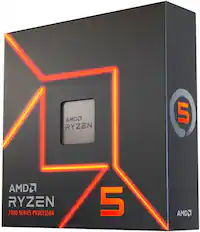
AMD Ryzen 5 9600X CPU
AMD Radeon 6650XT Graphics Card
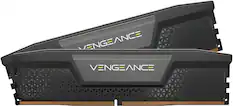
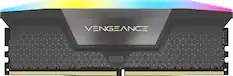
2 32GB sticks of Corsair Vengeance DDR5 5200 memory
Samsung 990 Pro 2TB NVMe SSD
MSI A850G 850W Power Supply
Fractal Design Focus G computer case
Installation and Setup
Installation was very pleasurable. The fit and finish of the motherboard was precise so everything lined up well in my computer case. No misaligned screw holes or anything.
The black and grey color scheme on the motherboard sometimes made it difficult for me to read the labels and markings on the motherboard to distinguish the connectors in low light situations. I probably would have liked the letterings to use better contrast to make them easier to read.
I felt the layout of the motherboard is very good although the cable for the front panel audio connector for my case was a little too short to comfortably reach the connector on the motherboard. But overall, the layout of the motherboard was very convenient for my build.
I think the motherboard has an excellent selection of ports with plenty of USB connectors on the rear panel. Having 2 USB4 Type-C ports that support DP-Alt is a much appreciated feature as this is something that I have only seen with laptops.
There are some very nice DIY features that I really liked on this motherboard. The G-Connector made connecting those tiny front panel connectors much easier compared to other motherboards.
I also like the M.2 EZ-Latch so you don’t have to use those tiny M.2 screws to attach your NVMe SSDs. Unfortunately, this feature is only included with the first M.2 slot. The other M.2 slots use tiny screws.
The GPU EZ-Latch was also well implemented as it made removing my GPU very easy.
There were plenty of fan and RGB headers for my needs. Overall, this was one of my better computer builds as I didn’t encounter any frustrating road blocks.
Most motherboards in this class have some limitations with regard to PCIe slot and M.2 slot usage. For example, I have another motherboard where a PCIe slot is disabled if you use one of the M.2 slots. I don’t like this approach as I can easily imagine myself forgetting this fact and then attempting to use a PCIe slot and wasting time trying to figure out why it isn’t working.
The Gigabyte X870 Eagle Wifi 7 motherboard handles these limitations differently. Instead of disabling one connector, that connector will just run at a slower speed. For example, with this motherboard, there is a limitation that two of the M.2 slots (M2C_SB and M2B_SB) share bandwidth so that if both are being used, then both of them will be operating at x2 mode instead of one operating at x4 mode. I like this approach much better.
OS Installation
The Gigabyte X870 Eagle Wifi7 already came with the latest bios and it had no problem recognizing my components. It automatically recognized the AMD Ryzen 9600X and ran the Corsair memory using XMP settings.
I didn’t explore the bios that much but it seemed very full featured.
Windows 11 installed without any problems except, it couldn’t see the Realtek 8922ae wireless adapter. I had to attach an ethernet cable to proceed with the OS install. But even after Windows 11 was installed, the wireless adapter was still not found.
I was able to download and install the Realtek 8922ae Wifi drivers after installing the Gigabyte Control Center. This tool allows you to configure and control the RGB, download additional utilities and tools, and update any drivers and firmware.
I was curious about the Realtek 8922ae’s performance since this is the first time I have used this chipset. I am happy to report that it seems to be working well. It connects to my TP Link BE5000 Wifi 7 mesh system with a reported link speed of 2882/2882 Mbps (tied as the fastest with my other chipsets) and has been rock solid.
Summary
During my brief time, the Gigabyte X870 Eagle Wifi 7 has been rock solid. With lots of connectors and expansion capabilities, an excellent build quality, very nice DIY features and a well-thought-out design, I expect it to be a great motherboard that will grow and expand with me as my needs grow.
It is also capable of running the highest end AMD AM5 processors so you can easily upgrade when these CPUs become more affordable..
The Gigabyte X870 Eagle WiFi7 is considered to be a budget and affordable “high end” motherboard. It offers most of the high end features users want but at a more affordable price.
I can easily recommend this board to anyone looking for an AM5 motherboard.
I have been building computers off and on for the last 15 years, and this marks my 5th AMD build. This is my 3rd Ryzen based system – previously used 1800X on an X370 board and a 3600X on an X570 board. I have always preferred the X line of boards over the A/B lines for the generally higher quality components and greater capacity to tinker and overclock. The Gigabyte X870 Eagle WiFi 7 board provides an entry point into the X series of boards without breaking the bank. I paired the Eagle with a 9600X on a build I did for one of my kids.
MOBO Spec’s:
Socket – AM5 support 7000, 8000, and 9000 CPU’s
Memory – 4 DIMMs Dual Channel DDR5 with EXPO support – Max 256GB up to DDR5 8200
PCIe – (1) PCIe x16 slot @ 5.0 x16 for GPU, (2) PCIe x16 slots @ 3.0 x1
Storage - (1) M.2 @ PCIe 5.0 x4, (2) M.2 @PCIe 4.0 - slot B runs at x4 or @ x2 if slot C is also populated, (4) SATA III connectors
USB Headers – (1) USB 3.2 Gen 2x2 Type-C, (1) USB 3.2 Gen 1 Type A, (2) USB 2.0 Type A
Fan/LED Headers – (1) CPU Fan, (1) CPU_Opt Fan, (4) System fans, (3) aRGB, (1) rgb
I/O Panel – (4) USB 2.0, (3) USB 3.2 Gen 1 Type A, (1) USB 3.2 Gen 2 Type A, (2) USB 4 Type C w/ DP, (1) HDMI 2.1, 3.5mm audio, 2.5Gb LAN, and Q-Flash BIOS button
Connectivity – 2.5Gb LAN, WiFi 7 2.4/5/6 GHz, and Bluetooth 5.4
BIOS – Single BIOS chip - F2 BIOS currently installed – F5a available to flash
System Components Used:
CPU – AMD R5 9600X AM5 6C/12T @ 3.9GHz (boost to 5.4GHz)
GPU – ASUS ROG STRIX 6900XT LC TOP 16GB GDDR6 w/ 200mm Okinos Riser Cable
RAM – TEAMGROUP T-Force Delta RGB 32GB (2x16GB) DDR5 6000 CL30
Storage – 1TB Crucial T700 PCIe Gen5x4 NVME; 1TB Samsung 990 EVO Plus Gen 4x4 NVME
PSU – SeaSonic Focus GX ATX3 850W modular
Case – Corsair 3500X aRGB with 3 Corsair RS120 aRGB fans
Cooler – Razer Hanbo Chroma 240mm AIO
The X870 Eagle is an ATX form factor motherboard that sits as Gigabyte’s entry level X870 offering. The board has a decent amount of connectivity options including a 2.5G LAN port, USB 4.0, a PCIe 5.0 M.2 slot, and plenty of fan headers. If you have built a PC you will appreciate some of the creature comforts on this board like the toolless M.2 slot, PCIe EZ-Latch, and right-angle board connectors for SATA and USB 3.2 Gen 1 Type A. No matter how many times I have built a computer I always find myself pulling parts to reroute cables, or maybe I installed something in the wrong order. Things like the PCIe EZ-Latch were useful aids, and while I really only need it during the initial build I was thankful to have it. My initial assessment of the board went pretty well with a decent/familiar layout of headers, but a couple of things jumped out. The rear I/O panel is attached to the board, which means I can’t build up my entire system only to realize I left it off (like the good old days). The main M.2 slot sits below the main PCIe lane, which I found odd and would actually cause some problems later for me. Overall, though it’s a nice, clean looking board without a ton of over stylized bits and RGB, which will appeal to those that like a cleaner look.
For the build things went pretty smooth. I jumped right in with the CPU install – I did not realize that AM5 had gone to an LGA pin-on-board socket, but its appreciated. My cooler does not use the retention frame, so those got removed in order to mate up directly with the backplate. Once the CPU was installed I worked on populating the other components before loading it into my case. RAM installed easily into slots 2 and 4 – I checked Gigabyte’s QVL list for RAM kits and selected a pair that gave good performance/$ while keeping the CL to the tightest timing I could. I went with a TEAMGROUP DDR5 6000 32GB (2x16GB) CL 30 kit (FF3D532G6000HC30DC01). After the RAM I installed the my M.2 drives into the top and middle slots – I used a PCIe Gen 5 drive for the main slot to utilize that higher bandwidth. The toolless design of the slot was really nice – the heatsink felt well made. Make sure you pull the blue plastic off the heatsink though. To install the second M.2 drive I had to fish the tiny screw out of the MOBO box, which furthered my appreciation of the toolless top slot. If you look at the specs you will see that the second M.2 slot runs at PCIe 4.0 x4. However, if you add another drive to the bottom slot, the connector speed is halved and switches to run at PCIe 4.0 x2. The bottom M.2 slot will only run at x2 speeds. Once those components were in, I loaded the board into my case to start making the next connections. The board installed into my case without issue. I had already screwed on the standoffs for the cooler, so after I mounted the radiator I attached the cooler head to the socket – no issues.
However, right after this is when I noticed my first problem. I wanted to mount the GPU vertically so I knew to plan ahead and get a riser cable. Research told me to use a 150mm riser cable for my Corsair 3500X case, which is what I bought. I did a test fit and found the cable to be too short as it was really putting a strain on the connectors. This is where the odd configuration of the PCIe lane and M.2 slot bites me – if the PCIe x16 lane was below the M.2, like on all my previous builds then the 150mm cable would have been perfect. Instead I’m out the cost of another riser cable. So, as a PSA, buy a 200mm riser cable if you plan to use this board. While I waited for the new riser cable to come in I chose to temporarily mount my GPU straight to the board, which I where I saw my next issue. The backplate of my GPU (277 mm length) was in slight contact with my RAM. The RAM heatspreader/RGB shroud is partly to blame, but my GPU isn’t overly long and I would have expected easy clearance. So another PSA, if you plan to mount your GPU straight to the board make sure your RAM heatspreader shrouds aren’t too big. The rest of the assembly process was straightforward with connecting the front panel headers, fans, and power supply cables. When the new riser cable arrived I gladly used the PCIe EZ-Latch to remove my card and slot in my new riser cable, which thankfully worked just fine. A thing to note if you are using a riser cable, it will block your bottom board connections (aRGB, RGB, TPM, USB) so you need to get everything connected first.
Everything booted up first try, which always feels good. I loaded a bootable USB up and made sure to set the boot order in the BIOS to point to it first. From there I got windows installed, but I ran into an issue with needing internet. I had pulled the drivers for the WiFi chipset off the support page and had them ready, but I couldn’t get the install process to read it. I tethered a laptop’s internet connection for awhile, but it was painfully slow. I ended up making a cable that would reach the closest network port. In order to get the WiFi working I had to go through the Gigabyte Control Center utility to download all of the drivers before it worked. I feel like that is just a crappy way to implement things, and I should have been able to load a basic WiFi driver during the install process. Through the Control Center you can also set the lighting scheme for anything connected to the RGB/aRGB headers, and RAM. Once things were settled I could install the other utilities (AMD, ASUS, and Razer) and work on tweaking things. I rebooted and entered the BIOS to explore the settings, which is where I enabled EXPO1 to get my RAM running at advertised speeds. I dove into the Overclock settings, but I haven’t enabled anything yet. I like to run the system for a little bit of time to see if anything pops up under normal operation. However, the BIOS setup was really easy to follow and adjusting settings appears to be straightforward. The only thing I found difficult was getting into the BIOS – you basically have to hold the DEL key from the moment you reboot your system until it pops into the BIOS. Usually just a tap or 2 of the correct key on the BIOS splash screen gets you in.
Overall, I am really happy with how this build has turned out, and I think the X870 Eagle makes for a solid choice. I have found in the past that getting all the bells and whistles on a MOBO just runs the price up, and then I don’t use the majority of those things anyways. The X870 Eagle strikes the balance of providing everything I needed now and a few things I may use in the future, but without the markup of the top-tier X boards. Also, I wasn’t doing anything super crazy since this needs to last for years, but I wanted to make sure it would have room to grow. That’s why I have always opted for the X series of boards – they just seem to age a little better and are worth at least 1 processor upgrade before getting a whole new board. My past experience with overclocking on the X boards has been pretty positive and allowed me to squeeze more performance and relevancy out of the components. I expect a similar experience here. I have had good luck with Gigabyte products in the past, so I am hopeful this system will last for quite a while. The only thing left now is to redo the cable management in the case 5 or 6 times before I am happy.
The X870 EAGLE WIFI7 supports AM5 Processors and features unparalleled performance. GIGABYTE X870 motherboards come with upgraded power design, high grade storage standards, and outstanding connectivity that enables you to optimize your performance.
The X870 AORUS ELITE WIFI7 supports AM5 Processors and features unparalleled performance. GIGABYTE X870 motherboards come with upgraded power design, high grade storage standards, and outstanding connectivity that enables you to optimize your performance.
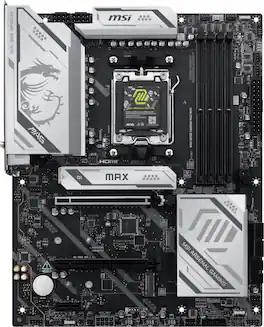
Build your ultimate system with the MAG X870E GAMING MAX WIFI. Designed for AMD Ryzen processors, this ATX motherboard features a 12+2+1 power design, 64MB BIOS, and DDR5 support. Enjoy fast connectivity with Wi-Fi 7, 5G LAN, and USB 40G ports. It also includes EZ DIY features like EZ PCIe Release and M.2 Shield Frozr II for simple building.




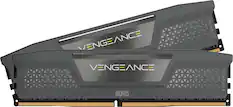

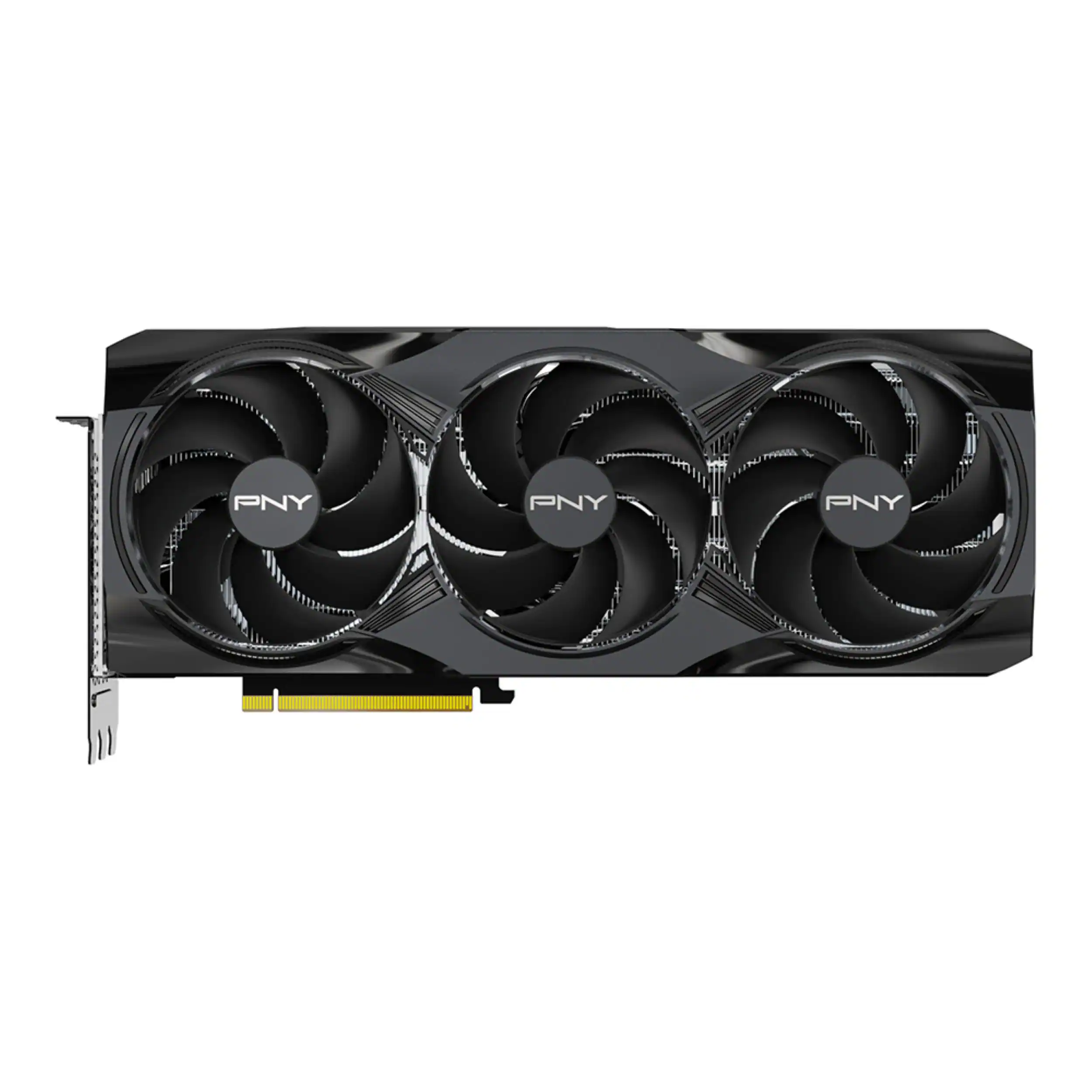 Graphics Cards
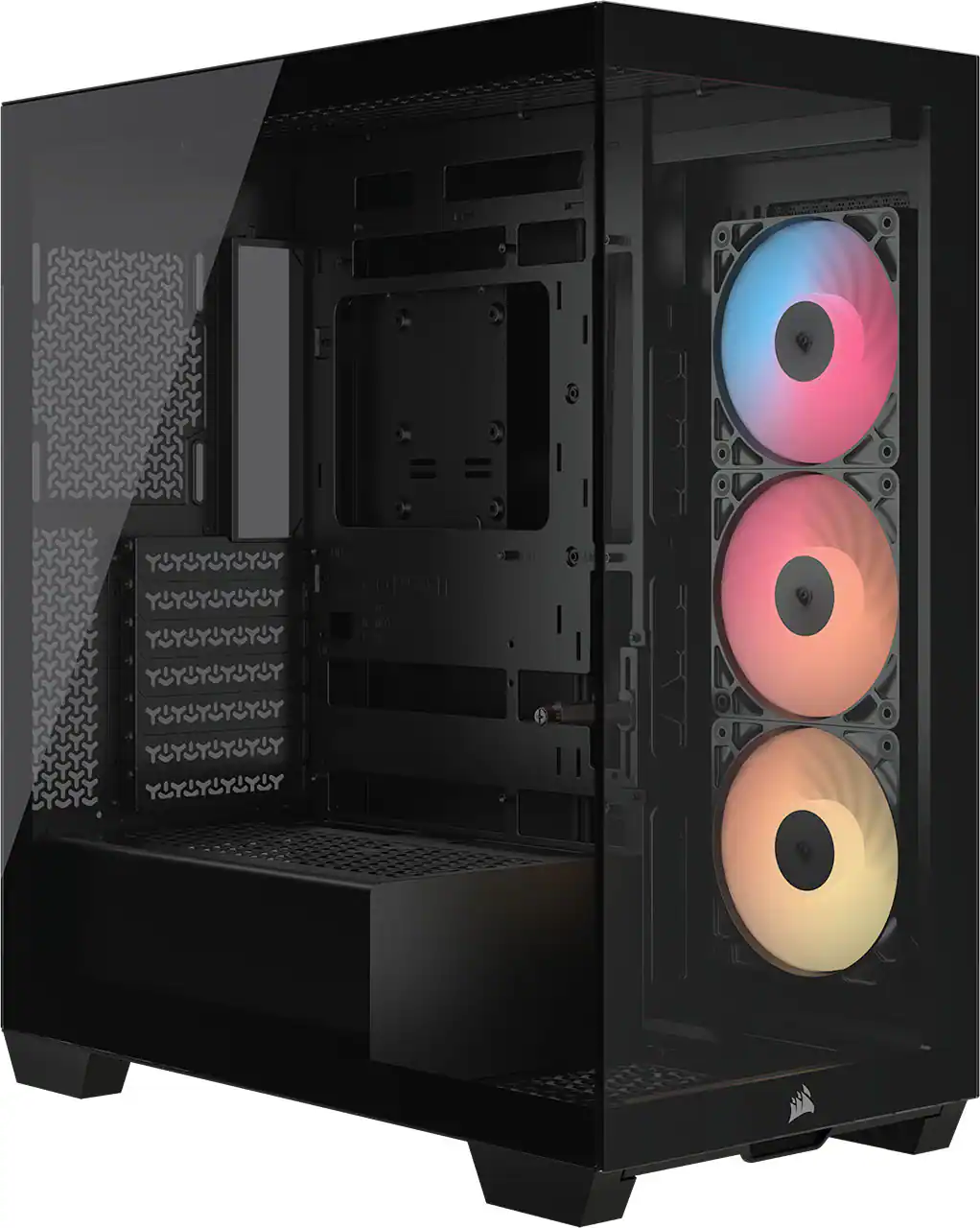 Computer Enclosures
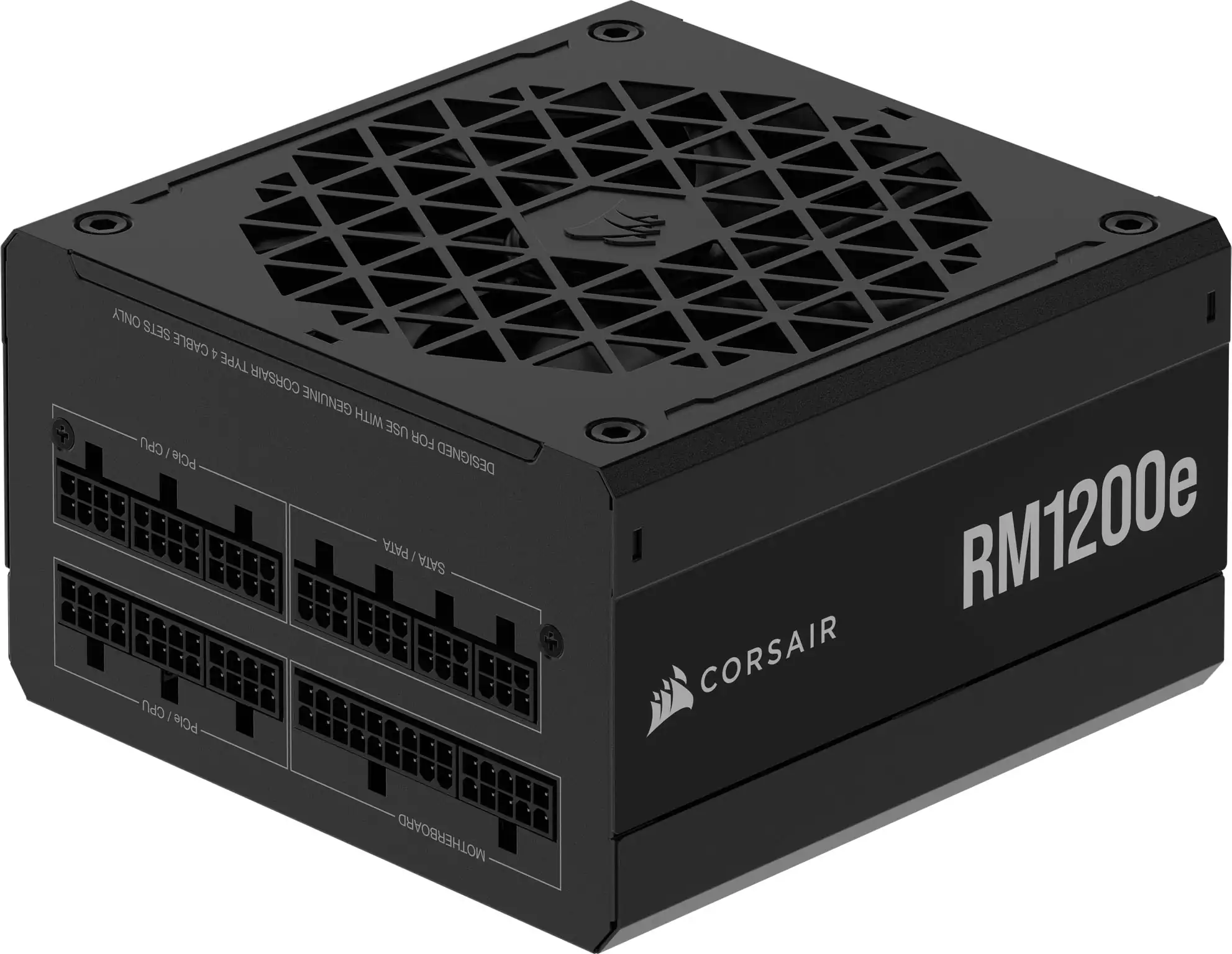 Computer Power Supplies
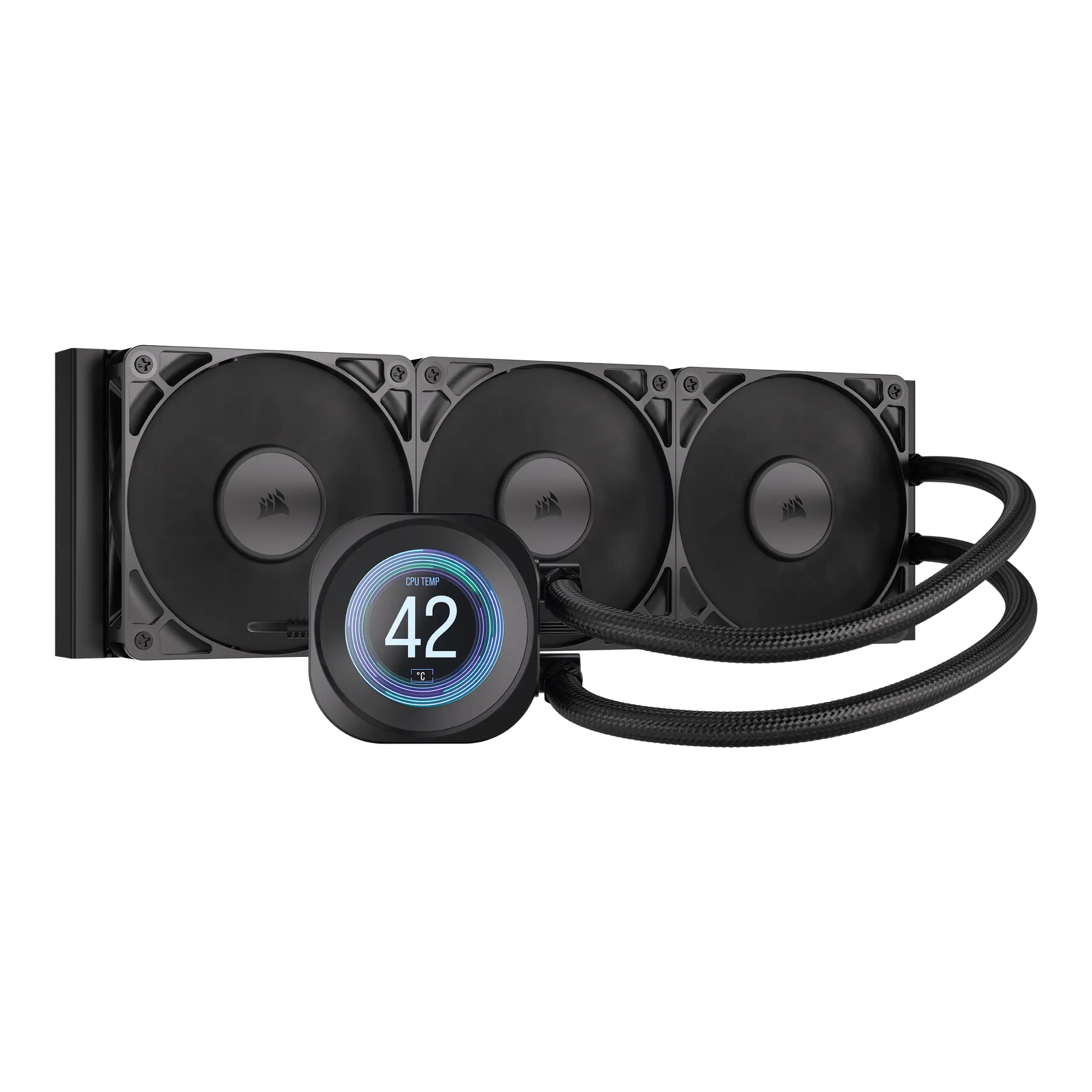 Computer Cooling Fans and Systems
 Internal Hard Drives
 Computer Repair and Installation Tools
 Operating Systems
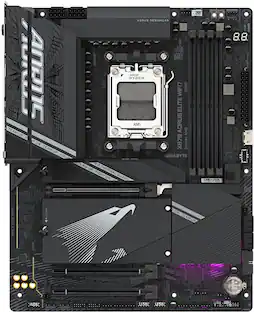 $249.99The price was $319.99
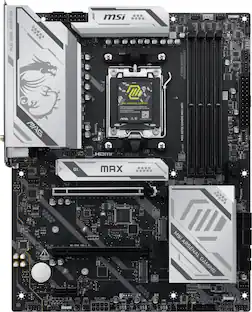 $188.99The price was $259.99
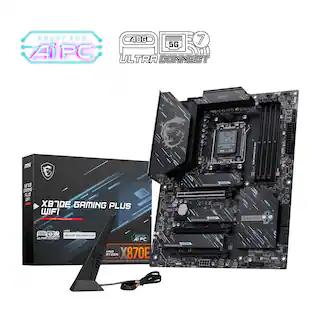 $201.49The price was $239.99
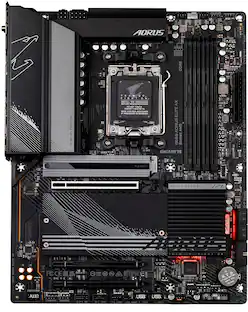 $159.99The price was $229.99
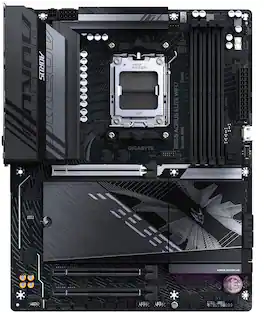 $221.96The price was $254.99
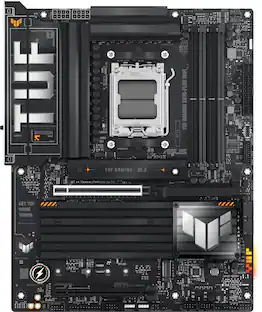 $229.99The price was $249.99
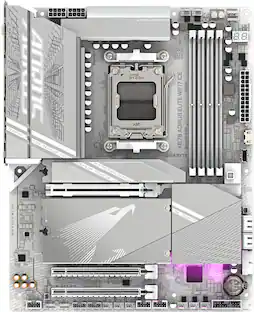 $275.99The price was $319.99
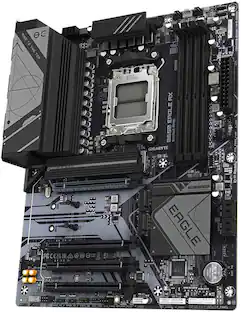 $139.99The price was $179.99
 Clearance$173.99The price was $289.99
 $286.49The price was $329.99
 Clearance$209.99The price was $299.99
 $209.99The price was $240.99
 $289.99The price was $354.99
 $433.99The price was $449.99
 $677.99The price was $719.99
 $329.99The price was $359.99
 $249.00The price was $275.00
 $12.99The price was $13.99
 $149.99The price was $169.99