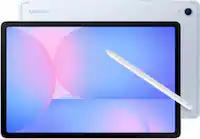
A:AnswerHi Sharon, thank you for reaching out about the Fire 10 HD tablet. There are no additional services required to use the tablet; Wi-Fi connection will be more than sufficient for every day use. Hopefully this helps. Have a great day!
A:AnswerHi there! There is no subscription or fee required to use the Fire HD 10 tablet, though you'll have to register it to an Amazon account during setup. If you don't currently have an Amazon account, you can set one up for free during the setup process. There are tons of great apps and games available on the Fire HD 10 completely for free, though some might have a subscription or cost to unlock all or additional features. I hope that helps, have a great rest of your day!
A:AnswerHello Mako,
You want to know if the Amazon Fire HD 10- 10.1” Tablet is able to read files/video from a flash drive or micro SD card. The Amazon Fire HD 10- 10.1” Tablet is able to read files/video from a flash drive or micro SD card and play them on the native media player. Hope this has answer your question. Have an amazing day!
A:Answer"Hello Miky! Yes, the Youtube app can be downloaded to your Fire Tablet. You can download games and apps and use them on the go by following these steps:
1. Select Games & Apps or open the Apps or Games app.
2. Select an app from your Library to download it or search for a new app in the Store.
Have a great day!
A:AnswerHello Pat! Yes, the Facebook app can be downloaded to your Fire Tablet. You can download games and apps and use them on the go by following these steps:
1. Select Games & Apps or open the Apps or Games app.
2. Select an app from your Library to download it or search for a new app in the Store.
Yes, you can print from a Fire Tablet. First, you will need to pair your compatible wireless printer to your device. Here are the steps to do that:
1. Download an office app or a PDF viewer from the Amazon App store
2. Select the menu icon (three vertical dots) or select File for the item you wish to print then select Print.
3. Select Save as PDF then select All printers....
4. Locate the IP address for your printer (refer to your printer's product's user guide).
5. Select the Add Printer icon (plus sign) to add a printer manually using the IP address of the printer.
After you have done this, you should have access to print from that printer. Be sure to follow these steps to make sure you have the correct printer:
1. Make sure that your printer is turned on and connected to Wi-Fi.
2. Select the menu icon (three vertical dots) for the item or web page that you want to print, and then select Print.
3. Select your printer from the list or select All Printers for nearby printers.
4. Select the number of copies or tap More options to choose the paper's size, color, and orientation.
5. Tap Print.
Have a great day!
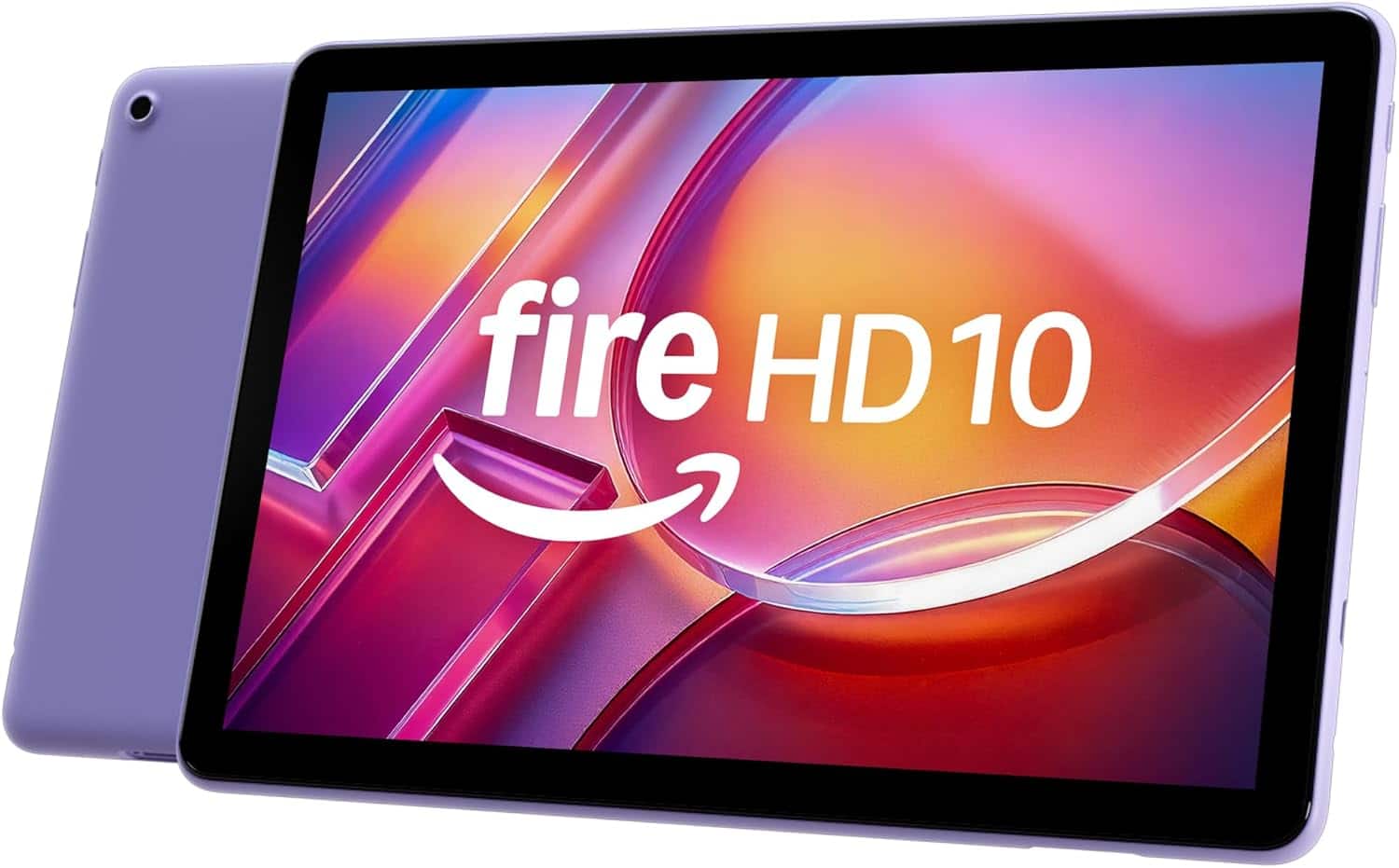
A:AnswerHi Fuddy! You can make and receive calls using a variety of compatible apps on the Fire HD 10, including via Alexa. For mobile phone numbers, you can actually link the number directly with your Alexa account. To do so: Open the Alexa app. Select More, then select Settings. Select Communication. Select your carrier and follow the on-screen instructions to link your account. You can now make and receive calls on your Alexa-enabled device with your mobile phone number. For other apps, just download them from the Amazon App Store and use them the way you would on any other device. I hope that helps, have a great rest of your day!
A:AnswerHi Moki! Unfortunately Google Chrome is not currently available on the Amazon app store, but I haven't had any issues using the built in Silk browser for everyday web browsing needs. I hope that helps, have a great rest of your day!
A:AnswerDepending on the specific version you choose, the range is from 3 years old up to adults. We have the HD 10 kids that is built for 3-7 years old, the HD 10 kids Pro that is made for 6-12 years old and the standard Fire HD 10 is for 13+ to adults.
Hope this answers your question, have a great day!
A:AnswerHello! Yes the Fire HD 10 tablet allows you to use Email, it comes with a built in Email app and you can also download third party email. You can also open the Silk browser and log in to your email that way. Kindle is different from Fire Tablets, it is an electronic ink reader but it also has an email function you can use. Hope this answers your question!
A:AnswerHi Carol! Yes you can remove ads after purchasing your Fire HD 10. Log into your Amazon account on the browser or app. Go to Manage your Content and Devices. Select the devices tab and click on your Fire tablet. Under Special Offers click Remove Offers and pay the fee. Usually between $15 and $20 depending on your specific model. Hope that helps!
A:AnswerHi Toklatkate! The app "Hay Day" is available to download from the Amazon App store, so the app itself should work just fine on the Fire HD 10. One thing to figure out before the move though, is how to transfer your account in the game from one device to another. Lots of games will use an account sign in, so you'll want to make sure that you know the information you're using currently and can use it to login on the new device. I hope that helps, have a great rest of your day!
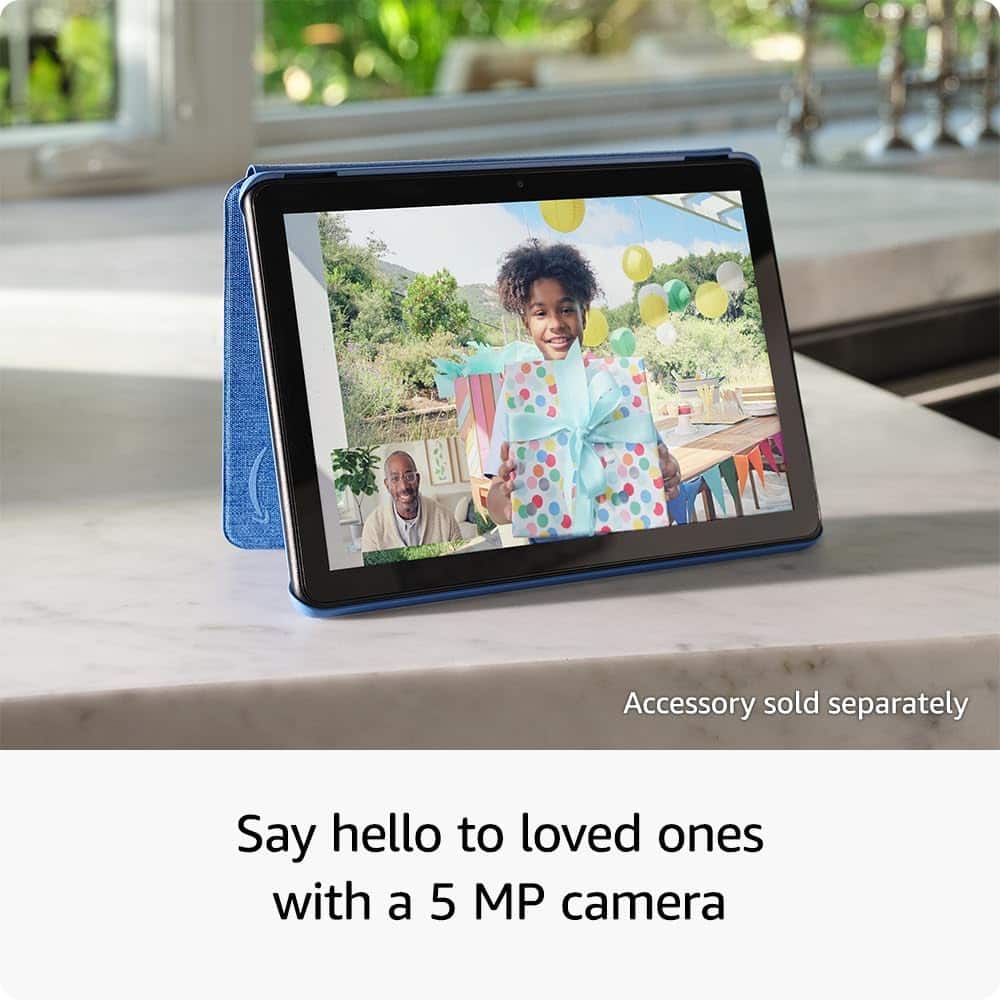
A:AnswerYes, Fire HD 10 tablets can call friends and family using Wi-Fi, primarily through the pre-installed Alexa app, which supports voice and video calls to other Alexa-enabled devices. Users can also download third-party apps like Facebook Messenger, Skype, or Zoom for video calls. This can also be disabled by avoiding downloading third-party apps and by enabling parental controls on Alexa for the specific device. Hope this helps!
A:AnswerHi Jason,
The Disney case you mentioned is only compatible with the Amazon Fire HD 8. Because of the size difference, it will not fit the Fire HD 10.