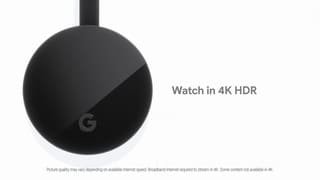
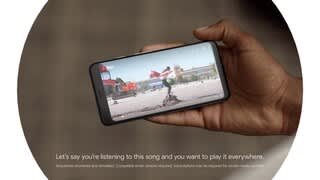
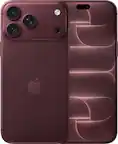
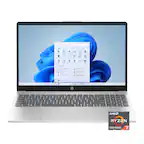
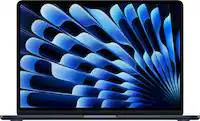
A:AnswerDear Jenn, anything you can display or play on your phone, computer, or tablet will "cast" to your tv , as far as I know. Does not have to be an apple product, android is fine too. As long as you can find the command to "CAST" on your options it should work. What you see on your computer or phone is just an image and you can cast it as you wish to the connected and "found" device.
A:Answergoogle chrome will work with any WIFI, there are all kinds of boosters out there, Comcast has a list on the website of what works with their service, I have an ASUS booster and I have comcast
A:AnswerYou can cast the content of Chromecast-enabled apps on your iOS devices to your TV with Chromecast. Screen mirroring to Chromecast is natively supported only by Android devices, but there may be 3rd party apps that support screen mirroring on iOS devices via Chromecast.
A:AnswerIn general, yes. you may need to choose to stream desktop, or make sure you pick the right app window after you click on the stream icon in Chrome.
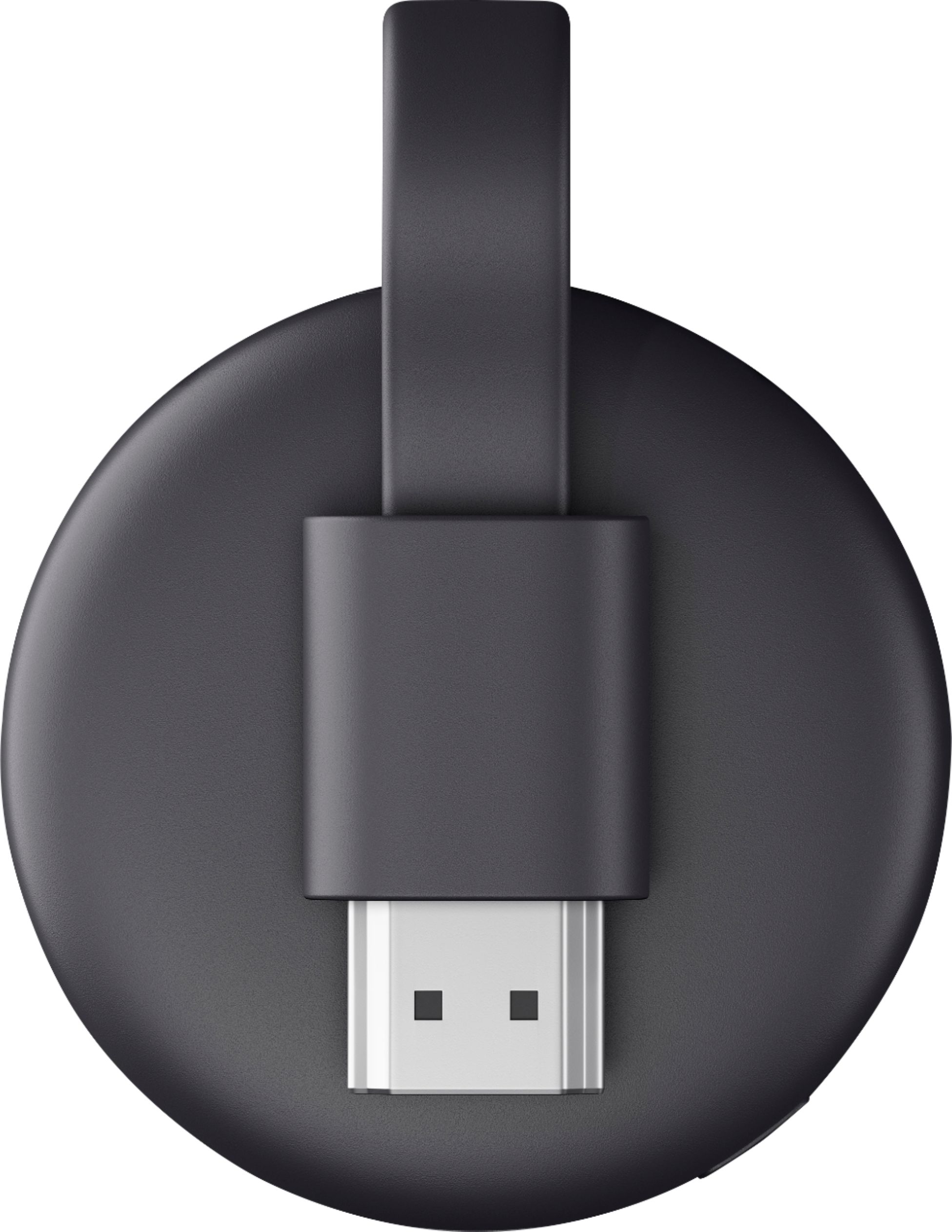
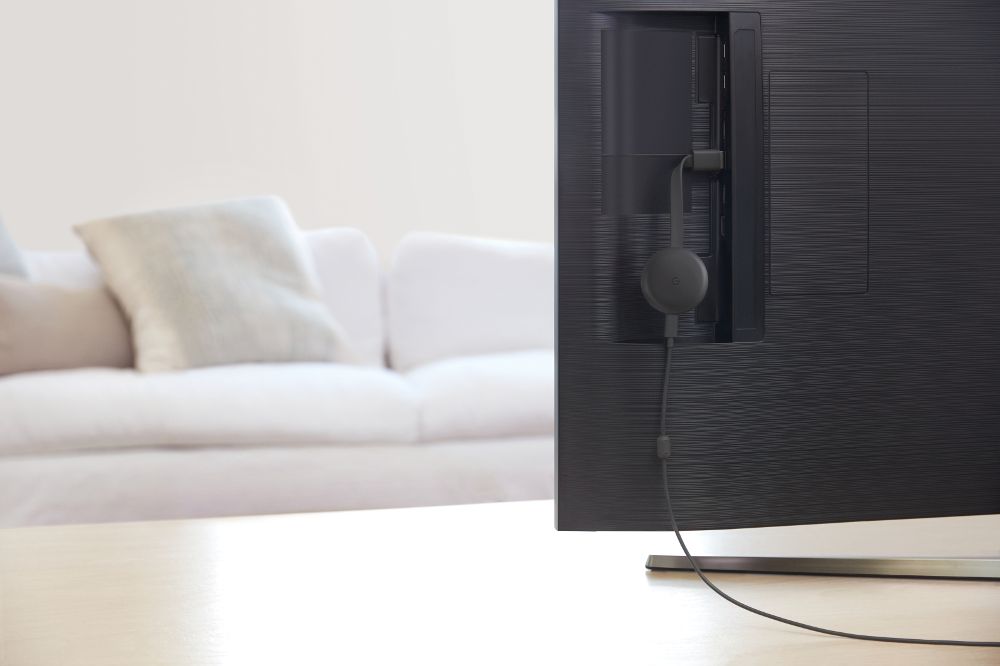
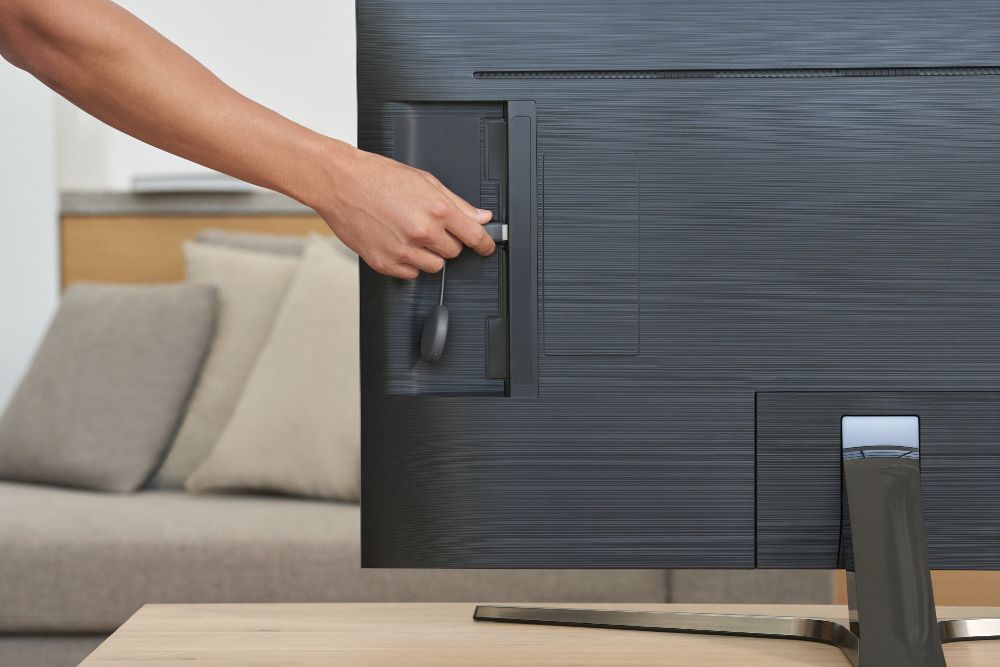
A:AnswerMake sure your phone and TV are on the same Wifi settings. Check that Chromecast is secure in the HDMI port. Go through all the motions again. Press the box on the upper right of the phone that connects to the TV and Chromecast. It may take a several tries. Sometimes try a different app and see if that one will connect. Sometimes you can connect from the Chromecast cell phone app. It does work.
A:AnswerChromecast is not compatible with a Roku device. We recommend connecting it directly to your TV's HDMI port and use your home Wi-Fi network for a stable connection.
A:AnswerChromecast is a streaming device and you can't record programs, or install applications. You can stream content of the Chromecast-enabled apps on your mobile devices to your TV via Chromecast.