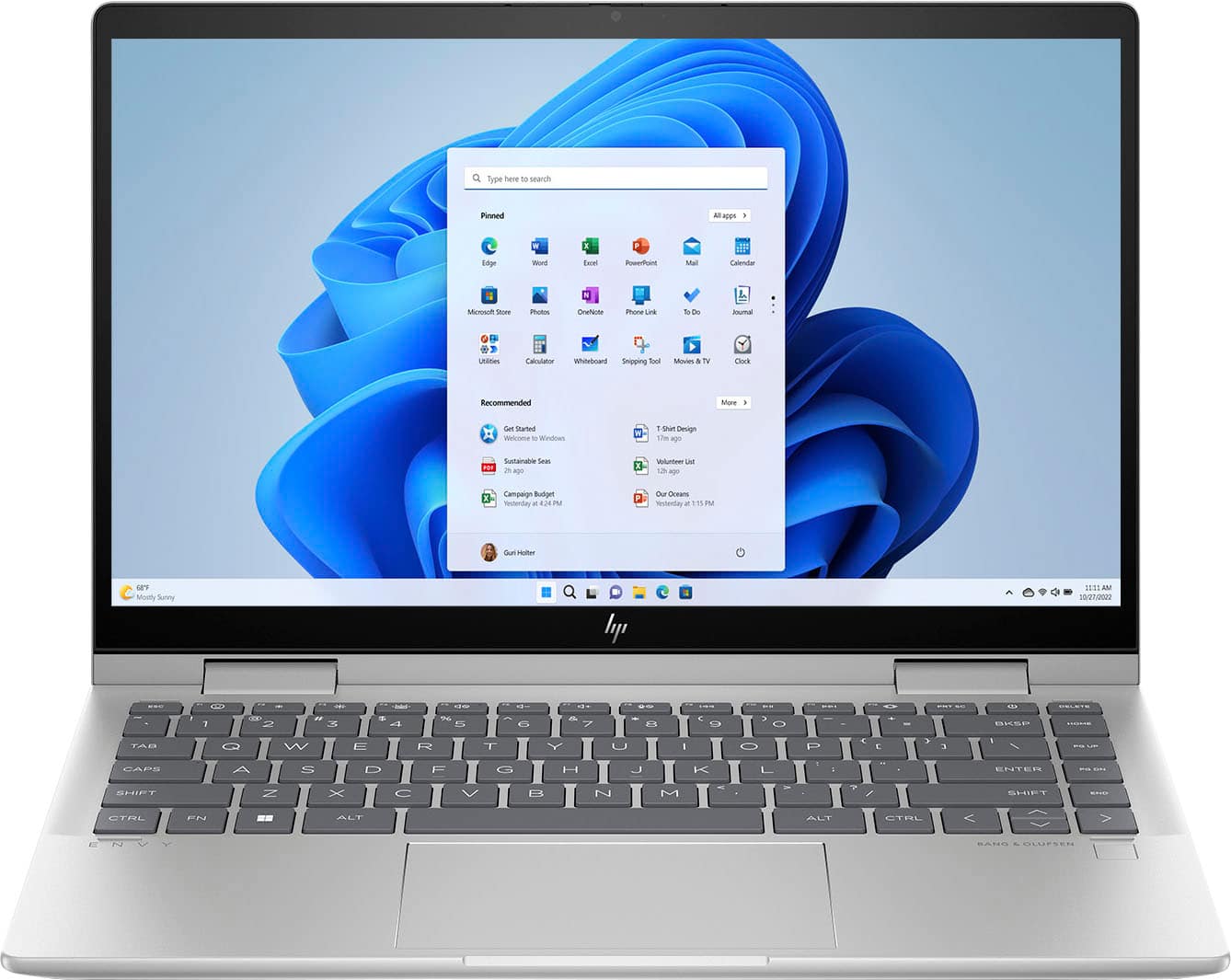
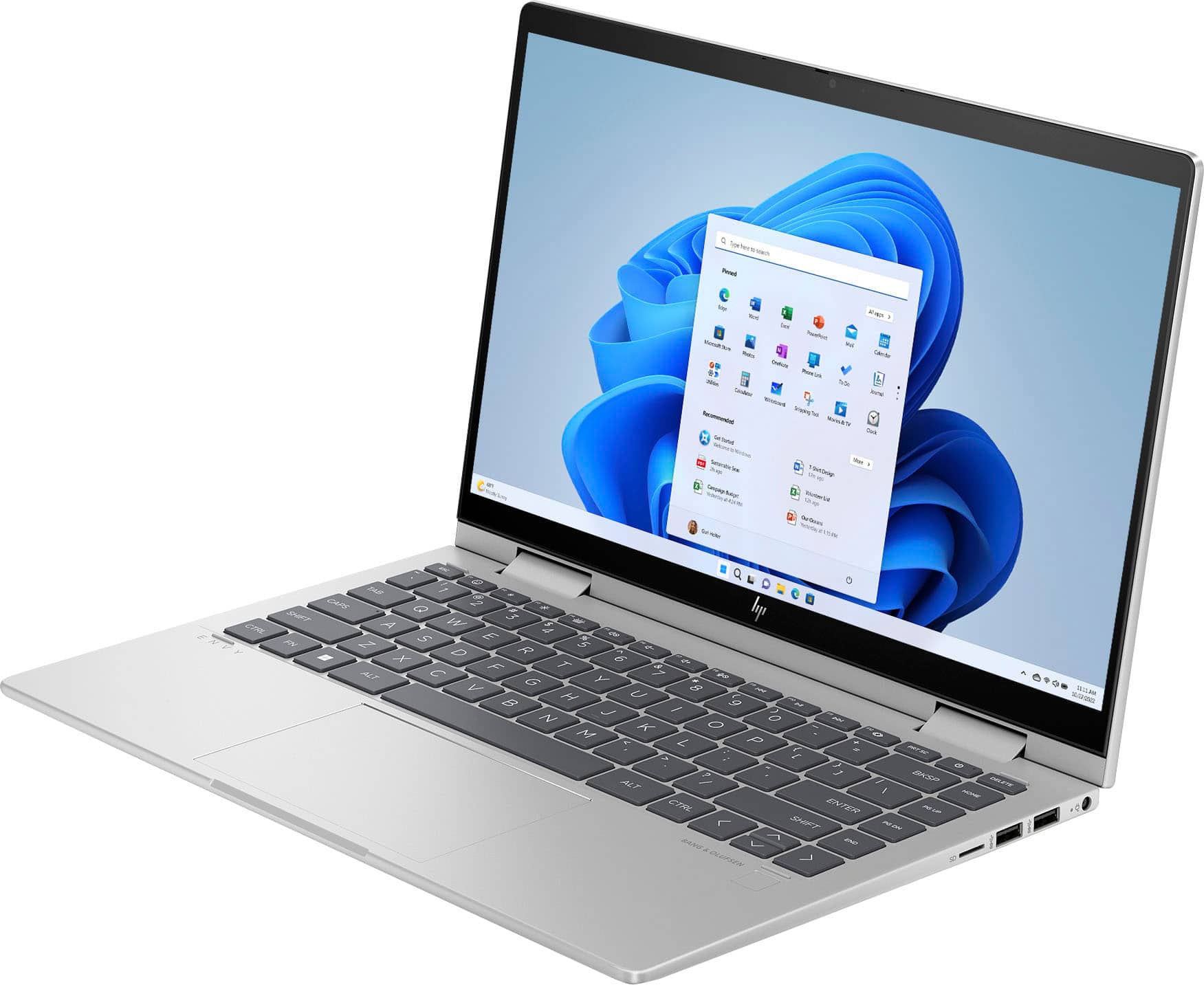
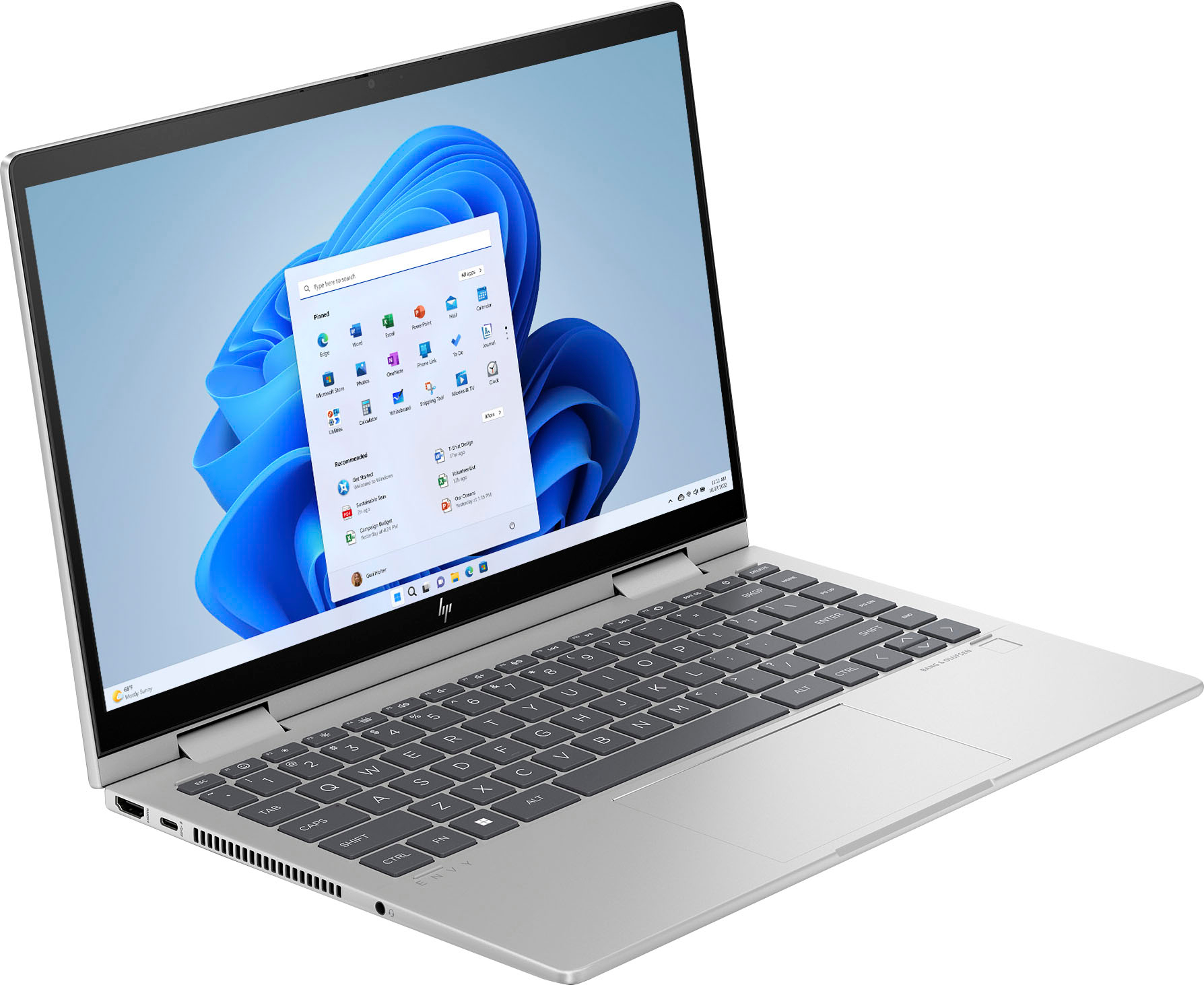
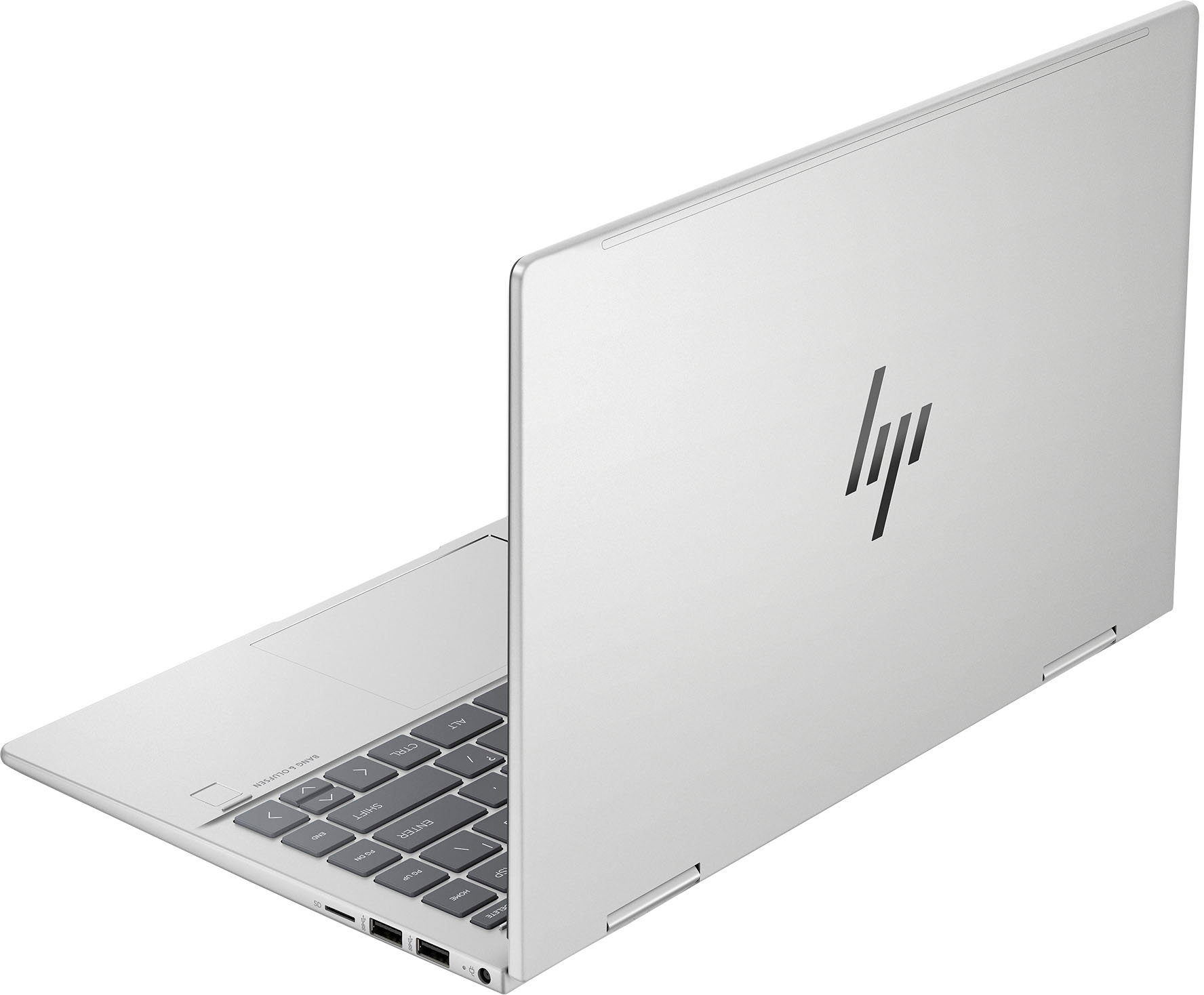
A:AnswerHello, universal presenters do connect and operate properly with the HP Envy model laptop. You can get assistance from the Best Buy agent in finding the perfect presenter for you! Thank you for being an HP customer!
A:AnswerThank you for asking. Yes, with your library card and Libby you can download Kindle books to a PC. Get the Kindle app from the Microsoft Store.
A:AnswerThank you for the question. The Envy 14-es0013dx is compatible with the HP Rechargeable MPP 2.0 Tilt Pen. Best Buy can assist you in ordering one if it's not in stock.
A:AnswerGreetings from the Intel team. Thank you for your question.
No, the HP - ENVY 2-in-1 model 14-es0013dx is not an Intel® Evo™ Certified Laptop. A Laptop with the Intel® Evo™ Platform can be recognized as it has an Intel® Evo™ sticker placed on it by the Manufacturer.
For more detailed information about the Intel® Evo™ Platform , please visit:
https://www.intel.com/content/www/us/en/support/articles/000057480/processors/intel-core-processors.html
https://www.intel.com/content/www/us/en/products/systems-devices/laptops/evo.html
Thank you for choosing Intel! Emilio_Intel
A:AnswerYes, Windows is gonna have 8Gb for any upgrades through all "feature" update for windows 11 for a good time to come. I wouldnt worry about upgrading to 16gb anytime soon, unless your into gaming, then you shouldnt be looking at this laptop anyways.
A:AnswerThank you for reaching out. From Page 20 of the User Guide:
Connecting Bluetooth devices
Before you can use a Bluetooth device, you must establish a Bluetooth connection.
1. In the taskbar, select the Search icon, type Bluetooth in the search box, and then select
Bluetooth and other devices settings.
2. Enable Bluetooth, if it is not already enabled.
3. Select Add device, and then in the Add device dialog box, select Bluetooth.
4. Select your device from the list, and then follow the on-screen instructions.
NOTE: If the device requires verification, a pairing code is displayed. On the device that you are
adding, follow the on-screen instructions to verify that the code on your device matches the pairing
code. For more information, see the documentation provided with the device.
NOTE: If your device does not appear in the list, be sure that Bluetooth on that device is turned on.
Some devices might have additional requirements; see the documentation provided with the device.
If you continue to have difficulties with pairing, please contact Support.HP.com to assist.