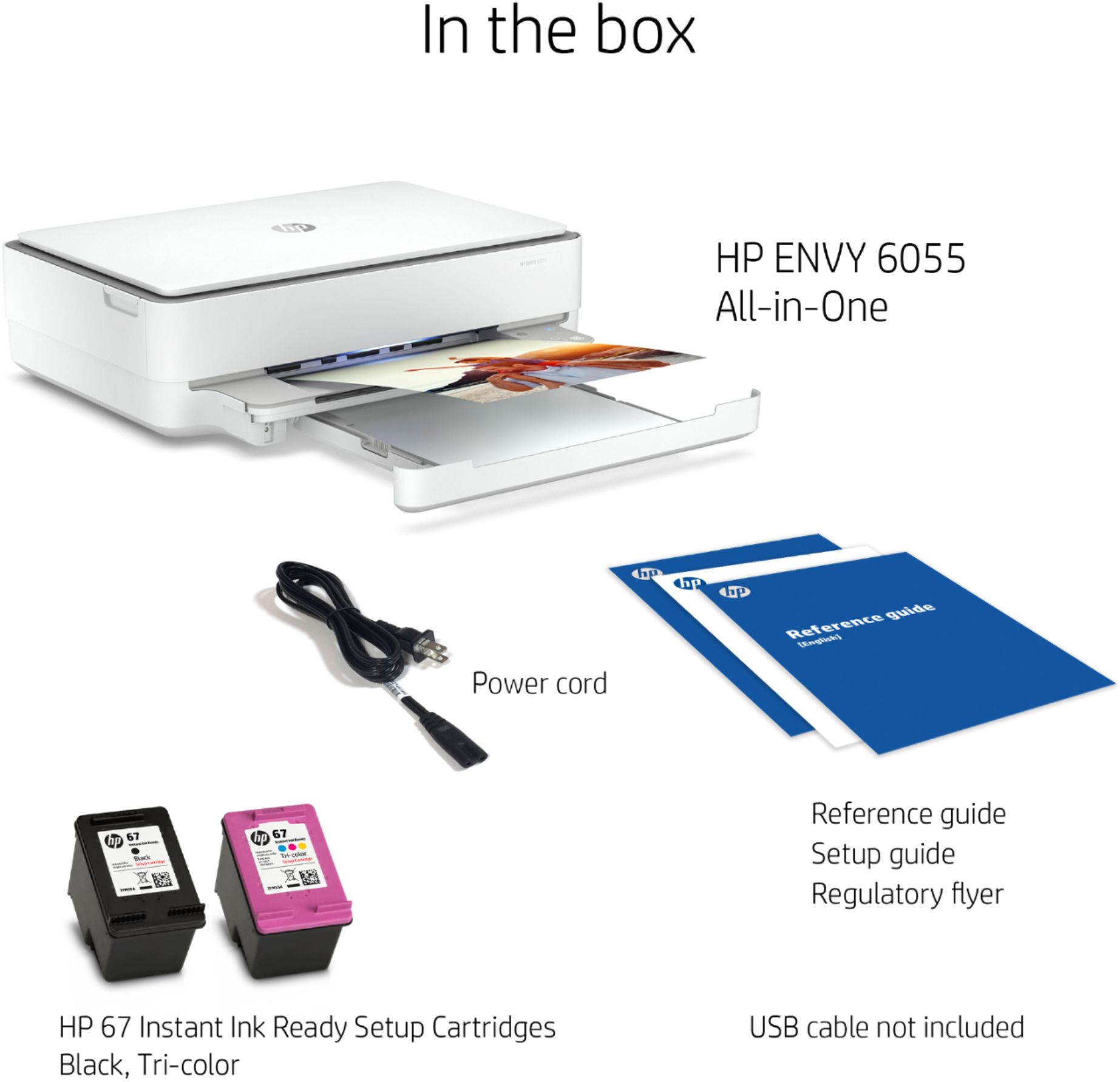
A:AnswerThis printer comes with setup cartridges in the box. The yield of setup cartridges varies by model but tends to be enough to get the average user through setup and initial printing jobs. You can learn more about Ink and Toner by the model at https://bit.ly/3cQrnaN
A:AnswerIt does work with glossy sticker paper. You just need to change the paper in the app to recognize the paper. We are currently using the printer to print stickers on glossy paper. You just need to be sure you give it ample time to dry!!
A:AnswerIt's "HP instant ink". Printer does come with some ink and there's also the option to sign up for automatic ink refills which are affordable. Plans are based on the number of pages printed monthly, not the ink you use. And color & black/white pages cost the same. If you sign up, your printer notifies you and the automatic refill that it's running low and they send you new cartridges right away. Cancel anytime. Hope this helps!
A:AnswerBella, lift the panel holding the glass. You will see a bar there in rear with two pinch tabs. Pull towards each other. It will lift out of the way to pull the paper jam out of the way. Then just put the bar back into position. You can also go on line and see on their manual how to do this also.
A:AnswerYes, you can print from an iPhone. Just be sure the iPhone phone and the printer are on the same wireless network. We recommend using the HP Smart App: https://support.hp.com/us-en/document/c03561640
A:AnswerIt can handle duplex printing if the card stock is 53 lb. or less. If it's more than that, there may be issues with the card stock jamming, due to the paper path needed to print on both sides.
A:AnswerApologies for what you're experiencing. Please reach out to Support.HP.com or call 800-474-6836 for assistance. Our Tech Support Team will be able to diagnose and recommend a fix for your problem.
A:AnswerHello, Sandy. Yes, you can scan and save a document on your laptop. We recommend using the HP Smart app. Here are some instructions on how to scan: https://support.hp.com/us-en/document/ish_2275901-2074064-16
A:AnswerYes, you can. You can connect the printer to a computer with a USB printer cable. If you're replacing a printer that was connected that way, you can use the same cable.
A:AnswerHello. We are sorry to hear about the challenges you are experiencing. You would go to https://123.hp.com/setup to install the printer drivers on your MacBook Pro. You can also install the printer with the HP Smart app on the MacBook Pro. Here is more information on the HP Smart app: https://bit.ly/3cEujqO If you need further assistance, visit https://support.hp.com