A:AnswerDepends on the games and settings of course.
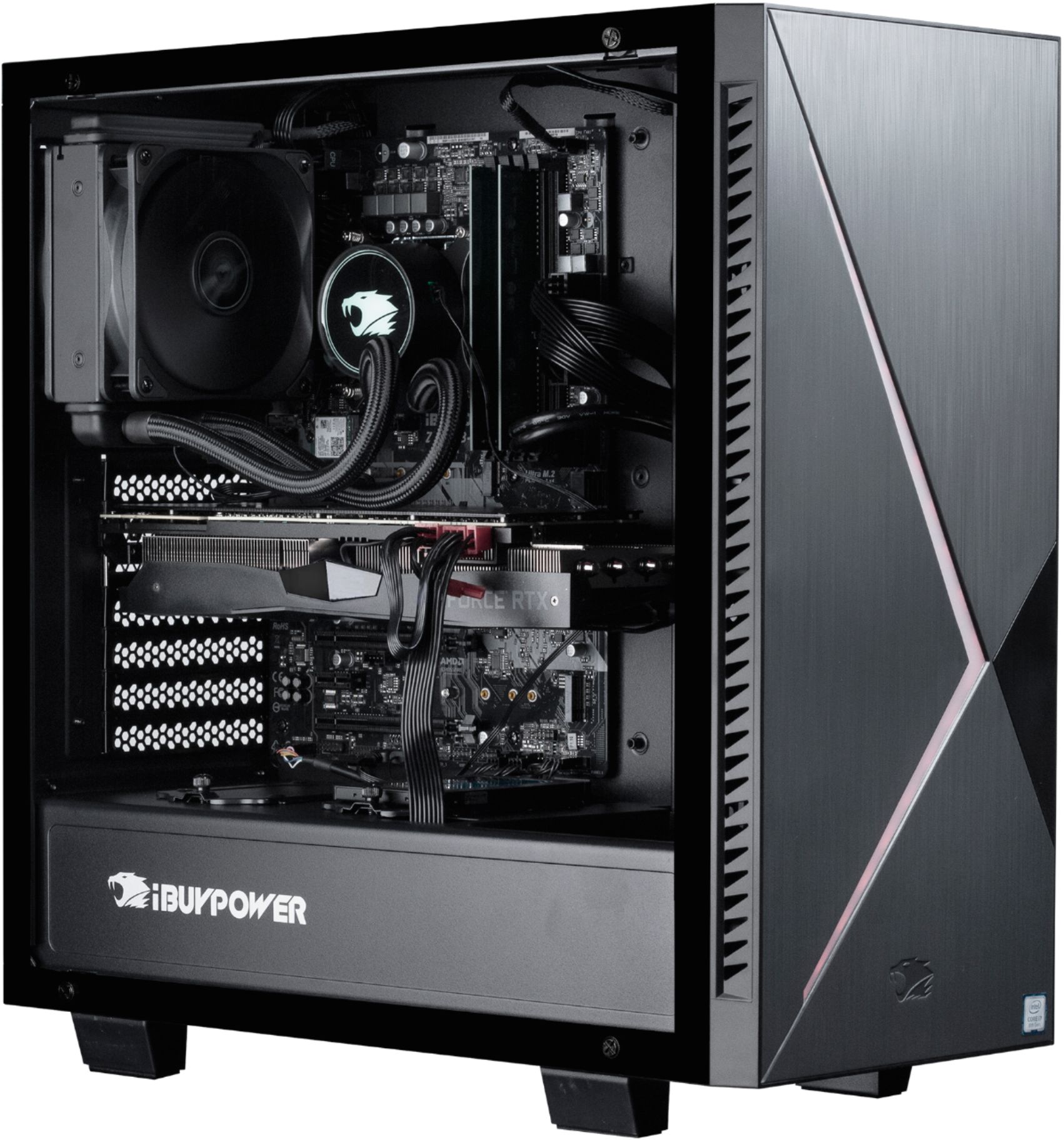
CPU wise: With the liquid cooler it typically runs around 50C to 55C and peaks of 60C on Borderlands 3 with everything turned onto Ultra settings, and a locked V-sync rate of 60fps. You can always use the Intel Extreme Tuning Utility to adjust your clock speeds and lower the maximum GHz of your CPU which will keep it cooler, if you don't need the performance
Always use caution when adjusting the clock speeds of your CPU. But in testing, I've managed to keep my CPU around 35C with peaks of 42C on lower settings, by lowering the turbo boosts on the CPU. In other words, overheating issues shouldn't be a big deal.
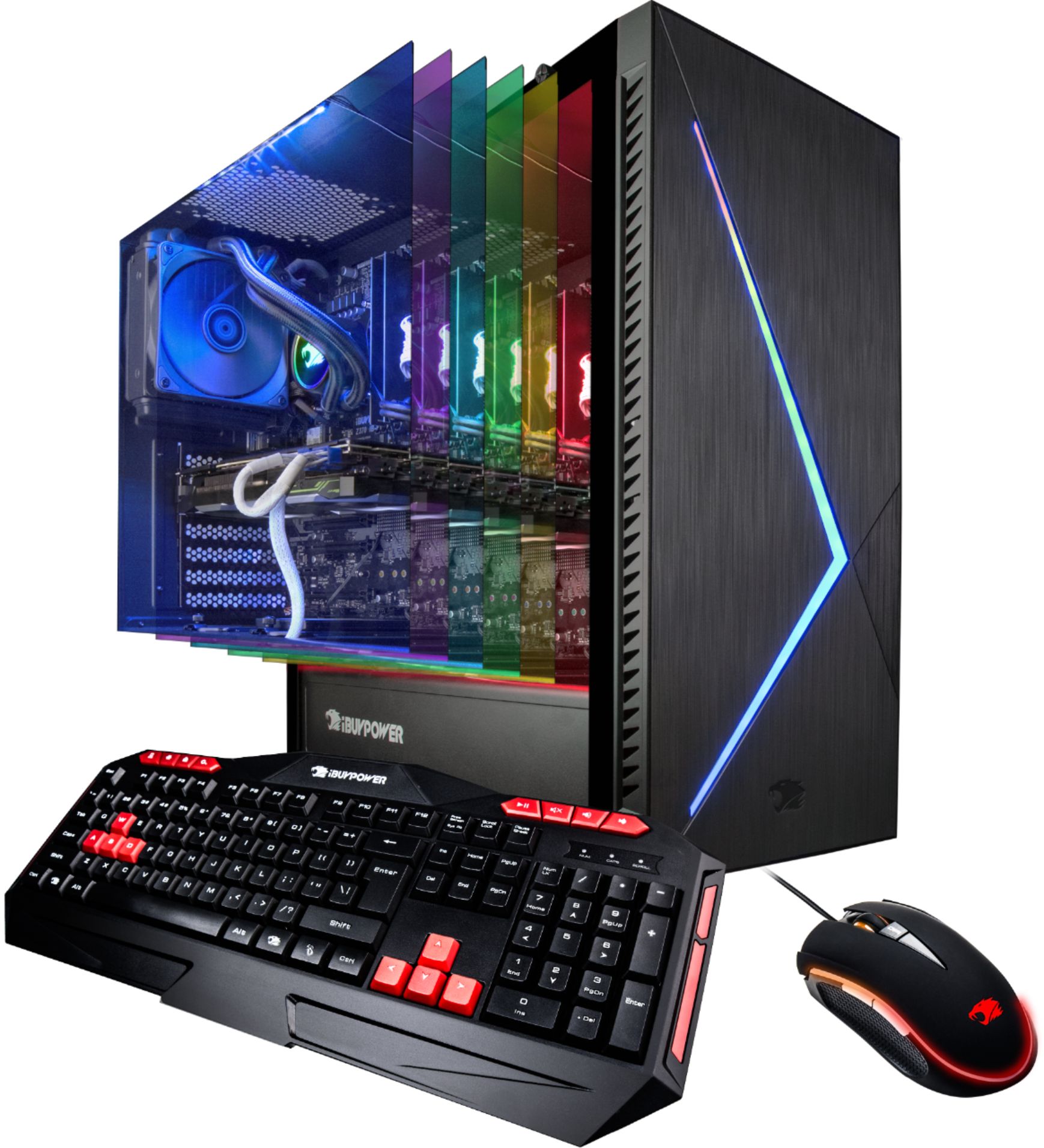
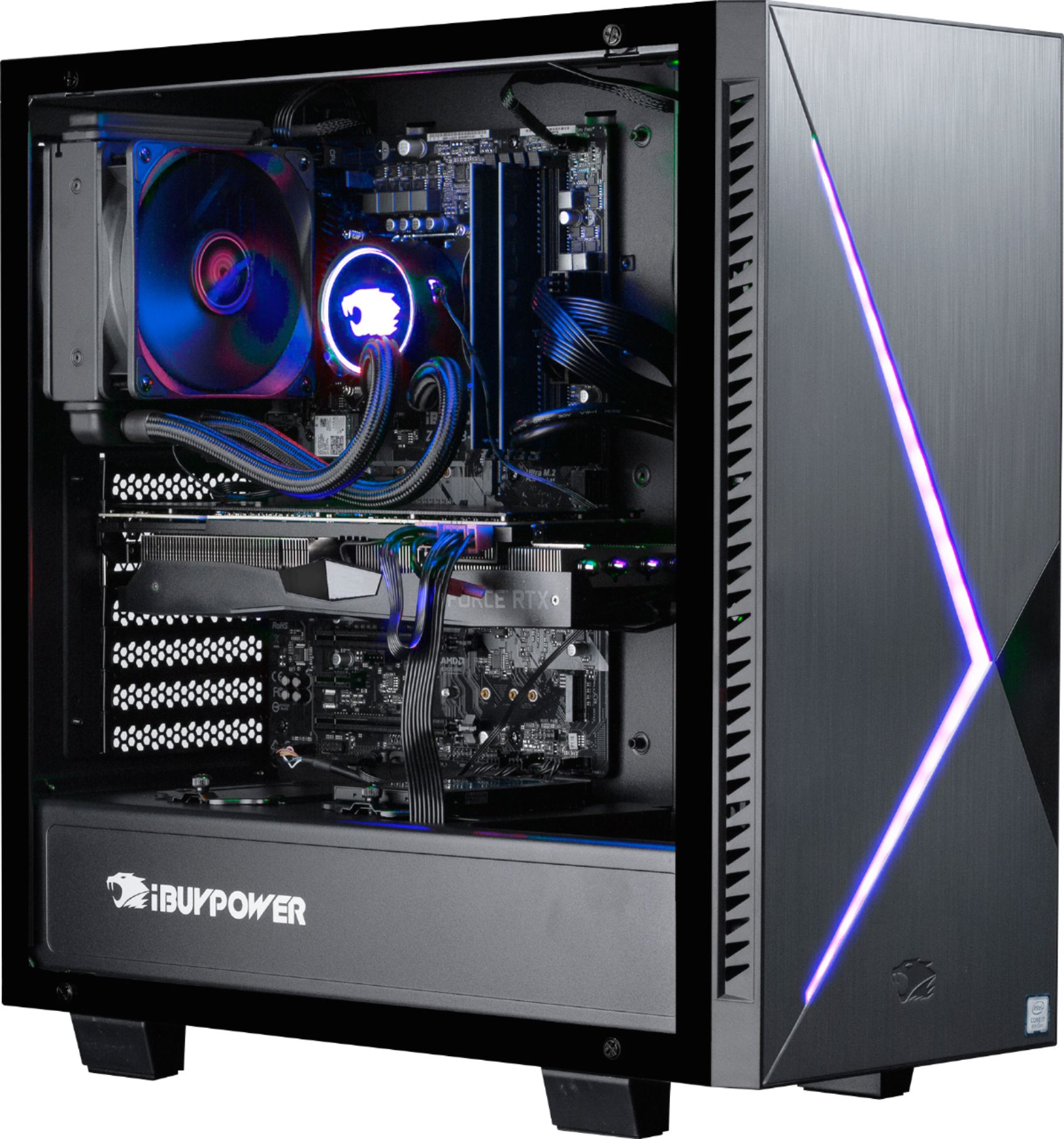
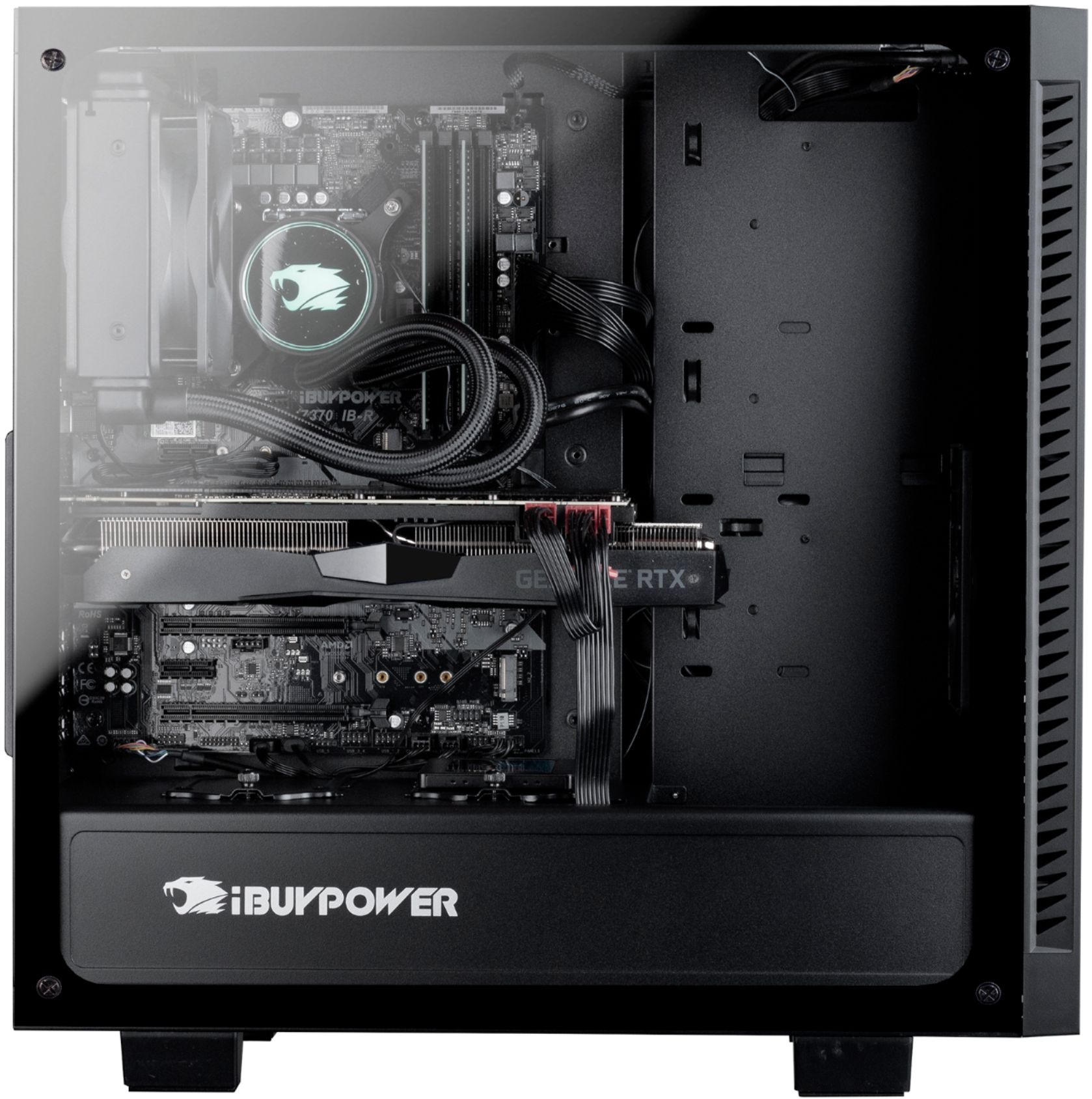
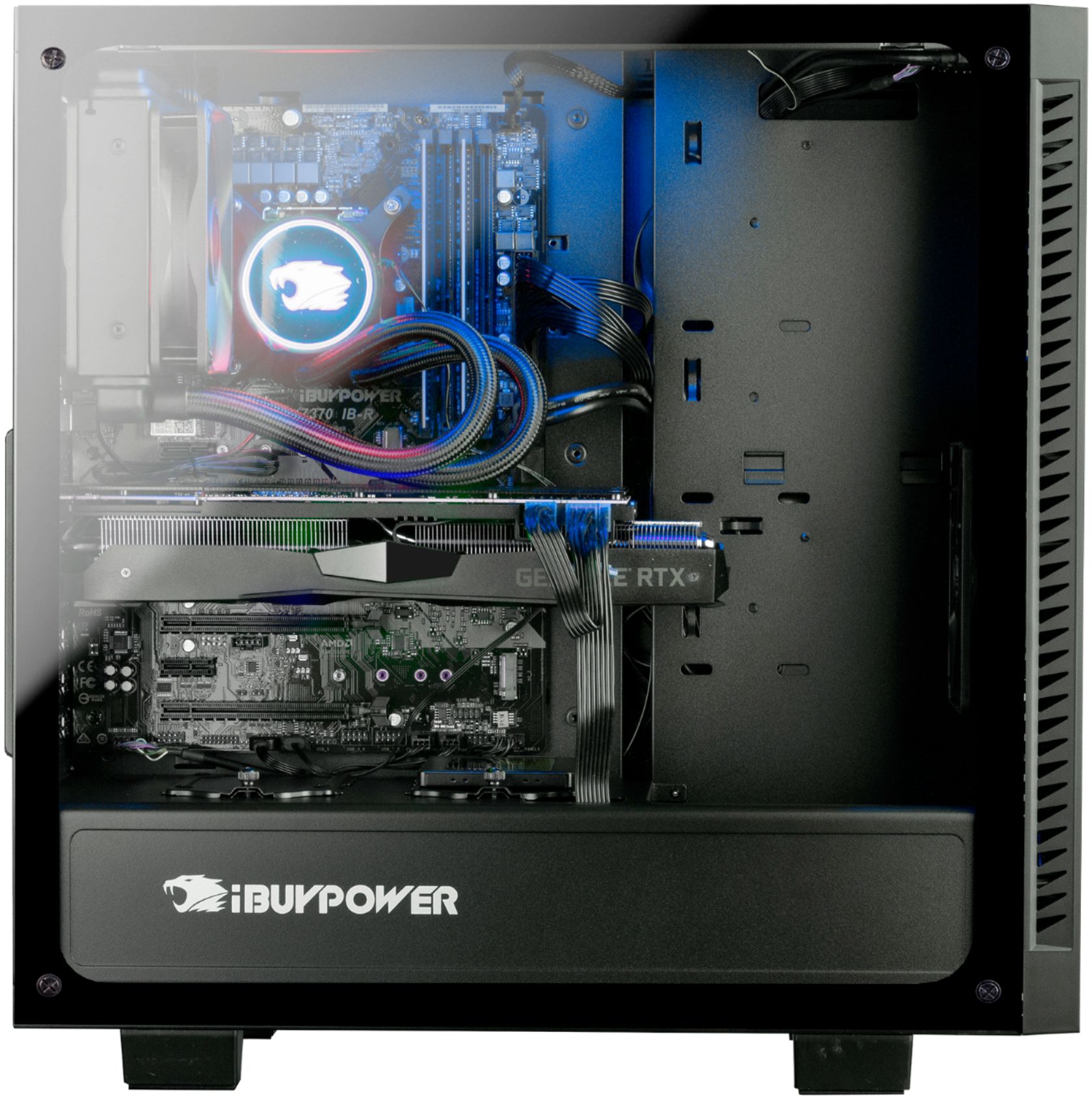
The GPU side of things is a bit different. There's only two case fans on the unit. One intake on the front, and an exhaust through the CPU's radiator. Under high level gaming the GPU gets warmer, around 60-70C, sometimes more. However, the system is relatively modular, and easily upgradable. You can add more case fans which should help with the heat levels. If you would add additional airflow, you'll need to use a low profile fan on the top, as the radiator takes up a great deal of space. You'll need a 120x120x15. A standard 25mm thickness fan will work everywhere else.
A:AnswerYou can easily push up the frame rates and the resolutions with the power this GPU has. Typically for gaming, you're gonna want a low latency monitor, with 1ms being the best available right now. Additionally consider a refresh rate of 75 Hz or 144Hz. Resolution is generally gonna be up to you, but anything higher than 1440p is wasteful as you'll end up sacrificing fps for pixel density, which has diminishing returns. Screen size is important to consider as anything smaller than 27; its difficult to reasonable tell the difference between 1440p and 1080p. In other words, getting a higher resolution in a small screen has minimal cost benefit and significant diminishing return. 32in is about the size range when 4k starts looking better than lower resolutions and there are few 32in gaming monitors to begin with. Finally, picking up a monitor with G-Sync will drastically smooth out your gameplay.
To summarize, the best monitors are gonna be 24-27in, and 1080 to 1440p and around 75Hz to 144Hz.
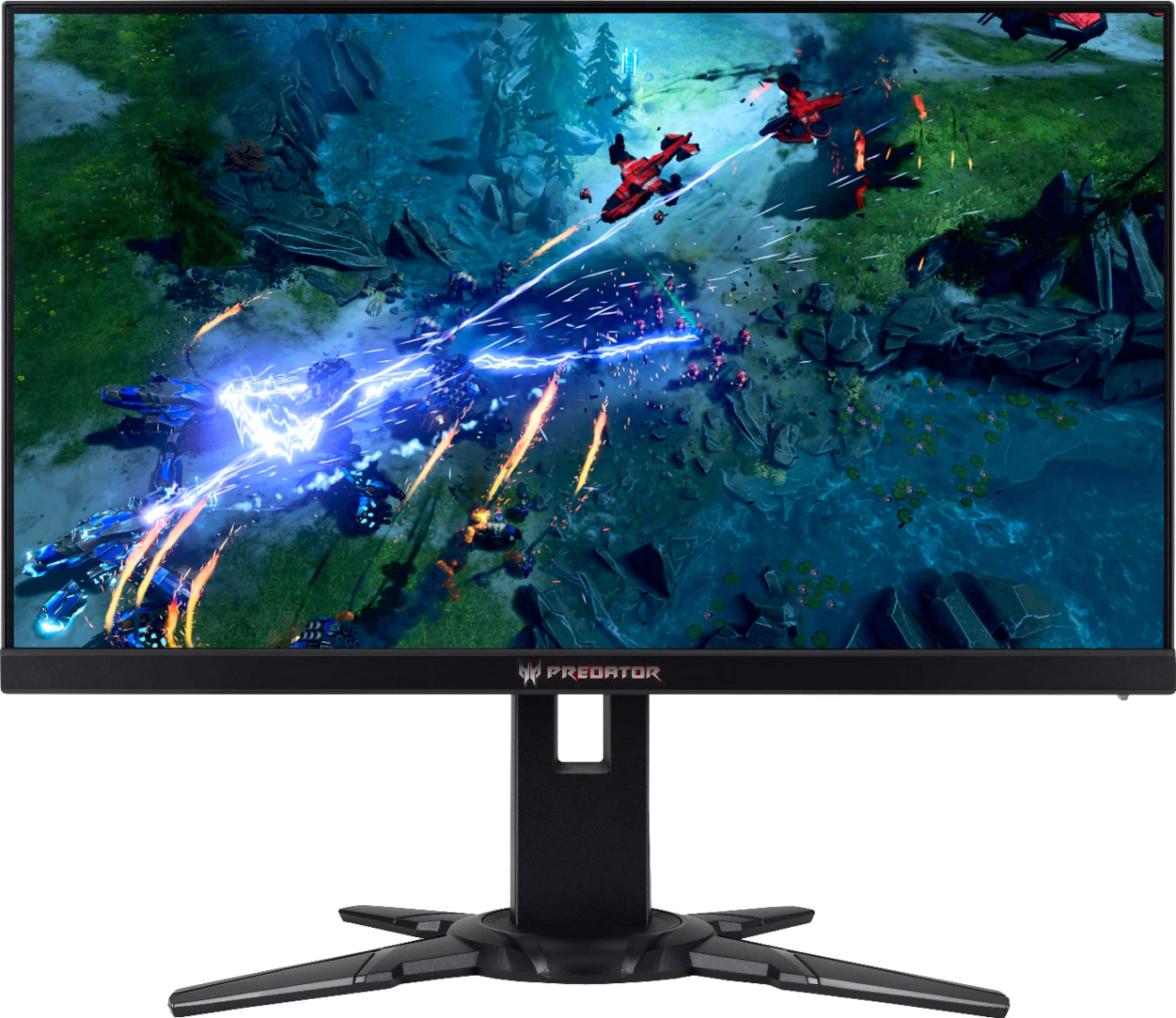
Recommending two products most Best Buys typically have in store on display. The Predator is probably the best gaming monitor you can buy, at a whopping 240Hz and G-Sync for ULTRA smooth gameplay; however sacrifices some resolution to do so at 1080p, which at 27 in isn't as crisp as 1440p would be. Its also $600USD.
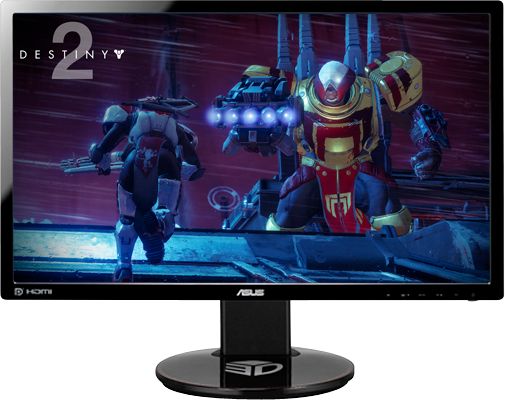
The second monitor, the Asus is a great all round best bang for your buck monitor. 144Hz and 1080p on a 24 in screen. Doesn't have G-sync but at 144Hz you would need a G-Snyc monitor next to it to tell the difference. Especially if you enable V-Sync in your games. Essentially the ASUS is probably the best all round monitor, capable of tapping into the power of an RTX 2080, without busting up your wallet.
A:AnswerFor overclocking, mine came with software that lets me do it directly in Windows. Check with the motherboard manufacturer to see if you can get similar software. Mine came with the ASRock Z390 Phantom Gaming 4S.
A:AnswerThere is an ARC fan when you peek in to the right of the inside of the pc. there is a mesh vent behind it. you can mount the fans right on top of it!
A:AnswerYou will need to buy a monitor and cable to connect to PC and of course have internet service and the respective equipment such as cable modem or wifi router, but check with your internet provider as they will determine what equipment is required If using WiFi you need to attach 2 provided attennas in the back of pc to have a useful range. Initial setup instructions for that are provided I think but it's not rocket science. You will want some antivirus software and you should update drivers for intel, nvdia etc as standard PC upkeep. That is an advanced topic, not required as most people don't even know what it means but you can ask someone to help explain how. It helps any PC operate properly. Ask a Best buy representative for more information.