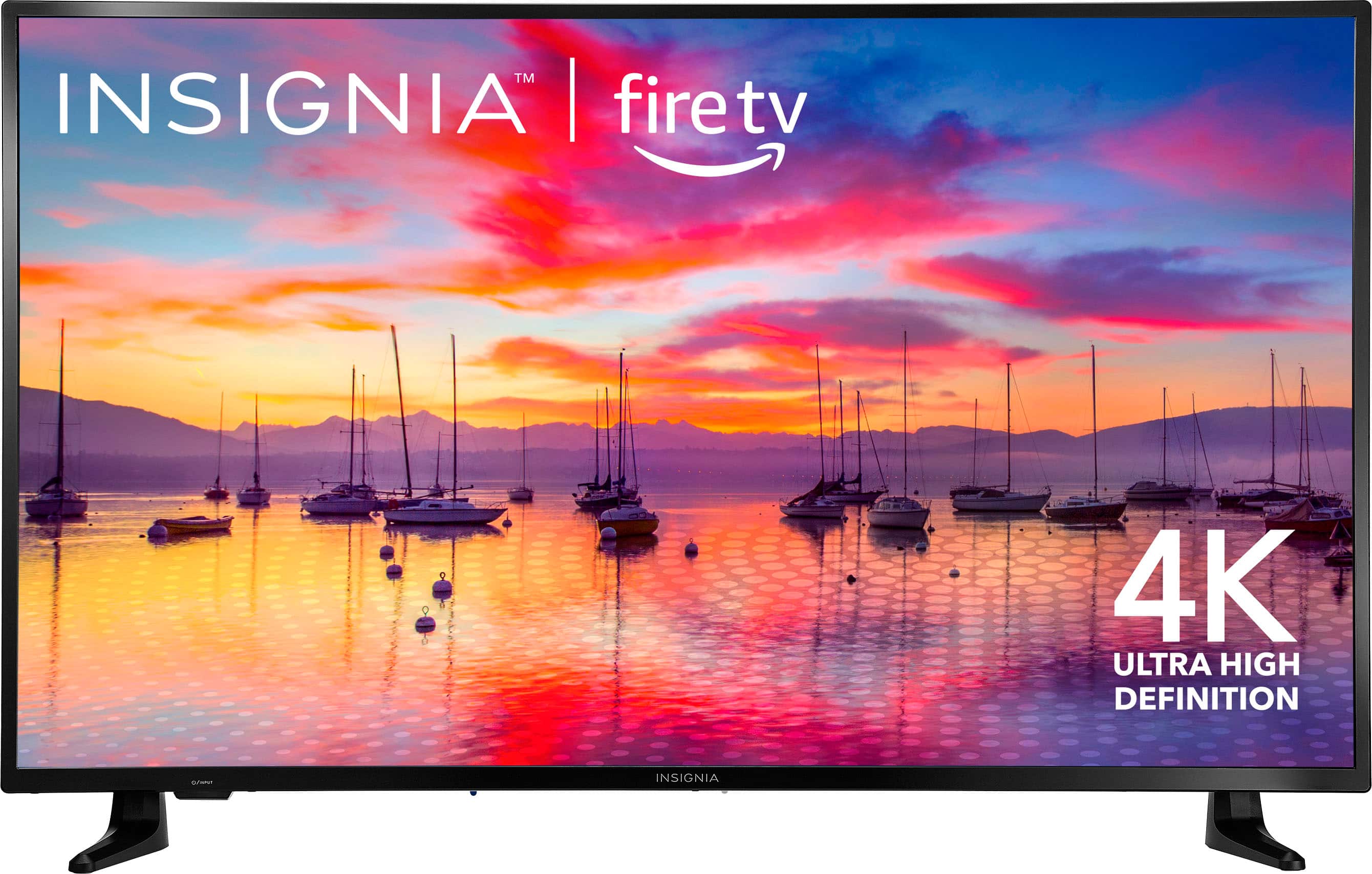
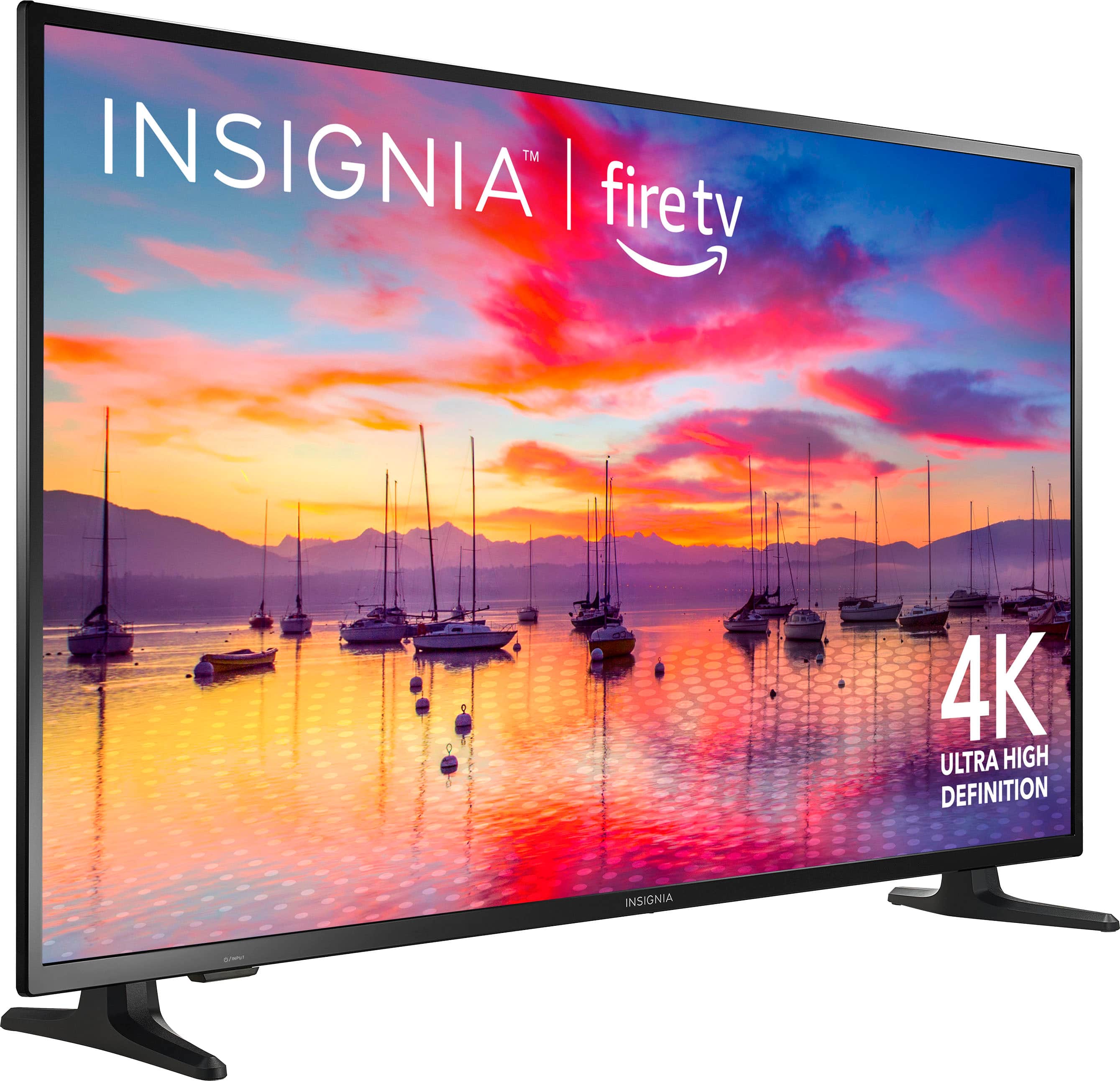
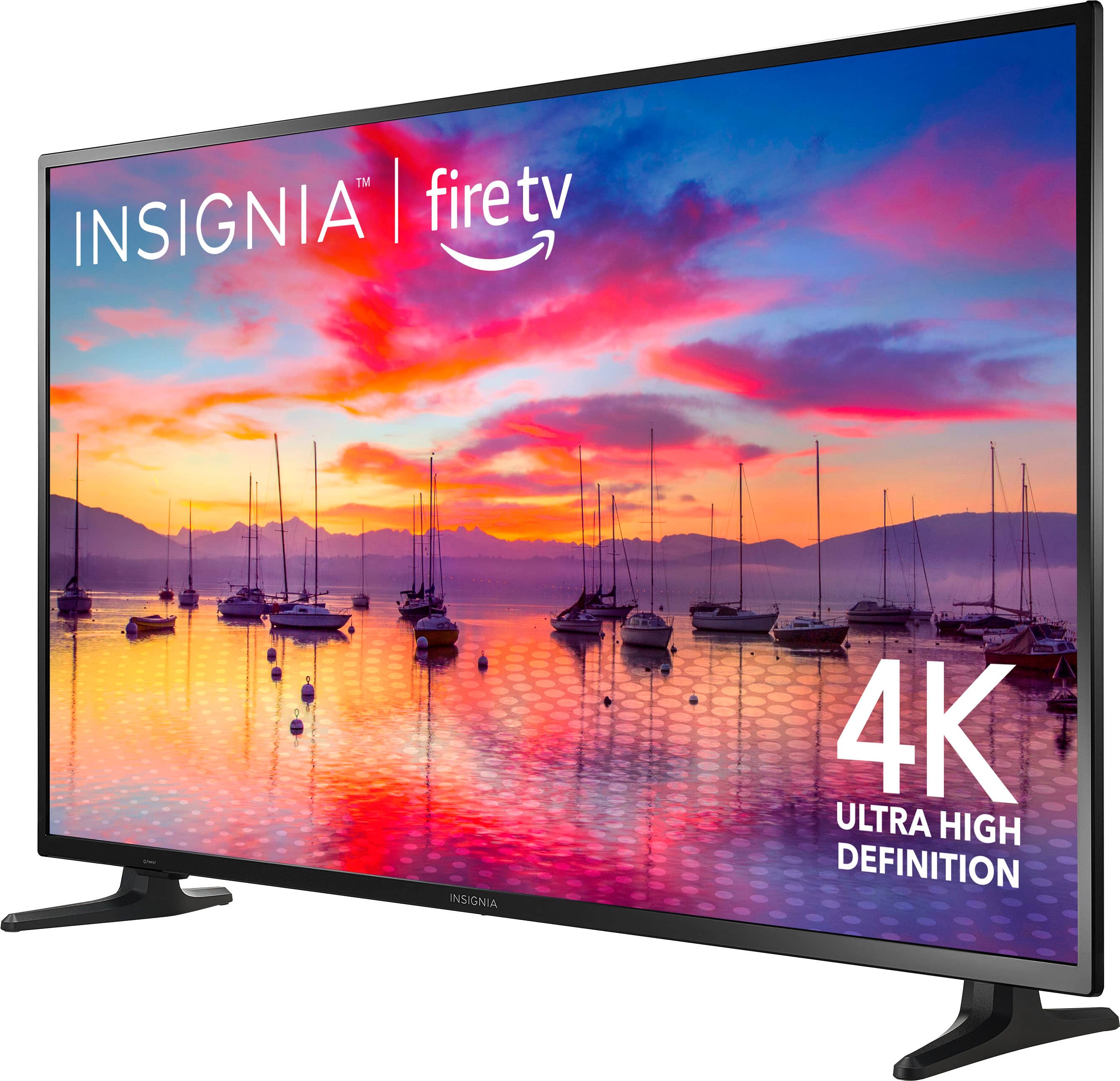
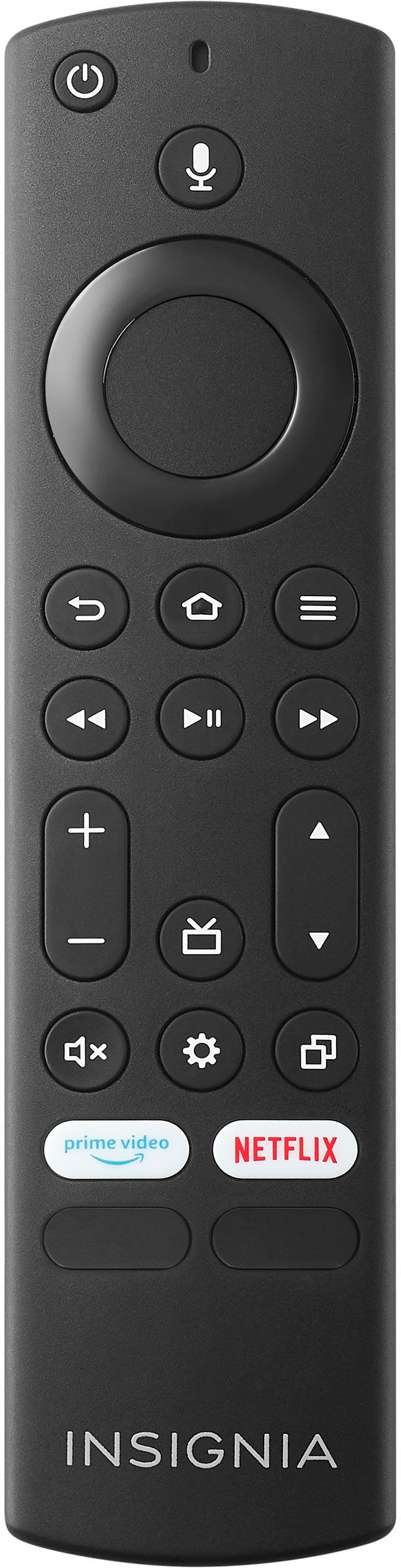
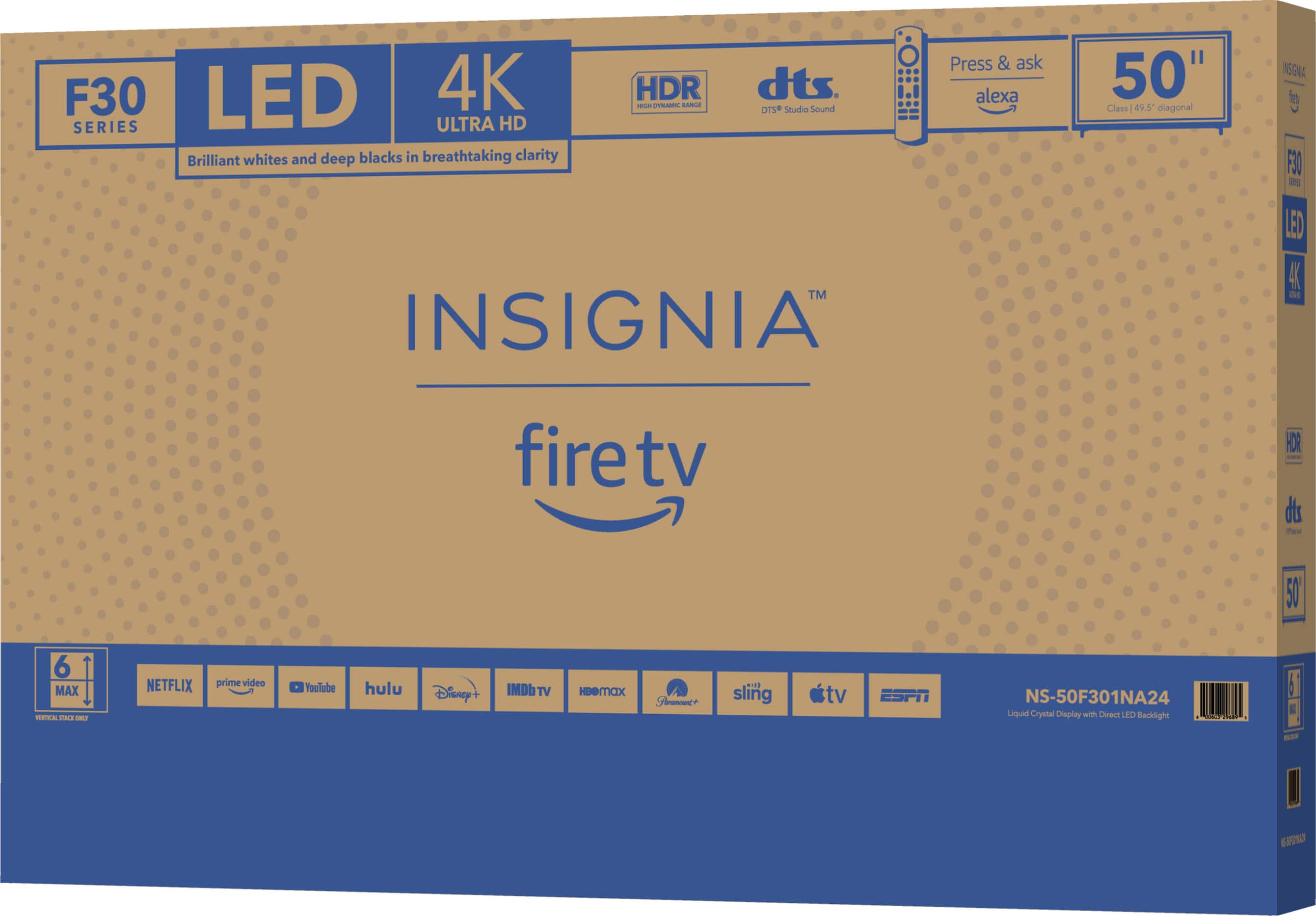
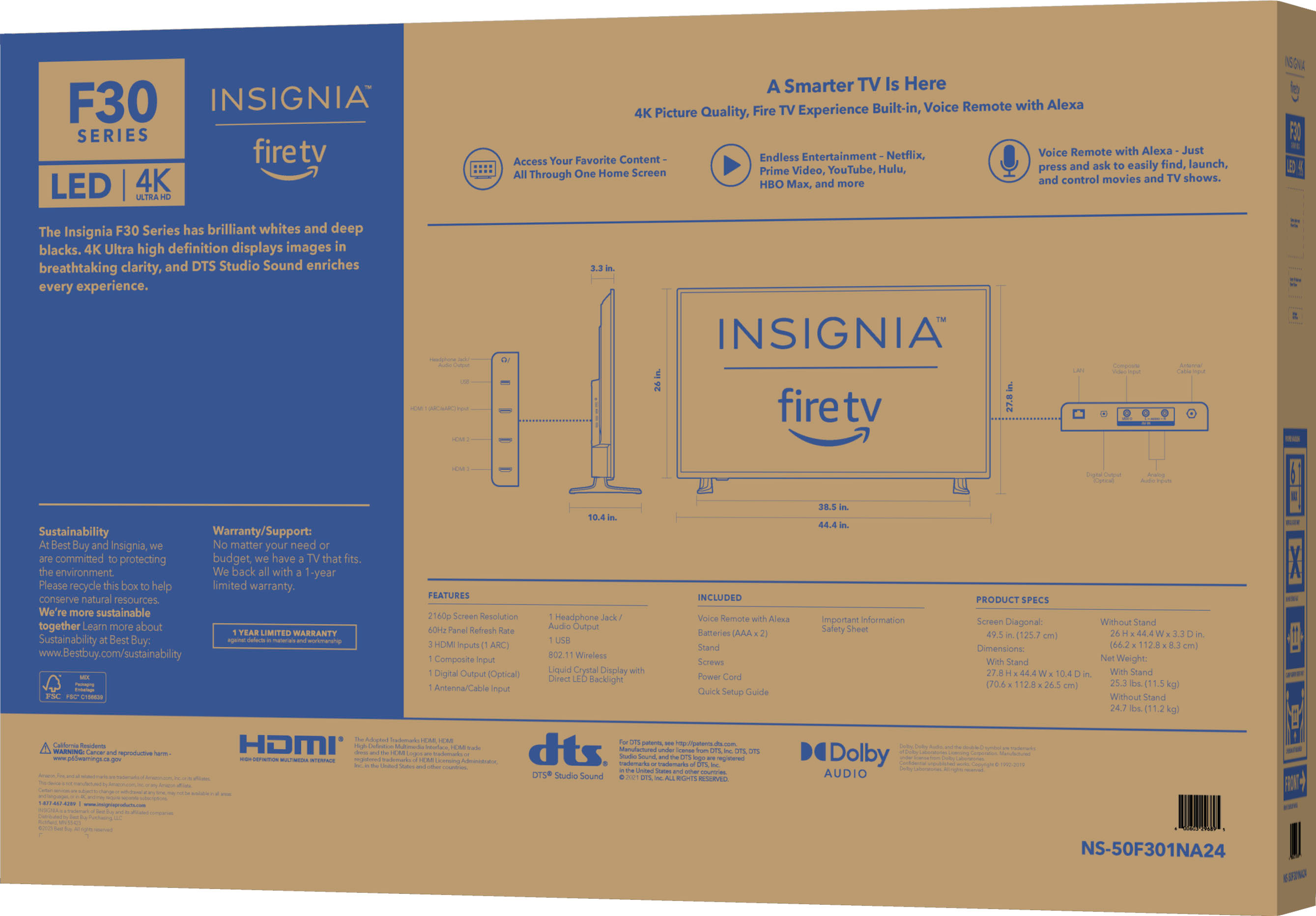
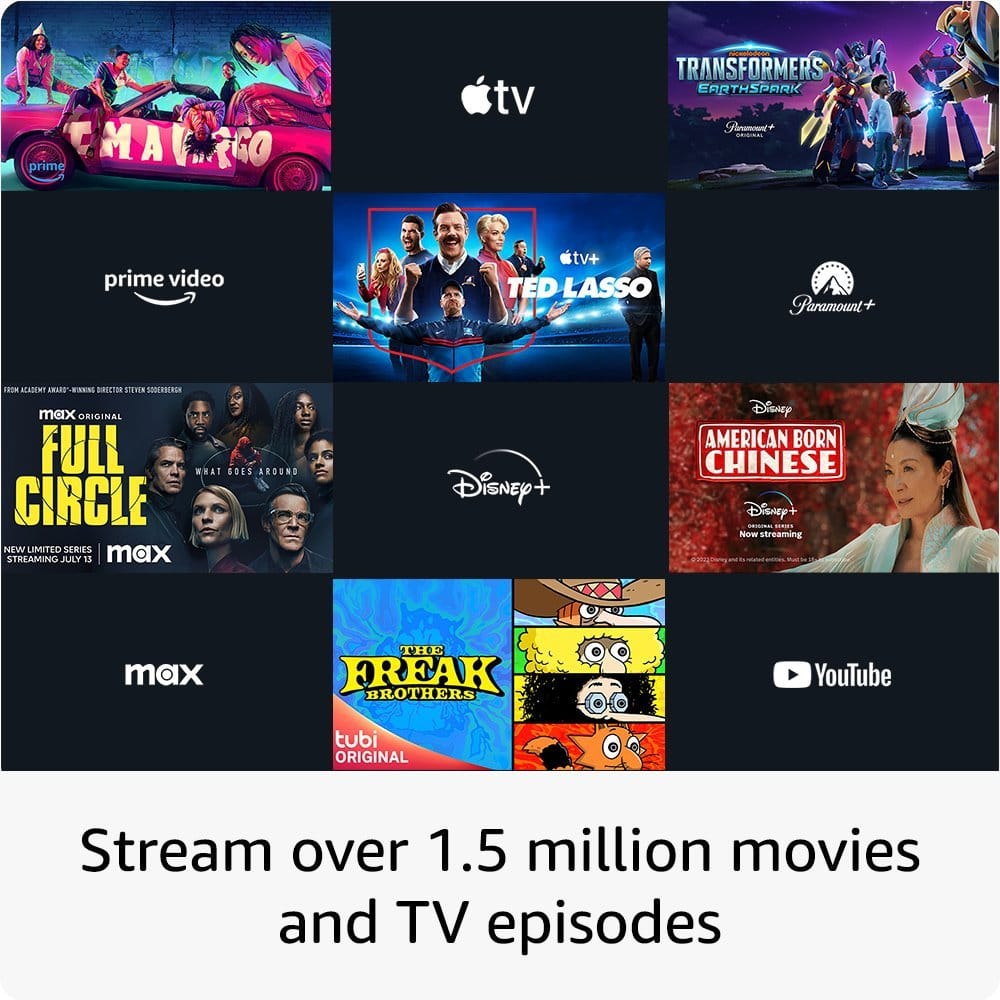
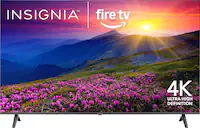
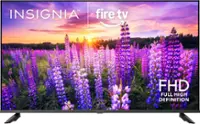
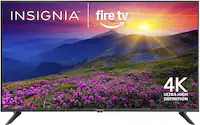
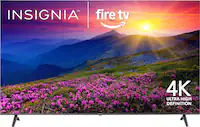
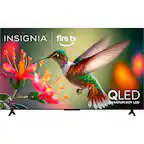
A:AnswerThank you for your inquiry! Yes, the Insignia™ 50" Class F30 Series LED 4K UHD Smart Fire TV supports the Spectrum app. Since it is a Fire TV, you can download the Spectrum TV app directly from the Amazon Appstore. To install the Spectrum app, ensure your Insignia Fire TV is powered on and connected to the internet, then press the "Home" button on your remote to go to the main screen. Navigate to the "Appstore" or "Apps" section, use the search function to look for "Spectrum TV," and select the app from the search results. Click on "Get" or "Download" to install it. Once installed, open the app and sign in with your Spectrum account credentials to start streaming. Keith | Insignia Support https://www.bestbuy.com/site/insignia-50-class-f30-series-led-4k-uhd-smart-fire-tv/6525240.p?skuId=6525240
A:AnswerHi Allanlsking,
To enable,your tv turns on displaying the last used input fallow the steps below:
1. Go to "Settings" > "Display and Sound" > "Power Controls" > "Power On" > and select "Last Input".
2. Press "Home" > "Settings" > "Inputs" > and select either "HDMI 1", "HDMI 2", or "HDMI 3".
3. Power the TV off and power it back on to validate the resolution.
Insignia Products
Marites
www.bestbuy.com/site/brands/best-buy-brands/pcmcat1596746025285.c?id=pcmcat1596746025285
A:AnswerI’m not exactly sure the exact number of apps but you definitely have many choices and there’s the App Library. You will not miss out on any App. Plus these TVs have the best quality picture.
A:AnswerThe only way to do it is through adb:
2. Yes you can, you just can't do it from the TV settings.
I have been disabling sleep on my FireOS devices for years now using ADB, and I did it on both my 50" and 55" Amazon Omni sets when I bought them this year.
Easiest way is with adbLink but you can do with with any ADB terminal program. The nice thing about adbLink is that you just have to click a button to turn off sleep.
Note that these instructions work for any FireTV device, not just Omni TVs. Also, I don't bother to turn off my screensaver because I rather like it, and only the sleep timer needs to be set to prevent the TV from always blacking out.
Common Instructions
• In your FireTV settings go to "Device & Software->Developer Options" and turn "ADB Debugging" on. You can turn it back off again when you have finished the rest of these instructions.
• In "Device & Software->About->Network" make note of your TV's IP address.
Note that recent FireOS updates hid the Developer Options menu unless you explicitly make yourself "a developer". This was to make FireOS work more like the standard Android functionality it is built upon. Your Android phone or tablet works this way and Amazon was out of step by enabling the developer menu by default. To make this option visible again all you need to do is go to "Device & Software->About" and then keep clicking on "My Fire TV" or "Your TV" or similar until it tells you that you are a developer. Usually about 6 clicks will do it. The Developer Options menu will now be visible as described above.
adbLink Instructions
This is the simplest method. adbLink is available for Windows, Mac, and Linux.
• Install adbLink and open it.
• In the "Ad Hoc IP" field enter the IP address you recorded earlier.
• Click "Connect". You should see the connection appear in the two left boxes at the top of the adbLink window.
• (adbLink 5.0) From the adbLink menu bar select "Utility->Set timers" or...
• (adbLink 5.1) Click the "Edit Timers" button.
• Select "Sleep off" and if you like, "Screensaver off" too.
• Click Ok.
You are done.
Alternate ADB Console Instructions
If you prefer not to use adbLink, or you want to turn off the sleep and/or screensaver timers manually then you can use any ADB console utility you like, including the one in adbLink. I won't give instructions for installing and configuring an ADB console utility since I don't know which one you want to use. There is at least one Android ADB terminal APK you can sideload onto your FireTV device and access ADB via localhost (127.0.0.1), but I prefer to use an external terminal over the LAN.
Note that the instructions shown here are the same ones that adbLink issues behind the scenes when you use the simple method explained in the previous section.
• Open your ADB console of choice and connect it to the IP address you recorded earlier. If you want to use the adbLink console then connect adbLink to the FireTV device as described in the previous section but then just click "ADB Shell" instead of using the menu to to open the Set timers window.
• You can check your current sleep timeout with this command.
settings get secure sleep_timeout
• To turn sleep off issue this command in the ADB Shell...
settings put secure sleep_timeout 0
• Now to check your current screensaver timeout...
settings get system screen_off_timeout
• Unlike the sleep timeout, setting the screensaver timeout to 0 won't work, so you need to set it to 2147460000 milliseconds instead. This is about 25 days, so the screensaver should never start up in normal use. You used to be able to set this value to a higher number, but apparently that has been limited to 2147460000 now.
settings put system screen_off_timeout 2147460000
You can use the get commands to check your two updated timeouts now if you like, but otherwise you are done.
from Reddit. everyone elses answers are stupid, worthless, and written by chatgpt by foreign people.