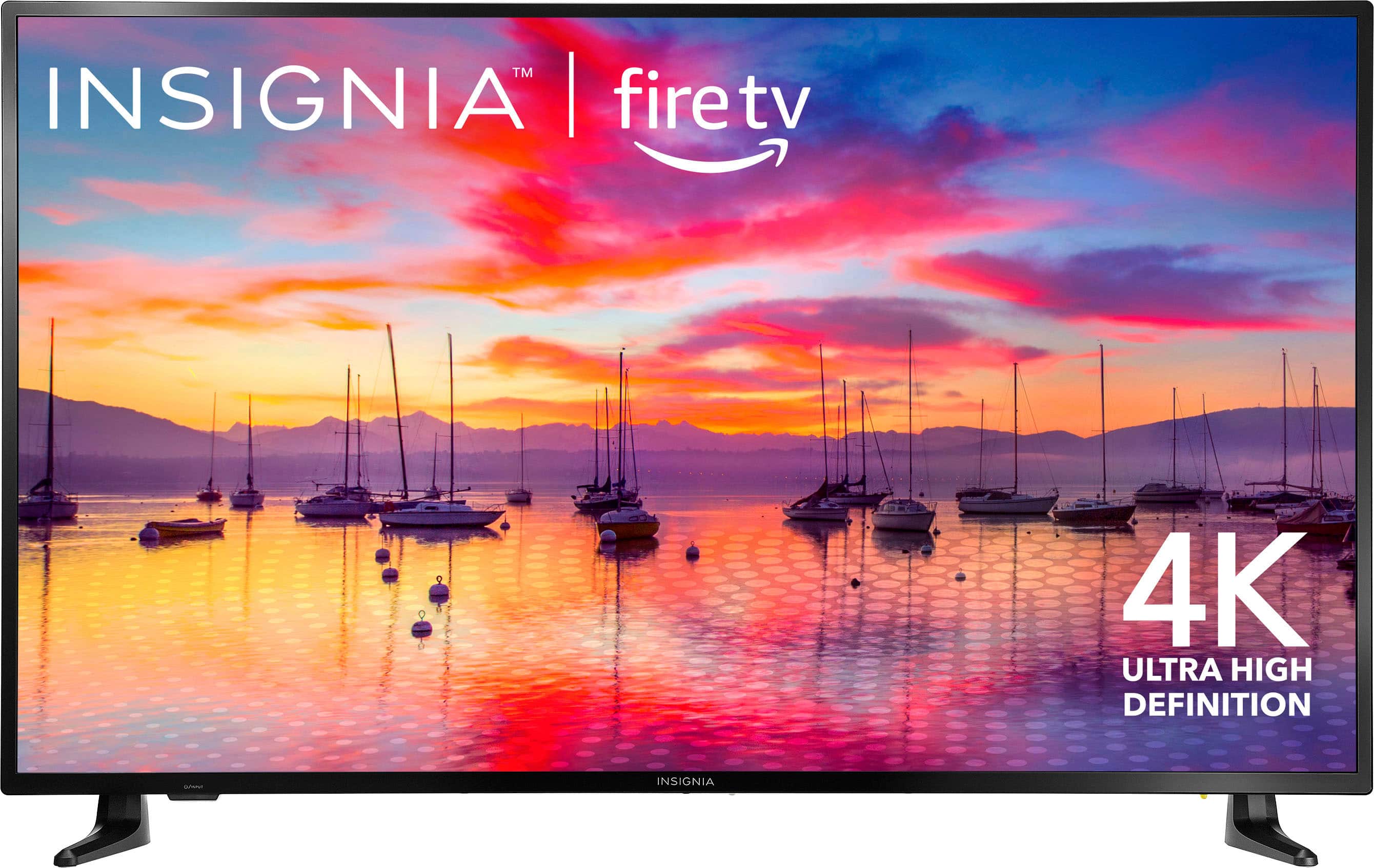
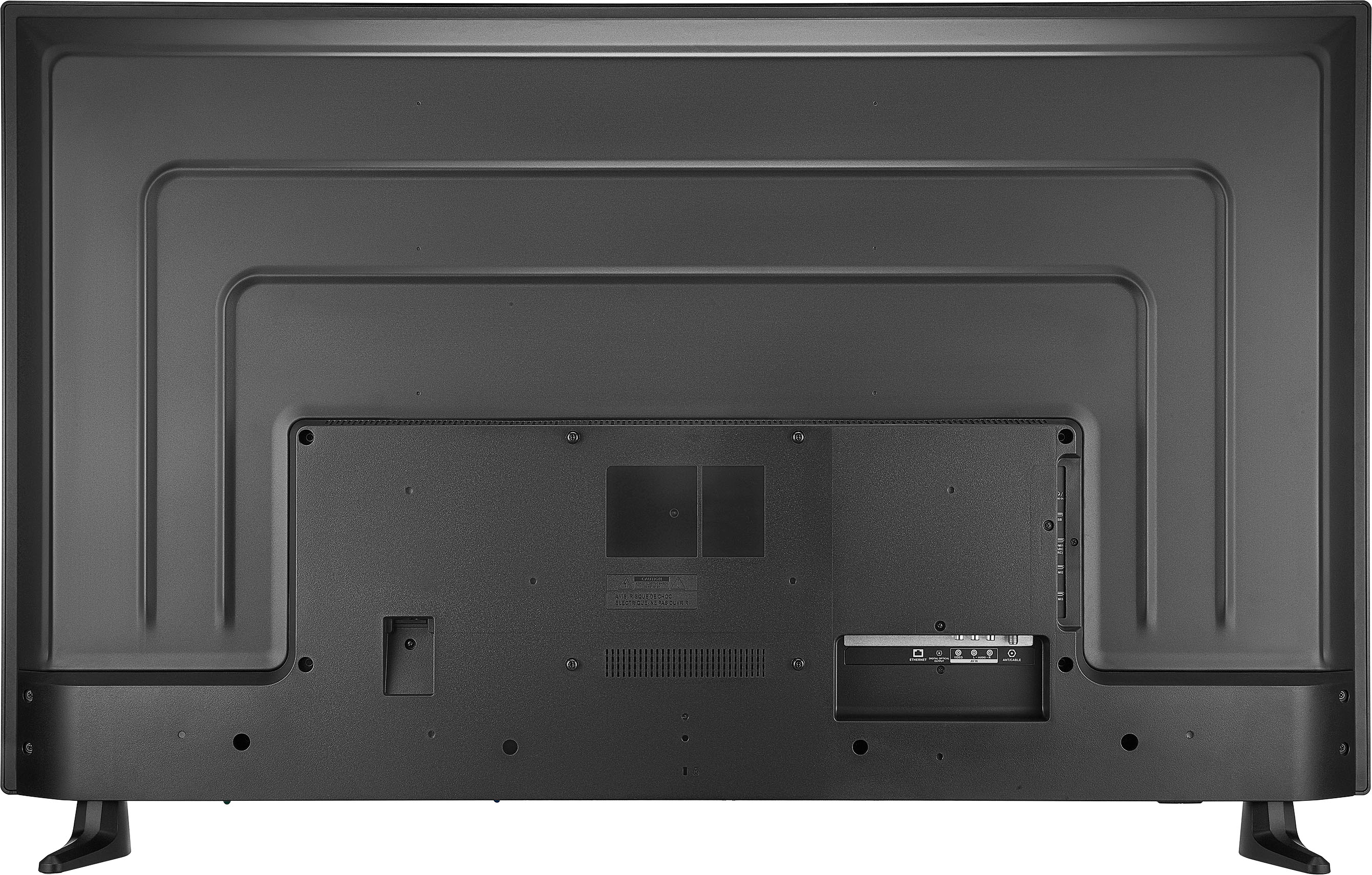
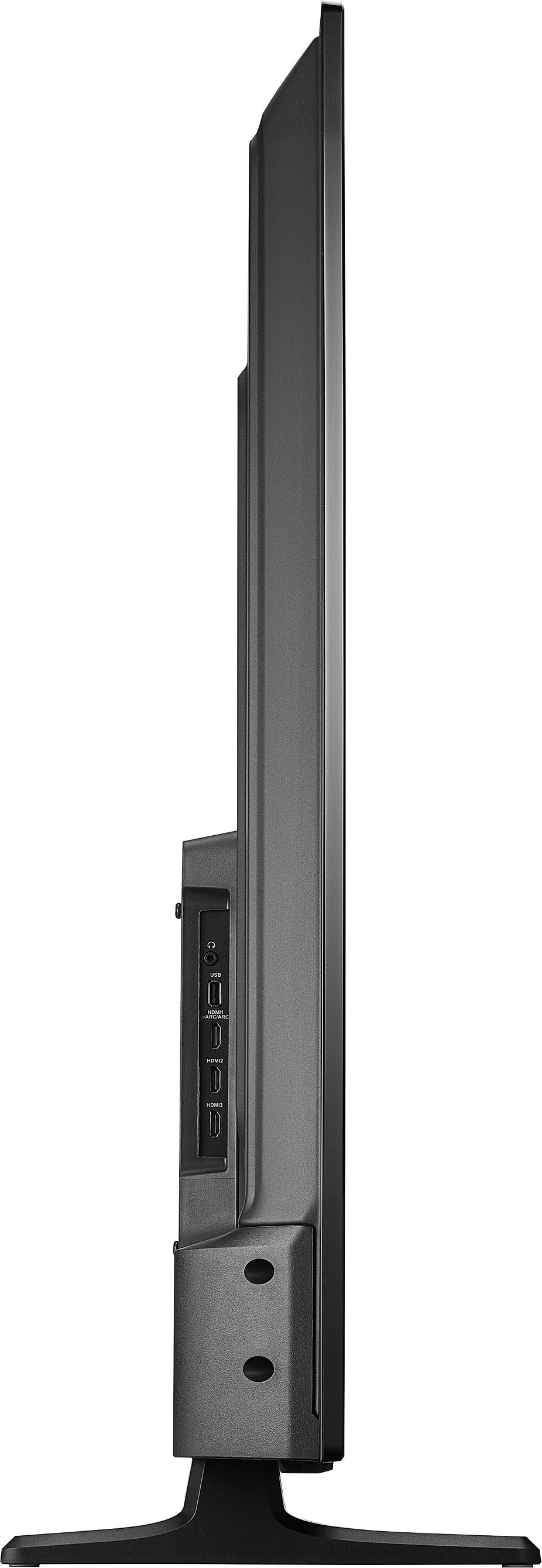
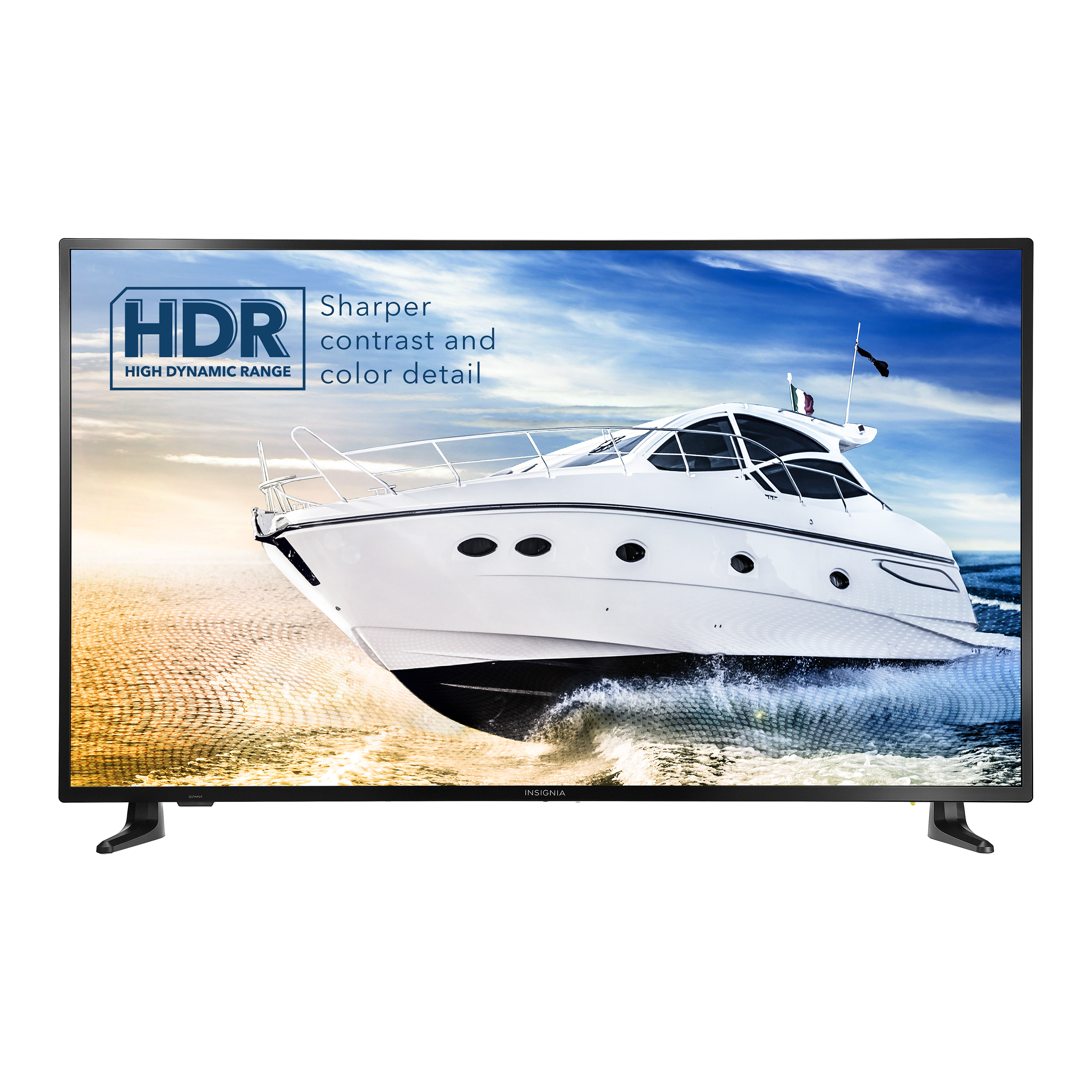
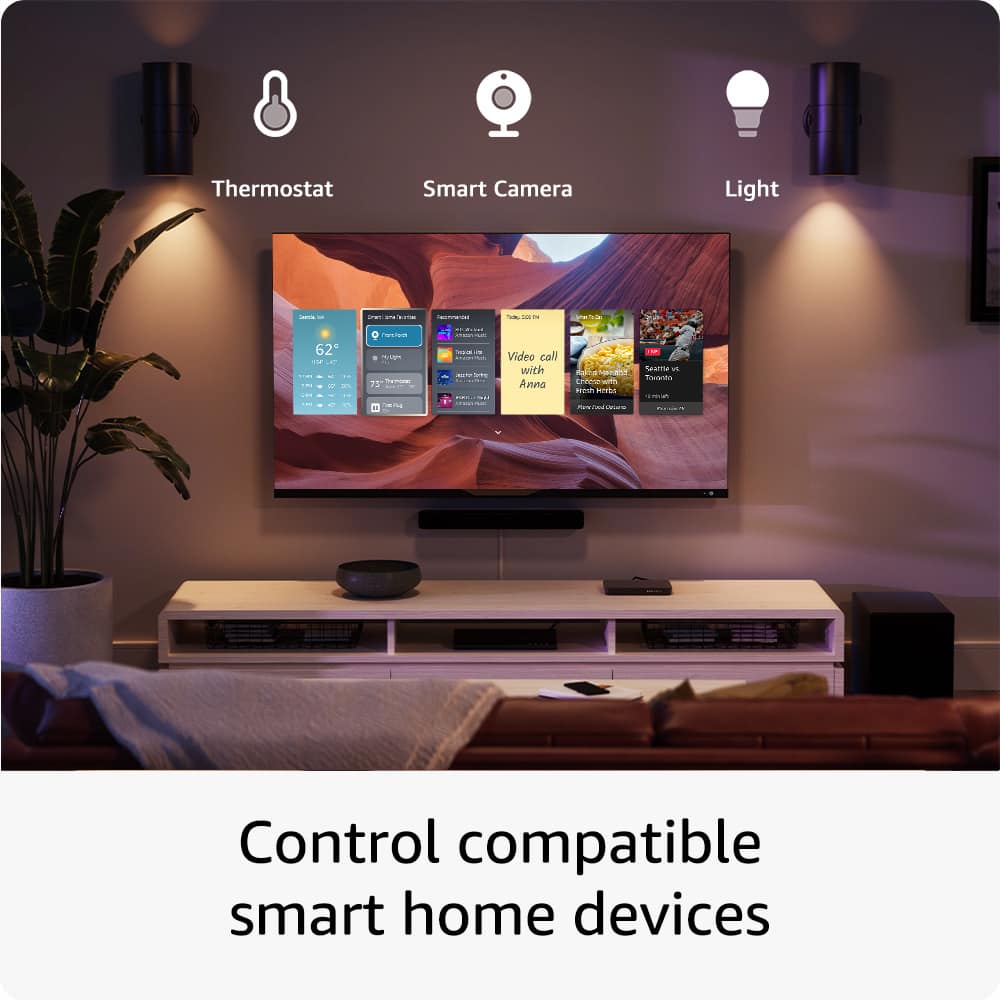
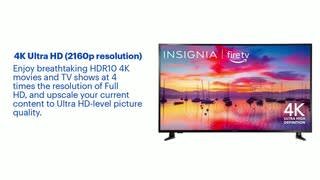
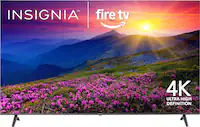
A:AnswerHi Rave808, thank you for your inquiry. The size of this Insignia™ - 55" Class F30 Series LED 4K UHD Smart Fire TV for VESA mounting pattern is 200 x 200 mm. For screws type M6, 16mm to 24mm length depending on the wall mount. If you have further questions, feel free to reach out to us. Patricia | Insignia Support https://www.bestbuy.com/site/brands/best-buy-brands/pcmcat1596746025285.c?id=pcmcat1596746025285
A:AnswerHello Stephen, if you're looking for the user manual for the Insignia™ - 55" Class F30 Series LED 4K UHD Smart Fire TV, you can find it by visiting the following link: https://www.bestbuy.com/site/insignia-55-class-f30-series-led-4k-uhd-smart-fire-tv/6562188.p?skuId=6562188. Simply click on "features", then "Manual and Guides", and finally "Download the User Manual". Patricia | Insignia Support
A:AnswerWe apologize for the inconvenience you're experiencing with your Insignia™ 55" Class F30 Series LED 4K UHD Smart Fire TV. We understand how frustrating it can be when your TV turns off unexpectedly. Here are a few steps you can try to resolve this issue:
1. Check Sleep Timer Settings: Your TV might have a sleep timer enabled. To turn it off, press and hold the Home button on your remote until the Quick Settings menu opens. From there, navigate to the sleep timer settings and disable it.
2. Software Update: Make sure your TV's software is up to date. Sometimes, outdated software can cause unexpected behavior. Go to Settings > Device & Software > About > Check for System Update[2](https://upgradedhome.com/insignia-tv-keeps-turning-off/).
3. HDMI Cables: Loose or faulty HDMI cables can sometimes cause the TV to turn off. Ensure all cables are securely connected.
4. Power Supply: Check if the TV is getting sufficient power. If it's plugged into a power strip, try plugging it directly into a wall outlet to see if that resolves the issue.
5. Reset the TV: If none of the above steps work, you might want to try resetting the TV. Unplug it from the power source, wait for about 30 seconds, and then plug it back in.
If these steps don't resolve the issue, please contact our customer support team for further assistance. We are committed to ensuring your satisfaction and will do our best to help you resolve this problem.