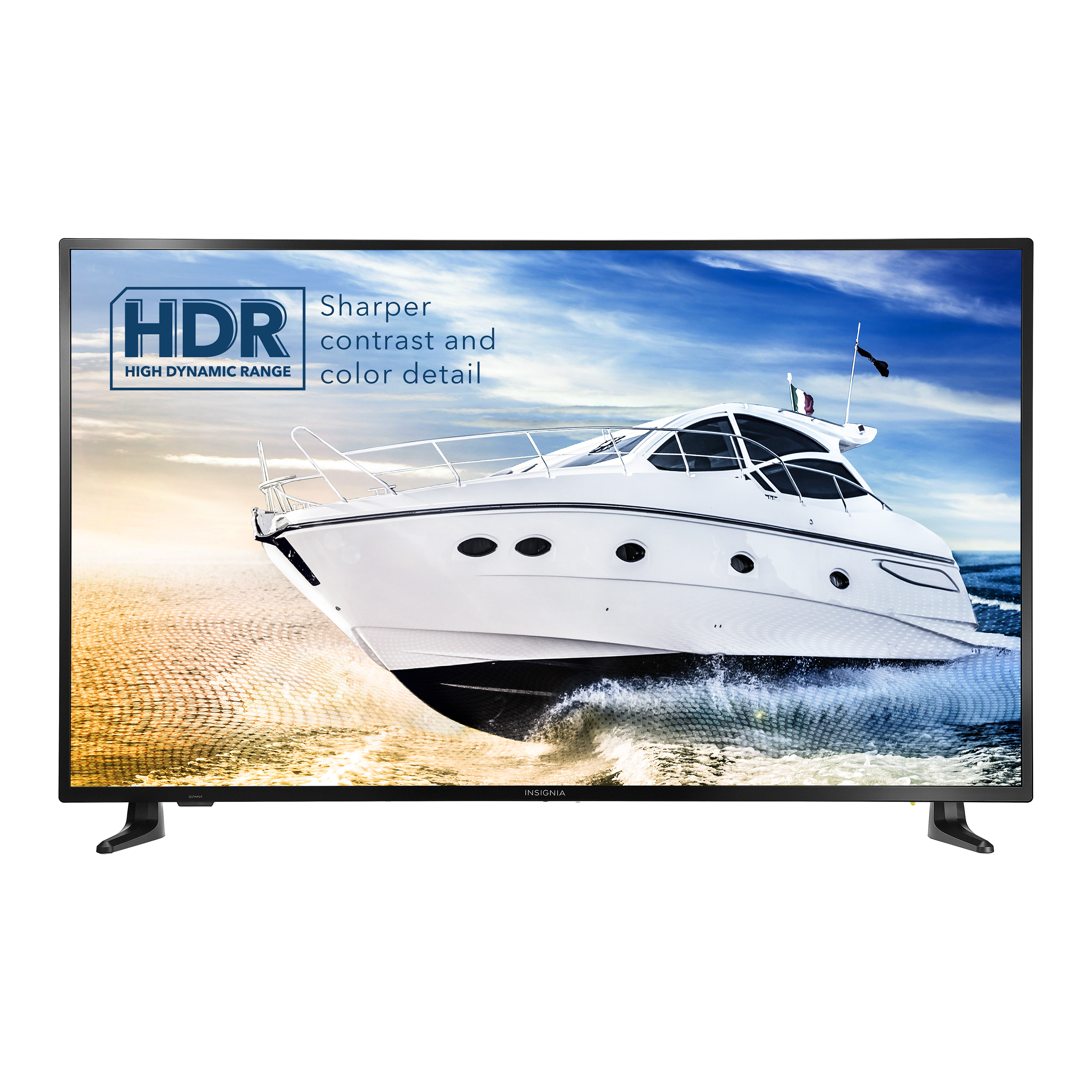
A:AnswerTo make your screen more comfortable for sensitive eyes, you can easily adjust the contrast, color, and brightness to suit your needs. Simply press and hold the Home button until the Quick Settings menu appears. Then, select ‘Picture’ and you’ll find options to modify the Contrast, Brightness, and Color settings to your preference.
-Paul | Insignia Support
https://www.bestbuy.com/site/insignia-55-class-f30-series-led-4k-uhd-smart-fire-tv/6562188.p?skuId=6562188
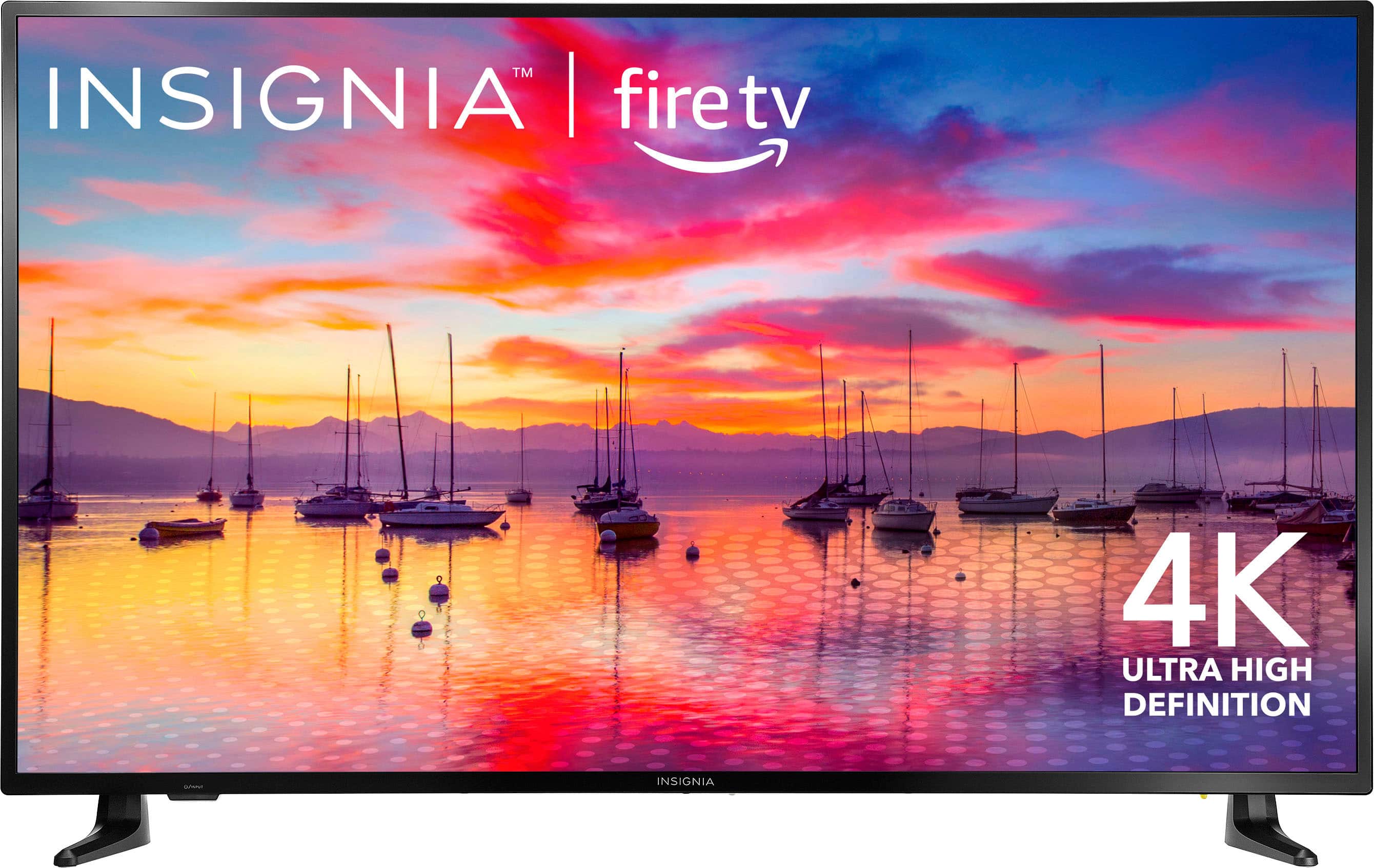
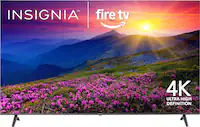
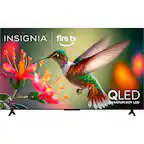
A:AnswerThank you for your inquiry! To clean the screen of your Insignia™ 55" Class F30 Series LED 4K UHD Smart Fire TV, you should first make sure the TV is turned off and unplugged to avoid any electrical hazards. Next, you can use a microfiber cloth to gently wipe away any dust or fingerprints on the screen. Avoid using harsh chemicals or abrasive materials, as they can damage the screen. If the cloth alone is not enough, you can dampen it slightly with water or a screen-safe cleaning solution specifically designed for electronics. Make sure to dry the screen thoroughly with a clean, dry cloth afterward to prevent streaks or water damage. With regular cleaning and proper care, you can keep your TV screen looking clear and pristine for years to come. Keith | Insignia Support https://www.bestbuy.com/site/insignia-55-class-f30-series-led-4k-uhd-smart-fire-tv/6562188.p?skuId=6562188
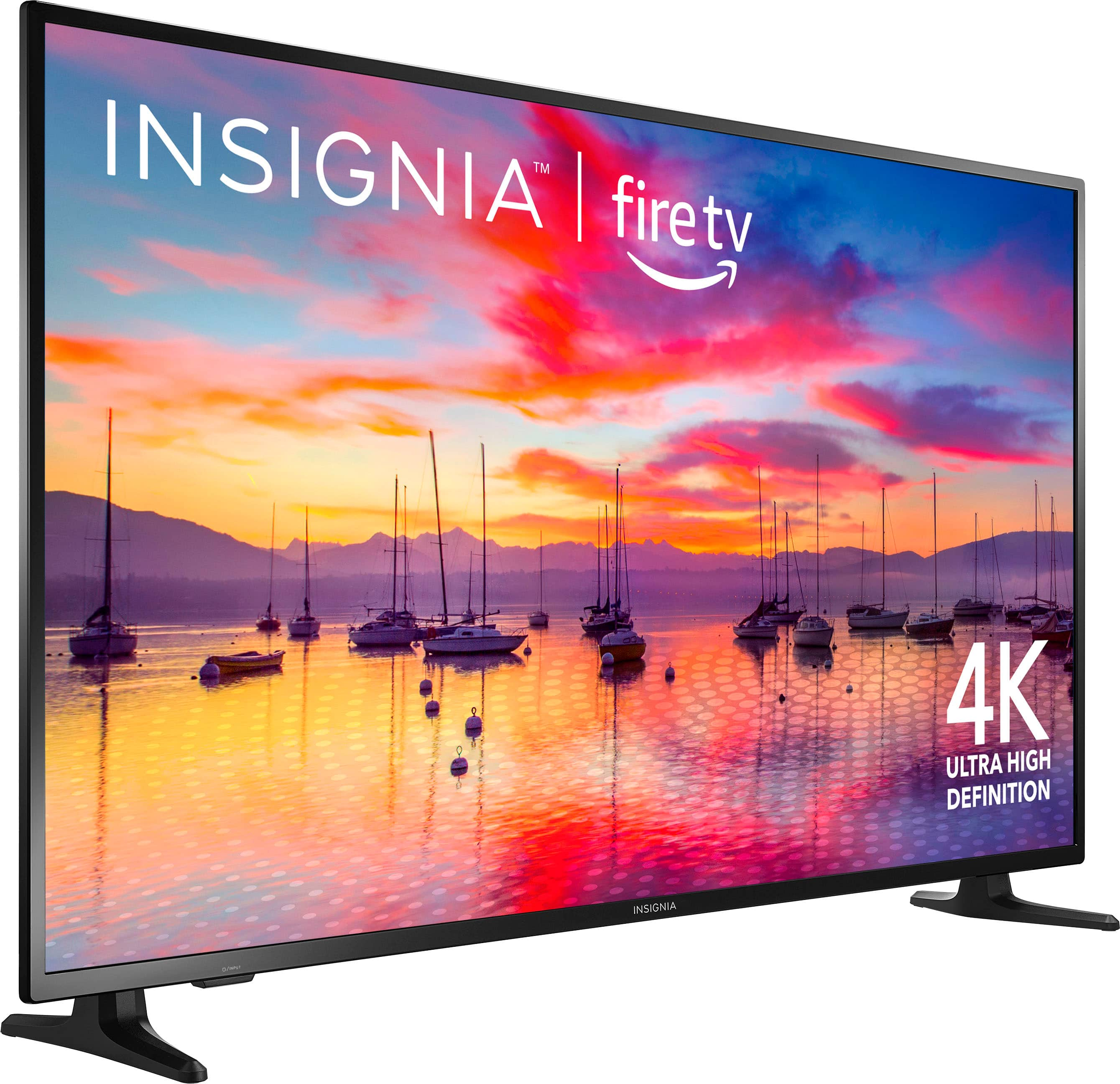
A:AnswerThank you for your inquiry! The length of the stand legs for the Insignia™ - 55" Class F30 Series LED 4K UHD Smart Fire TV is approximately 42.3 inches. This measurement is taken from the outer edges of the stand legs when they are attached to the TV. This length is important to ensure that the TV stand or surface you plan to place the TV on is wide enough to accommodate it securely. Keith | Insignia Support https://www.bestbuy.com/site/insignia-55-class-f30-series-led-4k-uhd-smart-fire-tv/6562188.p?skuId=6562188
A:AnswerYes, you can mirror your Samsung tablet to the Insignia 55" Class F30 Smart Fire TV using the screen mirroring feature built into both devices. To do this, go to the settings on your Samsung tablet and look for the screen mirroring or Smart View option. Enable screen mirroring and select the Insignia TV from the list of available devices. The TV may prompt you to confirm the connection, so simply follow the on-screen instructions. Once connected, your Samsung tablet screen should be mirrored on the Insignia TV. --Ed | Insignia Support | https://www.bestbuy.com/site/brands/best-buy-brands/pcmcat1596746025285.c?id=pcmcat1596746025285
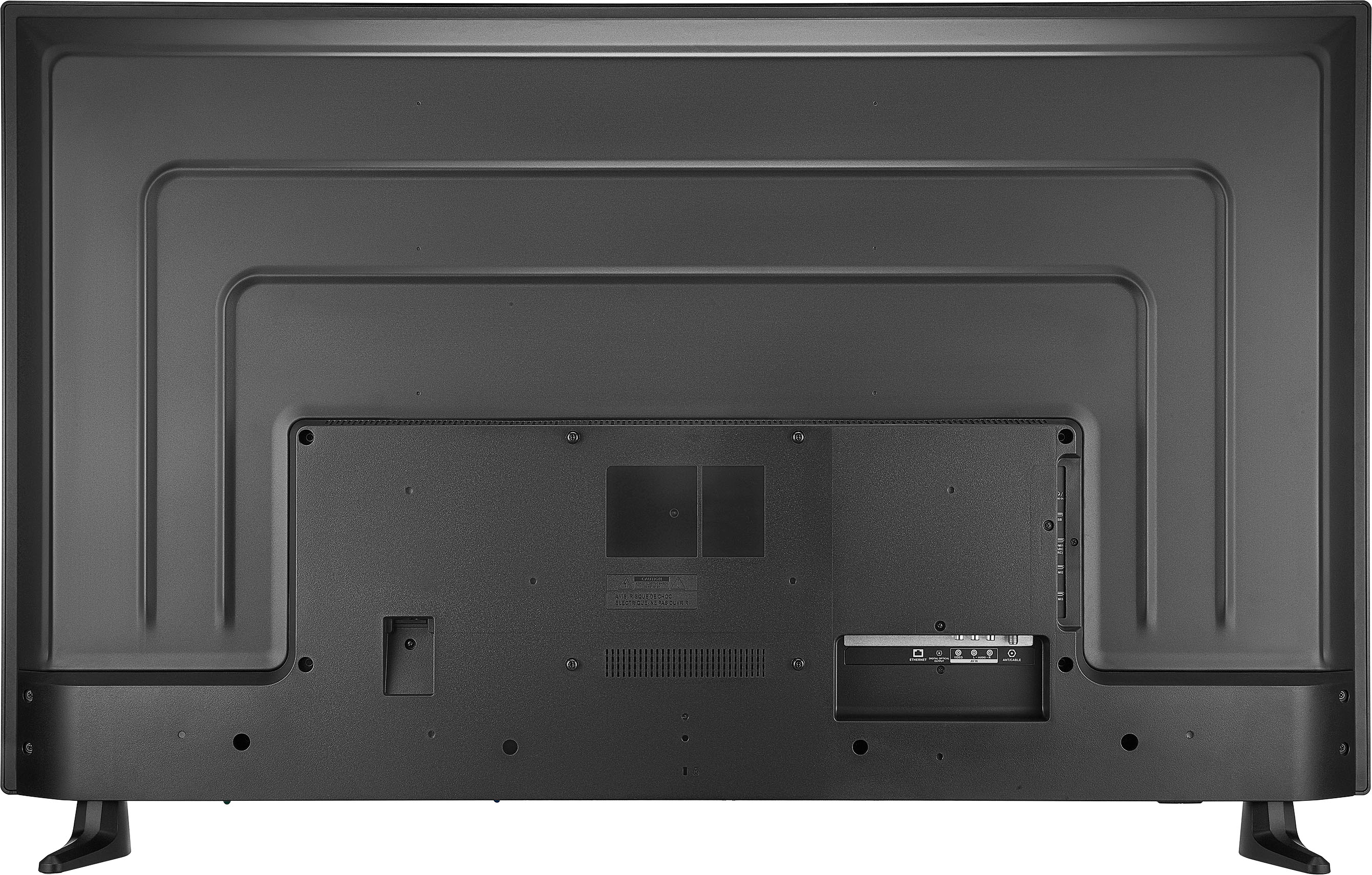
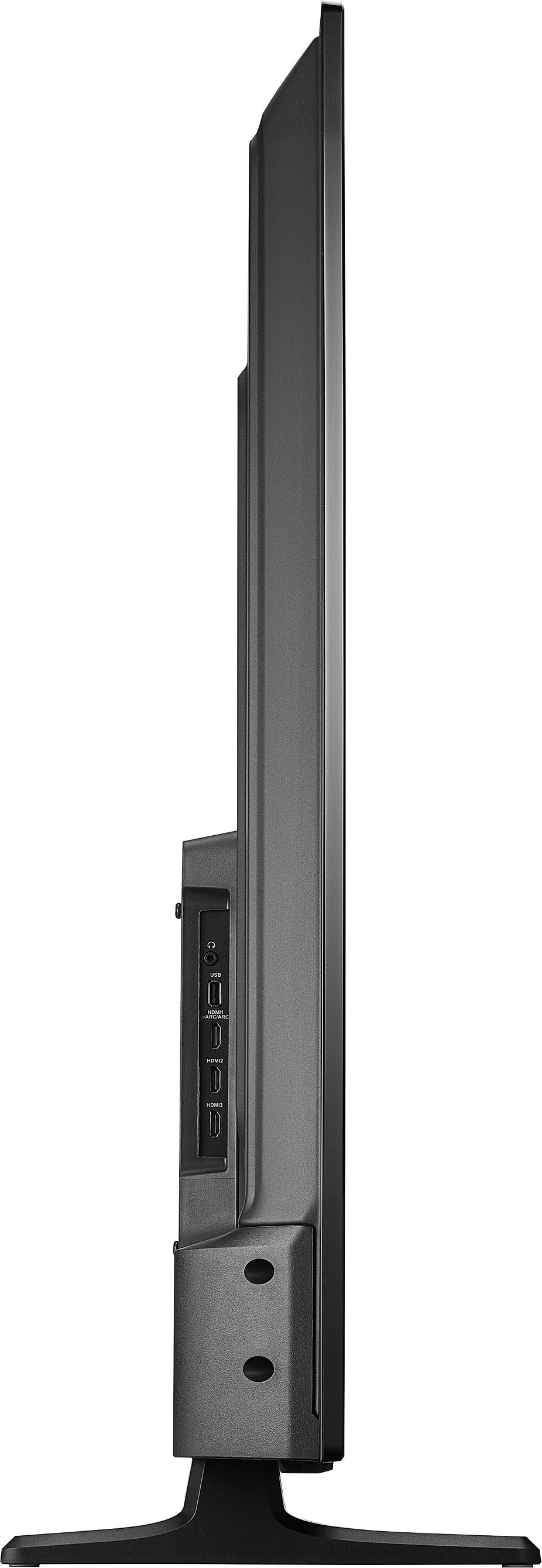
A:AnswerHi Deb! Thank you for inquiring about our Insignia™ - 55" Class F30 Series LED 4K UHD Smart Fire TV. This TV has detachable legs, but they are not adjustable. I hope this helps. Have a nice day! - James | Insignia Support | https://www.bestbuy.com/site/brands/best-buy-brands/pcmcat1596746025285.c?id=pcmcat1596746025285
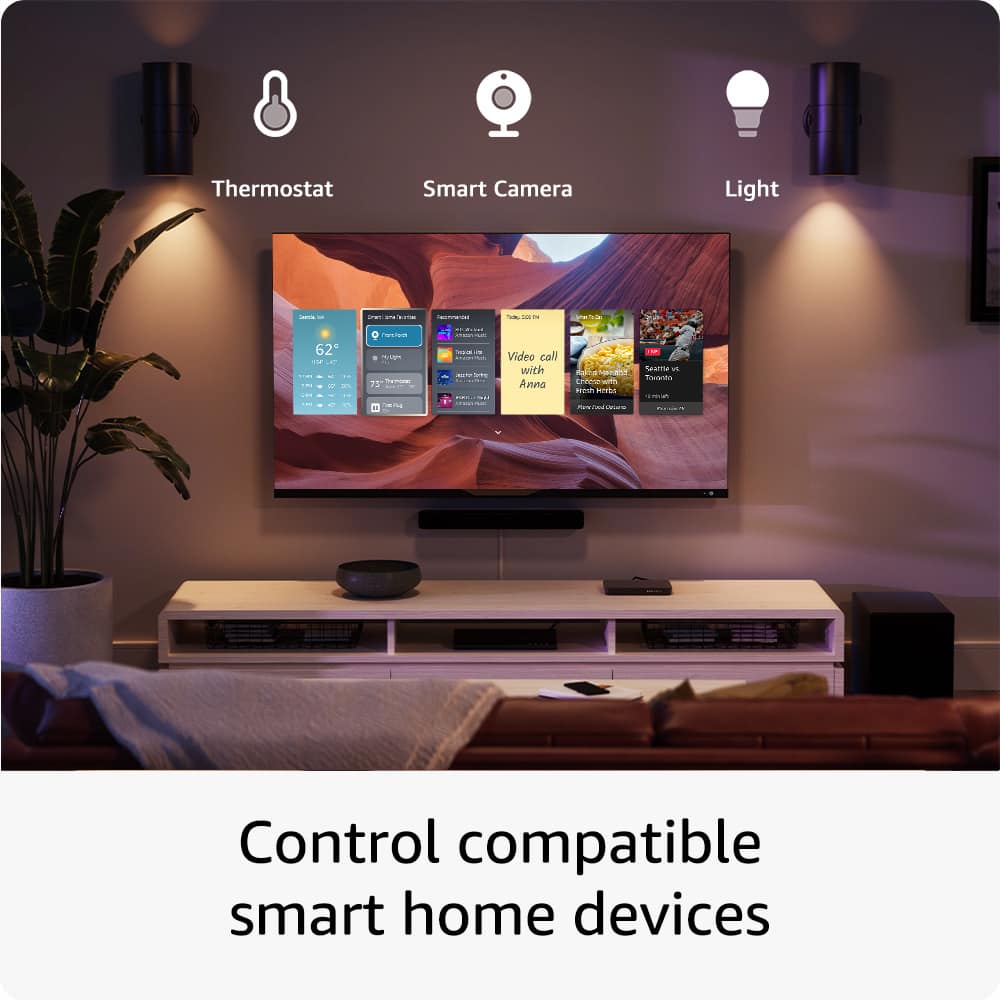
A:AnswerHi Justin! Thank you for inquiring about our Insignia™ - 55" Class F30 Series LED 4K UHD Smart Fire TV. Yes, you can download apps into this TV. Plus, you may choose to download via Amazon Fire TV app on your phone or directly on the TV. Let us know if you need further assistance. Have a nice day! - James | Insignia Support | https://www.bestbuy.com/site/brands/best-buy-brands/pcmcat1596746025285.c?id=pcmcat1596746025285