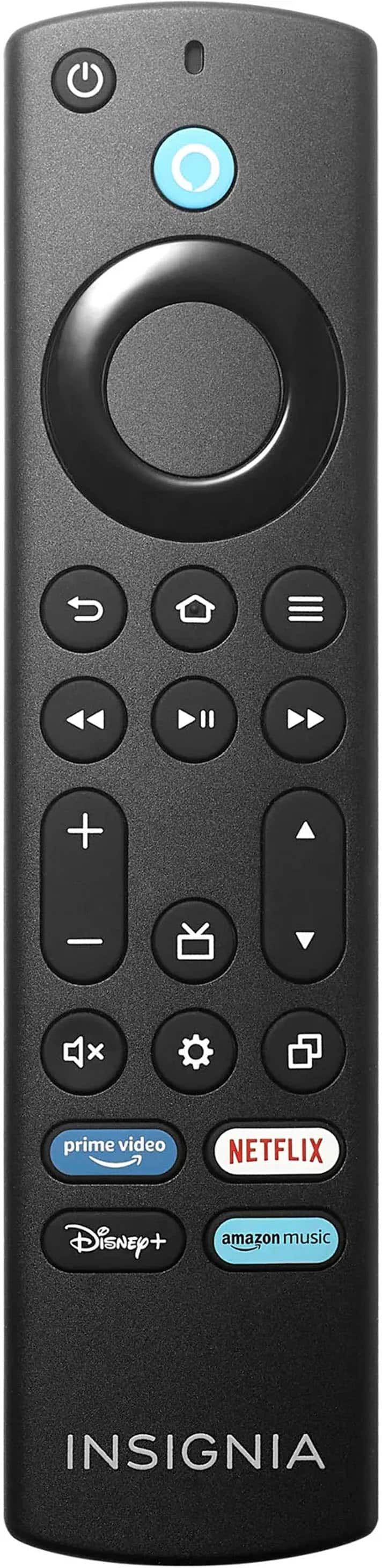
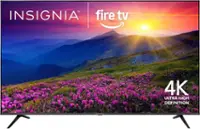
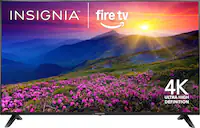
A:AnswerThank you for your inquiry! If your Insignia™ 65" Class F50 Series Fire TV is showing a smaller picture than expected, it’s likely due to incorrect display or aspect ratio settings. To fix this, start by pressing the Home button on your remote and navigating to Settings > Display & Sounds > Display. From there, select Picture Size, and choose "Auto" or "16:9", which are best for widescreen content. If you're using an external device like a cable box or game console, make sure its video output settings are also set to 1080p or 4K UHD and the aspect ratio is 16:9. Additionally, check for any settings related to Overscan or Stretch and turn them off to avoid image distortion. These steps should help you get the full picture on your 65-inch screen. If you have further questions, please feel free to reach us via phone 1-877-467-4289 Monday-Saturday 8 a.m. to 9 p.m. CT.
A:AnswerYes, you can surf the web on the Insignia™ 65" Class F50 Series LED 4K UHD Smart Fire TV. This TV comes with the Fire TV platform, which includes a built-in web browser. You can use the Silk Browser or Firefox to browse the internet directly on your TV. If you have any further questions or need assistance, please don't hesitate to reach out. Ivy | Insignia Support
A:AnswerHi Mike, thank you for your question and for choosing the Insignia™ 65" Class F50 Series LED 4K UHD Smart Fire TV. We understand how important it is to have access to the full user manual.
While the TV includes a quick start guide, the full manual may not always be packaged physically. Since you weren’t able to locate it online, we recommend reaching out directly to Insignia Support for assistance. They can provide you with the correct manual and any additional support you may need.
You can contact Insignia Support at 877-467-4289.
We appreciate your patience and hope this helps!
— Shiela | Insignia Support