A:AnswerOpen the control panel click hardware and sound click mouse. In the mouse properties window, click the button tab and click the switch primarily and secondary check box.
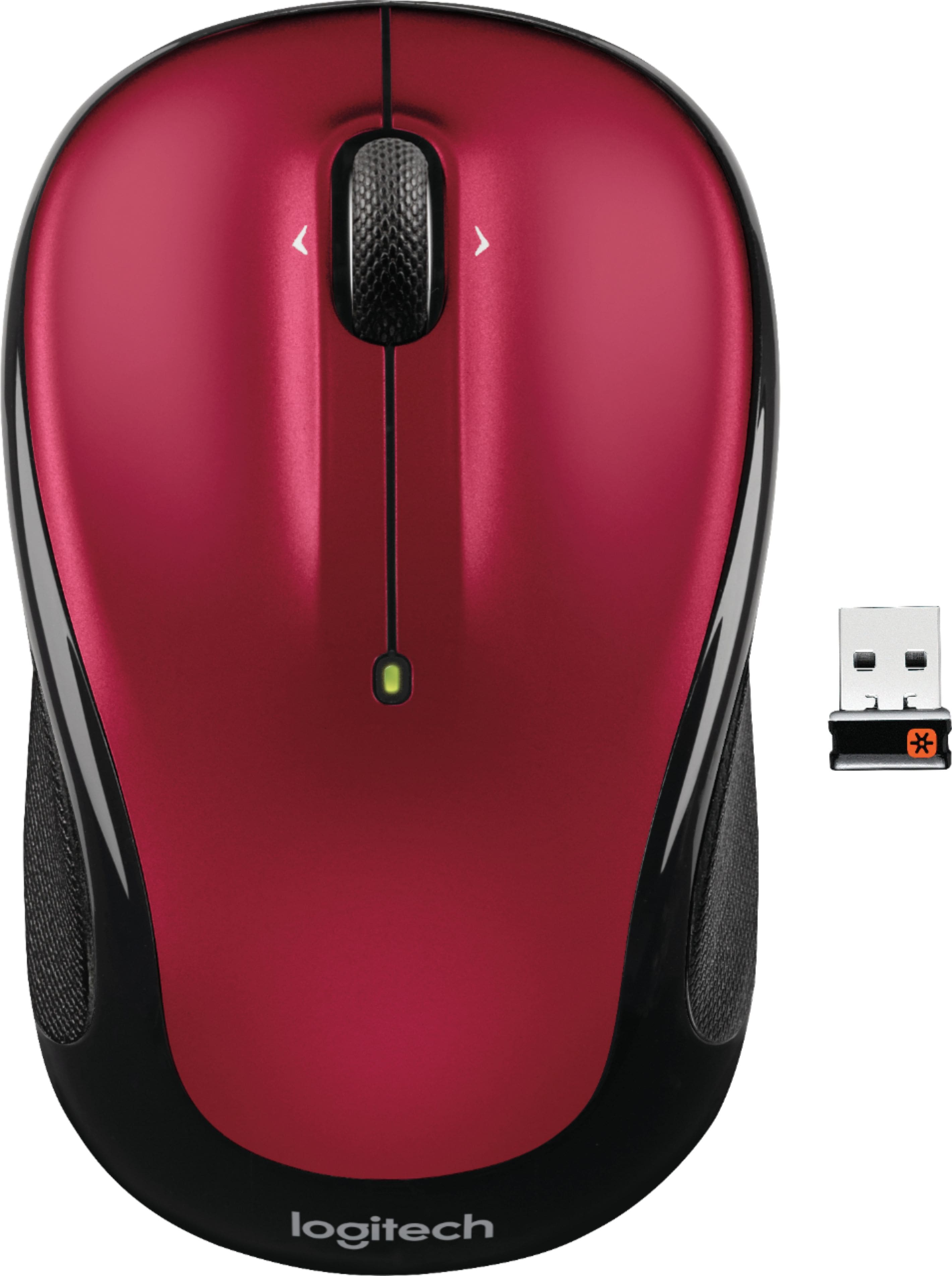
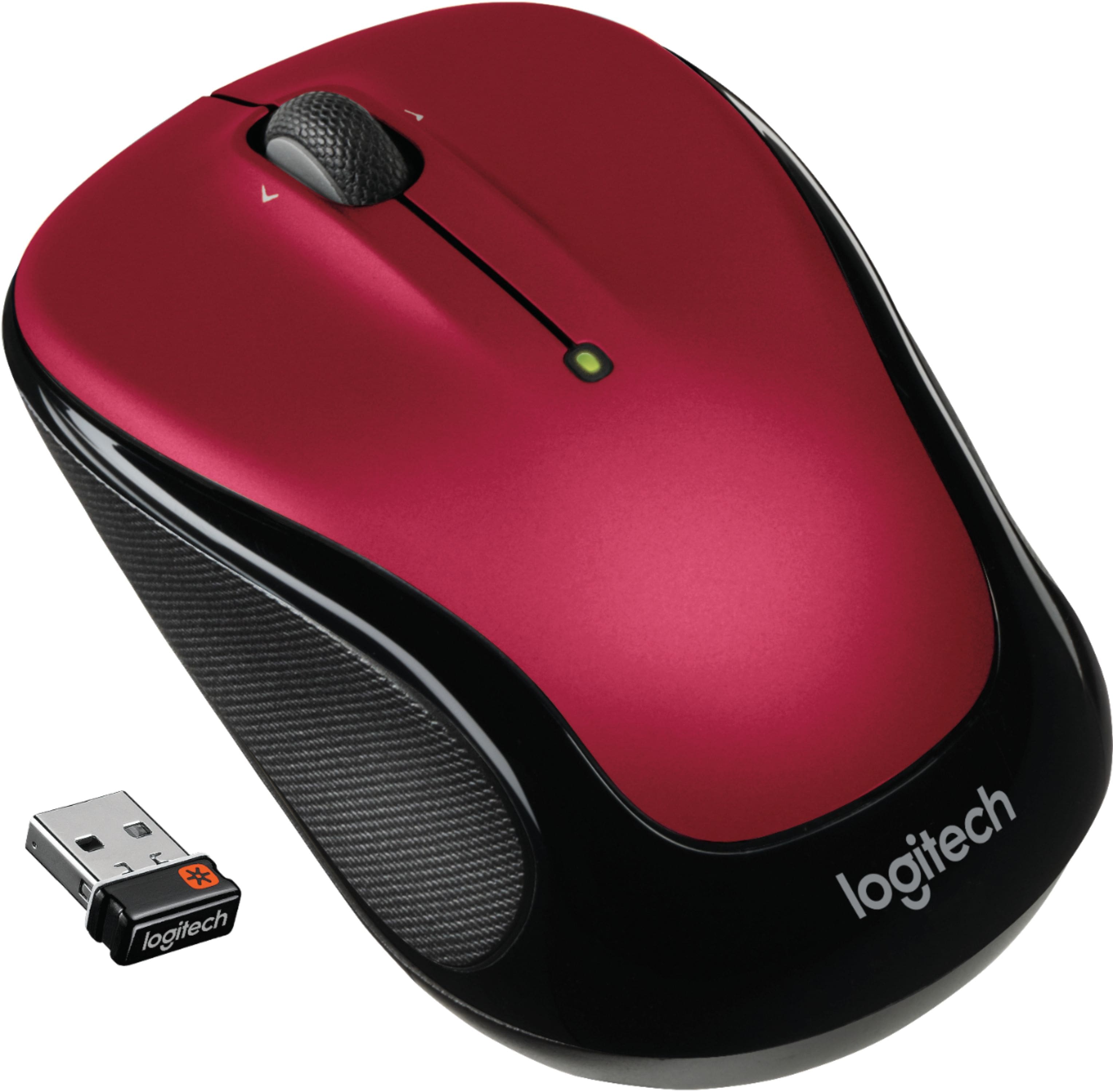
A:AnswerThe USB for this wireless mouse is located in a slot on the bottom of the mouse near the battery cover. Unsnap this and plug into your USB and you should be ready to go. Most newer operating systems will recognize the mouse once you plug in the USB to a port on your computer. No cords are needed.
A:AnswerSince the mouse connects to the device with a usb plug that allows the device to "see" the mouse, if your device has a usb port, it should work.