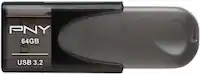
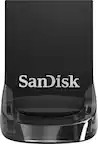
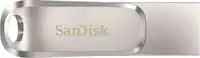
A:AnswerNot sure I used it to restore my PS 4 software and didn’t use it as memory stick. My understanding is that you are now Able to use external hard drives on this system to expand your memory but not sure about usb stick.
A:AnswerYou have two Options to transfer photos from cell to a flash drive. One get a OTG "On The Go" USB adapter that fits your cell phone , plug it in to the charging slot and then insert the drive , next go to your files folder not the gallery . Select the files and move to the external drive . NOTE: once done , wait 30 sec to 1 min and then go to the storage in settings for example on android and you have to drill down to the drive and then unmount ( eject ) the drive to properly stop it from being recognized on the cell phone and then remove the drive and OTG connector. If you don't disconnect it , once the flash drive is connected to the computer it will ask to have the drive checked if it does go ahead and scan and fix any errors it is a fluke issue with using flash drives and cell phones.
Second is to use the Data cable for cell phone and transfer photos from phone to computer and then move to a flash drive also connected to the computer , I know you can just move from phone thru computer to the drive but I would first move to a folder on the computer as a safety measure so that you have a back up copy in case the transfer messes up which can happen when using a computer as a bridge from cell to another drive
A:AnswerAs long as they’re in one of the many standard photo formats, and not saved in some ancient version of MICROSOFT Word or obscure retro Adobe extension, this shouldntbe a problem at all.
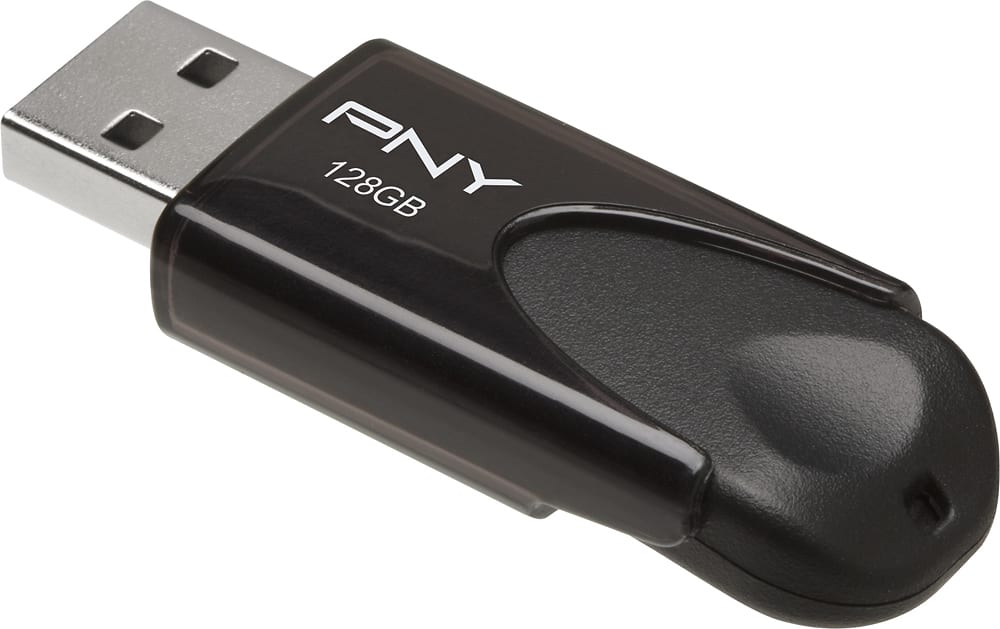
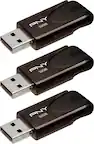
A:AnswerI needed to get all my photos, videos, and documents off my old desktop which ran Windows Vista. This 2.0 usb drive worked great for that purpose. I tried a better/faster 3.0 128 gb usb drive first and Vista would not work with it. So low tech (2.0) is what worked for me.
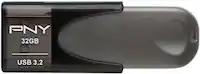
A:AnswerI used a PNY 128 gb 2.0 USB drive to get all my photos , videos, and documents off my old desktop because the 3.0 USB drive was too sophisticated for my old desktop (running Windows Vista) and wouldn't work with it. So low tech (2.0) worked for me. And 128 GB was plenty of storage space to get everything transferred to the 2.0 USB drive.
A:AnswerIt worked with Windows Vista so it will definitely work with Windows 7. Stick with a 2.0 flash drive. 3.0 did not work with Windows Vista so I doubt 3.0 would work with Windows 7 either.
A:AnswerYes, it does. Because it is version 2.0 it should work, because both were synonymous with that timeframe of technology. It isn't actually the Operating System that would determine whether it works but the interface that it slides into. 2.0 flash drives, I believe, have a different interface than the 1.0 flash, and there were compatibility issues between the two. But when the XP operating system was in use, both 2.0 and 1.0 were used on those machines... I have an older Dell from 2009 that used both 1.0 and 2.0, but they are not interchangeable in their respective slots. You may want to check first to see what interfaces you have because that is the determining factor. Although, other manufacturer drives such as made by Scandisk have 3.0/2.0 drives that they claim are backwards compatible, they are, in fact, not compatible. But as far as purchasing considerations go, Best Buy will allow you to try the USB out and if it doesn't work, it will give you a full refund. That is how I found out about the incompatibility issue despite Scandisk's claims.