A:AnswerNavigate to General settings. Navigate to and open Settings, and then select General.
Navigate to Usage Mode settings. Select System Manager, and select Usage Mode.
Set the mode to Home mode. If required, enter a PIN. It is usually 0000. Then, select Home mode.
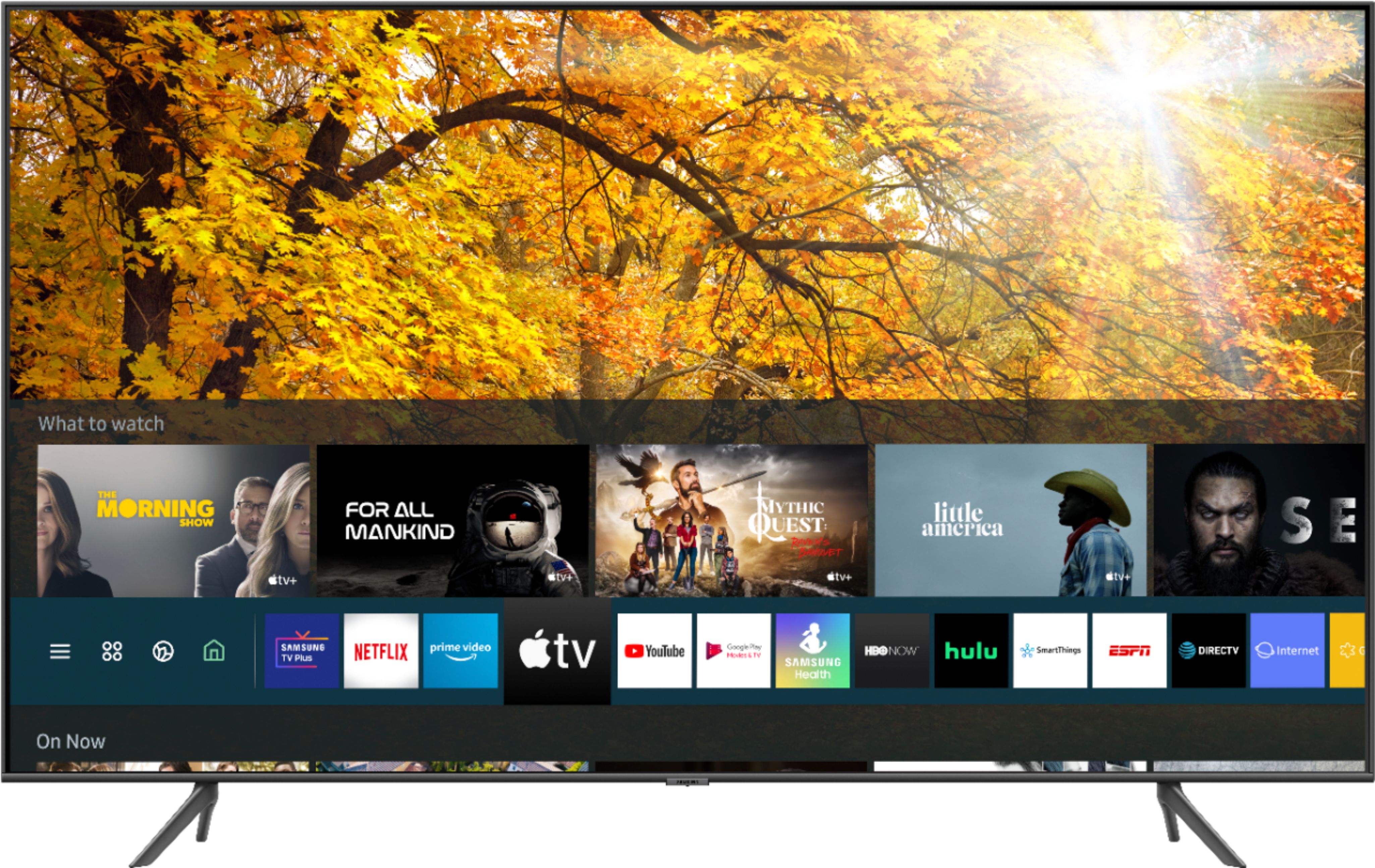
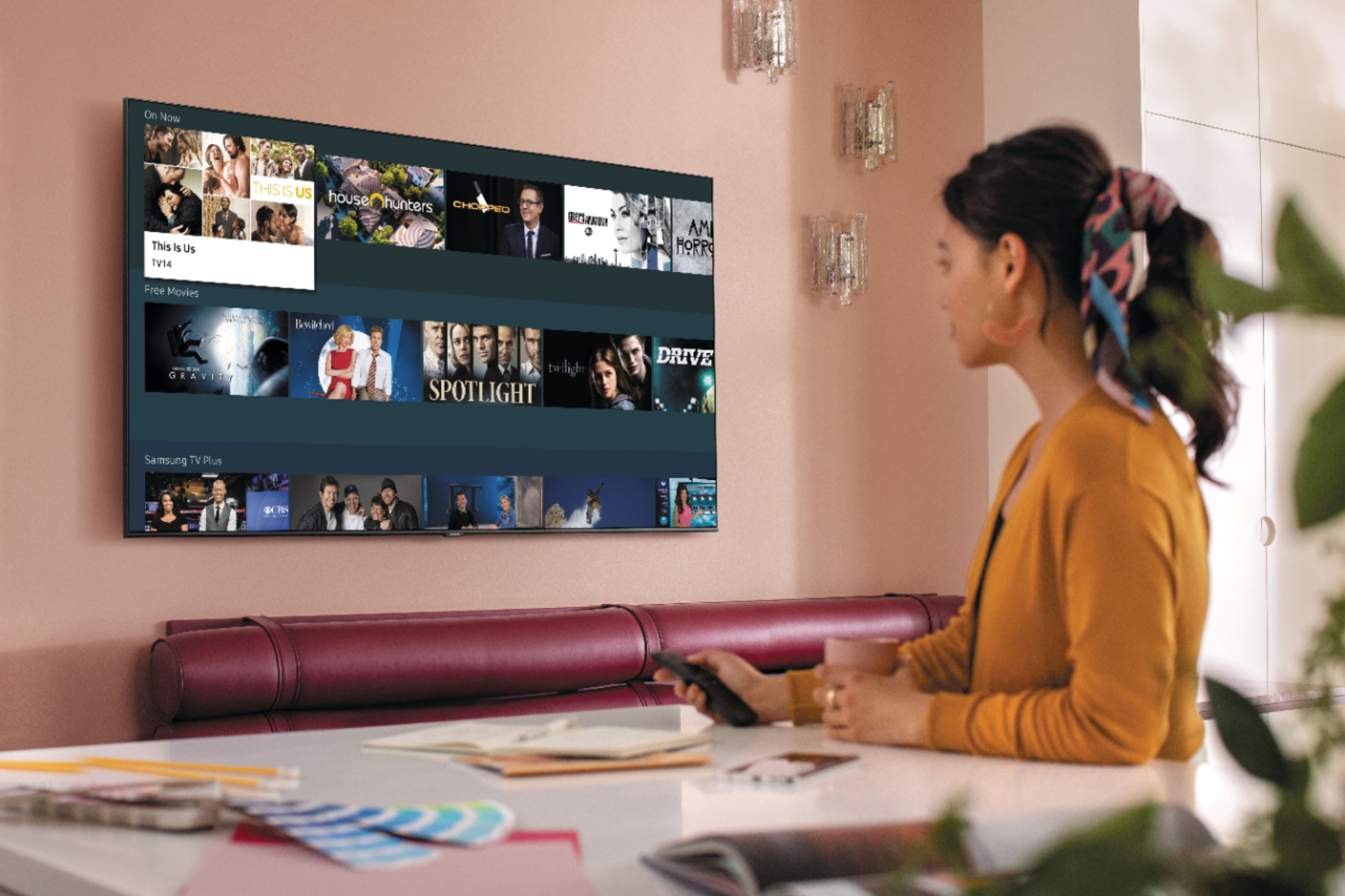
A:AnswerIf you do not use the smart features, nothing will be different compared to a non-smart TV, however, nowadays a lot of the content is produced by streaming companies that have apps to stream directly in a smart TV and in some cases you can even replace your cable box with an app in your TV. By using these apps, you reduce the use of other external devices such as cable box, Blu-ray/DVD, etc. You have everything in one place, you need internet though.
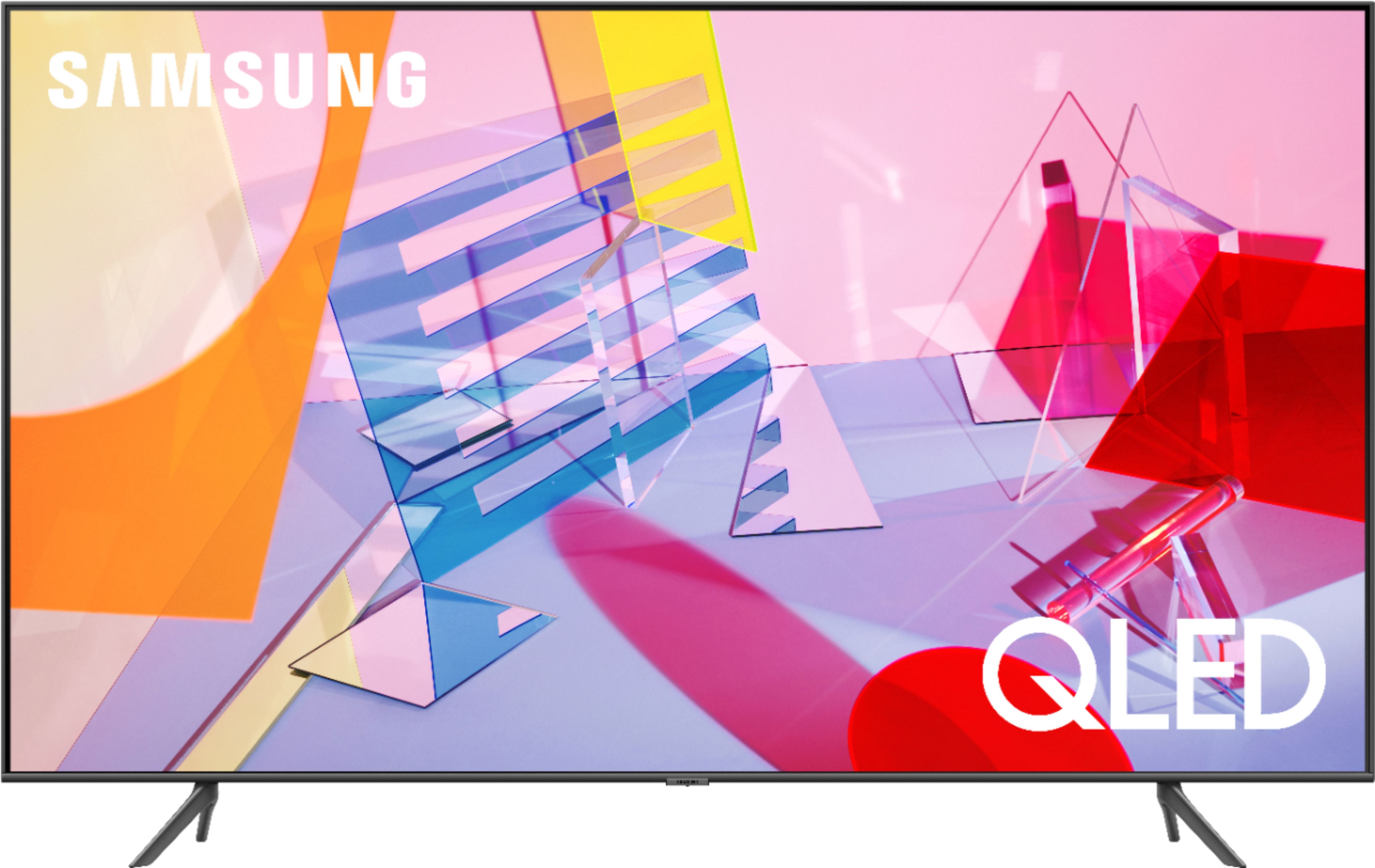
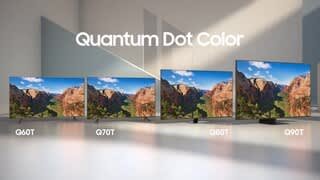
A:AnswerTo improve the picture color.go to settings on your Tv.

Select picture on the settings.change the picture mode from Standard to Dynamic.this will give you the best color.see below pictures
A:AnswerYou need longer screws with a washer , they see in home depot under specialty screws . Just go big enough to catch some threads, not to long. Use the washer so you don't crack screen
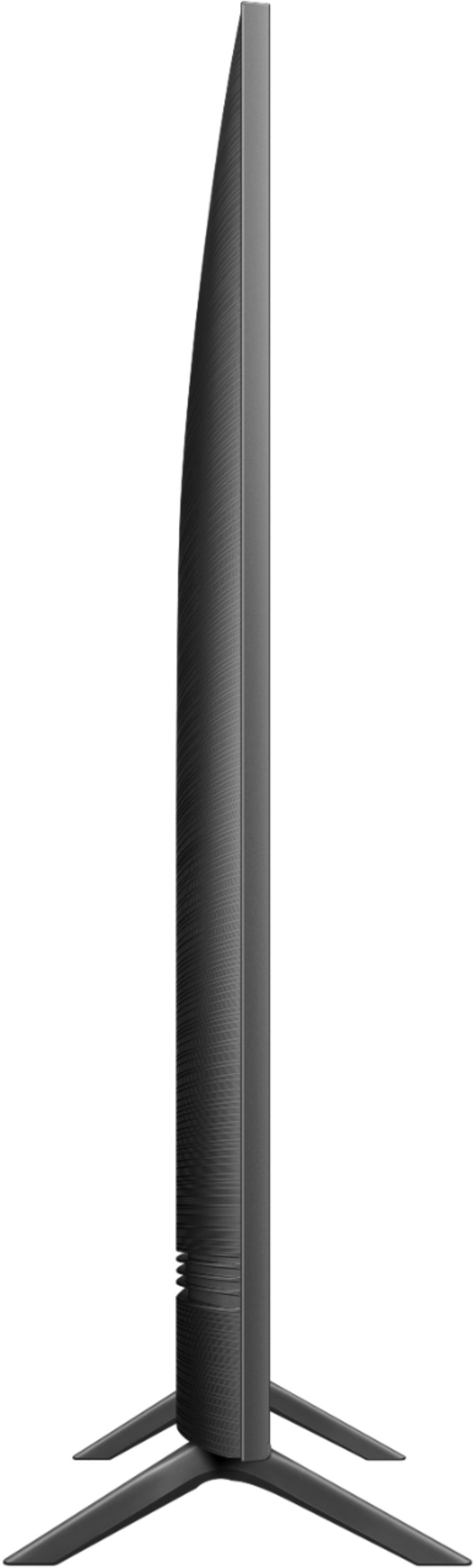
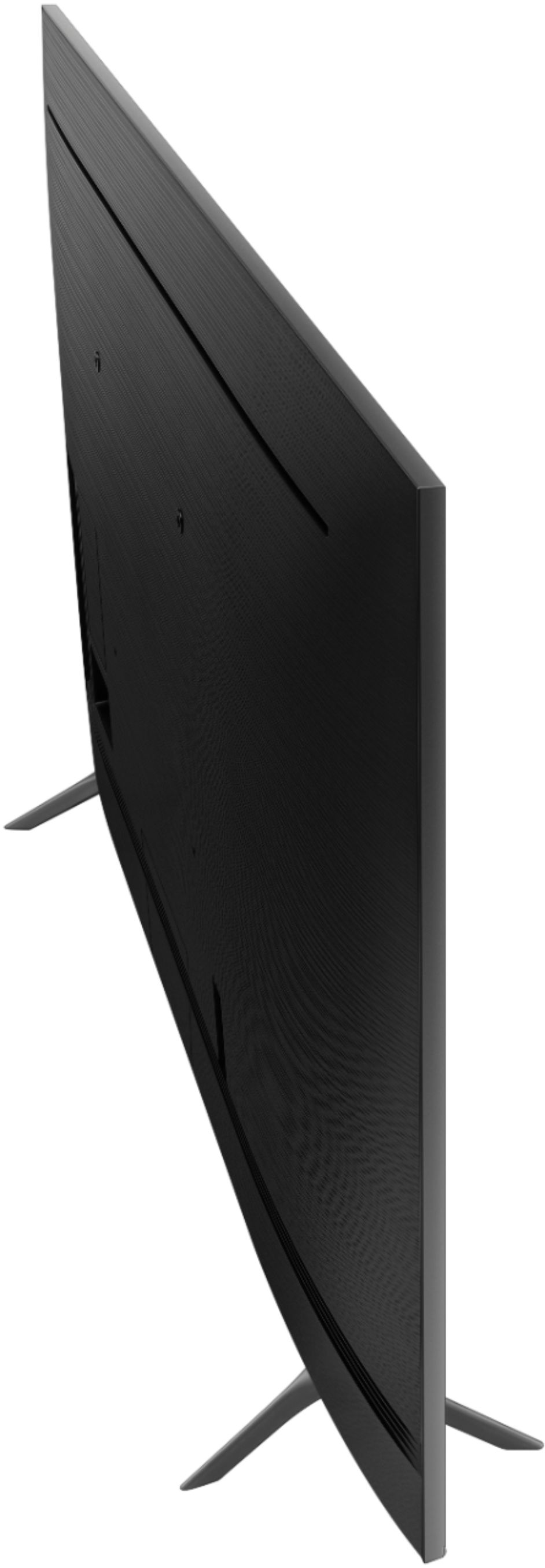
A:AnswerLook at legs and you'll see an L/R on each one. Insert each leg in the bottom hole corsonding to each side it will only fit one way . Insert and slightly push each leg all the way . You'll be able to tell when it's all the way up. Becareful when standing TV back up as screen can Crack or break.