A:AnswerYes, the SanDisk® Clip Jam MP3 Player supports FLAC file format. However, you can check the supported file format by SanDisk® using the below mentioned link:
-- https://kb.sandisk.com/app/answers/detail/a_id/14130
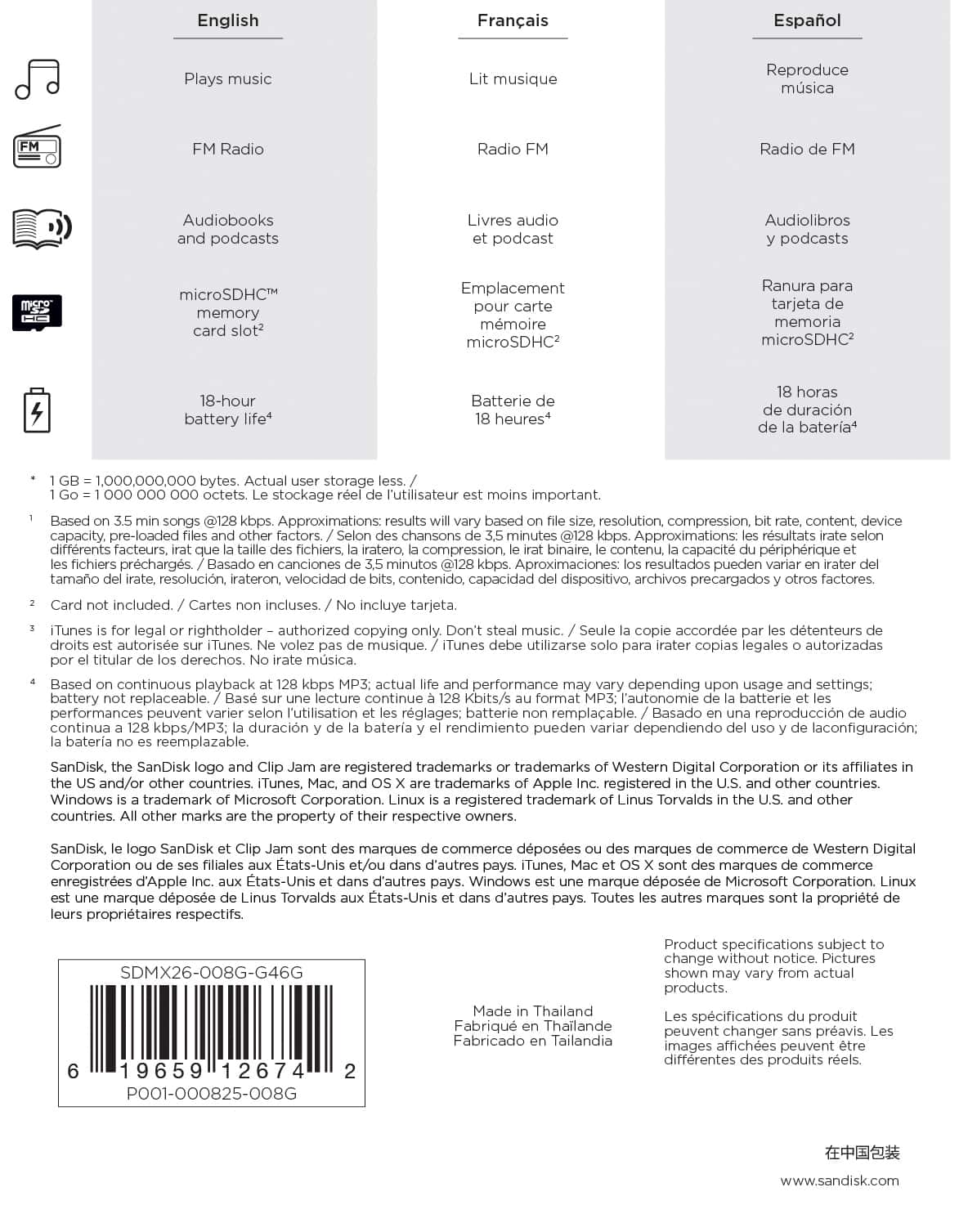
A:AnswerYes, the SanDisk® Clip Jam MP3 player supports podcasts. However, the podcast files must be in a compatible format such as:
- MP3
- WMA
- OGG
- FLAC.
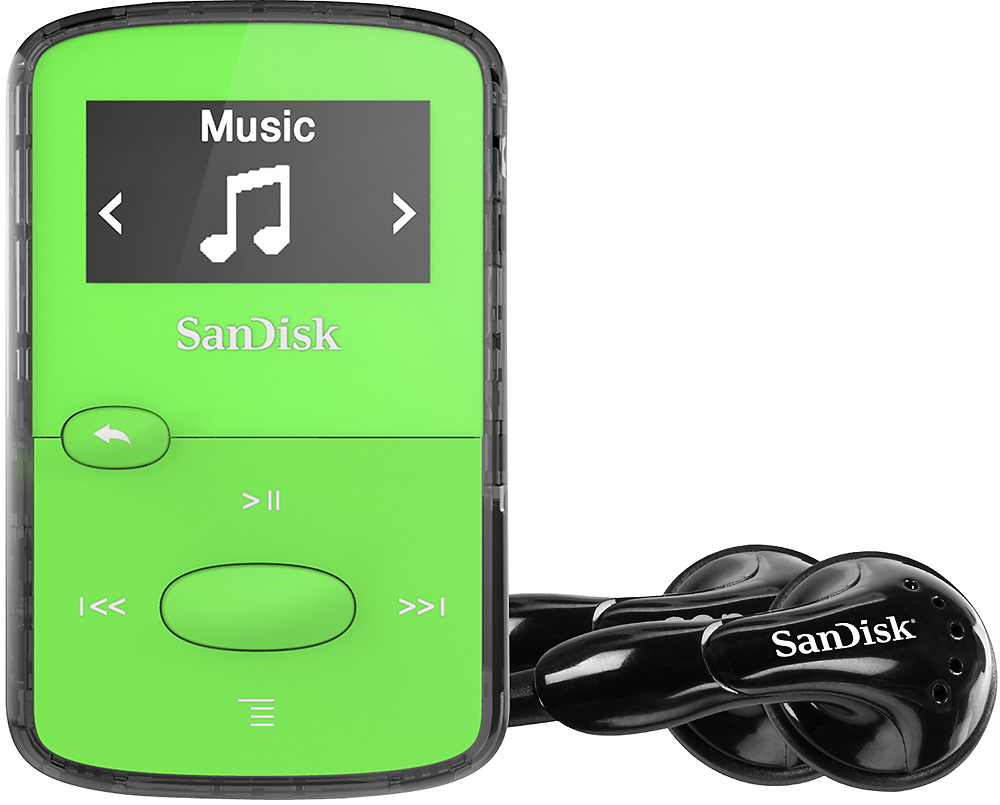
A:AnswerPlease allow me to inform you that the SanDisk® Clip Jam MP3 Player does not come with inbuilt loudspeaker. However, you can connect earphones, headphones or speakers using 3.0mm Audio jack of the MP3 player.
A:AnswerHi, please be informed that you can connect external speakers to the SanDisk® Clip Jam 8GB MP3 Player using the AUX-in cable. Also, please make sure that the external speakers get their own power from batteries or a power outlet as the MP3 Player cannot provide the same.
A:AnswerThere is no bill. You just need to download the songs that you want on the device. It's a MP3 player. If you buy music or get it free you should easily transfer your music to the device.
A:AnswerClip Jam shows up as a remote drive when connected to a device or laptop. You transfer mp3 files from folders on your device to folders on the Clip Jam by copy and paste or click and drag.
A:AnswerIt's pretty easy, if you are using a PC Windows Media Player. I still use Windows 7. When you connect the mp3 to the computer, Windows Media Player should open, if it doesn't you can manually open the program. In the upper right hand side of the window you should see a tab that says Sync. click on that and there will be a section to the right hand side that you can drag and drop from any folder that has your music. Then click "Sync" at the top of the window. To view the music on the MP3 player. Look to the left menu, somewhere at the bottom of the list it should have the name of your player. Click on that, then look for the arrow for "Music". I am not sure about Macs.