A:AnswerHope this helps from your friendly neighborhood emergency medical technician
Samsung TVs
USB Connecting Instructions (for all models supporting PSNow)
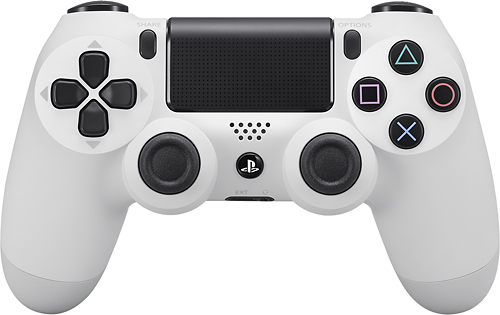
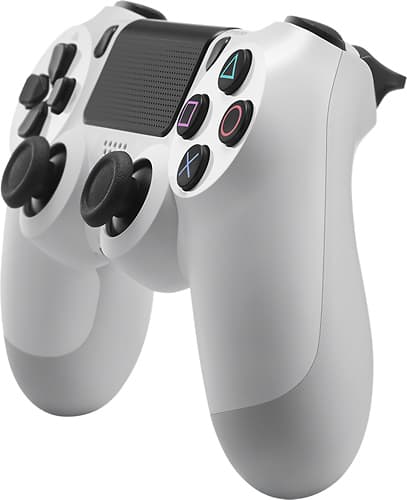
Connect the DualShock 4 and the TV’s USB port using the USB cable.
Press the PlayStation button on the DualShock 4 to turn on the controller.
* If the controller is not paired via Bluetooth, the controller must remain connected via USB to be used. It will not function wirelessly.
Bluetooth Pairing Instructions
Press the menu button on the television’s remote.
Select the System tab from the on-screen menu.
Select Device Manager.
Select Bluetooth Gamepad Settings.
After entering the Bluetooth Gamepad Settings menu, press and hold the Share and PlayStation button for up to 8 seconds on your DualShock 4 Controller. The controller should flash white from the lightbar.
Use the television remote to select Refresh within the Bluetooth Gamepad Settings.
Select the DualShock 4 device from the refreshed Bluetooth devices list.
Select Pair and Connect.
If the device paired properly, it should now glow white instead of flashing.
* If device does not respond after pairing, try restarting both the television and controller
(Note: the H6350, H6300, and H5500 models do not support Bluetooth functionality)
DualShock 4 Compatibility Notification: Only CUH-ZCT1 series DualShock 4 controllers are supported on 2014 and 2015 Samsung TV models (2016 Samsung TV models are not affected). If you have a CUH-ZCT2 series, you will be unable to stream games on PlayStation Now on those devices. To find which series you have, turn your DualShock 4 controller over and look at the back label. The model number will be shown just below the Sony logo. On DualShock 4 packaging, check the bottom of the box for the model number.