Customer Ratings & Reviews

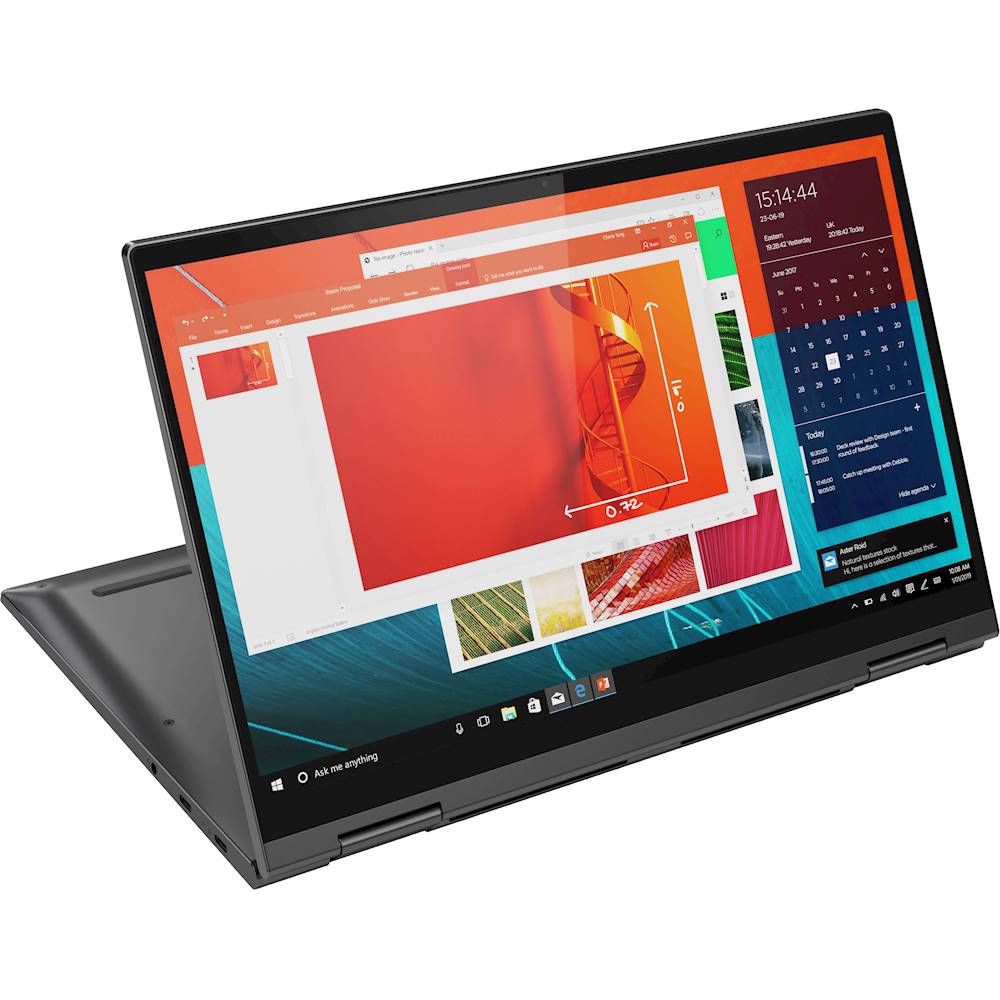
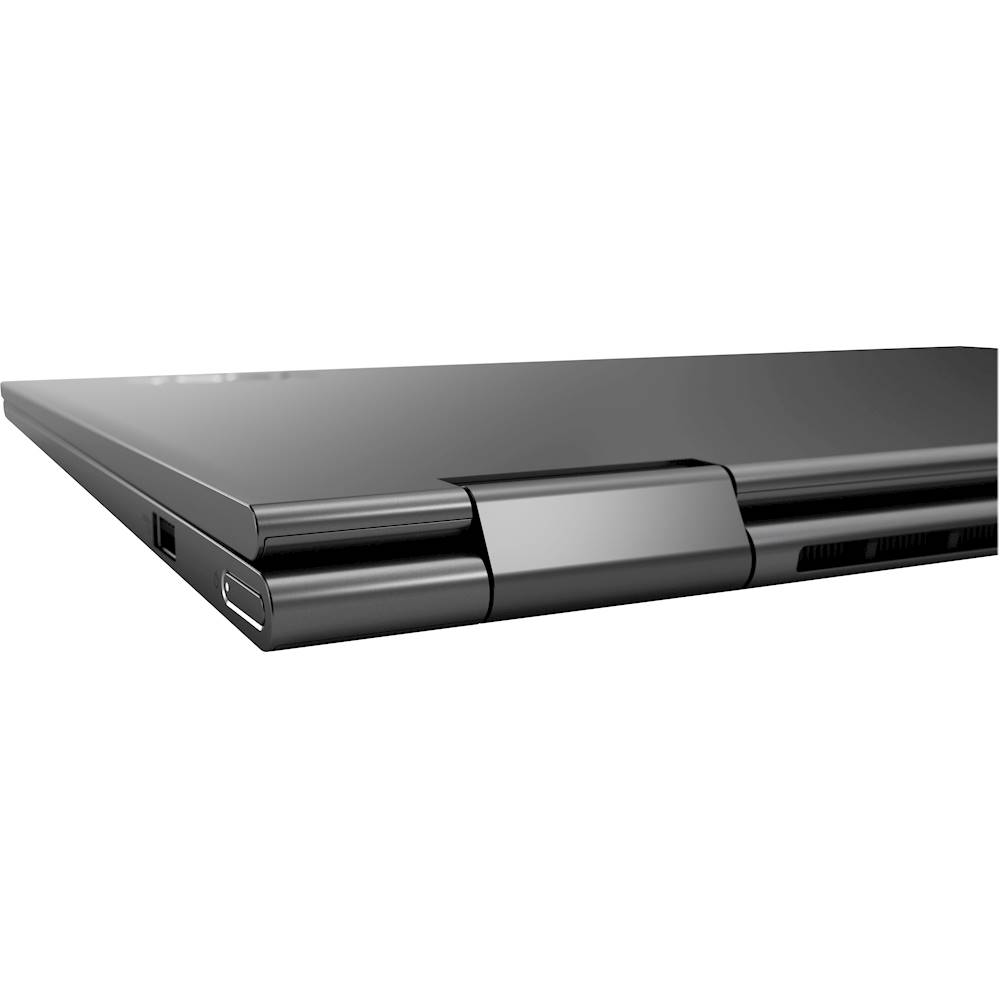
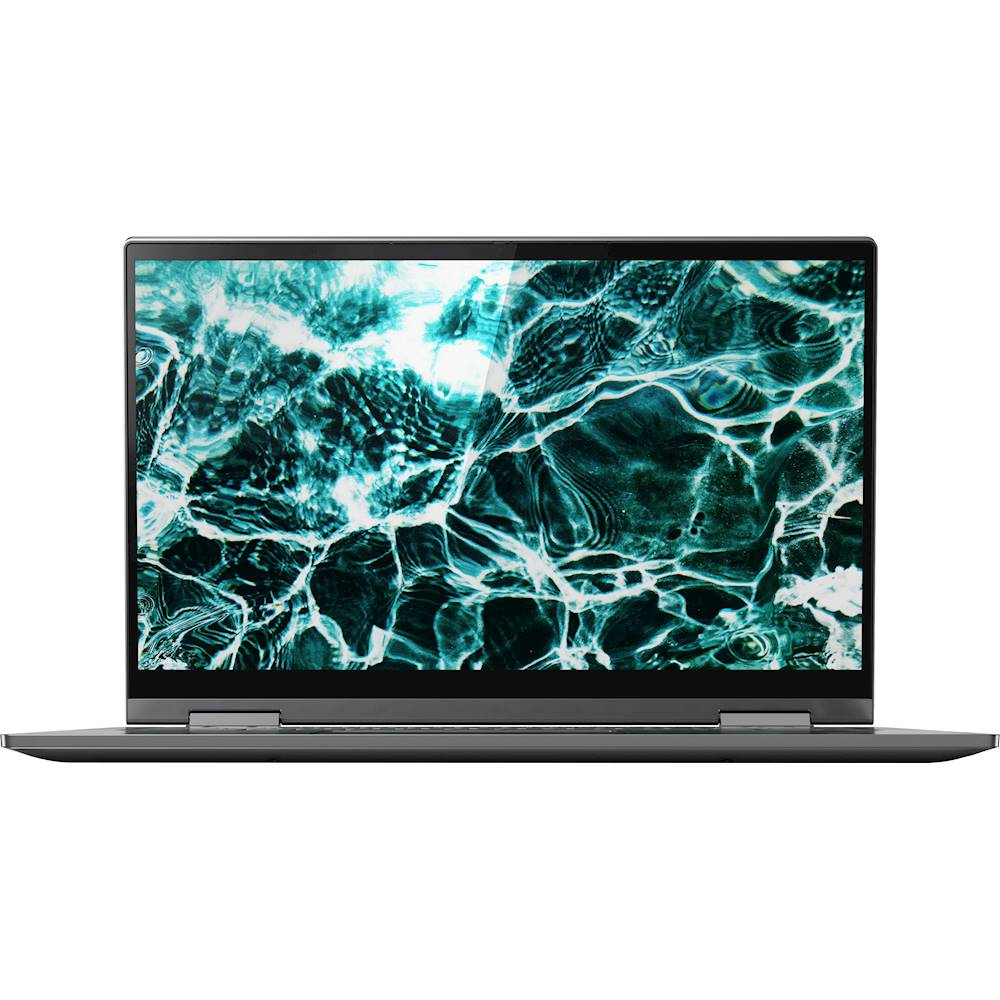

- Model:
- 81TC003LUS
- SKU:
- 6388036
Rating by feature
- Battery Life
Rating 4.3 out of 5 stars
- Speed
Rating 4.4 out of 5 stars
- Display
Rating 4.5 out of 5 stars
Customers are saying
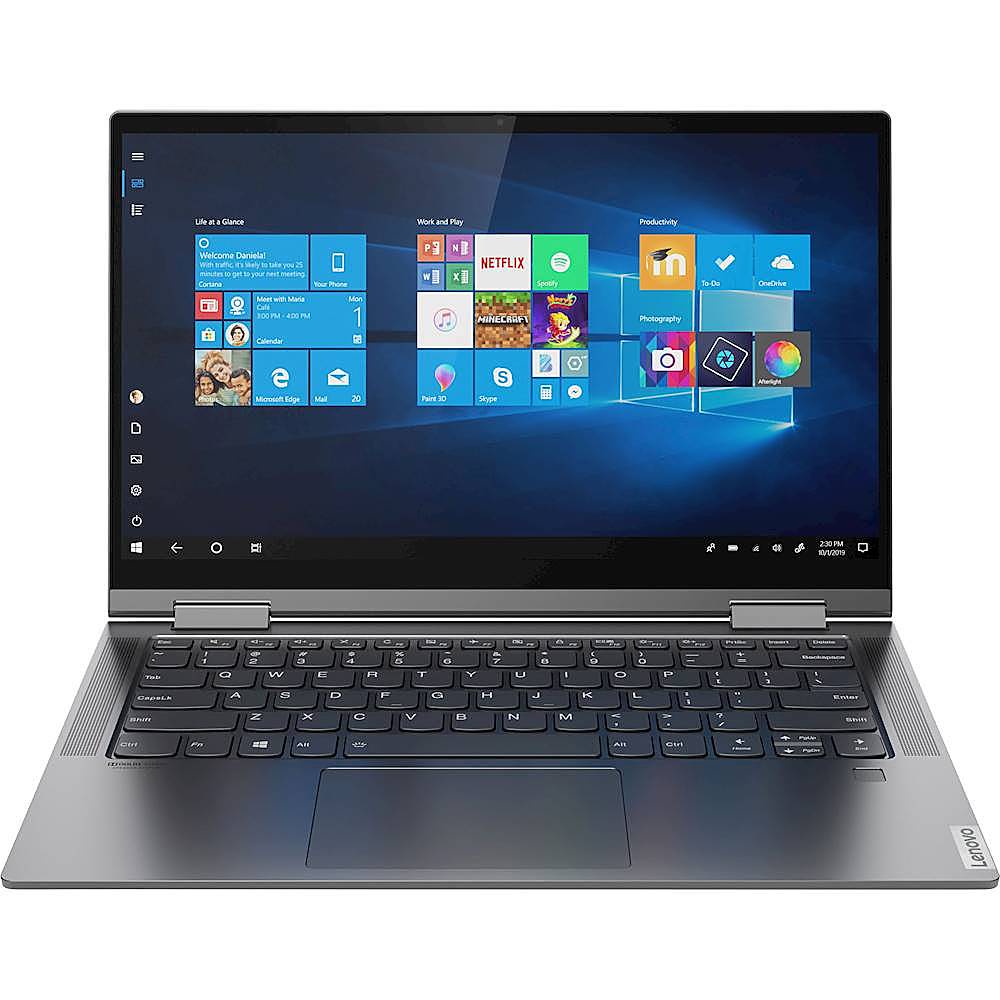
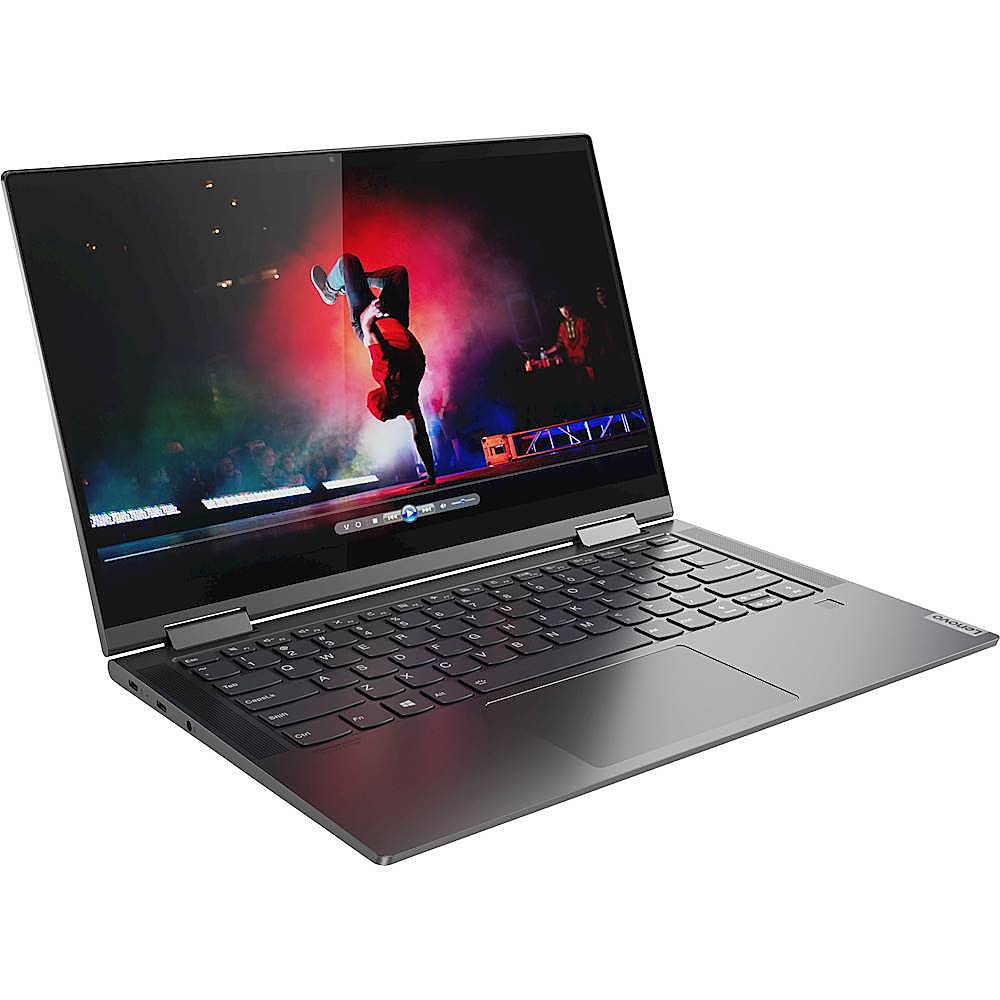
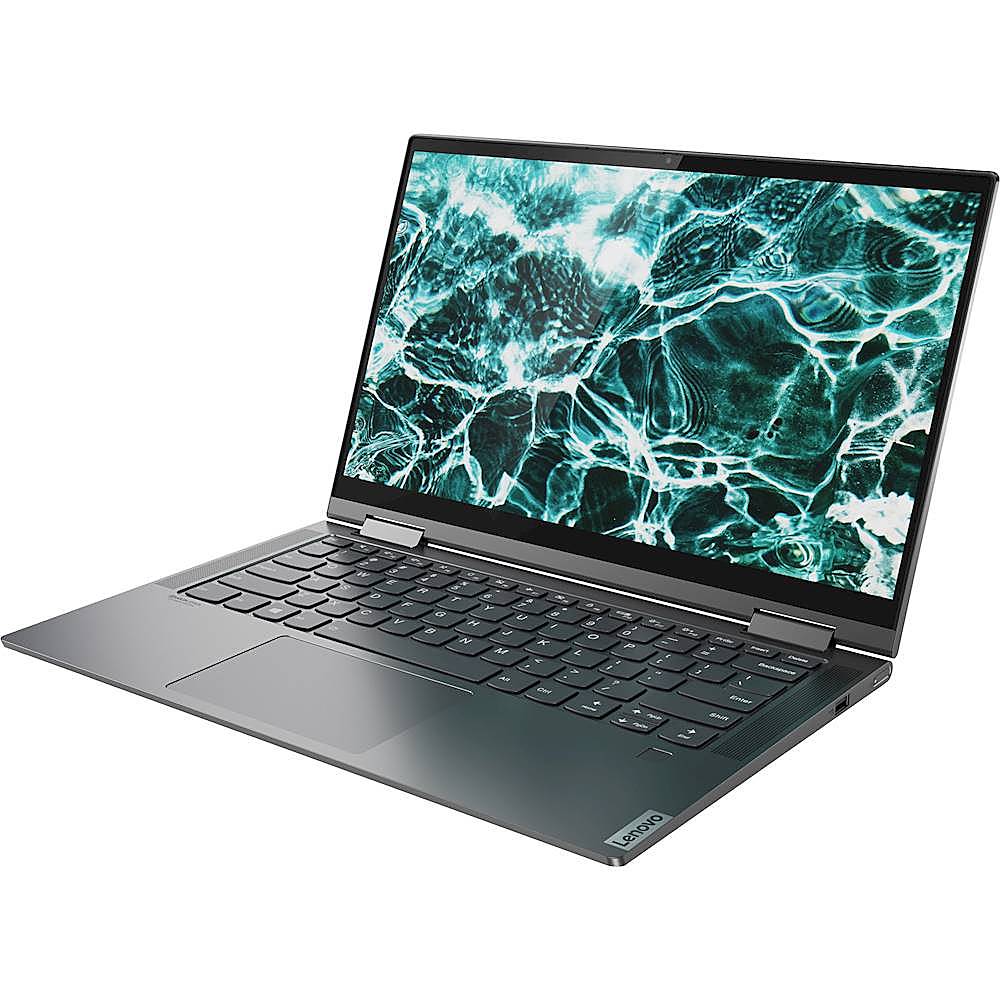
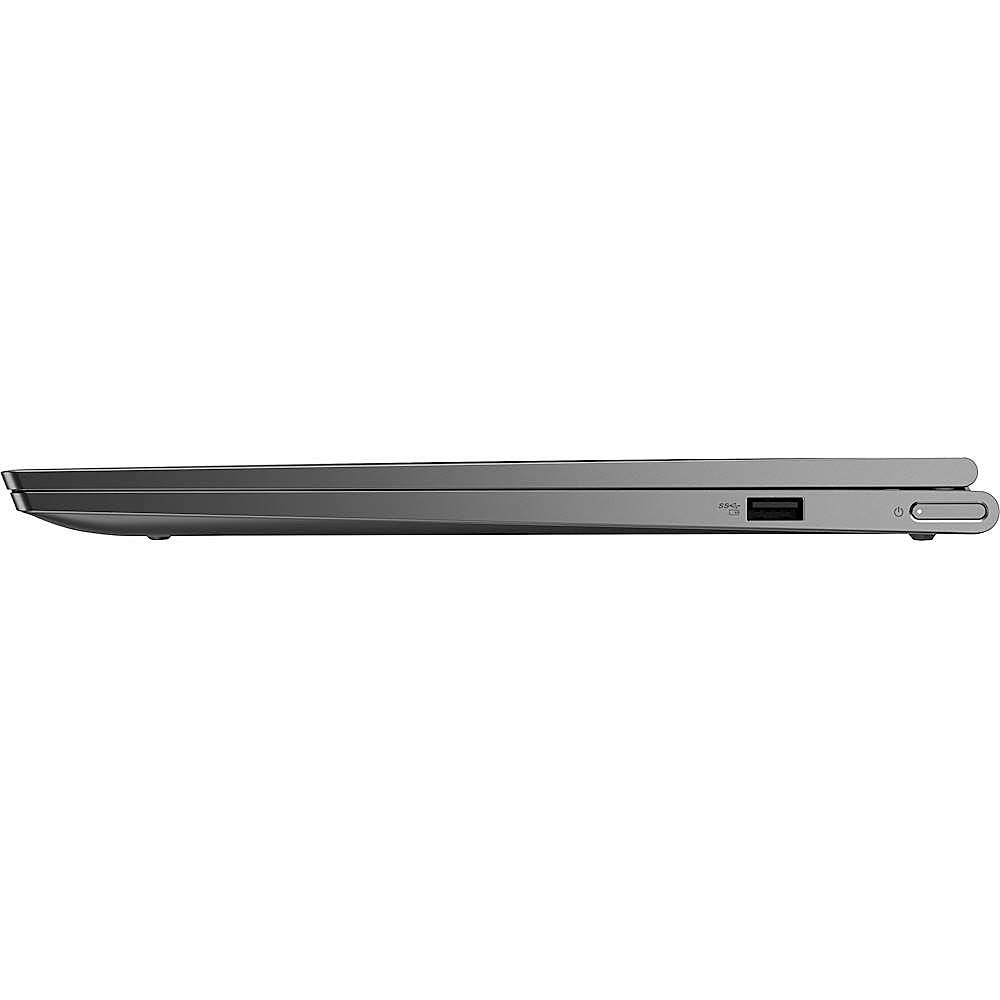
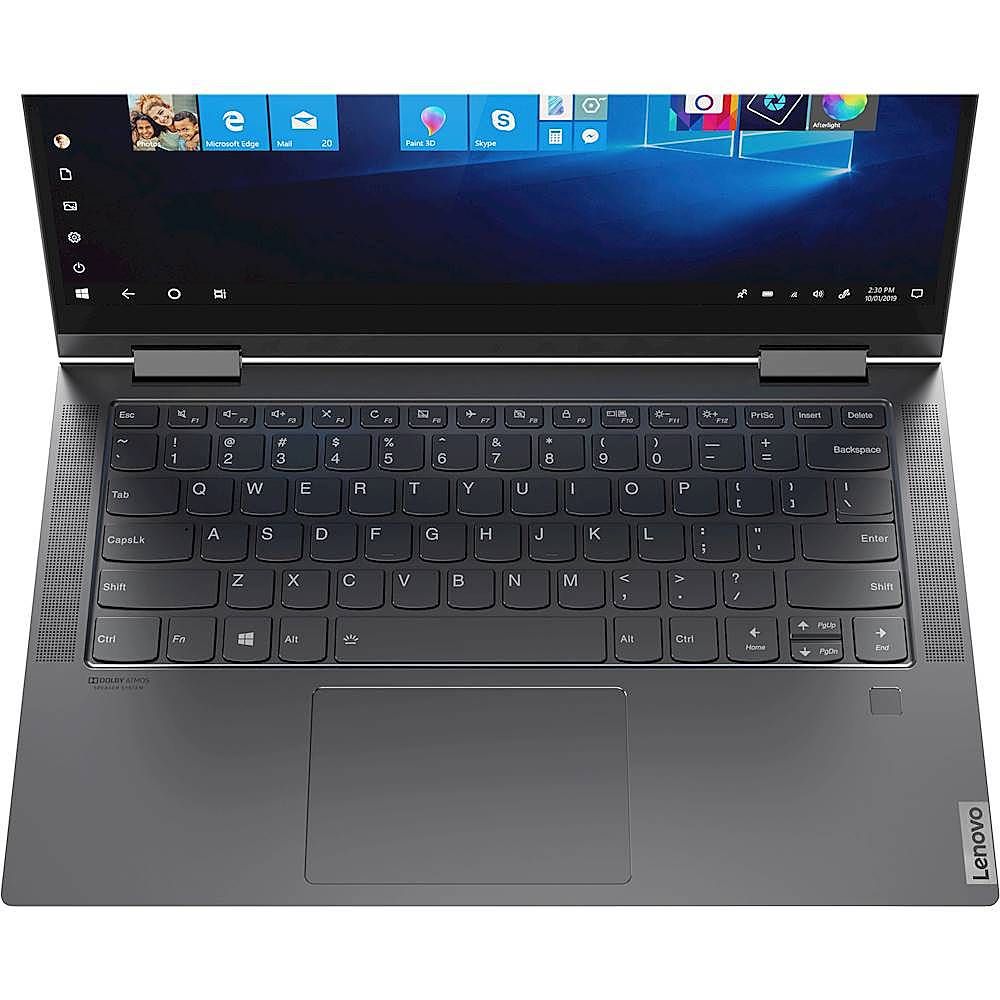
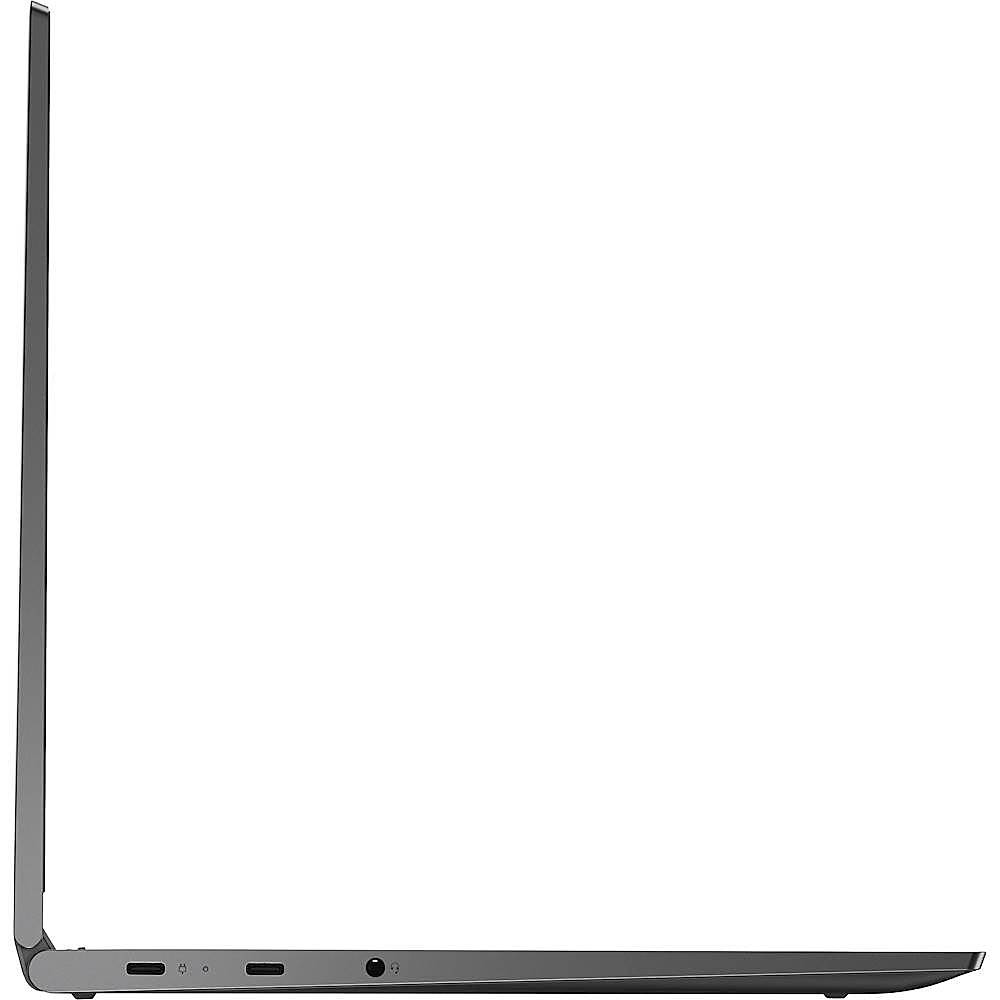
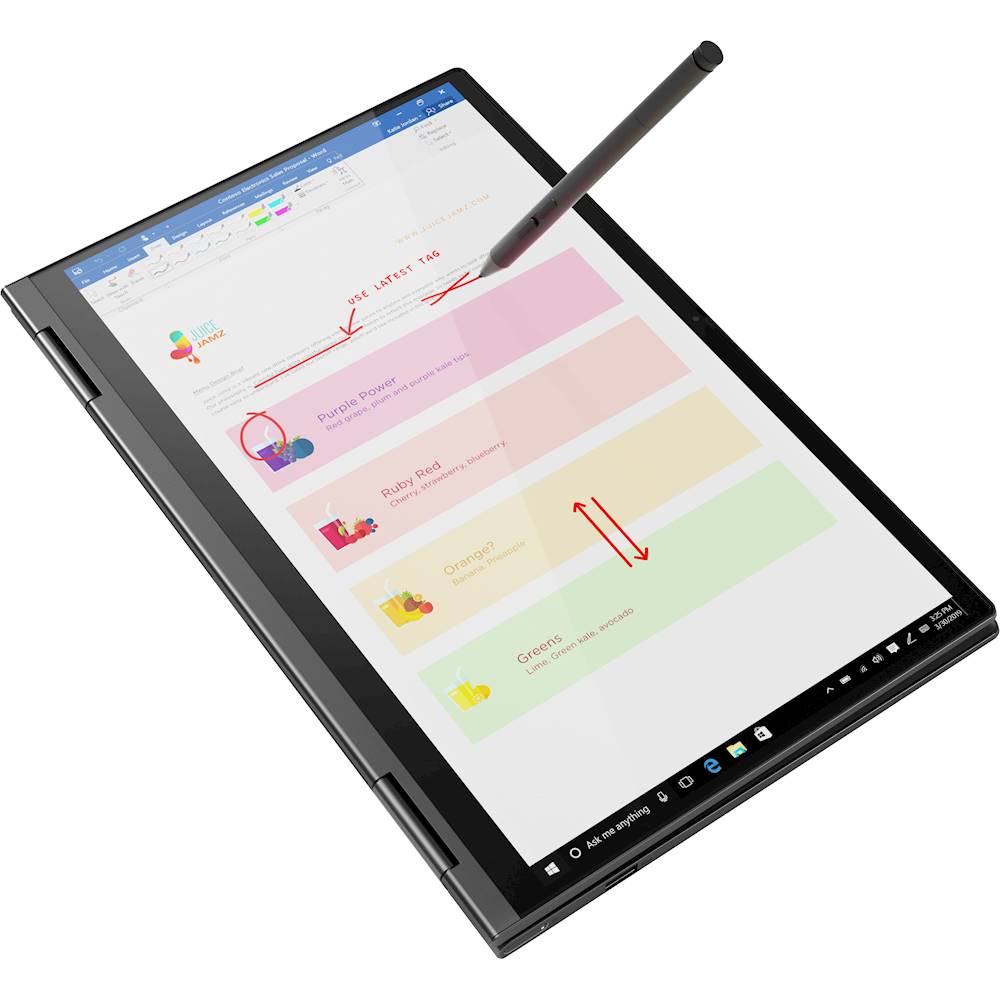
Customers admire the Yoga C740 2-in-1 laptop for its touchscreen capabilities, describing it as convenient and easy to use. They also appreciate its fast performance, light weight, and affordable price. While some users have concerns about the limited number of ports, fan noise, camera quality, overheating, and Wi-Fi connectivity, the overall positive feedback suggests that the Yoga C740 is a well-received product.
This summary was generated by AI based on customer reviews.
Do not purchase!
||Posted . Owned for 1 year when reviewed.This reviewer received promo considerations or sweepstakes entry for writing a review.This laptop is horrible to not purchase. Lenovo products never work and you are typically inconvenienced with having to send the product back. I have purchased a few laptops from best buy and the quality is poor. Will not purchase laptops from here any longer.
No, I would not recommend this to a friendDon't waste your money
||Posted . Owned for 1 week when reviewed.This reviewer received promo considerations or sweepstakes entry for writing a review.I had to send this laptop back three times if I knew that I had to go through what I've gone through I would not have purchased it if I can give it a -5 I would don't spend your money on this it's not worth it the only thing that's good about it is the looks
No, I would not recommend this to a friendBrand response from Lenovo Product Expert
Posted .We are sorry to hear that you are having issues with your Lenovo Yoga C740-14. Be sure any software you installed is compatible with Windows 10. There is no need to install Microsoft Office software. The software is already part of the operating system, you just need to activate the software with a purchased product key. If you have installed a copy of Microsoft Office, this is conflicting with the existing copy on the system and this will slow your system down. If you have installed a 3rd party anti-virus program, be sure that Windows Defender is turned off and that the trial version of McAfee Anti-Virus software is uninstalled. There can only be one anti-virus program on the system. You may need to restore your system to original factory default settings if any of the programming errors have occurred. You can do that by typing "restore" in the Cortana search window. Just click on the magnifying glass icon at the bottom left of your Windows 10 Desktop. Click on "Reset This PC" Then click on "Get Started" and follow the on screen directions to restore to factory defaults. If the problem persists, we recommend you contact Lenovo Tech Support at: 877-453-6686.

Horrible
||Posted . Owned for 1.5 years when reviewed.This reviewer received promo considerations or sweepstakes entry for writing a review.Horrible. Keyboard stopped working so i exchanged it for another one then the touchpad didn't work so exchanged it again and then the battery wouldn't charge so i returned it. I would never buy it again. P
No, I would not recommend this to a friendVery bad experience
||Posted . Owned for 2 months when reviewed.This reviewer received promo considerations or sweepstakes entry for writing a review.I had a Lenovo earlier which worked great and thus got sold by the representative to buy another one. This one is horrible - not even 2 months old and the screen is freezing, every time I open the laptop I have to disconnect and reconnect to my wifi....
No, I would not recommend this to a friendBrand response from Lenovo Product Expert
Posted .We are sorry to hear that you are having issues with your Lenovo Yoga C740-14. The Windows 10 Operating System should not freeze the screen. Be sure any software you installed is compatible with Windows 10. There is no need to install Microsoft Office software. The software is already part of the operating system, you just need to activate the software with a purchased product key. If you have installed a copy of Microsoft Office, this is conflicting with the existing copy on the system and this will slow your system down. If you have installed a 3rd party anti-virus program, be sure that Windows Defender is turned off and that the trial version of McAfee Anti-Virus software is uninstalled. There can only be one anti-virus program on the system. You may need to restore your system to original factory default settings if any of the programming errors have occurred. You can do that by typing "restore" in the Cortana search window. Just click on the magnifying glass icon at the bottom left of your Windows 10 Desktop. Click on "Reset This PC" Then click on "Get Started" and follow the on screen directions to restore to factory defaults. If the problem persists, we recommend you contact Lenovo Tech Support at: 877-453-6686.
Useless in a group video call
||Posted .This reviewer received promo considerations or sweepstakes entry for writing a review.When plugging in a headset or external microphone, the microphone volume is barely audible. This is with any headset, and after having the laptop serviced and the headphone jack replaced. It cannot be used in Zoom calls with more than one person.
No, I would not recommend this to a friendBrand response from Lenovo Product Expert
Posted .We are sorry to hear that you are having issues with the 3.5mm headset jack on your Lenovo Yoga C740-14. Try making an audio recording offline by using the Windows 10 audio recorder installed on the Yoga C740-14. Here is a link to instructions for doing this: https://support.microsoft.com/en-us/windows/how-to-use-voice-recorder-6fbb53d5-0539-abda-a9a4-0bcb84a778e7. If you can playback the recorded audio and hear it at a normal volume level and/or increase - lower the volume by using the Yoga C740-14 audio controls, check the audio settings within the video conferencing APP you are using. Be sure that your device microphone is selected as your audio source, the audio source is off mute both on the computer and within the APP. We recommend you check with the video conferencing APP website for audio function tips and troubleshooting suggestions.
Seriously disappointed in this Lenovo product.
||Posted . Owned for 1 year when reviewed.This reviewer received promo considerations or sweepstakes entry for writing a review.Unreliable machine. Within the first month, it needed a new motherboard. A couple months later, a new wireless card. And now (11/21) it needs a second new wireless card, plus the touchpad has stopped responding, altogether.
No, I would not recommend this to a friendA nightmare
||Posted .This reviewer received promo considerations or sweepstakes entry for writing a review.I am still waiting for the computer. No one is able to tell where is it. No one has helped me. Each time I call they tell me a different lie. I paid a lot for it. They are still charging while not shipping much product. Service is horrible, or worse non existant.
No, I would not recommend this to a friendhonest opinion
||Posted . Owned for 1.5 years when reviewed.This reviewer received promo considerations or sweepstakes entry for writing a review.I had this Laptop for less than 2 years and the hard drive is already giving screeches and clicks. I rarely use it and it is dying. Please do not buy this laptop. I am out of warranty.... yay.
No, I would not recommend this to a friendMalfunctions after a few months
||Posted . Owned for 4 months when reviewed.This reviewer received promo considerations or sweepstakes entry for writing a review.After 3 months of use my laptop now has black lines going across the screen. Very disappointed with the purchase and the malfunctioning laptop. Wish I could get something else.
No, I would not recommend this to a friendBrand response from Lenovo Product Expert
Posted .We are sorry to hear that you are having issues with your Lenovo Yoga C740-14. It is possible that resetting your computer back to original factory settings will correct the issue you describe. Here is a link to instructions for resetting your Windows 10 Laptop back to original factory settings: https://support.microsoft.com/en-us/windows/recovery-options-in-windows-10-31ce2444-7de3-818c-d626-e3b5a3024da5. Once you have the computer reset, be sure any software you installed is compatible with Windows 10. There is no need to install Microsoft Office software. The software is already part of the operating system, you just need to activate the software with a purchased product key. If you have installed a copy of Microsoft Office, this is conflicting with the existing copy on the system and this will slow your system down. If you have installed a 3rd party anti-virus program, be sure that Windows Defender is turned off and that the trial version of McAfee Anti-Virus software is uninstalled. There can only be one anti-virus program on the system. You may need to restore your system to original factory default settings if any of the programming errors have occurred. You can do that by typing "restore" in the Cortana search window. Just click on the magnifying glass icon at the bottom left of your Windows 10 Desktop. Click on "Reset This PC" Then click on "Get Started" and follow the on screen directions to restore to factory defaults. If the problem persists, we recommend you contact Lenovo Tech Support at: 877-453-6686.
No a good computer, will not recommend
||Posted . Owned for 2 months when reviewed.This reviewer received promo considerations or sweepstakes entry for writing a review.In less than 2 month, the camera stopped working. Not returnable to best buy now because it has been just over a month. I need to use to teach online via Zoom, but the camera stopped working during a Zoom class. What a disappointment.
No, I would not recommend this to a friendBrand response from Lenovo Product Expert
Posted .We are sorry to hear that you are having issues with the webcam on your Lenovo Yoga C740-14. This model ships with a 720p (HD) webcam with manual Privacy Shutter built in. Be sure the Privacy Shutter is completely open before trying to use the webcam or the webcam will not operate. There is a small slider, directly above the webcam lens. Move the tab to the right to open the Privacy Shutter. There is a red dot over the webcam lens that will disappear when the Privacy Shutter is fully open. This will indicate that the webcam is really to use. You can close the Privacy Shutter when you are done with the webcam for your security, by sliding the tab to the left to close the Privacy Shutter. The Red Dot will appear over the webcam lens when the Privacy Shutter is closed. If the Privacy Shutter is open but the webcam still fails, then be sure you have the latest version of Windows 10 on the computer, then update all of the BIOS files and drivers, including those for the webcam, up to that latest version of Windows 10. You can easily accomplish this by scanning the computer with the Lenovo Utility software available on this computer. This system has Lenovo utilities installed to help maintain the health of the device and keep the operating system software up to date. Type "Lenovo Vantage" in the Cortana Search window (if Lenovo Vantage is not installed on your device, you can download the APP and install it now). Select Lenovo Vantage from the list. In the window that opens, click on "Health and Support". In the expanded menu, select "Hardware Scan" In the window that opens, select "Run Quick Tests". This will scan your entire system for errors. Follow any directions that may pop up. If the problem continues after this scan, now click on "System Update". First select Windows update from the menu. Scan your system to be sure you have the latest version of Windows 10. Once that scan is complete, select "Additional Updates". This will scan your device to be sure there are no new BIOS/Driver updates needed. Follow any instructions that may pop up. If the issue still continues after these updates, we recommend you call Lenovo Tech Support at: 877-453-6686 for additional help.
Trabl
||Posted . Owned for 3 weeks when reviewed.This reviewer received promo considerations or sweepstakes entry for writing a review.My camera is not working on my zoom program, I been online with Greek Square for to days, it's still not working. The young man assured me that it was refurbished completely. Still not working... I need my camera for Zoom meeting..
No, I would not recommend this to a friendBrand response from Lenovo Product Expert
Posted .We are sorry to hear that you are having issues with the webcam on your Lenovo Yoga C740-14. This model ships with a 720p (HD) webcam with built in manual Privacy Shutter over the webcam. Be sure the Privacy Shutter is open before you try to use the webcam. There is a small manual slider directly above the webcam lens. Slide this tab to the right to open the Privacy Shutter. There will be a red dot over the webcam lens when the Privacy Shutter is closed. This red dot will disappear when the Privacy Shutter is open and the webcam is ready to use. Here is a link to a YouTube video that highlights the webcam Privacy Shutter: https://www.youtube.com/watch?v=i7gquhzeAhQ. If the issue continues, we recommend you call Lenovo Tech Support at: 877-453-6686.
Audio is not great
||Posted . Owned for 1 month when reviewed.This reviewer received promo considerations or sweepstakes entry for writing a review.Audio is not working good and I returned it. Best Buy return experience was great in this current situation.
No, I would not recommend this to a friendBrand response from Lenovo Product Expert
Posted .We are sorry to hear that you are having issues with the audio on your Yoga C740-14, model number 81TC000JUS. This system ships with stereo 2W, Dolby Atmos Speaker System. First be sure Dolby Audio is turned on ad adjusted to your personal preferences. Then, be sure you have the latest version of Windows 10 on the computer, then update all of the BIOS files and drivers up to this latest version of Windows 10. You can easily accomplish this by scanning the computer with the Lenovo Utility software available on this computer. This system has Lenovo utilities installed to help maintain the health of the device and keep the operating system software up to date. Type "Lenovo Vantage" in the Cortana Search window (if Lenovo Vantage is not installed on your device, you can download the APP and install it now). Select Lenovo Vantage from the list. In the window that opens, click on "Health and Support". In the expanded menu, select "Hardware Scan" In the window that opens, select "Run Quick Tests". This will scan your entire system for errors. Follow any directions that may pop up. If the problem continues after this scan, now click on "System Update". First select Windows update from the menu. Scan your system to be sure you have the latest version of Windows 10. Once that scan is complete, select "Additional Updates". This will scan your device to be sure there are no new BIOS/Driver updates needed. Follow any instructions that may pop up. If the issue still continues after these updates, we recommend you call Lenovo Tech Support at: 877-453-6686 for additional help.
Poor quality
||Posted . Owned for 5 months when reviewed.This reviewer received promo considerations or sweepstakes entry for writing a review.I bought this mid of August and send it to Philippines. They got it by November used it for 2 months and its freezing. It doesn't navigate to other page.I will definitely not recommend this.
No, I would not recommend this to a friendBrand response from Lenovo Product Expert
Posted .We are sorry to hear that the user is having issues with the Lenovo Yoga C740-14. This model ships with Windows 10 Home Operating System and should not freeze. Be sure any software you installed is compatible with Windows 10. There is no need to install Microsoft Office software. The software is already part of the operating system, you just need to activate the software with a purchased product key. If you have installed a copy of Microsoft Office, this is conflicting with the existing copy on the system and this will slow your system down. If you have installed a 3rd party anti-virus program, be sure that Windows Defender is turned off and that the trial version of McAfee Anti-Virus software is uninstalled. There can only be one anti-virus program on the system. You may need to restore your system to original factory default settings if any of the programming errors have occurred. You can do that by typing "restore" in the Cortana search window. Just click on the magnifying glass icon at the bottom left of your Windows 10 Desktop. Click on "Reset This PC" Then click on "Get Started" and follow the on screen directions to restore to factory defaults. Get back to us if the issue continues.
Terrible
||Posted . Owned for 3 weeks when reviewed.This reviewer received promo considerations or sweepstakes entry for writing a review.Due to no communication between departments on the Bets Buy side of this deal we cancelled and returned the oven/microwave. Totally disappointed in their service! Was a waste of my time and efforts.
No, I would not recommend this to a friendBad product
||Posted .This reviewer received promo considerations or sweepstakes entry for writing a review.Bought this product and it is the worst product ever, the screen keeps blinking, and forming black, also keeps freezing and I am unable to return the product. Last time I buy from Best Buy.
No, I would not recommend this to a friendBrand response from Lenovo Product Expert
Posted .Hello, we are sorry to hear you are experiencing this issue with your Lenovo Yoga C740 laptop model # 81TC000JUS. Please ensure you have the latest system software, device drivers, and BIOS installed on your machine. You can easily accomplish this by scanning the computer with the Lenovo Utility software available on this computer. This system has Lenovo utilities installed to help maintain the health of the device and keep the operating system software up to date. Type "Lenovo Vantage" in the Cortana Search window (if Lenovo Vantage is not installed on your device, you can download the APP and install it now). Select Lenovo Vantage from the list. In the window that opens, click on "Health and Support". In the expanded menu, select "Hardware Scan” In the window that opens, select "Run Quick Tests". This will scan your entire system for errors. Follow any directions that may pop up. If the problem continues after this scan, now click on "System Update". First select Windows update from the menu. Scan your system to be sure you have the latest version of Windows 10. Once that scan is complete, select "Additional Updates". This will scan your device to be sure there are no new BIOS/Driver updates needed. Follow any instructions that may pop up. If the issue continues after these updates, we recommend you call Lenovo Tech Support at: 877-453-6686 for additional help.
Never buying a Lenovo agai.
||Posted . Owned for 1 year when reviewed.This reviewer received promo considerations or sweepstakes entry for writing a review.Absolutely hate this computer. After a month it stopped working. Tried contacting Lenovo to fix and never happened so now I’m stuck with a computer that I can’t use.
No, I would not recommend this to a friendBrand response from Lenovo Product Expert
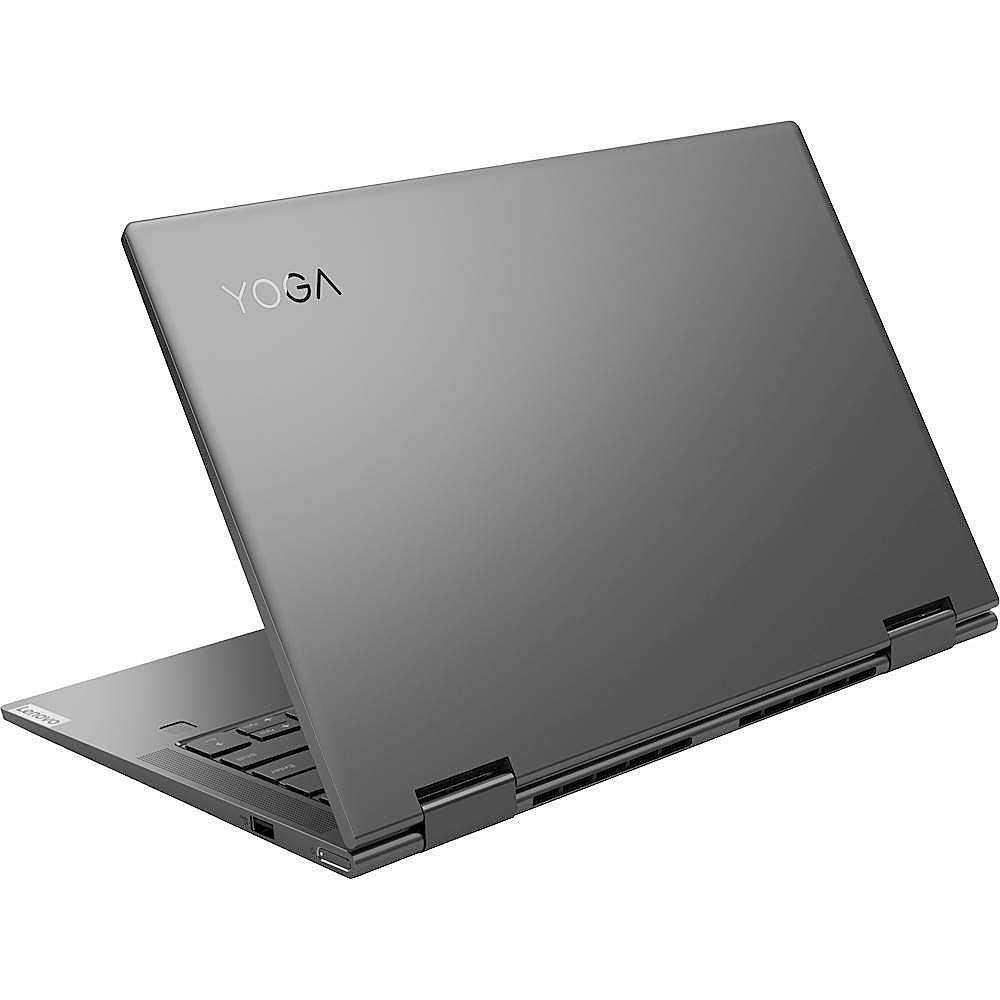
Posted .We are sorry to hear that you are having issues with your Lenovo Yoga C740-14, model number 81TC000JUS. Try resetting your computer back to original factory settings. This system is equipped with OneKey Recovery System. There is a very small pin hole on the bottom right side of the device, right near the top right corner of the cooling vent on the bottom of the device. You will need a pin to push this reset button. Plug the device in. Let the battery charge for about 15 minutes. Push the reset button. The system should boot to a choice screen where you can choose "Restore To Factory Default". Select this. It will delete everything from the hard drive except the original factory install of the operating system. You will need to reinstall all programs and files after the reset. If you don't have copies of the files, try to make one before you restore by selecting "Boot to desktop" and trying to back up your files. Once you have the computer reset, be sure any software you installed is compatible with Windows 10. There is no need to install Microsoft Office software. The software is already part of the operating system, you just need to activate the software with a purchased product key. If you have installed a copy of Microsoft Office, this is conflicting with the existing copy on the system and this will slow your system down. If you have installed a 3rd party anti-virus program, be sure that Windows Defender is turned off and that the trial version of McAfee Anti-Virus software is uninstalled. There can only be one anti-virus program on the system. You may need to restore your system to original factory default settings if any of the programming errors have occurred. You can do that by typing "restore" in the Cortana search window. Just click on the magnifying glass icon at the bottom left of your Windows 10 Desktop. Click on "Reset This PC" Then click on "Get Started" and follow the on screen directions to restore to factory defaults. If the problem persists, we recommend you contact Lenovo Tech Support at: 877-453-6686.
Horrible laptop
||Posted . Owned for 8 months when reviewed.This reviewer received promo considerations or sweepstakes entry for writing a review.The laptop had multiple problems that tequired replacement of parts. The camera is horrible and even after replacement still worked really bad. I would not recommend it.
No, I would not recommend this to a friendBrand response from Lenovo Product Expert
Posted .The Lenovo Yoga C740-14 ships with a 720p (HD) webcam with manual Privacy Shutter and Dual Array Microphones built in. If you are getting less than expected broadcast video quality from your webcam, first be sure you are in a well lighted area. Then check to be sure you have the latest version of Windows 10 on the computer. Update all BIOS files and drivers up to that latest version of Windows 10. You can easily accomplish this by scanning the computer with the Lenovo Utility software available on this computer. This system has Lenovo utilities installed to help maintain the health of the device and keep the operating system software up to date. Type "Lenovo Vantage" in the Cortana Search window (if Lenovo Vantage is not installed on your device, you can download the APP and install it now). Select Lenovo Vantage from the list. In the window that opens, click on "Health and Support". In the expanded menu, select "Hardware Scan" In the window that opens, select "Run Quick Tests". This will scan your entire system for errors. Follow any directions that may pop up. If the problem continues after this scan, now click on "System Update". First select Windows update from the menu. Scan your system to be sure you have the latest version of Windows 10. Once that scan is complete, select "Additional Updates". This will scan your device to be sure there are no new BIOS/Driver updates needed. Follow any instructions that may pop up. If the issue still continues after these updates, we recommend you call Lenovo Tech Support at: 877-453-6686 for additional help.
Screen is just black.
||Posted . Owned for 3 months when reviewed.This reviewer received promo considerations or sweepstakes entry for writing a review.The laptop just stop working and never came back even if I charge it doesn’t come up. The screen is just black even if you charged nothing comes up on the screen.
No, I would not recommend this to a friendBrand response from Lenovo Product Expert
Posted .We are sorry to hear that you are having issues with your Lenovo Yoga C740-14. It is possible that resetting your computer back to original factory settings will fix the issue you describe. Since you can no longer properly boot the computer, this system is equipped with OneKey Recovery System. There is a very small pin hole on bottom of the computer, at the top right side of the cooling vent on the bottom of the device. You will need a pin to push this reset button. Plug the device in. Let the battery charge for about 15 minutes. Push the reset button. The system should boot to a choice screen where you can choose "Restore To Factory Default". Select this. It will delete everything from the hard drive except the original factory install of the operating system. You will need to reinstall all programs and files after the reset. If you don't have copies of the files, try to make one before you restore by selecting "Boot to desktop" and trying to back up your files. Once the computer is restored, be sure any software you installed is compatible with Windows 10. There is no need to install Microsoft Office software. The software is already part of the operating system, you just need to activate the software with a purchased product key. If you have installed a copy of Microsoft Office, this is conflicting with the existing copy on the system and this will slow your system down. If you have installed a 3rd party anti-virus program, be sure that Windows Defender is turned off and that the trial version of McAfee Anti-Virus software is uninstalled. There can only be one anti-virus program on the system. You may need to restore your system to original factory default settings if any of the programming errors have occurred. You can do that by typing "restore" in the Cortana search window. Just click on the magnifying glass icon at the bottom left of your Windows 10 Desktop. Click on "Reset This PC" Then click on "Get Started" and follow the on screen directions to restore to factory defaults. If the problem persists, we recommend you contact Lenovo Tech Support at: 877-453-6686.
Lenovo Yoga C740
||Posted . Owned for 1 year when reviewed.This reviewer received promo considerations or sweepstakes entry for writing a review.Laptop's main board failed just after the warranty period. I would never buy a Lenovo laptop again other than their ThinkPad lines.
No, I would not recommend this to a friendBrand response from Lenovo Product Expert
Posted .We are sorry to hear that you are having issues with your Lenovo Yoga C740 14, model number 81TC000JUS. Try resetting this computer back to original factory settings, this may correct the issue you are having. This system is equipped with OneKey Recovery System. There is a very small pin hole on the bottom right side of the device, right near the top right corner of the cooling vent on the bottom of the device. You will need a pin to push this reset button. Plug the device in. Let the battery charge for about 15 minutes. Push the reset button. The system should boot to a choice screen where you can choose "Restore To Factory Default". Select this. It will delete everything from the hard drive except the original factory install of the operating system. You will need to reinstall all programs and files after the reset. If you don't have copies of the files, try to make one before you restore by selecting "Boot to desktop" and trying to back up your files.
Junk
||Posted . Owned for 2 months when reviewed.This reviewer received promo considerations or sweepstakes entry for writing a review.Touchpad stopped working and machine will not reset to clear info to take back or throw in garbage . The covid-19 hit and couldnt even have geek squad look at it .
No, I would not recommend this to a friendBrand response from Lenovo Product Expert
Posted .We are sorry to hear that you are having issues with the Touchpad on your Lenovo Yoga C740-14, model number 81TC000JUS. First, be sure the Touchpad is turned on. Tap the HotKey in the F6 position on your keyboard. This toggles the TouchPad on/off. If this is not the issue, and you can not reset the computer via normal Windows 10 reset, this system is equipped with OneKey Recovery System. There is a very small pin hole on the bottom of the device, right near the top right side of the cooling vent on the bottom of the device. You will need a pin to push this reset button. Plug the device in. Let the battery charge for about 15 minutes. Push the reset button. The system should boot to a choice screen where you can choose "Restore To Factory Default". Select this. It will delete everything from the hard drive except the original factory install of the operating system. You will need to reinstall all programs and files after the reset. If you don't have copies of the files, try to make one before you restore by selecting "Boot to desktop" and trying to back up your files. If the problem persists after the factory reset, we recommend you contact Lenovo Tech Support at: 877-453-6686.