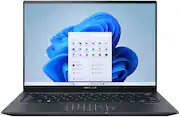
Rating 4.6 out of 5 stars with 534 reviews
4.6- Screen Quality (143)
- Processor Speed (90)
- Battery Life (78)
- Performance (59)
- Weight (38)
- RAM (49)
- Memory (8)
- Fan Noise (5)
- Heat (4)
- Touchpad (4)
Customer Images
The vast majority of our reviews come from verified purchases. Reviews from customers may include My Best Buy members, employees, and Tech Insider Network members (as tagged). Select reviewers may receive discounted products, promotional considerations or entries into drawings for honest, helpful reviews.
- Rated 5 out of 5 stars
Amazing Laptop
For the price this is an excellent laptop. I love the screen, the build quality, the keyboard (which lights up), the features, the battery, and how smooth it is. The pages for browsing the internet load super-fast and this laptop play well on games like Fortnite, at least through the cloud. This laptop's battery lasts so long for me even at 120Hz. It's a good laptop for college too! The design is sleek, and the laptop is so lightweight. There is no fan noise at least for me when running games like Fortnite or Minecraft (with shaders) and other programs such as Stellarium. I have an iPhone and it still works with it, I have access to all my iCloud photos and can answer call and texts with the Link to Windows/Phone Link app. I couldn't be happier to have this laptop.
Posted by CarlosB
- Rated 5 out of 5 stars
Review for ASUS Laptop
The Asus ZenBook laptop offers a sleek design, powerful performance, and impressive battery life. Its premium build quality and slim profile make it highly portable. The display is vibrant and sharp, providing an enjoyable visual experience. The keyboard and trackpad are comfortable to use. However, some users have reported occasional software glitches and the fan noise can get noticeable under heavy tasks. Overall, the Asus ZenBook is a solid choice for those seeking a balance between style and performance in a laptop.
Posted by Madddd
- Rated 5 out of 5 stars
A Powerhouse of Visuals in a Sleek Package
After several weeks of using the ASUS ZenBook 14X, I'm thoroughly impressed, particularly with its display capabilities. The 14.5-inch 2.8K OLED touchscreen is the star of the show. As someone who's used to high-end displays, I was skeptical about what "budget" could offer, but this laptop proved me wrong. Display Quality: The OLED screen is stunning. The color accuracy and contrast levels are top-notch, making photo editing a much more precise task. The 120Hz refresh rate is a game-changer, especially when scrolling through web pages or working on animations. It's smooth and responsive, a feature I didn't expect at this price point. Performance: Powered by the Intel Evo platform with an i5-13500H processor, it handles multitasking effortlessly. I've had multiple tabs and applications open without any noticeable lag. The 8GB RAM seems adequate, though for heavier tasks, more would be preferable. Build and Design: The laptop's build quality is solid. It's lightweight and portable, making it easy to carry around. The Inkwell Gray finish gives it a professional look, which I appreciate in work settings. Battery Life: Battery performance is decent, lasting around 7-8 hours on a typical workday. It's not groundbreaking, but it's sufficient for most needs. Sound and Keyboard: The sound quality is good for a laptop, and the keyboard is comfortable for long typing sessions, though it lacks a numeric keypad, which might be a downside for some. Final Thoughts: Overall, the ASUS ZenBook 14X is a fantastic choice for those who prioritize display quality and portability. It's a budget-friendly laptop that doesn't feel "budget" in its performance and build. While it's not a gaming powerhouse or a heavy-duty workstation, for everyday productivity and media consumption, it's more than capable. The OLED display is the clear standout feature, making it a joy to use for both work and play.
Posted by StevenC
- Rated 5 out of 5 stars
Absolutely recommend for work (and only work)
This is an incredible laptop if you're a programmer. Amazing screen, comfortable size, very good performance, high refresh rate screen helps with mouse accuracy, but also just looks super smooth. The display is amazing and the sound is alright. If you're buying this to play games, that's definitely not it's purpose, but because of that, the battery life is very good. M.2 storage makes upgrading to to faster and larger storage very easy.
Posted by TBoneOden
- Rated 5 out of 5 stars
Best for the buck.
I bought the laptop on sale for around 600 bucks, including taxes. The 2.8k 120hz touch display, the built quality and the performance from 13th Gen H series are the pros and cons are there is no fingerprint scanner to unlock. But windows hello is there so face recognition unlock work pretty fast and only 8 GB of DDR5 and I don't think it would be sufficient and there is no Ram upgrade option in laptop but In the current market i feel it is best laptop for 600 bucks.
Posted by Jcruz