60th Anniversary SaleEnds Sunday. Exclusions, terms and conditions apply.Shop now

Skip to contentGo to Product Search
Main Content

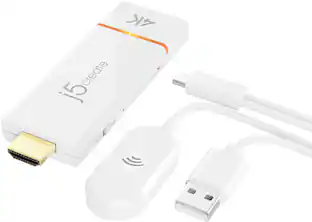
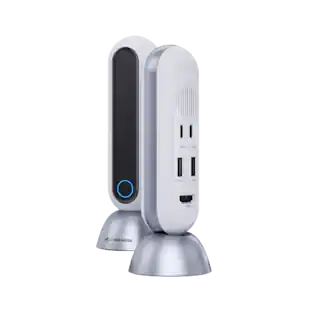
j5create - ScreenCast USB-C® Wireless Display HDMI™ Extender - White

Model: JVAW62
SKU: 12916708
Sold & shipped by

About this product

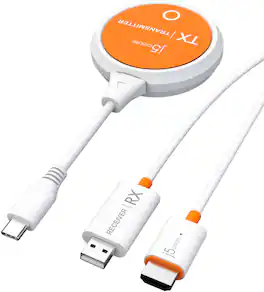
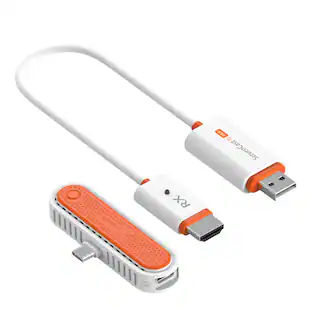
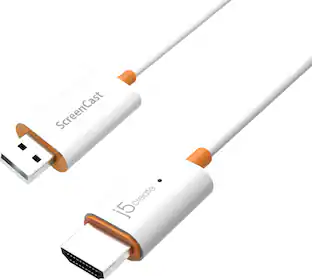
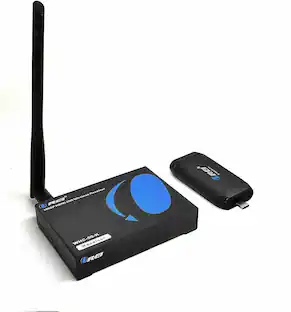
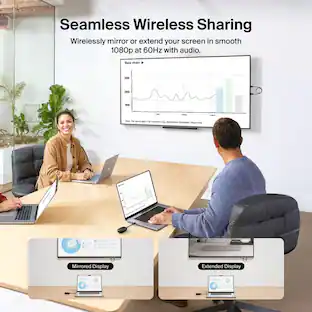
Eliminate the need and expense for cables by wirelessly sendingwhat’son your laptop, tablet,or mobile phone to your HDTV with this HDMI™ Extender. It transmits audio and video signal from a USB-C®equipped device to anHDMI™ enabled TV, projector,ormonitor, creating a dedicated AV connection without an existing network.Enjoy a large screen experience by simply connectingthe USB-C®transmitter to your compatible device and then connect the HDMI™ receiverto your TV.
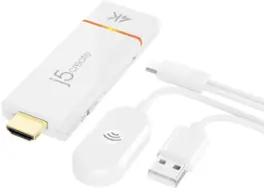
Features
  • 2.4G/5G dual band

    A stable connection is always ensured.

  • Resolution support

    Up to 1080P.

  • Wide compatibility

    USB Type-C male works with macOS®, Windows®, Android™, iOS®(iPad Pro) and Chrome OS.

  • RX supports ScreenCast

    The wireless display receiver can wirelessly mirror the entire screen of your smartphone, tablet or laptop to an 4K TV or 4K projector.

  • Plug and Play

    Without any installation, mirror your device’s content in seconds.

See all features
Specifications
  • Brand
    j5create
    Model Number
    JVAW62
    Product Name
    ScreenCast USB-C® Wireless Display HDMI™ Extender
    Color
    White
    Product Height
    0.01 inches
    Product Length
    0.01 inches
Sponsored

Reviews

Rating 4.4 out of 5 stars with 37 reviews

84% would recommend to a friend

Customer Images

The vast majority of our reviews come from verified purchases. Reviews from customers may include My Best Buy members, employees, and Tech Insider Network members (as tagged). Select reviewers may receive discounted products, promotional considerations or entries into drawings for honest, helpful reviews.

  • Rated 5 out of 5 stars

    Ingenious Plug and Play Screencast

    The j5created Screencast Wireless Display Adapter and USB-C Wireless Display HDMI Extender alone and in combination is an ingenious design and both work great! Perfect for business or pleasure road trips, the j5create Screen Cast is so easy to use and works perfectly on a variety of operating systems and devices. It works with Android, Windows, iOS and macOS, laptops, tablets, cell phones and iPad. It is a wireless display adapter that allows screen casting from a multitude of devices to an HDTV. The only requirement of the TV is that it have an HDMI port, and if the TV has a USB connection to power the Screen Cast the USB would connect there, otherwise simply plug the USB into an electrical outlet adapter. An internet connection to mirror your device on the TV is not a requirement but is necessary to update firmware. The directions are written well, easy to follow, and can be easily found on the j5create website through QR codes that show up on the TV when the connection begins. If there are any problems with the connection, simply take a pin and reset the Screencast by inserting it into the pinhole on the HDMI connection of the Screencast. To enhance this Screencast device, j5create has designed and marketed the USB-C Wireless Display HDMI Extender that can cast HDMI to any TV from the same diversity of devices (with the exception of cell phones) but without using the internet. The USB-C Wireless Display HDMI Extender creates a direct connection between the mobile device and the TV. It will cast HDMI content without the internet because it creates a dedicated connection that mirrors everything on the device directly to another display. It works great for me with the windows laptop and with the iPad. To use, the Screencast must be set up as described above. Then the HDMI Extender needs to connect to a mobile device having a USB-C connection. The HDMI extender is then paired with the Screencast after the Screencast connected to the HDMI TV connection and powered by either the TV’s USB or and electrical adapter. To pair, press the lighted circle on the HDMI extender. Once the light on the HDMI extender quits blinking, which for me has only been a few seconds, it will turn solid white, and the HDMI image will then project onto the TV display. Again, if there are any issues with the connection, simply reset the HDMI connection of the Screencast by using a pin and inserting it into the pinhole and try to pair and connect again. Be sure that your firmware is up to date and the directions to do so, if it does not happen semi-automatically, are on the j5create website. This is a great device that is small, light, easy to transport and works with a variety of media. There is no software to install, no app to download, it is really a plug and play design and I definitely recommend it. I wish I would have had it back in the day when I lugged a lot of equipment to give a presentation on the road.

    This review is from j5create - ScreenCast USB-C® Wireless Display HDMI™ Extender - White

    Posted by SwigglesMilam

  • Rated 5 out of 5 stars

    J5Create - Makes it Big Time!

    I was wanting to use the J5 Create - ScreenCast USB C to stream from my gaming laptop (running windows 10 Home) to my big screen TV (LG ) to play games…specifically one of the high end FPS. I knew it was a stretch and I figured I would probably not be able to and I was right and wrong. Anyway let me start with the set up. Out of the box the instructions were pretty strait forward and there was a nice QR code that took you right to the instruction and a video. I would recommend doing that. Like most people that fancy themselves “techie” I just dove in and started plugging things in. I got to the set up screen on my tv and nothing was happening. The set up screen stated that it would start mirroring automatically but it didn’t. So I tailed tucked… I dove into the instructions for a careful read. I made sure the HDMI was seated properly and the that the USB A that powers the receiver on the HDMI was seated and all was well there. Then I put the broadcaster piece (the orange puck with the usb C) into my laptop and made sure it was seated. My laptop is new and a gaming laptop so I assumed it was DP output. If it’s a thunderbolt it is. It was. All was ready and still nothing. I went into display settings settings on my laptop and simply selected “connect to wireless display” and boom I was off and running. I did not see that little clue in the instructions anywhere. But that worked! NOTE: At this point I was connecting from my laptop to the J5create Cast receiver on the TV and not broadcasting from the J5 Broadcaster puck. (I did not catch that at the time). I pulled up the game and it loaded. There was a little lag but I was pretty optimistic. I was able to play it but there was times when it lagged. I played for about 10 minutes and the lag was a little irritating but the large screen was really cool. To be fair I have the HDMI receiver and the USB A behind my TV which the instructions said not to have the USB A behind your TV or in a cabinet due to that being the receiving part and it could affect latency and create the lag. The J5Create does come with a USB A extender and I plugged it into a USB Adapter into the wall and not the back of the tv and made sure the receiver was not blocked by my tv (see pics). I then realized that the J5 puck was not being used and only the laptop to the receiver was connected. Moving the receiver did help out with the lag but I was not sure if my laptop was connected 5g to the receiver or 2.4 and I wanted to make sure it was 5g and from the broadcaster to the receiver to optimize the connection. If you do connect the receiver to your laptop or iPhone or any other device you must re-pair the receiver to the broadcaster puck for it to work. You do this by pressing a paperclip end into the receiver for 2 seconds and it puts it into paring mode. then you plug in the puck into your laptop and make sure the light on the puck is flashing and boom after a few seconds delay… it starts mirroring just like it supposed to! Super cool. I like how you can use the J5 broadcaster (i call orange puck) or go direct with your device to the receiver. Very versatile. Note: The fastest connection I got with the least amount of lag was with the broadcaster ands receiver on 5 g with the receiver not behind the tv. Streaming the web and video were a breeze. The J5create is also an awesome business tool as well. Being able to plug into any HDMI ported monitor from my laptop or tablet and go direct from device to device or bypass the device and go from the broadcaster to the receiver to your tv is pretty awesome.

    This review is from j5create - ScreenCast USB-C® Wireless Display HDMI™ Extender - White

    Posted by JC1503

  • Rated 5 out of 5 stars

    Send wireless 1080p from devices to TV with ease

    With this little gadget users can wirelessly send content up to 1080p resolution from a laptop, smartphone or tablet to a nearby TV or projector with this HDMI extender. What’s the big deal? NO WIRES is the big deal. Whether at home, at the office or on the go during travel, isn’t that a nice capability to have? Of course, it is! Following the provided directions, setup is simple, too. **WHAT’S IN THE BOX** • USB-C Transmitter • Receiver cable with HDMI connector and USB-A for power from TV or external brick (not included) • USB extender cable for receiver **THE SETUP** As always, don’t be a know-it-all and read, then follow the instructions. This assures success. Even experienced geeks like yours truly need to read and follow instructions no matter how sure we are that we don’t need no stinking instructions. Just saying . . . Moving forward, ahem, Transmitter connected to laptop, check. Receiver WITH power brick connected by HDMI to TV, check. The directions state flat out to not place the USB-A connector behind the TV or inside a cabinet because this could (WILL) weaken the signal. I guess they know their equipment best. So, the wire from the USB-A to the TV’s HDMI acts as an antenna! DON’T fail to heed this admonition, check. Pair the receiver with the transmitter using its own mini-network. Using a paper clip or similar device (a pin), press and hold the tiny button in the tiny hole on the HDMI end of the receiver for two seconds to put it in pairing mode. Then press the button on the receiver for two seconds to complete the pairing mode setup. Check! The transmitter went into a USB-C port on my MacBook Pro. The receiver went into an HDMI port on a TV, with the USB-A extender wire attached and connected to external power. And now it’s time to . . . **PUT IT TO THE TEST** • Well, that was simple! • On my Mac, I set it to mirror the screen of my external 27-inch 4K monitor. Yes, users must tell display preferences on Mac or Display instructions on PCs where the Transmitter signal is to go. • Launched the AppleTV+ app on the Mac and chose what to watch, then set it to full screen. • On the TV, the image was already there, mirroring the computer screen, so it was full screen on the TV in 1080p. Reminder to readers that this device is NOT 4K. This is a convenience device, not a super high tech device. • And there you have it – SUCCESS!! • This success was duplicated using my Windows 11 PC. Piece of cake. Truly plug and play. **CONCLUSION** j5create ScreenCast USB-C Wireless Display HDMI Extender is designed for vacations, the office, the convenience of sending videos from a laptop, tablet, certain USB-C mobile phones, and also for casting to TVs without AirPlay or other native casting receiving on board. This little gadget works, as intended and promised. What more could be asked of it? I’d say it does everything claimed. And that’s what it’s all about, isn’t it? **WARRANTY** One year manufacturer’s warranty

    This review is from j5create - ScreenCast USB-C® Wireless Display HDMI™ Extender - White

    Posted by MrGadget

  • Rated 3 out of 5 stars

    Meh

    This gets the job done but there is a delay in audio when displaying video especially when using zoom or teams calls

    This review is from j5create - ScreenCast USB-C® Wireless Display HDMI™ Extender - White

    Posted by JorgeG

  • Rated 5 out of 5 stars

    Road Warrior’s Travel Must Have!

    The use case for this device is very specific. Do you have a laptop or iPad with USB-C and you want to display that device on a TV or projector without a long HDMI cable? This is the way. To test it out I grabbed my iPad Pro and plugged in the transmitter to the USB-C port. I plugged the USB-A and HDMI from the receiver into my projector. That’s it. Literally within 15-30 seconds I was up and running. I tested Hulu and Apple TV and the airplay worked beautifully in 16x9. Same with sharing videos from my photo gallery. When the iPad was not in AirPlay mode it would mirror the screen in the 4x3 ratio. Very impressed! I have a few use cases that I’m so excited about: - Hotel travel. Hooking up a streaming device to a hotel TV is hit or miss when you have to use hotel WiFi. This USB-C wireless display extender connects directly between the transmitter and receiver - no need to use Wi-Fi. I used to drag along a USB-C to HDMI adapter and an HDMI cable but I would have to be tethered physically which meant that my device was stationed up by the TV so I’d have to get out of bed to start something new or even pause. - Slide shows at mom’s house. Substitute whoever - but you get the idea. You’re visiting someone and you want to show pictures or videos from the latest trip. It’s quick and easy - most TV’s have a side HDMI port to plug into and within seconds you’re casting your laptop or iPad Pro/Mini 6 to the TV without any additional configuration. So easy. My only suggestion would be a pass through charging option for the transmitter. If I’m sharing my iPad video and it’s plugged into the charging port then eventually I’m going to drain my battery.

    This review is from j5create - ScreenCast USB-C® Wireless Display HDMI™ Extender - White

    Posted by Farns

Compare similar products

j5create - ScreenCast USB-C® Wireless Display HDMI™ Extender - White
4.4(37)

Eliminate the need and expense for cables by wirelessly sendingwhat’son your laptop, tablet,or mobile phone to your HDTV with this HDMI™ Extender. It transmits audio and video signal from a USB-C®equipped device to anHDMI™ enabled TV, projector,ormonitor, creating a dedicated AV connection without an existing network.Enjoy a large screen experience by simply connectingthe USB-C®transmitter to your compatible device and then connect the HDMI™ receiverto your TV.

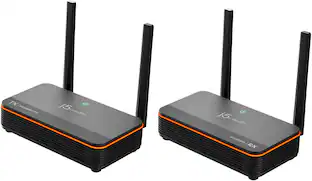
j5create - ScreenCast 4K Wireless Display Adapter - White

Wirelessly display content from a phone, tablet, or laptop onto a bigger screen with the ScreenCast 4K Wireless Display Adapter. With its support of multiple wireless display standards (Miracast, AirPlay, and Chromecast), this wireless display adapter is compatible with devices and TVs you already own, including Windows, macOS, iOS, Android and other cast compatible laptops, tablets, and mobile phones. In addition to its compact design, the ScreenCast 4K Wireless Display Adapter features an external antenna for enhanced signal coverage, making it perfect for home use and travel.
Rocketfish™ - 90-degree Coax Adapter (2 Pack) - Gold

Connect additional digital, satellite or internet cables to your entertainment setup with this Rocketfish 90-degree Coax Adapter (2 Pack). With a compact, angled design made from durable brass, this adapter allows for seamless connections and smooth installation even in tight spaces. This pack features two Rocketfish 90-degree coaxial cable adapters to meet your connection needs.

Yamaha - Bluetooth 120-Watt 2.0-Channel Network Stereo Receiver with Remote - Black
5.0(4)

The Yamaha R-N600A Network Receiver inherits the company’s full-fledged Hi-Fi sound reproduction and design from its years of technological expertise. The stereo receiver is also gives you greater listening freedom and flexibility so you have full listening enjoyment of an exceptionally wide variety of music content, including your favorite streaming services, high-resolution sound sources, and even vinyl records—all with Hi-Fi sound. This receiver delivers sophisticated sound and appearance for a total listening experience that's a step above the rest.

Pros for j5create - ScreenCast USB-C® Wireless Display HDMI™ Extender - White
There were no pros for this productEase of use, Overall Performance, Setup, Screen Mirroring, ResolutionEase of use, Quality, Cable Management, Angle, DesignSound Quality
Cons for j5create - ScreenCast USB-C® Wireless Display HDMI™ Extender - White
There were no cons for this productConnectivity, Compatibility, Lag, Audio Quality, Signal StrengthThere were no cons for this productThere were no cons for this product

Specs

Questions & Answers
  • How, exactly, does this operate? does it plug into the phone itself or am I able to Bluetooth to it?

    The USB-C transmitter must be connected to a USB-C port that supports DisplayPort alternate mode for video out (via your phone). Please contact our Customer Service Department, so that they can get more information from you. Their information can be found on our website under the "Support" tab. Thank you.

    Answered by J5create Team
  • Do I have to connect to a Wifi Connection for this product? or is it self sustained like bluetooth?

    With its built-in wireless access point, the ScreenCast USB-C Wireless Display HDMI Extender can be used in any environment regardless of whether there is internet access. Please make sure that the device that will be connected to supports DisplayPort Alt Mode for video out. Please refer to the manufacturer of your computer for more information about your device. Thank you.

    Answered by J5create Team
  • Does it have a privacy button that suspends transmission while using your personal device?

    No. The JVAW62 does not have a dedicated privacy button to temporarily suspend transmission. To stop the display from being transmitted, you would need to disconnect or disable the wireless connection from the source device.

    Answered by J5create Team
  • Wireless feet range???

    The ScreenCast USB-C Wireless Display HDMI Extender has a wireless range of up to 50 ft and requires an available USB-C port that supports DisplayPort Alt Mode.

    Answered by J5create Team
Ask a question
No content
Sponsored

Finance Options

My Best Buy® Credit Card
Buy Now, Pay Later

Finance Options

My Best Buy® Credit Card
Buy Now, Pay Later