Rating 4.5 out of 5 stars with 120 reviews
4.5- Color Quality (36)
- Refresh Rate (19)
- Design (5)
- Glare Resistance (4)
Customer Images
The vast majority of our reviews come from verified purchases. Reviews from customers may include My Best Buy members, employees, and Tech Insider Network members (as tagged). Select reviewers may receive discounted products, promotional considerations or entries into drawings for honest, helpful reviews.
- Rated 4 out of 5 stars
Great OLED Monitor
As others have said, text readability can kind of be an issue but I've gotten used to it I think. Others have complained about it not being glossy but I don't really understand that complaint and would rather have my monitors more antiglare (which this one definitely is). I was expecting to turn on HDR and have all the colors instantly pop but I've found it requires a bit more configuring and also is very dependent on the image/game being displayed. Now for the good - this the best monitor I've ever owned. The blacks are incredibly black and the colors really shine in most of the games I play. I've also had no issues with screen tearing thanks to the great adaptive sync support options. I love being able to configure settings with the included remote too. Very happy with my purchase and absolutely worth it when it's on sale.
Posted by KDawg
- Rated 4 out of 5 stars
Pretty good
Looks beautiful great for gaming the 240hz is great for cs and other games. I will mention that I got it on sale which made it a way better deal.
Posted by BrendanH
- Rated 4 out of 5 stars
Perfect OLED Monitor other than some VRR Flicker
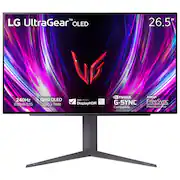
The LG UltraGear 27GS93QE-B OLED gaming monitor is a 27” 240Hz 1440p monitor with a 03ms gray to gray response time. It comes with a remote, HDMI and Display Port cable, power supply and cable, USB-B to USB-A cable, and lots of quick start and warranty guides. It features 2 USB-A 3.2 Gen 1 5Gbps ports, a USB-B port for the data transfer from your PC, 1 Display Port 1.4 and 2 HDMI 2.1 ports, and a 3.5mm audio out jack and Optical Audio out. It also features 8, 10, and 12 bit color. The monitor looks and feels extremely well built and, in my opinion, looks more professional than most gaming-oriented monitors with the lack of RGB and a tasteful dark gray, silver and black color way. It weighs in at 17 pounds, measures 24” across and 12” deep with the included stand. The monitor can raise and lower and tilt up and down on the included stand. However, it can only be rotated in into portrait mode counterclockwise, which means the inputs will always be on the right side of the stand. The monitor does include a clip that attaches to the sand to route your cables a bit cleaner. It has a 100x100 VESA mount for those of you who want to mount it on a monitor arm. The monitor has a matte finish on the screen. This is to help combat glare, and it does a good job. Some people complain matte finishes make the images darker, and while that is valid, I cant say I had any problems seeing the monitor regardless of light in the room, short of shining a flash light or direct sunlight on it. The monitor has a peak brightness of 271 nits which is well below good IPS displays that push 400 nits. I can’t say I was bothered by this like I thought I would be. 100% brightness on this monitor is still brighter than what I used on my IPS and it still can get eye searingly bright in dark rooms. This monitor is great at motion performance, with very little motion blur and no screen tearing when set up properly. I used everything from Blur Buster’s UFO test to games as easy to run as CSGO to heavy hitters like Cyber Punk 2077 so try and get the screen to tear and blur with very little success. Some people are more susceptible to it than others, an I didn’t notice tearing or street lamps and other straight up and down objects in FortNite and the helicopter blades in Battlefield 2042. On PC and with an NVIDIA GPU I was able to eliminate it completely by turning Adaptive Sync on in the monitor menu, turning Ultra Low Latency and Variable Refresh Rate on in the NVIDIA Control Panel, and turning off my refresh rate cap and any VRR settings in each game. This is recommended in the industry and it does really work. I can’t speak to users with an AMD Radeon GPU on how to fix this, but I imagine it is a similar adjustment. The Variable Refresh Rate flicker is another matter. VRR allows your monitors refresh rate to match the frame rate of your computer or console in an effort to reduce screen tearing. While it does a good job at eliminating screen tearing (again when properly set up), the VRR causes very bad flickering that you can notice. It is mostly when frame rates are unstable, and most noticeable in loading screens. It looks cheap and looks terrible. This is unfortunately a problem with OLED displays in general and not just the LG UltraGear. However, other monitor brands like Samsung have ways of reducing this issue. I wish LG did as well. When in game however I have yet to notice the flickering, even when really looking for it, but your mileage may vary. Your other option is to run with Adaptive Sync turned off and put up with possible screen tearing. The colors on this monitor are absolutely beautiful and the blacks are bottomless. Just like an OLED TV you may own or have seen in Best Buy, the colors and blacks are the stars of an OLED screen. I thought my IPS monitor looked good but this LG blows it out of the water. As good as the colors are it really is the blacks and the pure contrast that just shines. It makes things look so much better that its almost like everything is a new game again. I was blown away by the explosions and the depths of oceans. It just kept getting better. LG is doing its best to make sure your new OLED screen lasts and doesn’t burn in. The monitor has Screen Move, which will shift static images by a few pixels every now and then to help reduce the risk of burn-in. After four or more hours of continuous use, Image Cleaning will turn on with the monitor turns off or goes into stand-by. It takes about 10 minutes to complete. It can be interrupted if need be. Then after every 500 hours of use, Pixel Cleaning will turn on once the monitor is turned off or goes into stand-by. It takes about a minute to complete. All these are automatic so you don’t have to worry about remembering to do any of the maintenance. LG also gives the monitor a 2 year warranty, and if you wish you can get an extra 4 year extended warranty at Best Buy as well. The only thing I would do differently to a normal IPS or VA monitor is if using a PC, turn “Hide the Taskbar” on so its not hanging out at the bottom of your screen all day. Something worth mentioning is the remote. It is intuitive and easy to use, has programmable presets to go from web browsing to gaming and I actually found myself using it more than dealing with the menu button on the monitor. My only complaint is I wish it used AAA batteries instead of a coin battery. I have multiple LG products, and they all use those stupid, expensive coin batteries. Other than that, I love the remote. Aside from the finicky VRR flicker that I was able to adjust out for the most part, I have not come across any issues. The monitor is well built and looks great with a blacked out media PC, and RGB gaming behemoth, or a gaming console. The OLED performance is fantastic and no noticeable motion blur. If you are in the market for a high-end OLED gaming monitor, I would certainly recommend you check the UltraGear 27GS93QE-B out. I’m glad I did.
Posted by Bakut3n
- Rated 5 out of 5 stars
Punches way above its class!
This is basically the 27GS95QE without RGB lights but for $600 on sale instead of $900. Buy it now! I cross compared this panel against every OLED monitor up to $1500 on rtings and it went toe to toe and excelled in every way possible. Cant wait to re experience my favorite games! P.S. VRR flicker is unavoidable on any monitor but as long as your fps arent bouncing up and down in dark areas you'll never see it!
Posted by Necro44
- Rated 5 out of 5 stars
OLED Gaming
I bought two of these for my Gaming setup once you buy OLED you never go back it’s true! lol perfect blacks and million colors everything looks so good I recommend buying these.
Posted by BlackStar