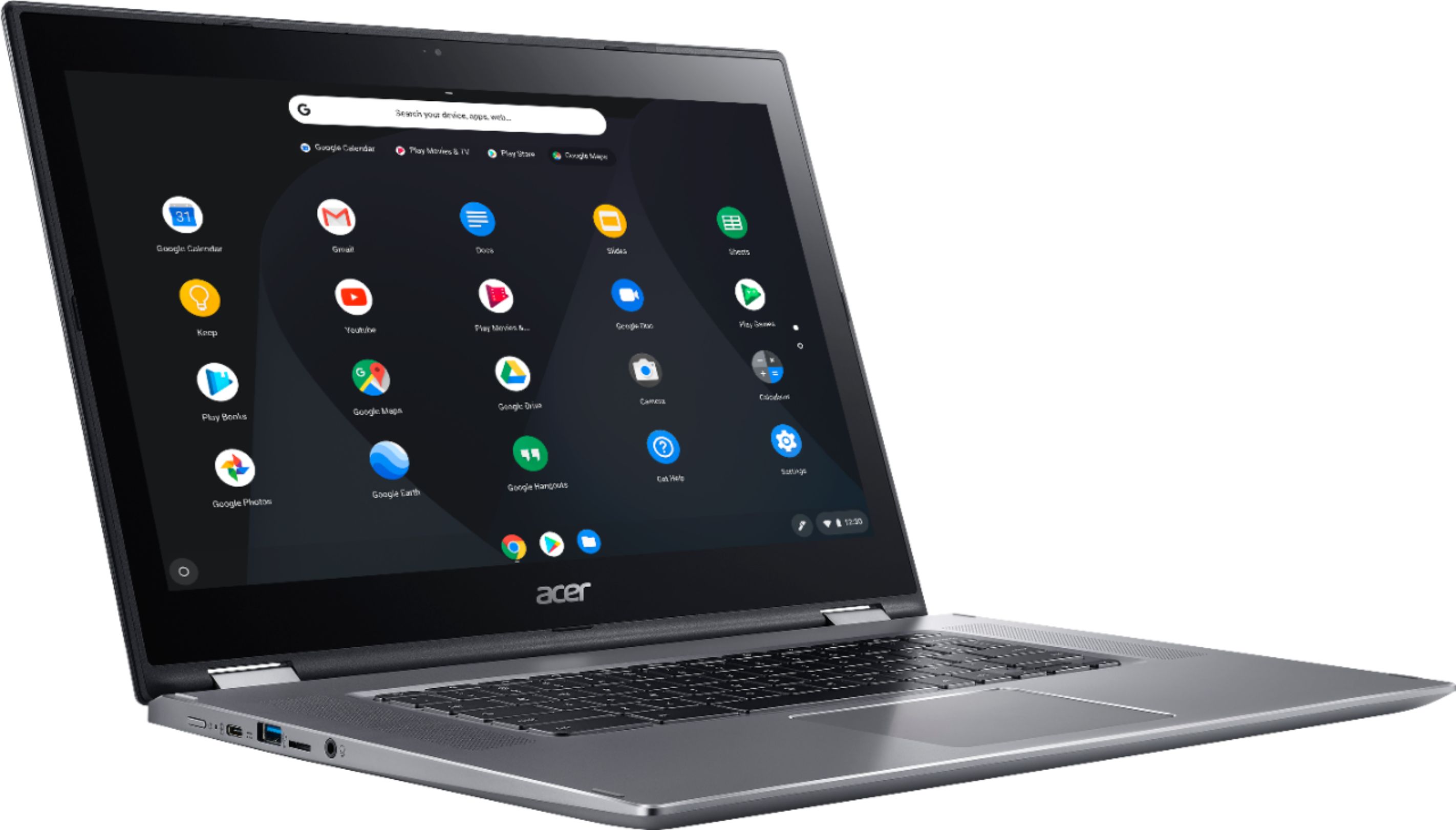
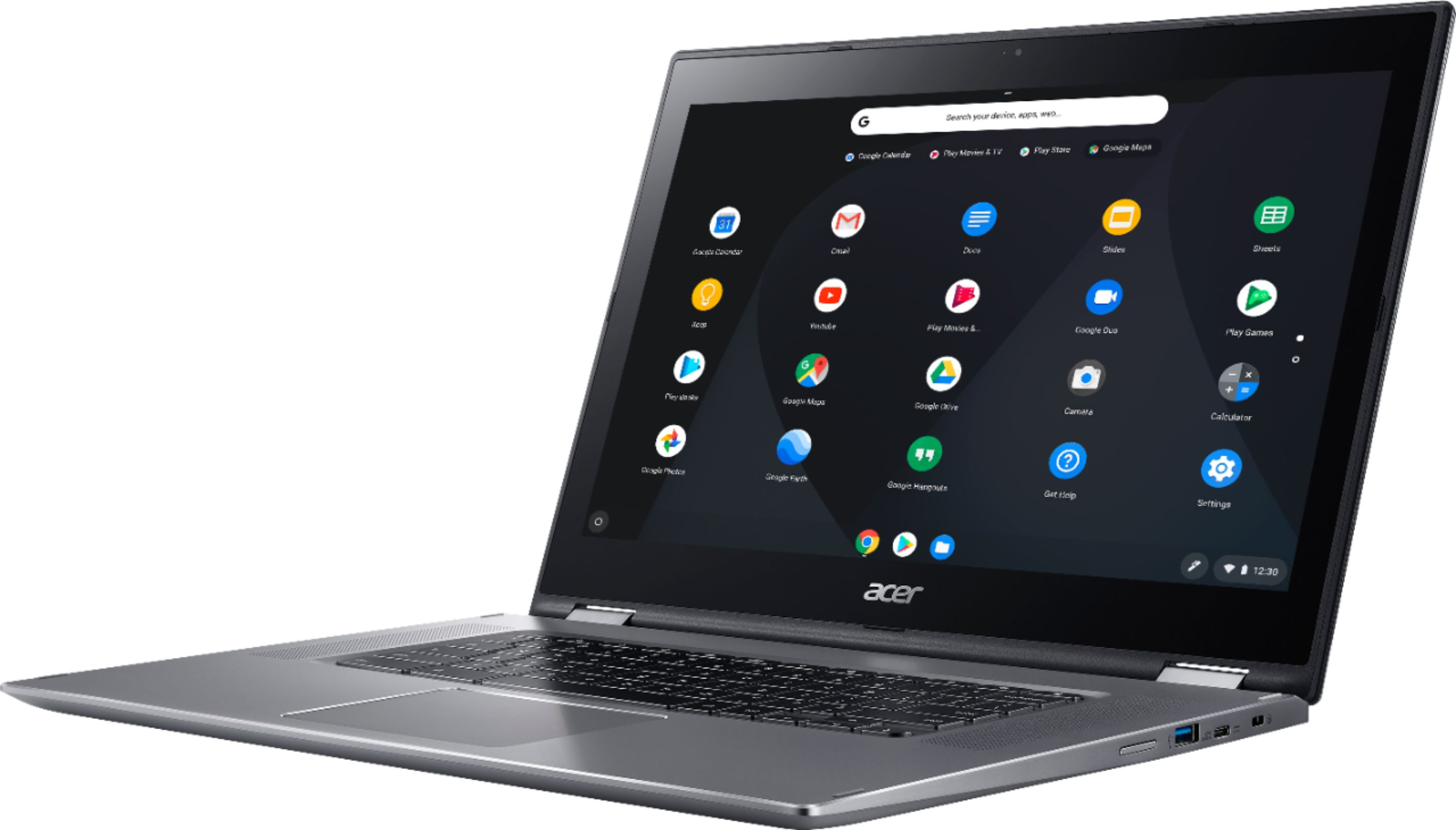
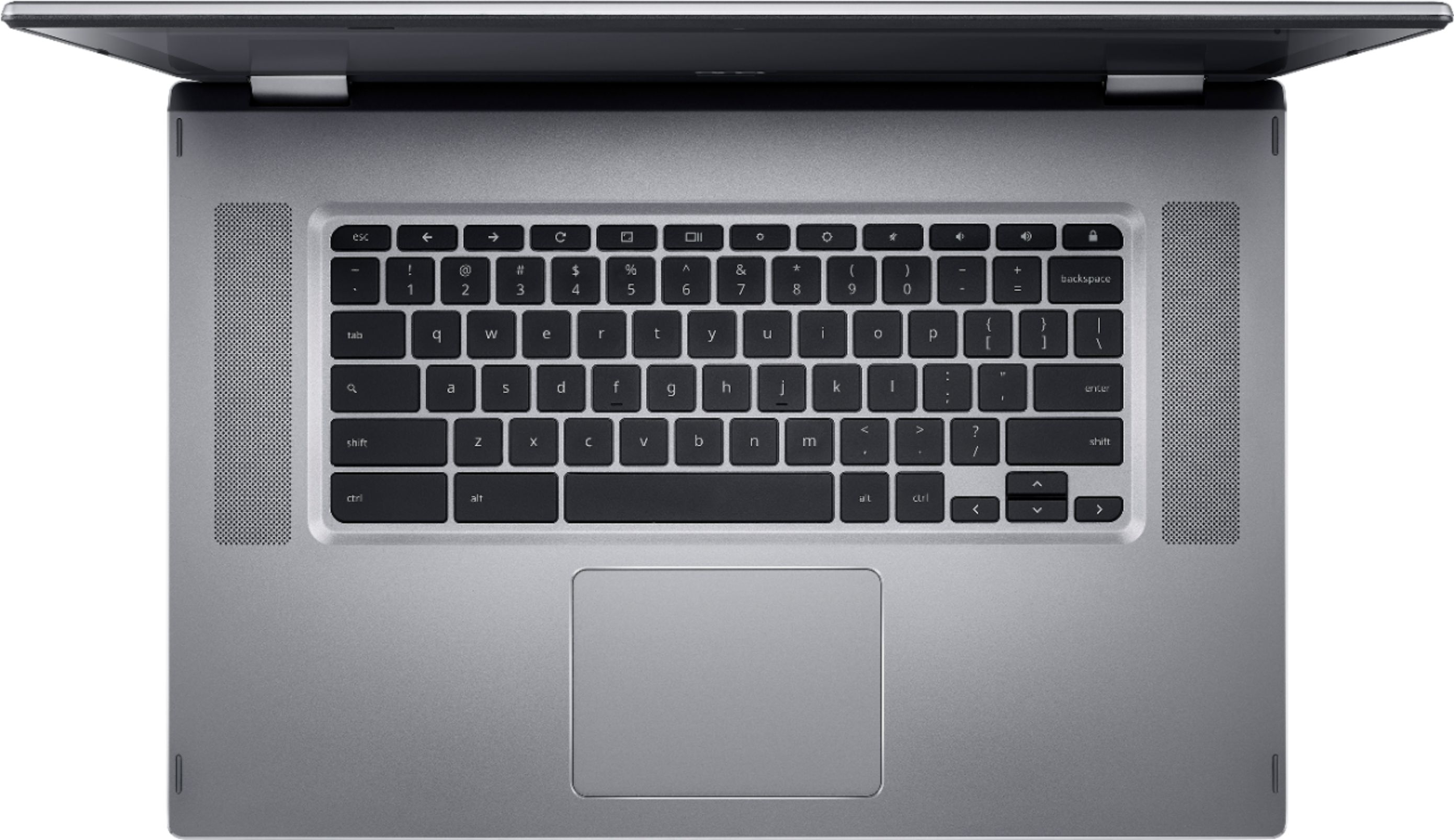
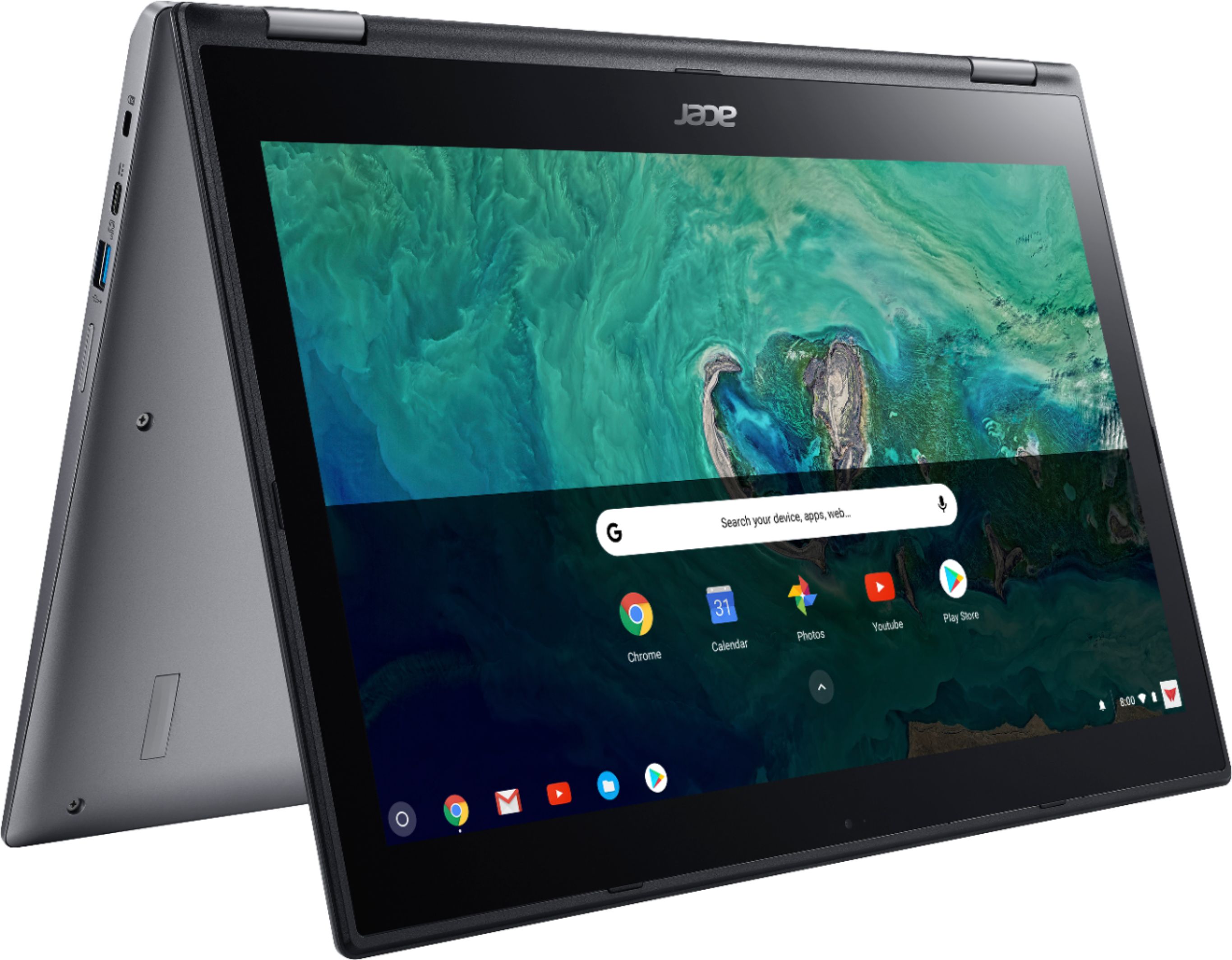
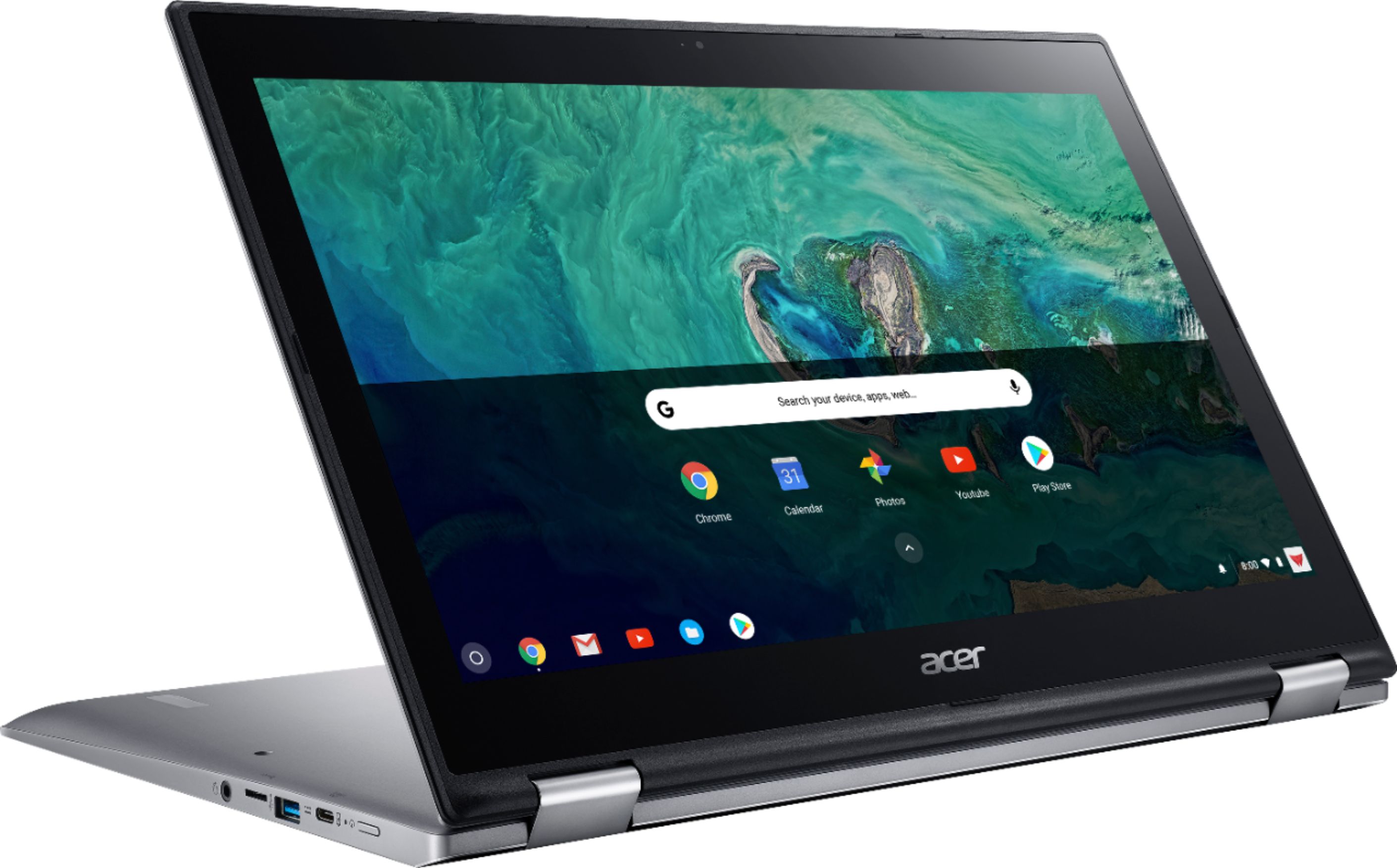
A:AnswerIt will have a on screen keyboard pop up when in tablet mode but only if you have no other mouse attached. I have a wireless mouse attached via a usb nub. It has to be removed for tablet mode keyboard to work. Hope this helps!
A:AnswerAcer does not test all printers on the Chromebook products. If the Epson is a Cloud Ready printer, then yes. We would recommend you contact Epson to verify if their printer is compatible with Chromebooks.
A:AnswerThis is a Chromebook that runs the Chrome operating system, not Windows. Chromebooks are different from standard laptop products in that they are designed to be used primarily while connected to the Internet, with most applications and documents living in the cloud. Because of this they don’t have much for on board storage but they also are not expensive either. Chromebooks run off apps like an Android phone or tablet so you cannot download and install applications/games or .exe files. If you need to use third party software applications that must be installed on the computer, a Chromebook is likely not for you, where a Windows laptop would suit you better.
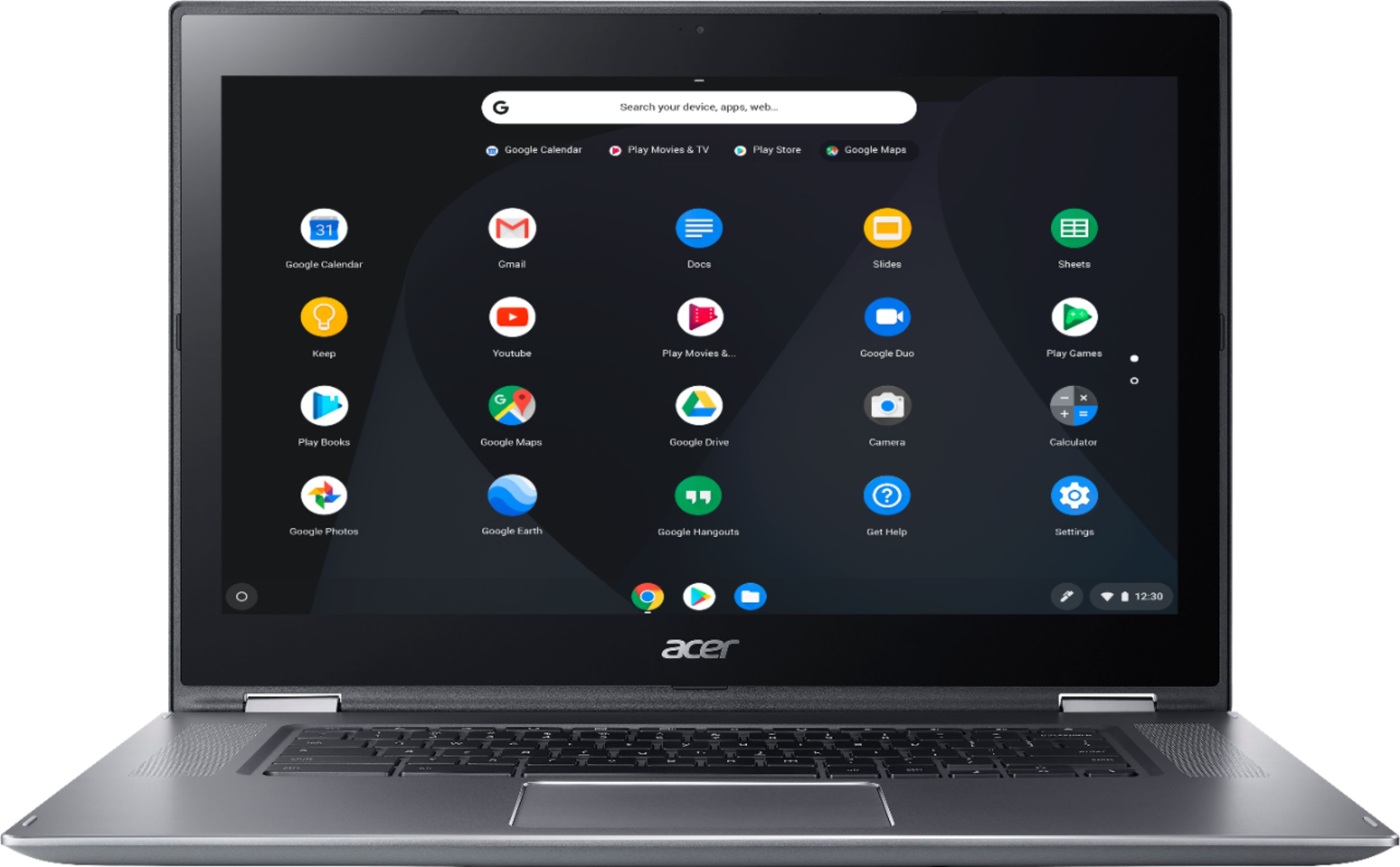
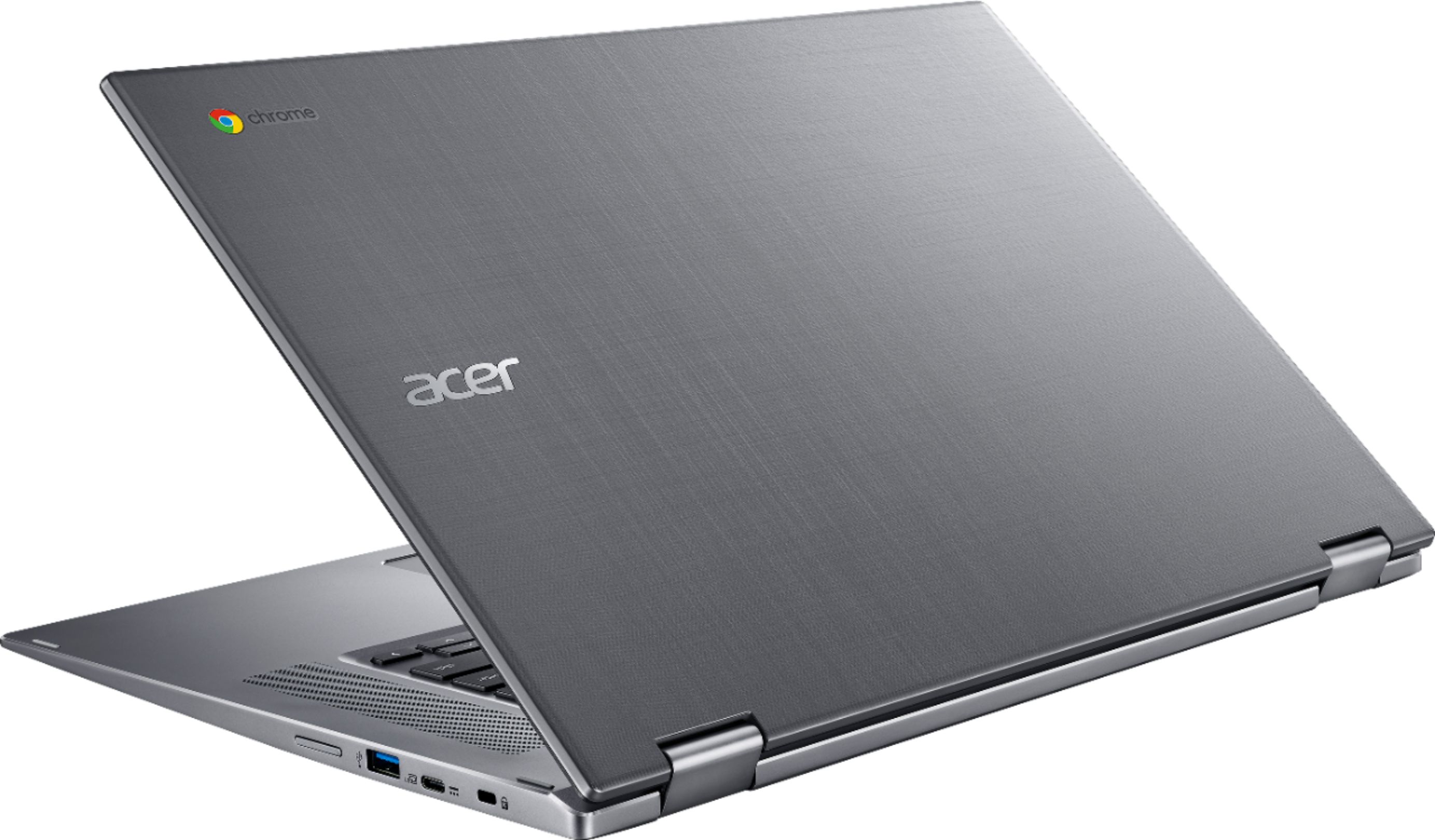
A:AnswerYes, this has a 360 degree hinge, and you can see the laptop positions at this link here: https://www.acer.com/ac/en/US/content/model/NX.GWGAA.003
A:AnswerThere is not an available app for iTunes for Chromebooks, but you can add music from iTunes to your Google Play Music library, then you can Listen to iTunes Music on Chromebook. Here is a link that has information on this you might find helpful: https://www.quora.com/How-do-I-put-iTunes-on-Chromebook
A:AnswerAll Chromebooks can use a wifi Cloud Ready printer. Here is a link with information on this you might find helpful: http://cbookreviewguide.com/chromebook-compatible-printers-cloud-ready/