A:AnswerYes you can download just about anything you can buy it or possibly find a free version of what you want and download that. Yes you can download offline games to play on this tablet. I do it for my kids all the time.
A:AnswerThe Tablet it's self does not have ads unless you are on a game that has ads. The screensaver shows some ads in a way. They are more like things you could get or watch on the tablet.
A:AnswerHello,
The Fire 7 16 GB or 32 GB of storage does allow for a micro SD card but not a sim card, I hope this information helps, have a great day!
A:AnswerHello Ldasta, you want to know if the Amazon Fire 7 (2022) 7” tablet can be used for only Kindle books and without an Amazon account and Wi-Fi. While the Amazon Fire 7 (2022) 7” tablet has plenty of features that are able to be used without an Amazon account and without Wi-Fi, the feature you want to use require both. Additionally you are able to use the Amazon Fire 7 (2022) 7” tablet as a Kindle only by using the Kindle App. Hope this has answered your question. Have an amazing day!
A:AnswerHello Viv, you to know is the Amazon Fire 7 (2022) 7” tablet with Wi-Fi 16GB will play audiobooks. The Amazon Fire 7 (2022) 7” tablet with Wi-Fi 16GB is capable of playing audiobooks on the Audible app available on the Amazon Fire 7 (2022) 7” tablet with Wi-Fi 16GB. Hope this has answered your question. Have an amazing day!
A:AnswerHi M,
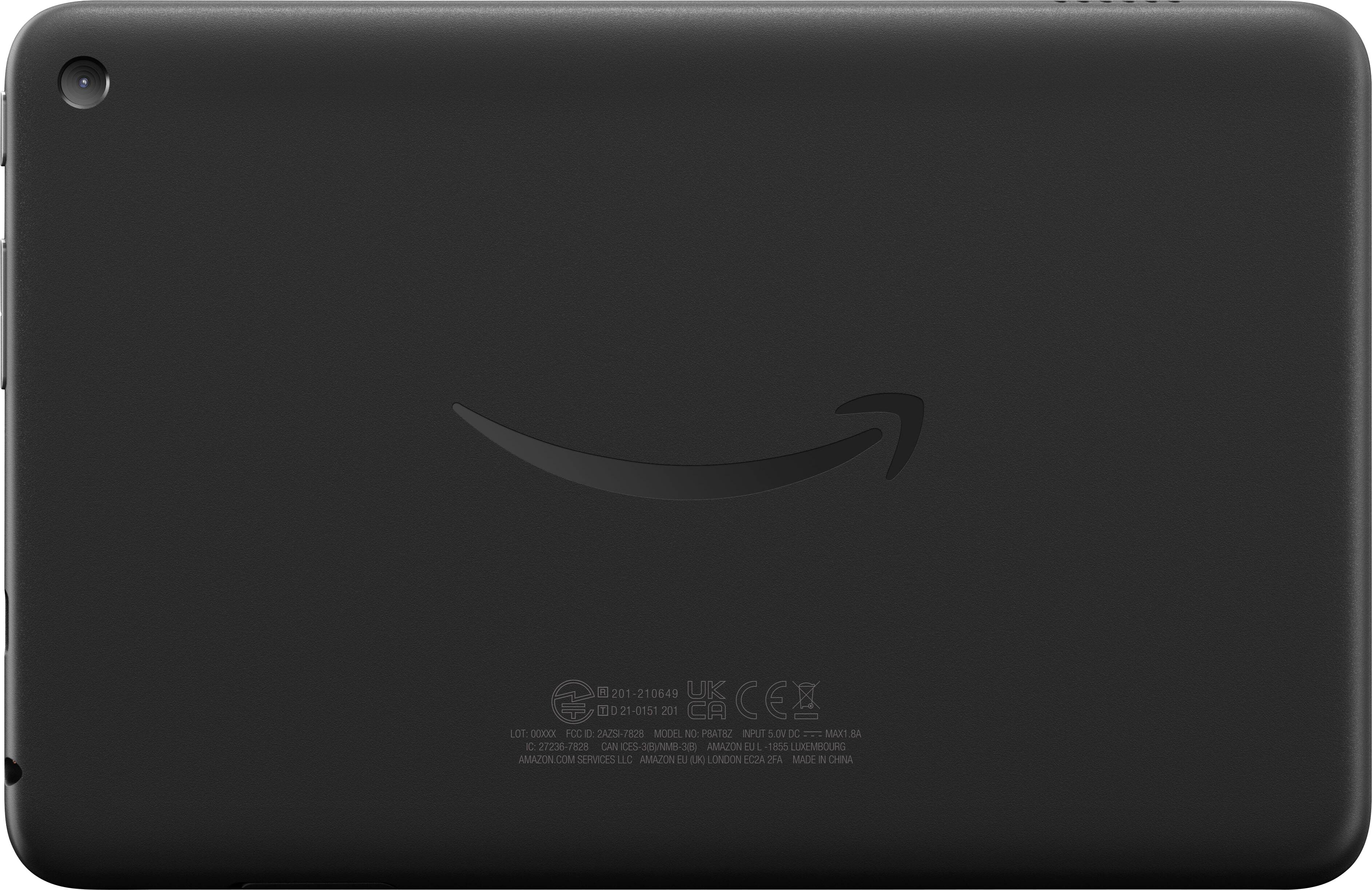
Thanks for your question! Yes, you can connect a tablet to your Verizon Wireless phone plan! To do so, you’ll need to know your tablet’s identification number. It’s usually printed on your receipt or on the tablet’s box. You can also look for that number on the back of the device or near the battery. The number you want is the IMEI number.
Then, log in to your My Verizon account and go to “Activate Existing Device.” There, you’ll enter the identification number to activate your tablet. Subscription rates may apply and you can choose a data plan etc via myverizon!
Hope that helps!
A:AnswerHello! To remove special offers from your Fire Tablet, follow these steps: 1. Go to Manage Your Content and Devices. 2. Select Devices, and then select your device. 3. Under Special Offers, click Remove offers. A pop-up window then displays the price to remove special offers. Select End Offers and Pay the Fee to proceed. Have a great day!
A:AnswerHello Mema, you want to know if someone can help you load your books onto the Amazon Fire 7 Tablet. When you set up your new Amazon Fire 7 Tablet you will be asked if you want to restore from your old tablet? Also when opening the Kindle App you’ll log in with the same username which will load your books. Hope this has answered your question. Have an amazing day!
A:AnswerHi Rubicon,
Unfortunately, the Google Play store is not supported so getting her google books that are already purchased is not possible. However, your mothers Kindle books will download to the device once the kindle app is logged into this tablet!
Hope that helps!
A:AnswerHello Erma, the Amazon Fire Tablet requires a WI-FI connection to access the internet. When it says "with WI-FI", that just means that the tablet has the capability to connect to a WI-FI network.
Have a great day!