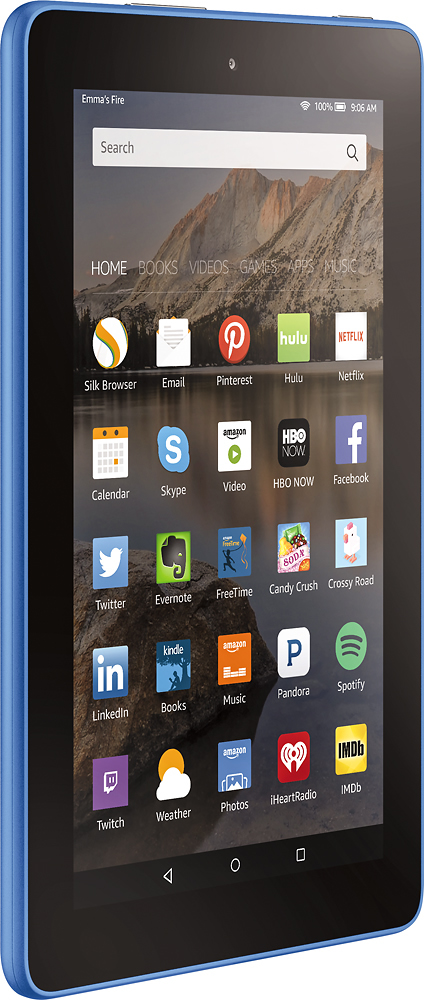
A:Answer1. Go to Settings > Security > and turn on Apps from Unknown Sources (the option may be found under Settings > Applications on older devices)
Turn on Apps from Unknown Sources Kindle Fire Tablet
2. Download the latest Google Account Manager .APK file here:
http://rawapk.com/google-account-manager-apk-download/
3. Open the .APK file and hit Install
Install Google Account Manager
4. Download the latest Google Play Services .APK file here:
http://rawapk.com/google-play-services-apk-download/
5. Open the .APK file and hit InstallInstall Google Play Services
6. Download the latest Google Services Framework .APK file here:
http://rawapk.com/google-services-framework-apk-download/
7. Open the .APK file and hit Install
Install Google Services Framework
8. Download the latest Google Play Store .APK file here:
http://rawapk.com/google-play-store-apk-download/
9. Open the .APK file and hit Install
Install Google Play Store
10. Restart your tablet
A:AnswerI'm sure there is a way, technically, to disable the camera. But any person or place that restricts the environment to 'no camera' status is not going to permit any device that has a physical camera simply because a disabled camera could be readily and discretely enabled once on the premises. Every place I've been at which does not allow cameras have required cell phones, tablets, notebook computers, and actual cameras be left in vehicles, checked into a locker - or better yet, not brought along at all.