A:AnswerHello Gymgirl,
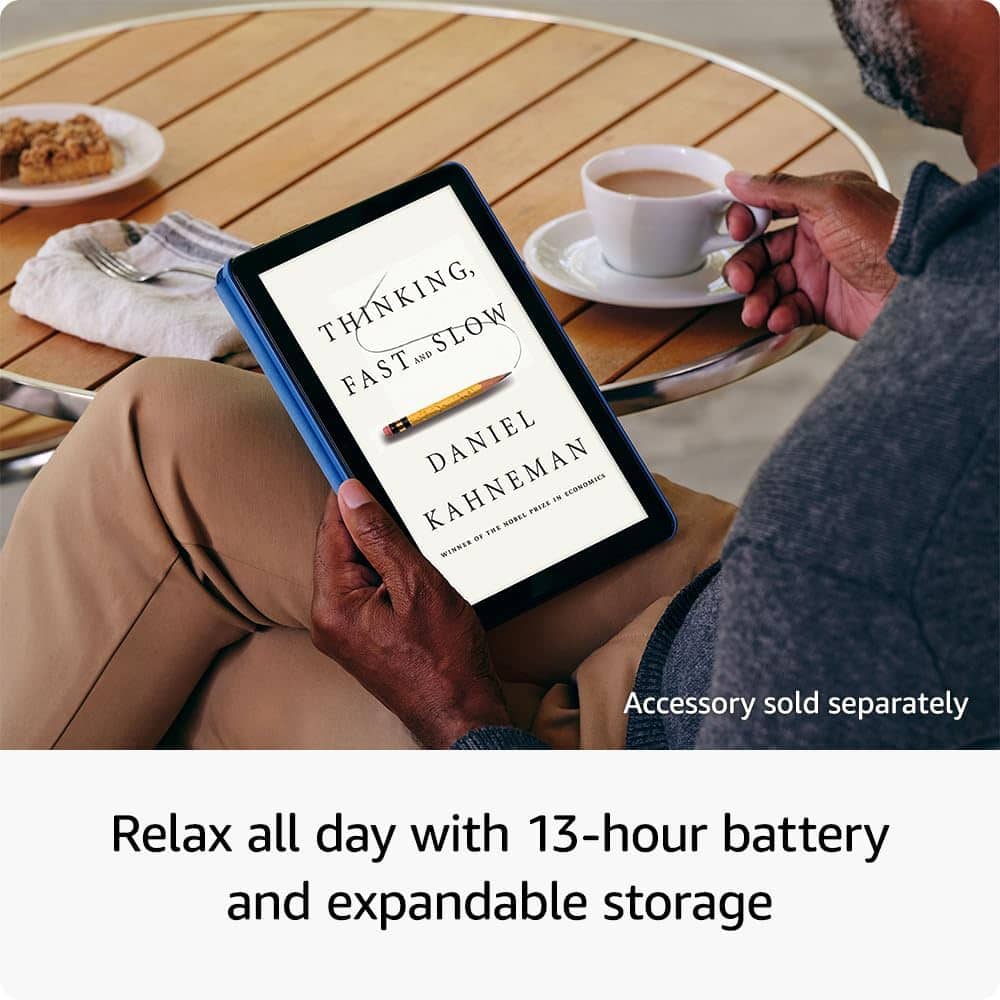
Yes, the Amazon Fire HD10 has the ability to take up to a 1TB Micro SD Card. Some Apps may be required to be stored on the devices internal storage, however the Fire 10 will take any capacity of Micro SD up to 1TB.
I hope this helps!
A:AnswerHi Ron, Thank you for your question. Our Fire tablets use a USB-C (2.0) port for charging. I suspect your question was about extra storage. Well, you're in luck! We have a micro-SD slot that you can add an extra 1TB of storage (sold separately). And yes. There is sound. You can also connect wired headphones or connect via Bluetooth. Hope this helps. Have a great day!
A:AnswerI bought this and the compatible pen for just that purpose and was dissatisfied. I landed on a Samsung s6 lite and I’m very pleased with it for writing and drawing.
A:AnswerHi Diane,
The Fire 10.1 Tablet is connects via Wi-Fi, so no cellular plan is needed for usage. If you are without Wi-Fi, your mobile carrier may have options, like a hot spot that is sold separately.
Hope that helps!
A:AnswerHi Huck,
Thanks for reaching out! While the Fire HD 10 can be used as an e-reader by downloading the Kindle app, this is a versatile multimedia device that gives you access to the internet, games, movies and music as well. I hope you have a great day!
A:AnswerHello, if you would like to turn off the Lock Screen Ads after purchasing a Fire HD 10.1" follow these three steps!
1) Go to Manage Your Content and Devices.
2) Select Devices, and then select your Kindle e-reader or Fire tablet.
3) Under Special Offers, click Remove offers. A pop-up window then displays the price to remove ads. Select End Offers and Pay the Fee to proceed.
Important: Your 1-Click payment method is charged for a one-time payment when you unsubscribe from ads and sponsored screensavers.
Hope this helps! Have a good day!
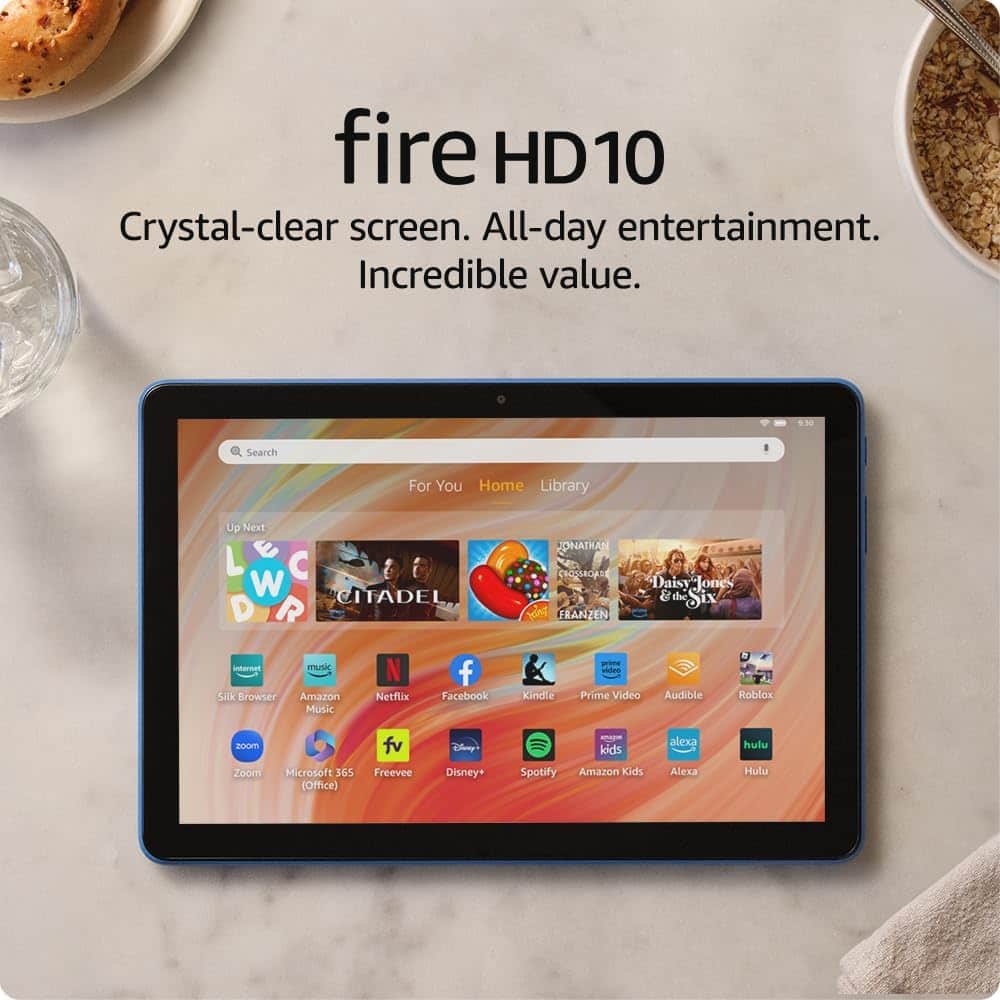
A:AnswerHi Peacock! The Peacock TV app is definitely available on the Amazon App store! To download apps: Select Games & Apps or open the Apps or Games app, Select an app from your Library to download it or search for a new app in the Store. I hope that helps, have a great rest of your day!
A:AnswerHello Tanya! You can download games and apps and use them on the go by following these steps: 1. Select Games & Apps or open the Apps or Games app. 2. Select an app from your Library to download it or search for a new app in the Store. Have a great day!