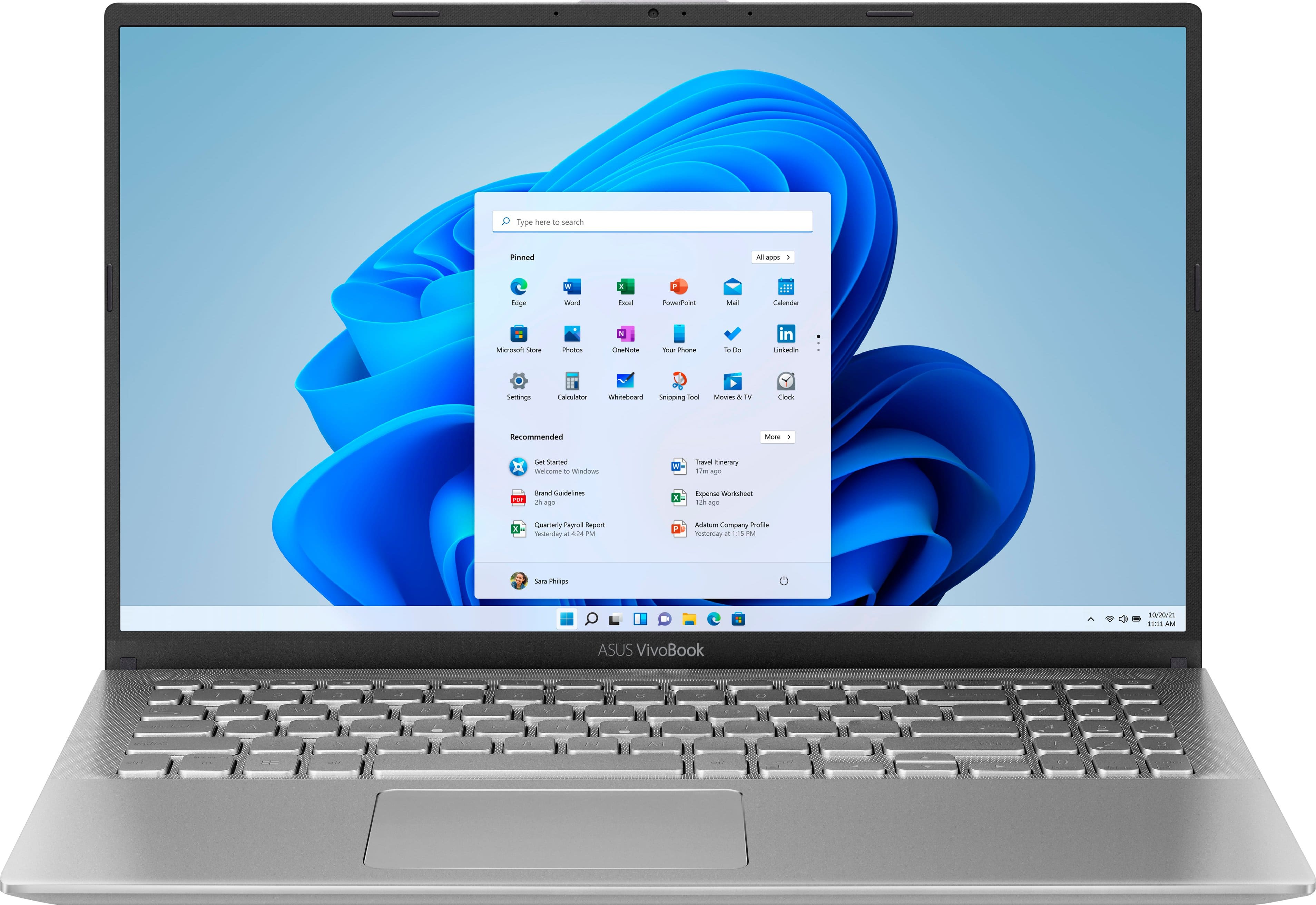
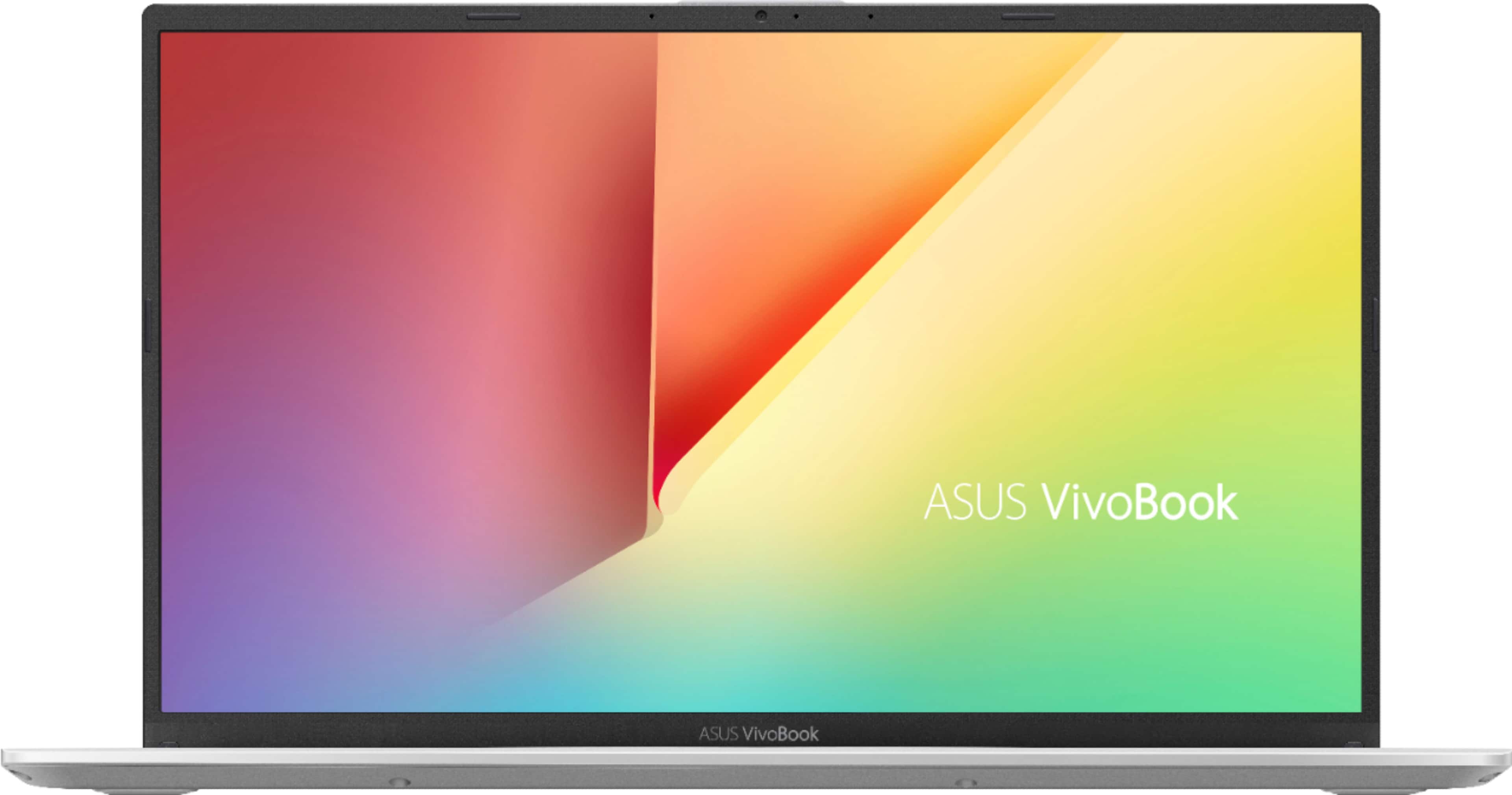
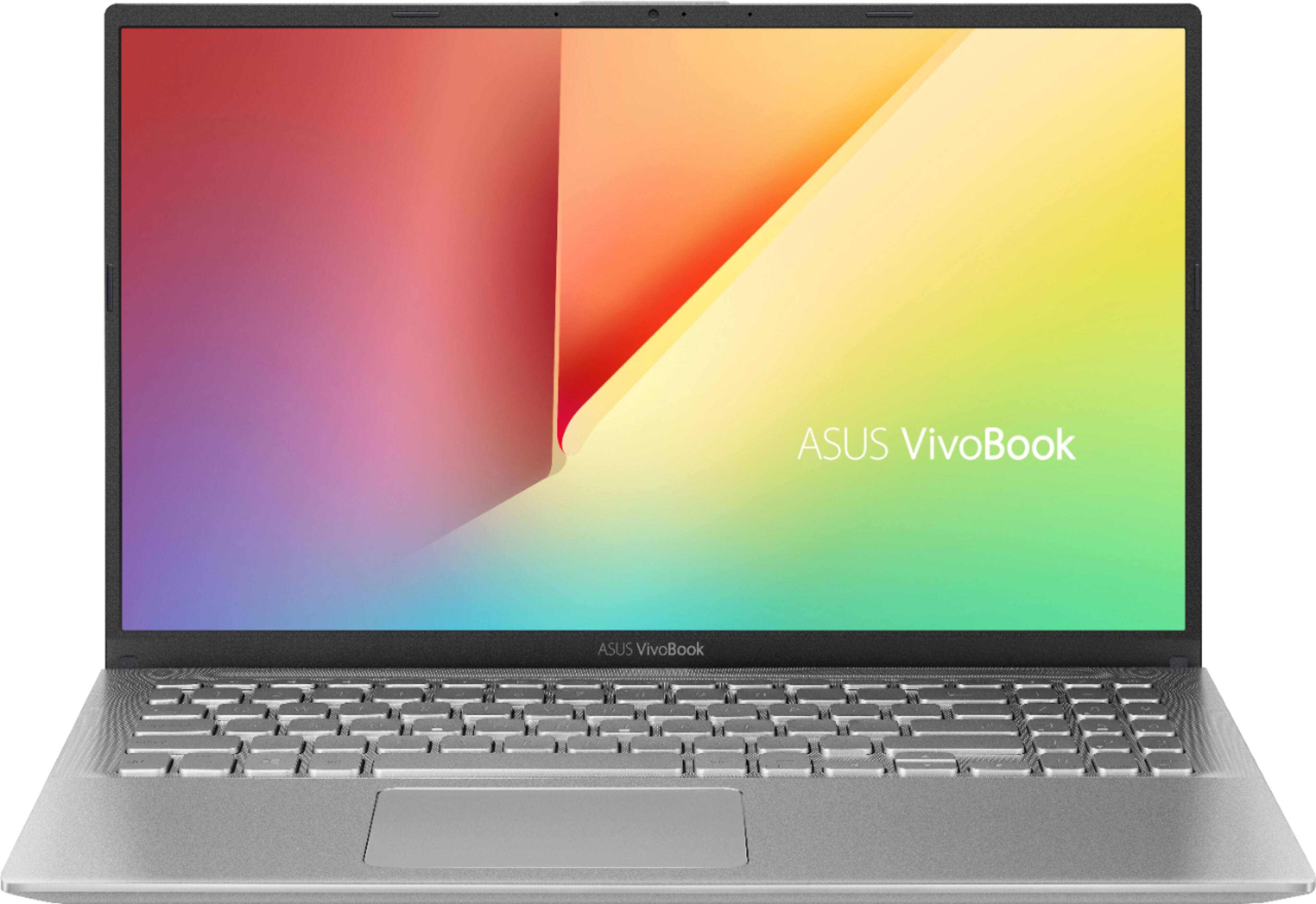
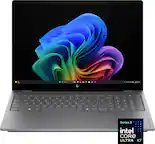
A:AnswerI'll answer my own question since I just got this laptop. I explicitly bought this because I was told by a Best Buy Geek Squad rep that it was an IPS screen (better viewing angles). So I got it and it is totally a 1080p TN screen with terrible viewing angles and bad washed out contrast ratio.
A:AnswerYes it is upgradeable, it comes with 4 gigs embedded and one 4 gig stick. Crucial web site says it can be upgraded to 16 gig stick, giving a total of 20 gigs of RAM. I put a 8 gig in, and now I have 12 gigs. I hope this helps!
A:AnswerFrom what I've found there are several different configurations for both the x512 and the f512 (as in either may have ryzen 3 or 5 or either could have have windows home or S) . The only definitive difference I can see between the two is that the x512 does not have an expandable RAM slot. The f512 can be expanded to 12GB whereas the x512 can only ever have up to 8GB.
A:AnswerI can confirm that this comes with a 4 gigabyte Ram stick, and according to Crucial's website it can be upgraded to 16 gigabytes. I swapped out the 4 gig for an 8 gig and it works smoothly. It has 4 gigabytes embedded. So if you upgrade it with a 16 gig Ram stick you would get 20 gigs. Hope this helps!
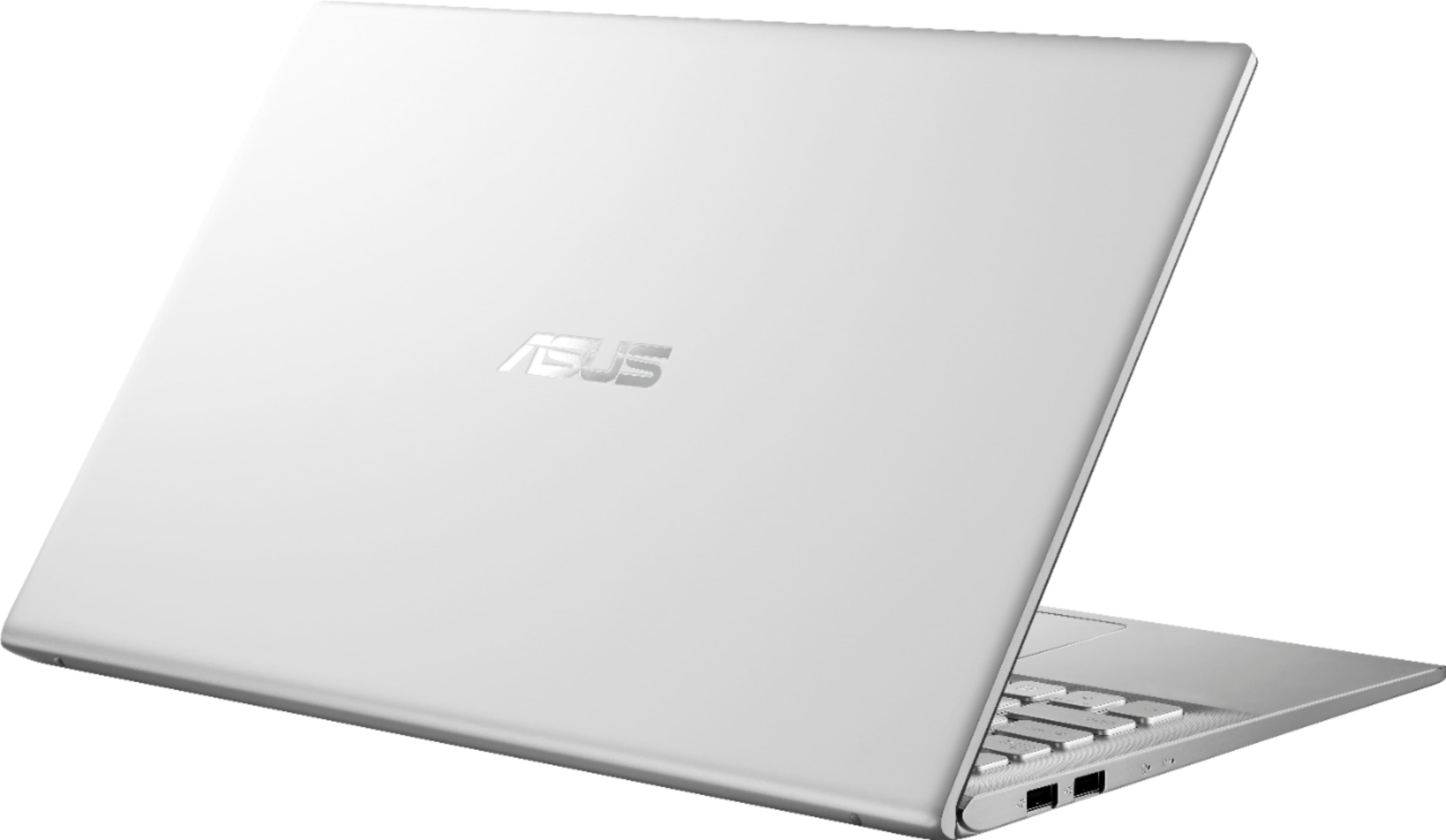
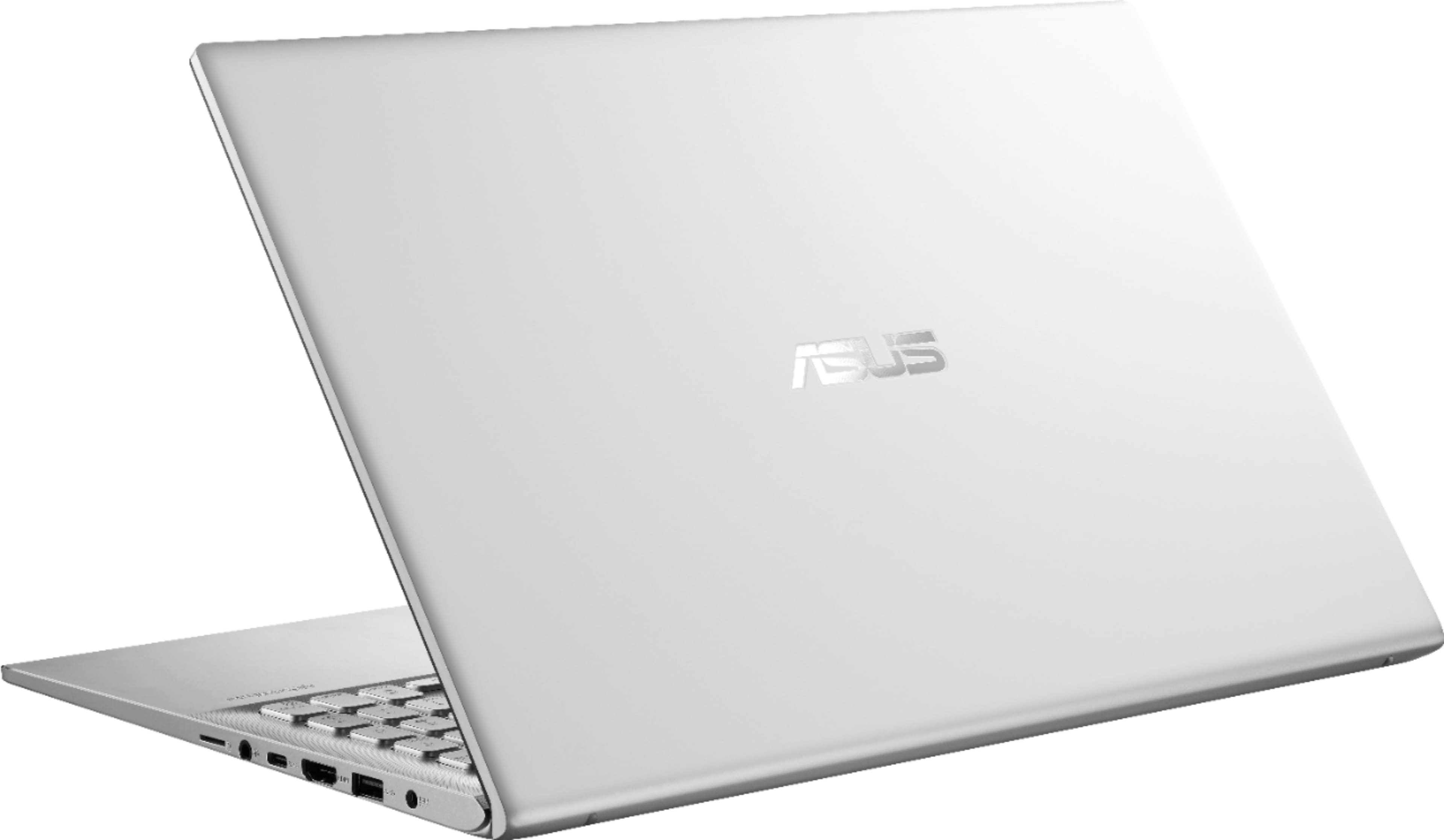
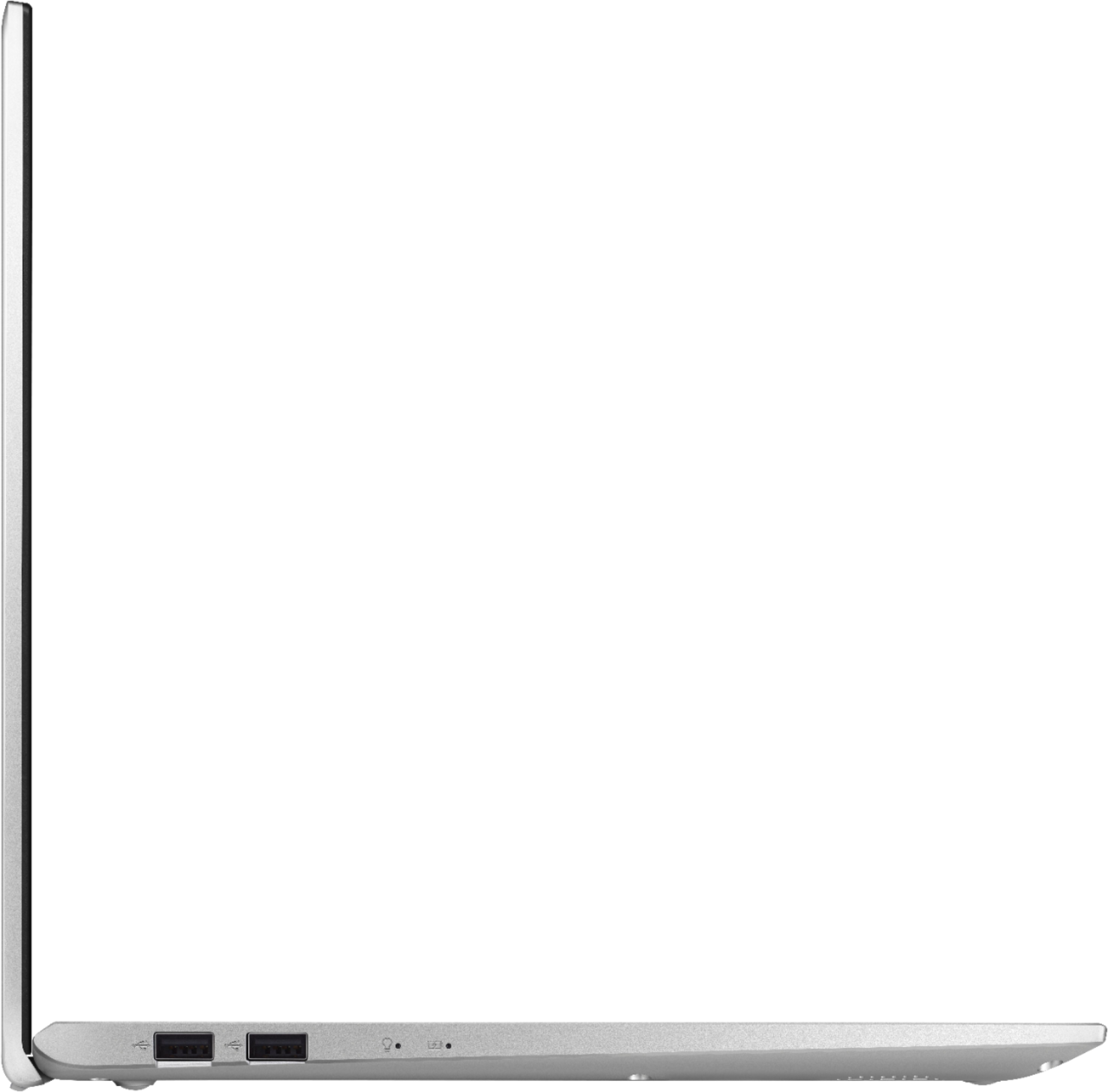
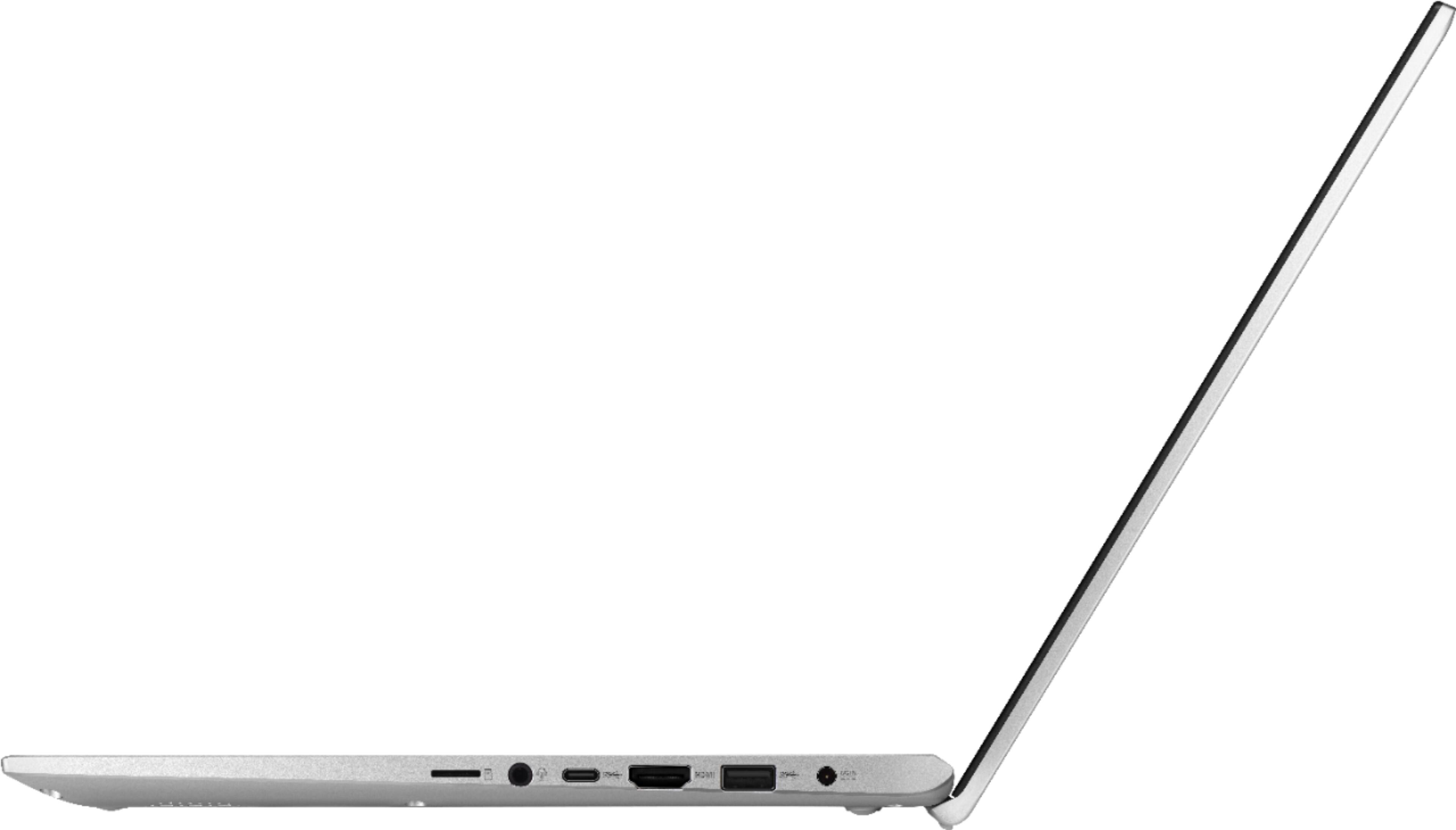
A:AnswerThe USB-C only supports one external minotor using a USB-C to a video out adapter. To setup 2 external monitor, the other monitor needs to be connected through the HDMI port.
A:AnswerThe web camera is HD with 720P resolution. To work properly, ensure Windows and camera driver are up to date. If accessing the camera with video-conferencing software or application, please verify that the laptop is getting excellent internet connection since this will affect the camera quality.
A:AnswerYes the 1st time you have to charge it all the way and the battery life is good. Not a full 7 hours but it all depends on what you are doing and how you use it.
A:AnswerThe USB-C port will not charge laptop, however, it will charge small mobile devices like, cellphone, tablet and smartwatch. External monitor can be connected using a USB-C to HDMI adapter.