A:AnswerChromebooks have security features that help prevent and protect against viruses and malware built into Chrome OS.
Here is a link that will explain a little more about the security features implemented in Google's Chrome OS: https://bit.ly/361zqAm
A:AnswerThe Chromebook only allows you to use the Chrome browser or any app from the Chrome Web Store or Google Play Store. A Windows 10 Home laptop will allow you to install software, download any web browser and more versatility than a Chromebook such as playing or burning CDs and DVDs.
A:AnswerRoblox is a fairly lightweight game that can run on most devices without issue. We recommend reaching out to the developer of any games that would be played to ensure this computer meets the specifications needed.
A:AnswerYes, you can use a printer with this Chromebook. Here are some instructions on how to set up the printer on the Chromebook: https://support.hp.com/us-en/document/c04122530
A:AnswerWith the Chromebook, you can only use the Chrome browser. You can also download apps from the Chrome Web Store or the Google Play Store. A Windows 10 Home laptop will allow you to install software, download any web browser, and more versatility than a Chromebook, such as playing or burning CDs and DVDs.
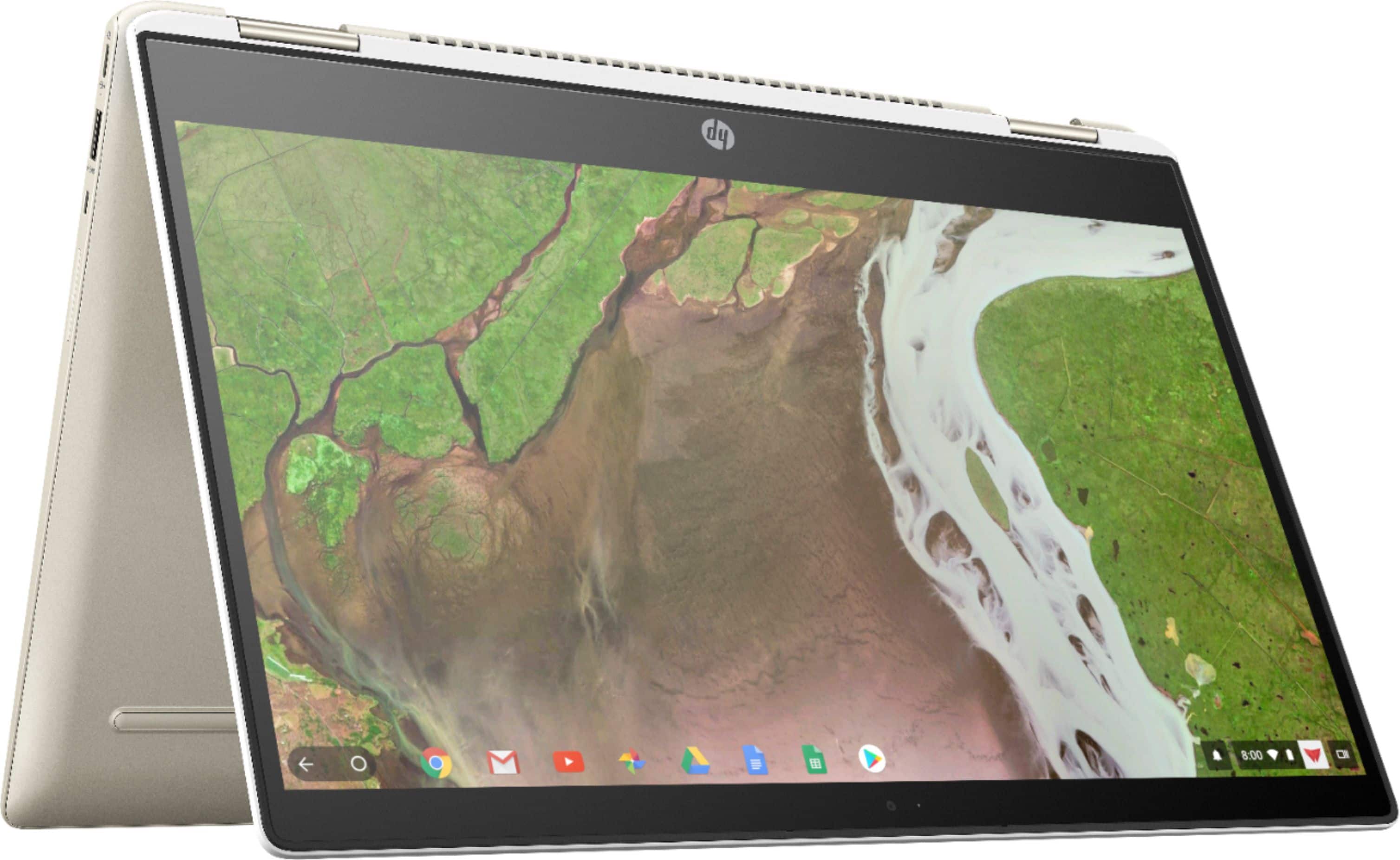
A:AnswerThere are some limited voice features on chromebooks:
https://support.google.com/chromebook/answer/177893?hl=en
You can also use Google assistant with your voice:
https://support.google.com/pixelbook/answer/7504306?hl=en
A:AnswerYes, I use it for a SFH/WFH setup (School From Home/Working From Home). It install as a Chrome browser extension, but you can also download the Android app from the Google Play Store as well. Unfortunately, I haven't been able to find a way to enable Annotation yet. All other features of Zoom are available though.
A:AnswerIts front facing, so I wouldn't recommend it. Use a different mobile device like a smartphone/tablet and scan it to the cloud, then you can manage it from your Chromebook later.