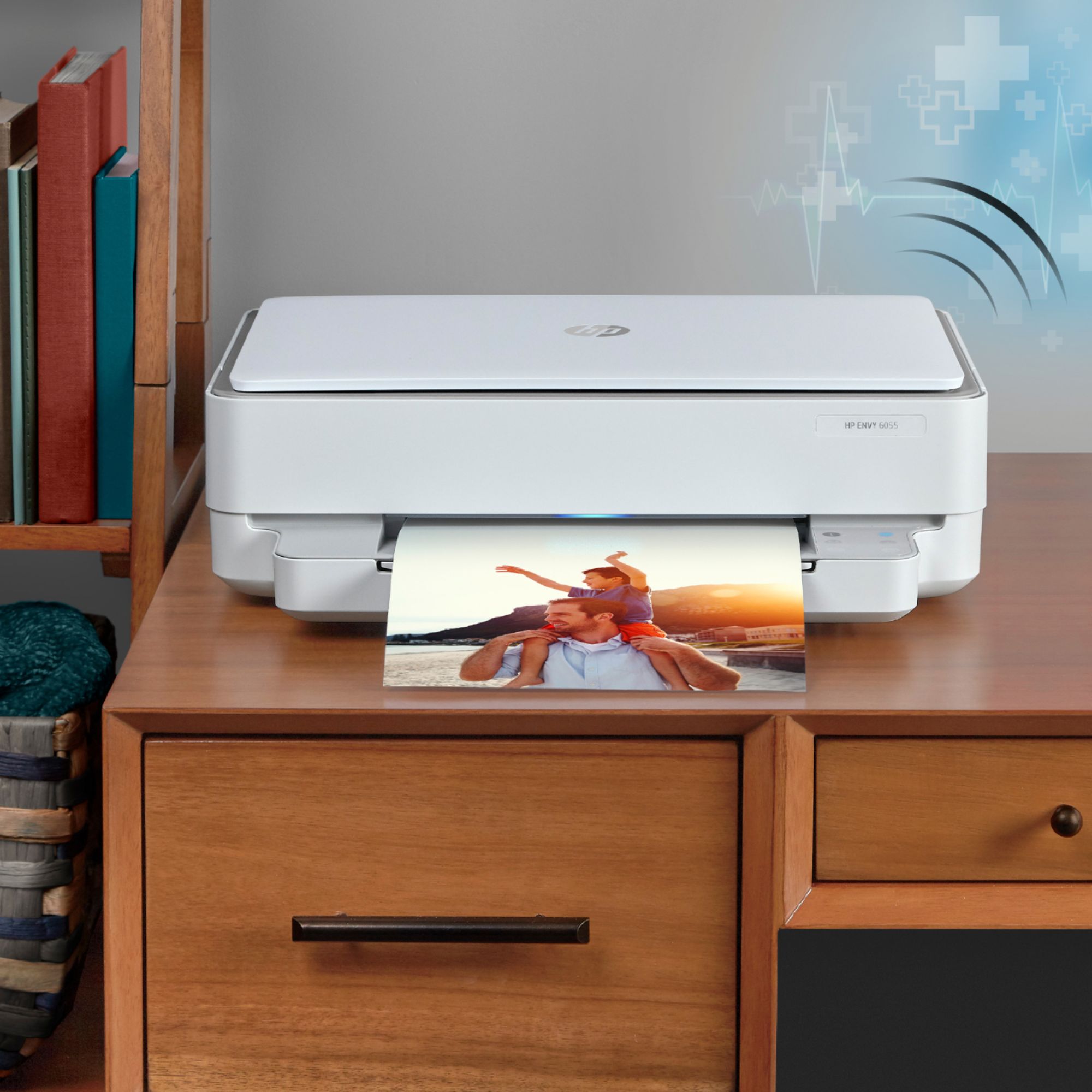
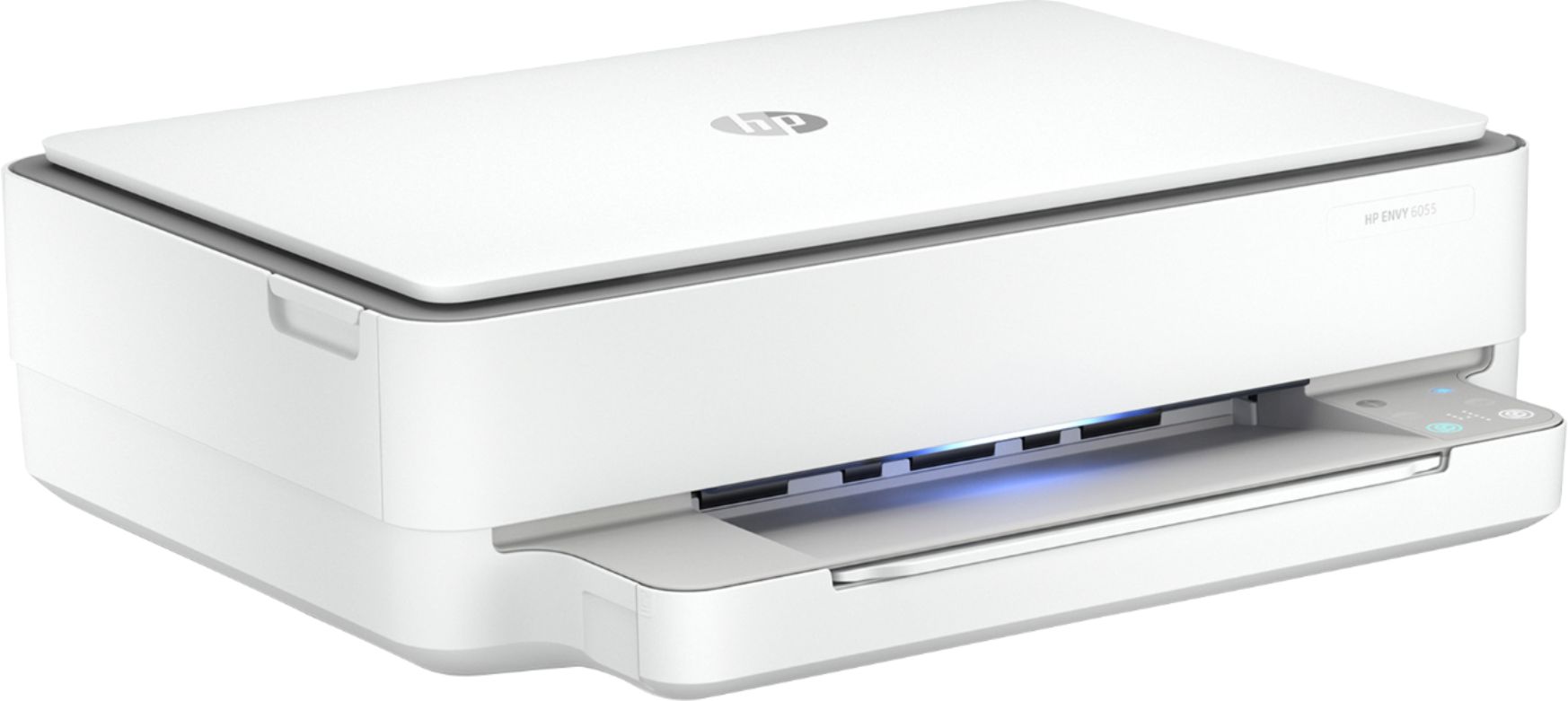
A:AnswerThis printer can only scan one side at a time. If you are trying to scan more than one page on the HP Envy 6055 printer, you can would scan the first page. Then, add a page to scan the next page. You would continue until all of the pages are scanned. Then, you can save the document as a PDF. We recommend using the HP Smart app. If you want to automatically scan several pages, I would recommend looking at a printer with an auto document feeder that can scan both sides, like the HP Officejet Pro 9015 or 9025 printers. Here is more information on the HP Smart app: https://support.hp.com/us-en/product/hp-deskjet-2600-all-in-one-printer-series/12319824/model/21481524/document/c04675142
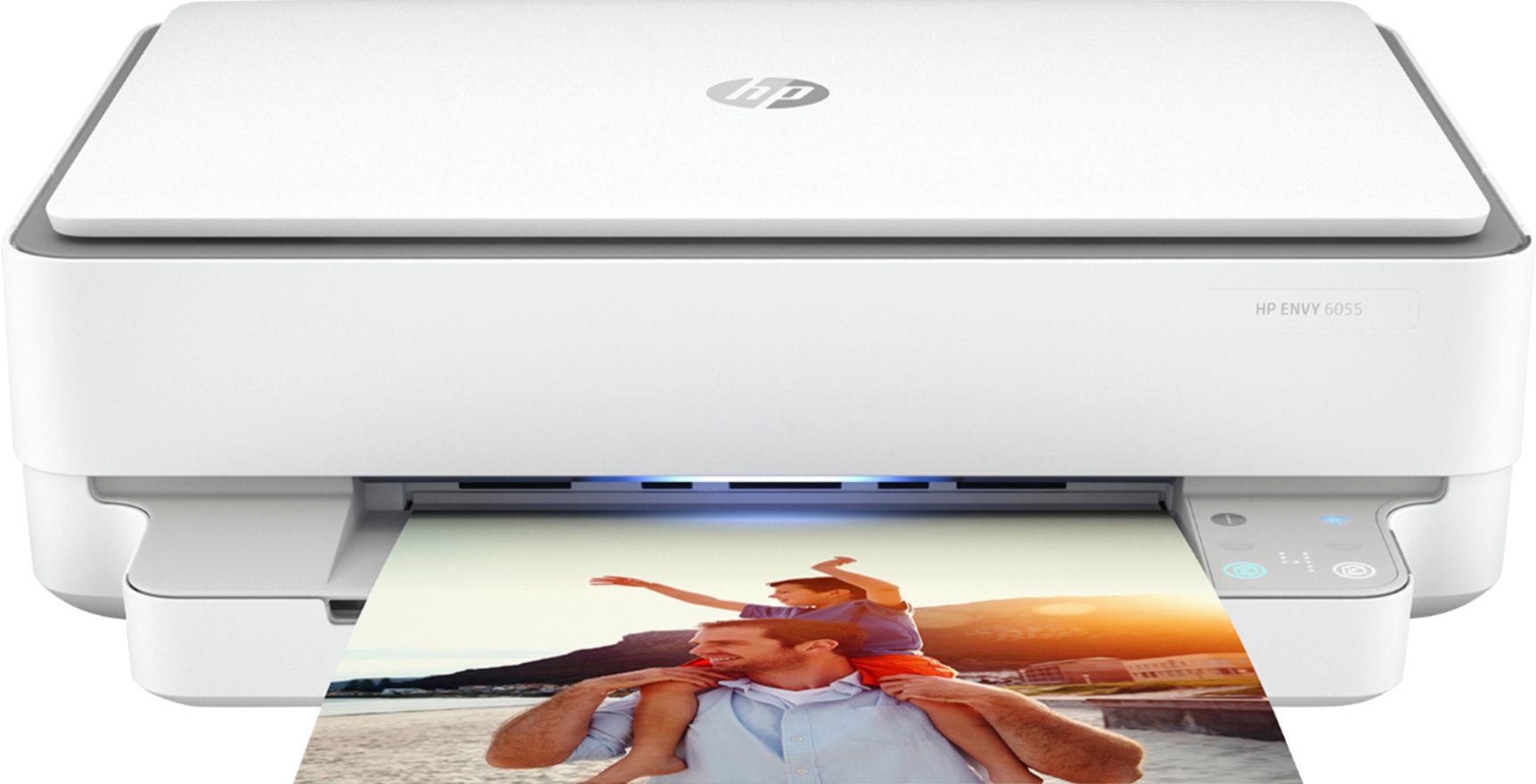
A:AnswerIt can handle card stock up to 53 pounds in weight, so it should also be fine for vinyl stickers, as long as they're designed to work with an inkjet printer.
A:AnswerYes, you print from two different computers that are connected to the same wireless network. We recommend making sure the printer is added to the iMac. You can visit https://123.hp.com/setup for further assistance on the printer setup.
A:AnswerYes it can print on photo paper and card stock. The maximum media weight is 20lb.
Media types
Plain Paper; HP Photo Papers; HP Matte Brochure or Professional Paper; HP Matte Presentation Paper; HP Glossy Brochure or Professional Paper; Other Photo Inkjet Papers; Other Matte Inkjet Papers; Other Glossy Inkjet Papers; Plain Paper, Light/Recycled
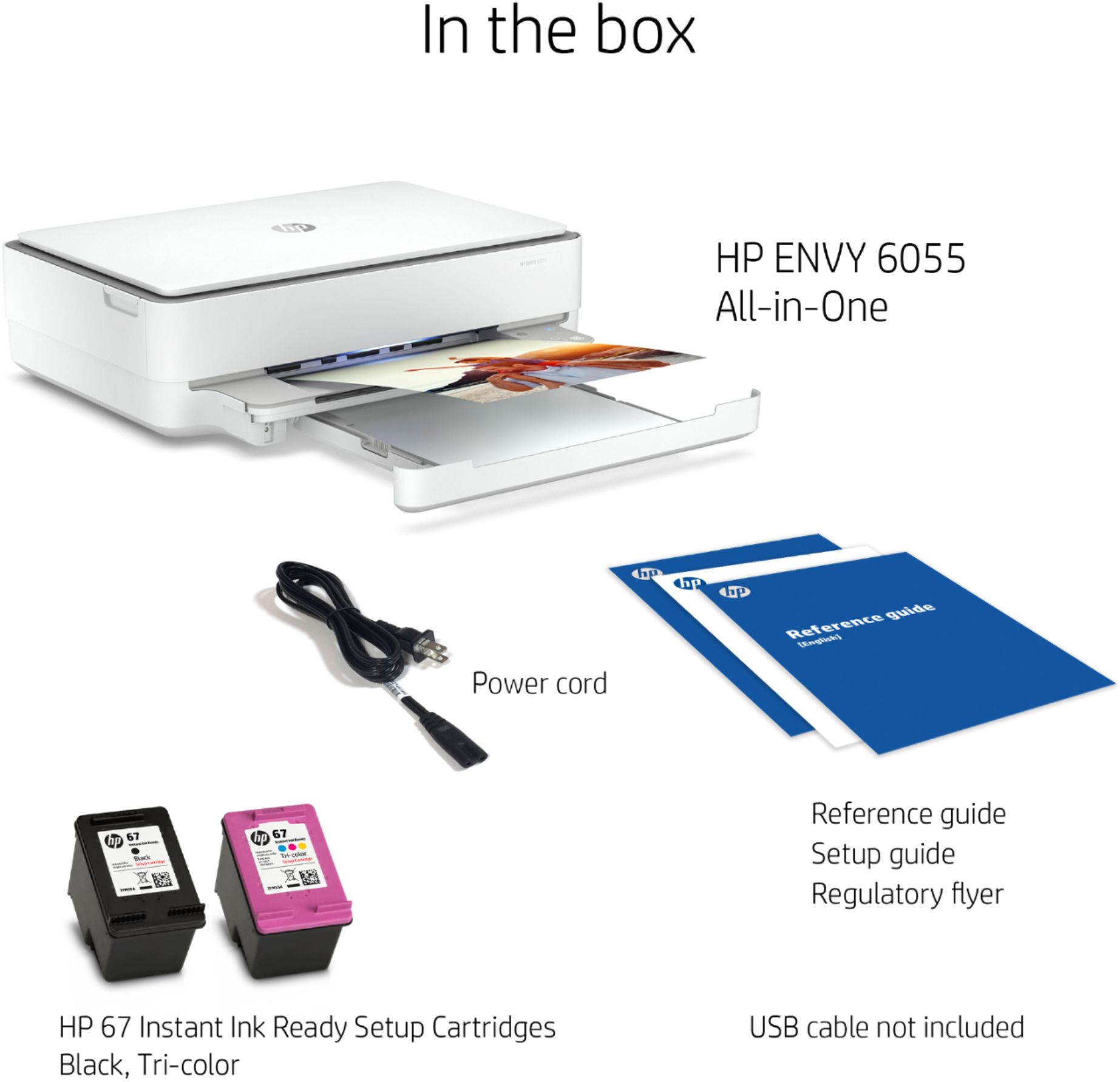
A:AnswerThis printer comes with setup cartridges in the box. The yield of setup cartridges varies by model but tends to be enough to get the average user through setup and initial printing jobs. You can learn more about Ink and Toner by the model at https://bit.ly/3cQrnaN
A:AnswerThe HP 67 black will yield approximately 120 pages. The HP 67 tricolor ink cartridge will yield approximately 100 pages. Both of these yields are based on 5% coverage. A full page photo would be 100% coverage. Here is more info on how they determine the page yields: https://learn-about-supplies.ext.hp.com/measuring-ink-yield
A:AnswerThis printer comes with setup cartridges in the box. The yield of setup cartridges varies by model but tends to be enough to get the average user through setup and initial printing jobs. You can learn more about Ink and Toner by the model at https://bit.ly/3cQrnaN
A:AnswerThe recommended method to scan documents using your HP printer is to use the HP Smart App. Open the app and select the Scan button. Note that you will need to log into your HP Smart account before scanning. Another somewhat faster method to scan (assuming you are using the Windows 10 operating system) is to use the native Windows Scan application, which you can find from the Windows Start menu and scrolling down to the Scan app or use the Windows search option and search for 'scan' then select the Scan app. Fewer features than using the HP Smart App but it still works just fine if you just need to quickly scan a document or photo.