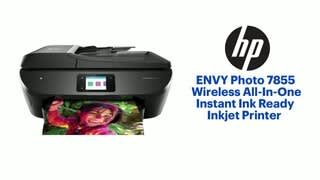
A:AnswerThe ADF on the HP Envy Photo 7855 printer cannot scan a 2 sided document. We recommend looking at the HP Officejet Pro 9015 or 9025 printers which can scan 2 sided documents.
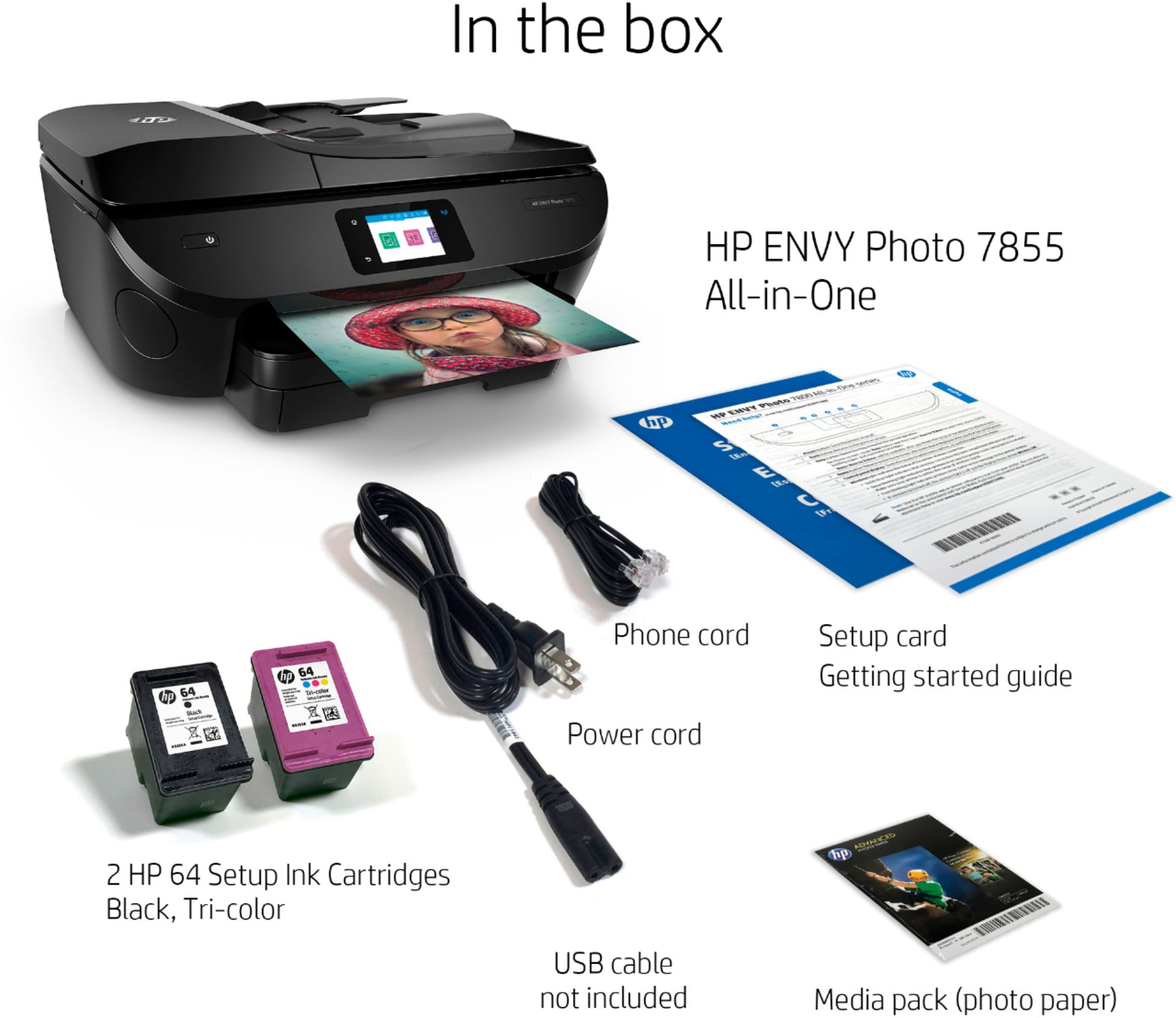
A:AnswerThe HP Envy Photo 7855 printer uses the HP 64 or 64XL black and tricolor ink cartridges. Here is the link to the black ink cartridge for the most current price: https://www.bestbuy.com/site/hp-64-standard-capacity-black-ink-cartridge-black/5976500.p?skuId=5976500 and for the tricolor ink cartridge: https://www.bestbuy.com/site/hp-64-standard-capacity-tri-color-ink-cartridge-multicolor/5976404.p?skuId=5976404
A:AnswerYes, you can scan photos to a USB flash drive on the printer or your laptop. You will also be able to scan using the HP Smart app on your laptop to save your scanned document or photo to a folder on the laptop.
A:AnswerYes, you can. You'll need to have the free HP Smart app installed on your device. In the app, you'll create a "smart task" and add Siri to it when prompted
A:AnswerYou do have to set up the printer by inserting the ink cartridges and connecting to your computer or mobile device such as a smartphone. We recommend using the HP Smart app: https://support.hp.com/us-en/product/hp-deskjet-2600-all-in-one-printer-series/12319824/model/21481524/document/c04675142
A:AnswerDid she try using the HP smart app? When I connected my printer I downloaded the app with my laptop since I am going to be using my laptop to print out work and I was able to connect it easily. She might be able to do it through an HP account as well. She might just have to register her printer onto her account and hopefully be able to connect her laptop to the printer
A:AnswerYes, the HP Envy Photo 7855 printer will work with both Chromebooks. Once you are set up the printer to the wireless network, follow these instructions to set up the printer on the Chromebook: https://support.hp.com/us-en/document/c04122530