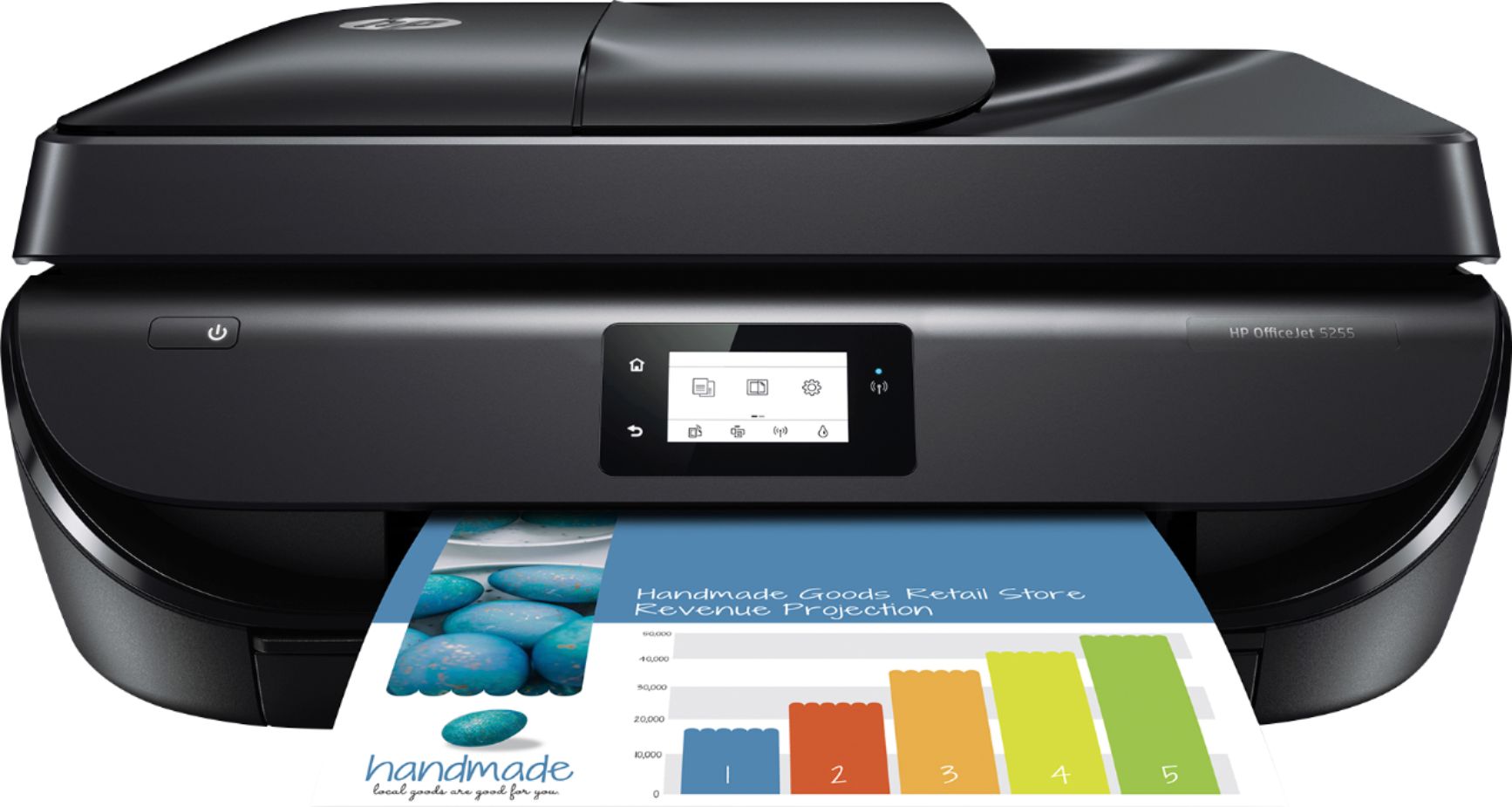
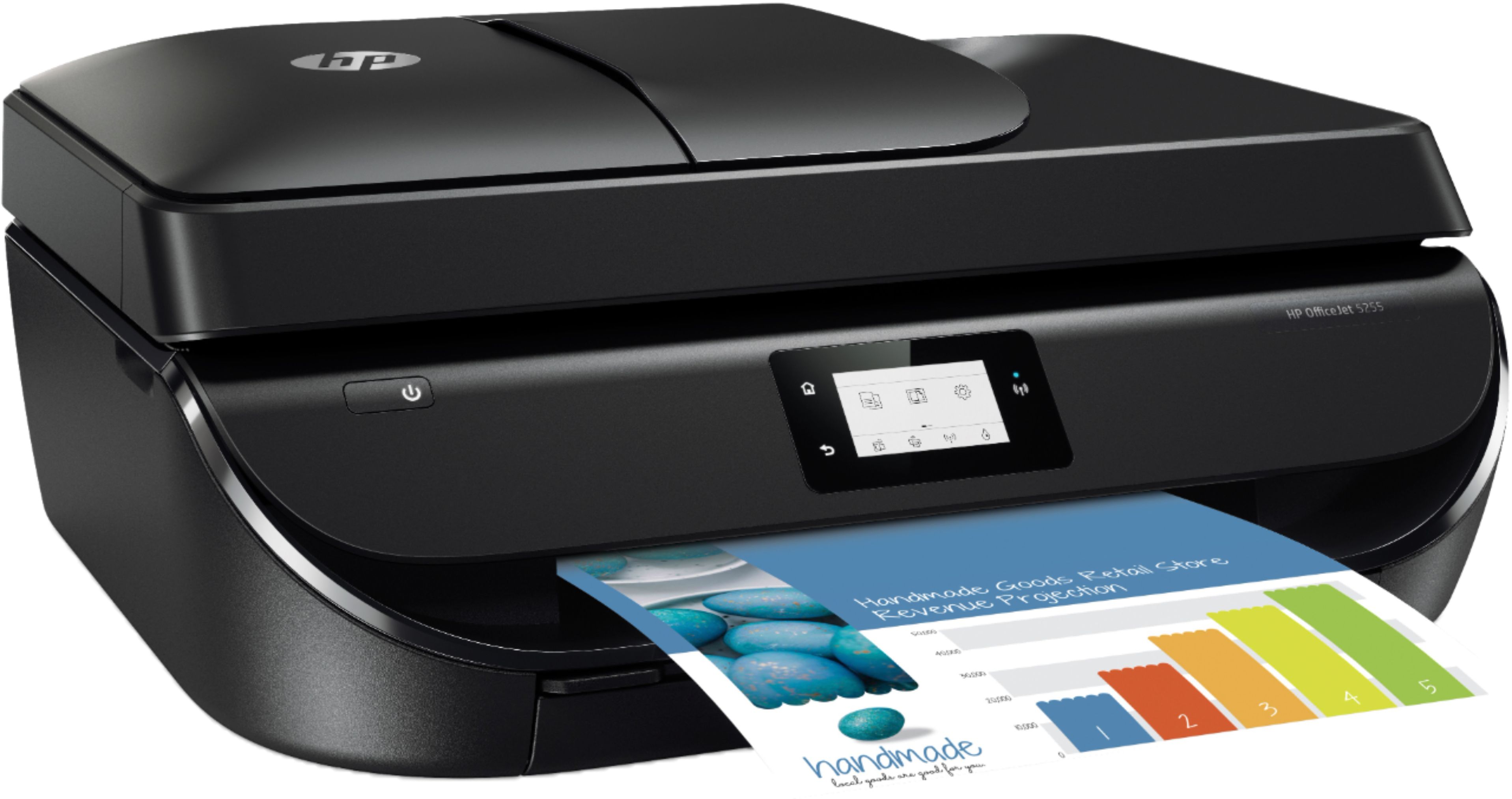
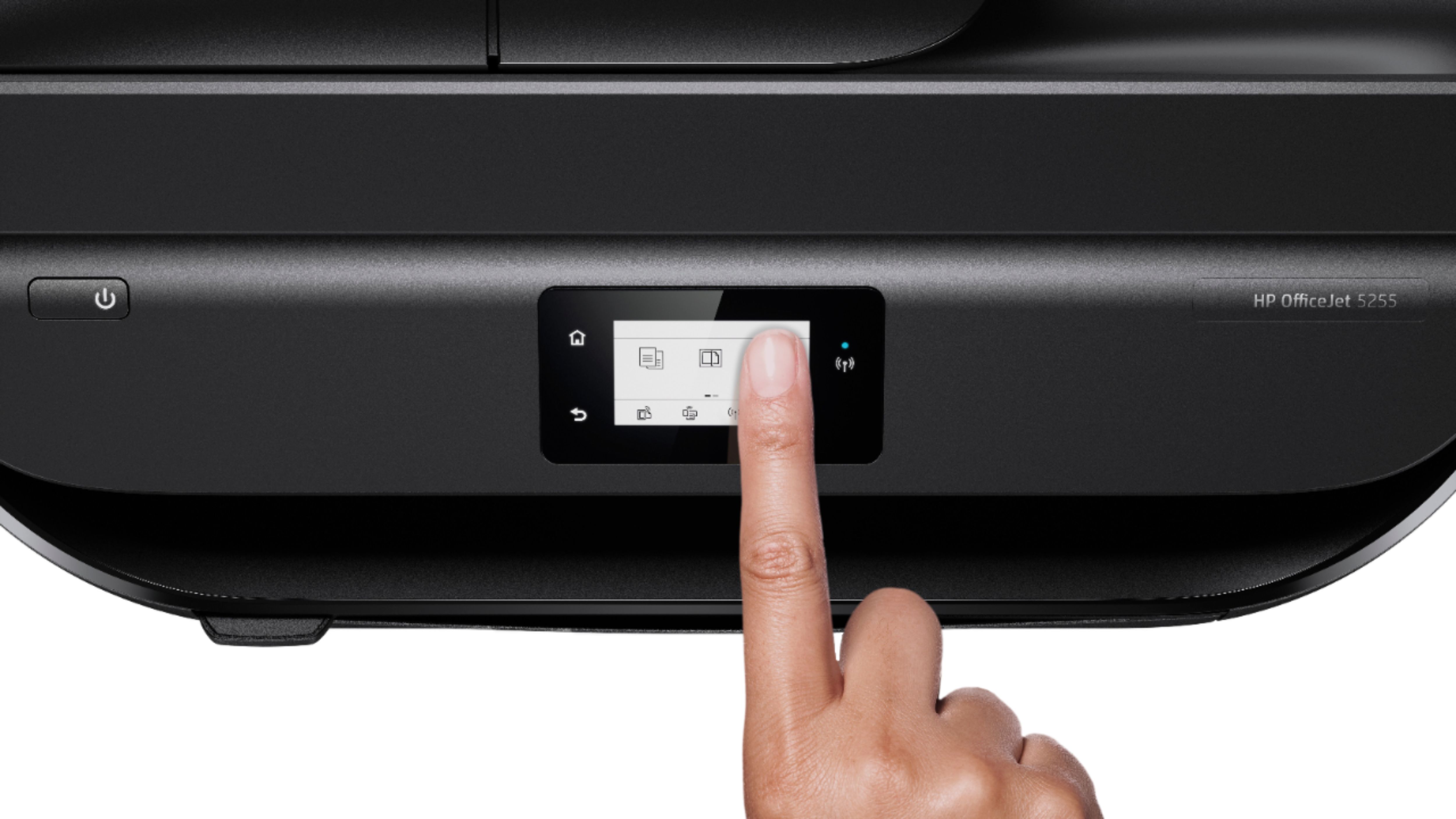
A:AnswerUnfortunately no, the OfficeJet 5255 does not have a SD card reader or a USB port to read a thumb drive. We recommend looking into the Envy Photo series, specifically the 7155 and 7855, for models that have these features!
A:AnswerYes it does. You must remember to turn on that it has automatic duplex printing in the printer driver settings as for some reason it defaults to being disabled.
A:AnswerThe DeskJet models are designed for very low printing volume. The Envy line is designed for the average home use while the OfficeJet is more for higher volume home users. The OfficeJet Pro and LaserJet Pro lines are designed for small to medium business users.
The key is to get a printer that is best designed for how much you print. This means that you will be buying ink around every 6 months and you do not have to worry about excess ink drying out or being used in maintenance.
This printer, as well as nearly all printers nowadays, does not include a USB A to B cable. It is a standard cable so if you had one before it will still work. The printer does not need the USB cable to connect wirelessly.
A:AnswerTo change the cartridges in your HP 5255 printer:
1 - lift scanner cover until it is all the way up
2 - from the left side of the scanner glass lift the scanner glass up, you should now see the cartridges
3- each cartridge has a hinged lid securing them in place, lift the lid to expose and remove the cartridge
4 - replace the old cartridge with the new one and reverse the above process to finish installation
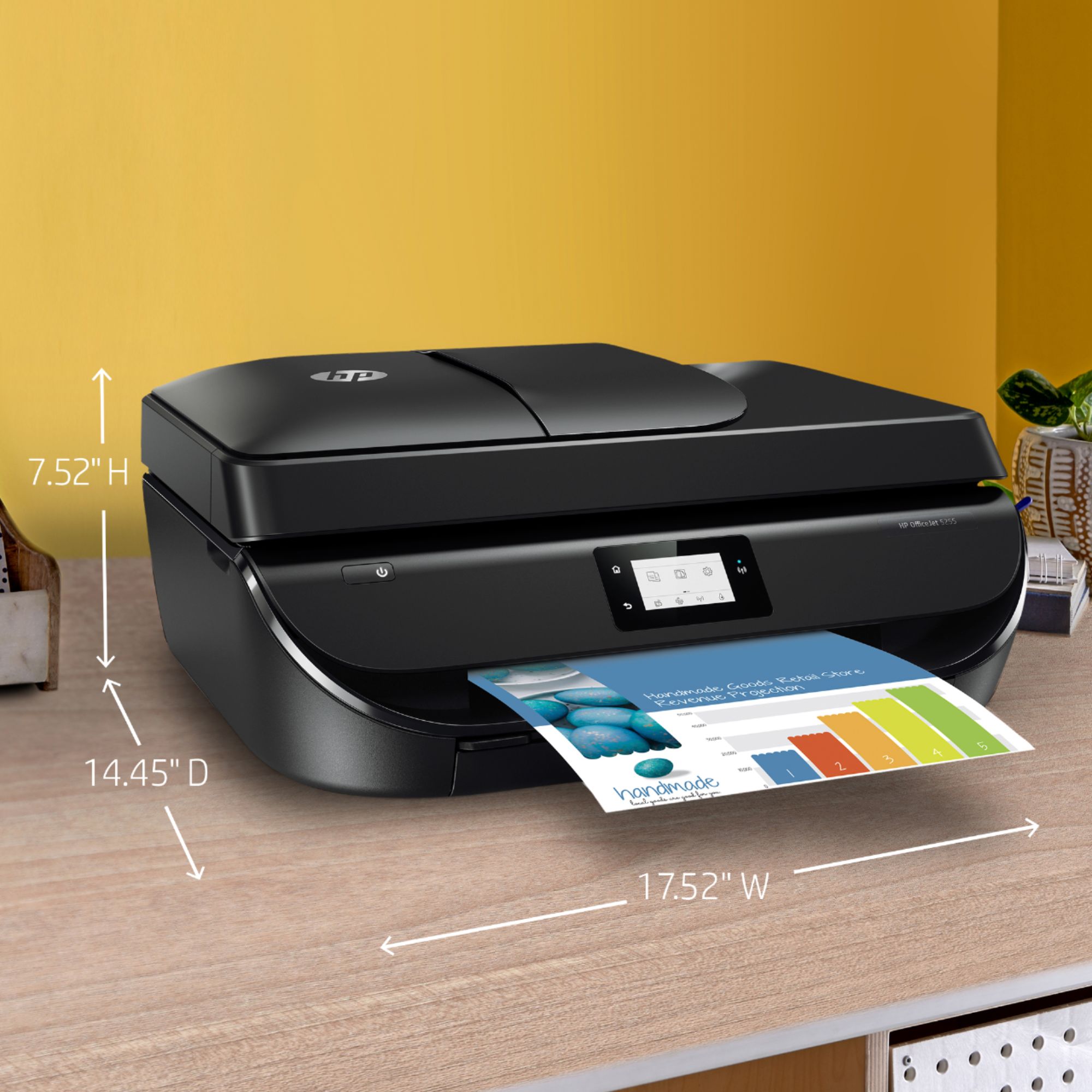
A:AnswerHello! The dimensions of this printer from looking at it from the front are: 17.52" wide, 22.22" deep, and 7.81" tall. Pleased note that these are the maximum dimensions. That is with all the doors open, trays extended and paper loaded.
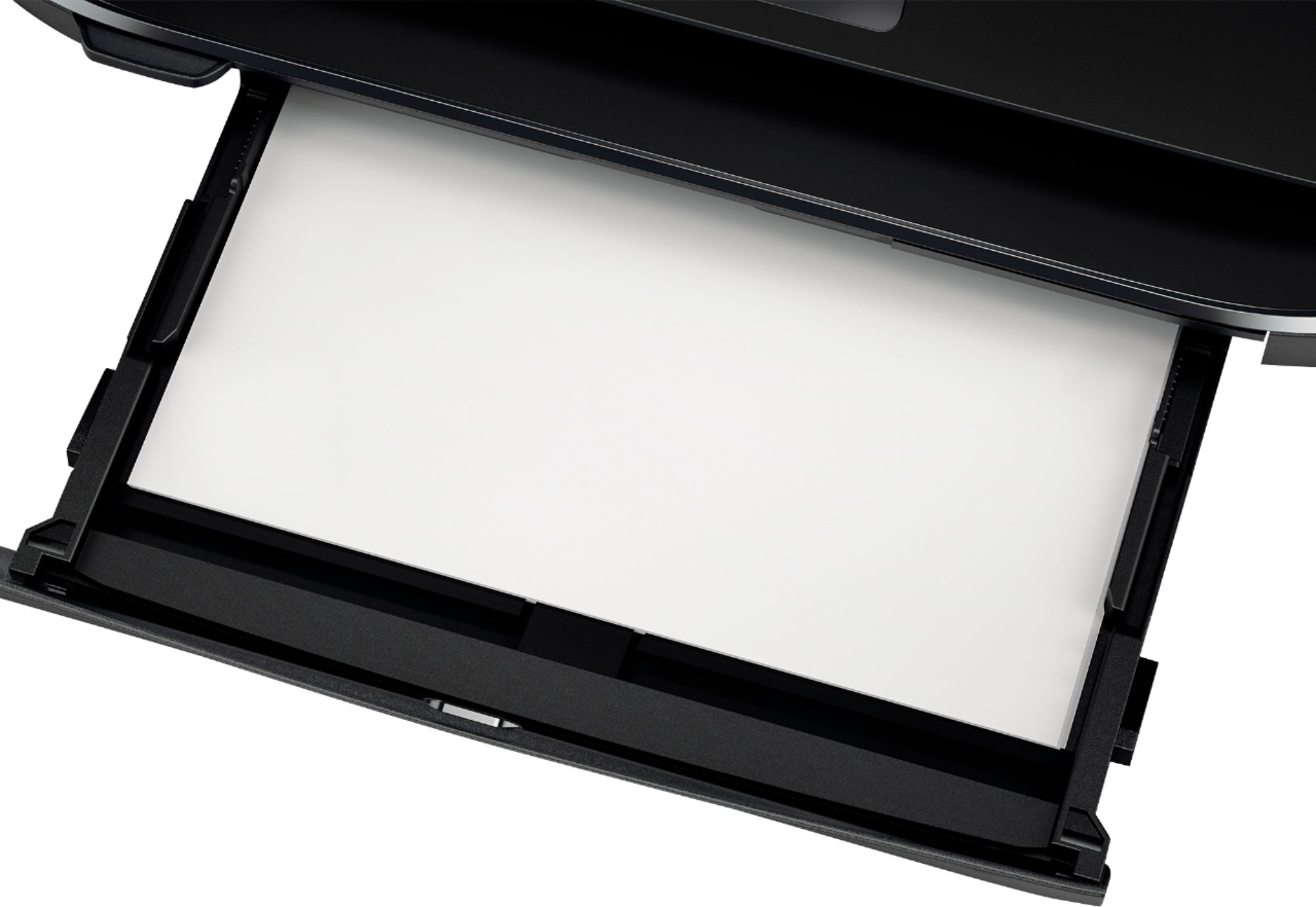
A:AnswerYes, it can print any size from 3.5x5 to 8.5X11 photos. It can also print on envelopes (be sure to pay attention to the loading direction and move the guides to the proper size) and card stock.
A:AnswerScanning is controlled by HP printer software that you install on your laptop or phone as part of printer setup. The printer will save the scan on your device as a PDF.
A:AnswerThe OfficeJet 5255 will be a great option for printing from those devices. It supports Apple Air print to print from iOS devices and your MacBook. Wireless setup is easy with the built-in wireless setup wizard.