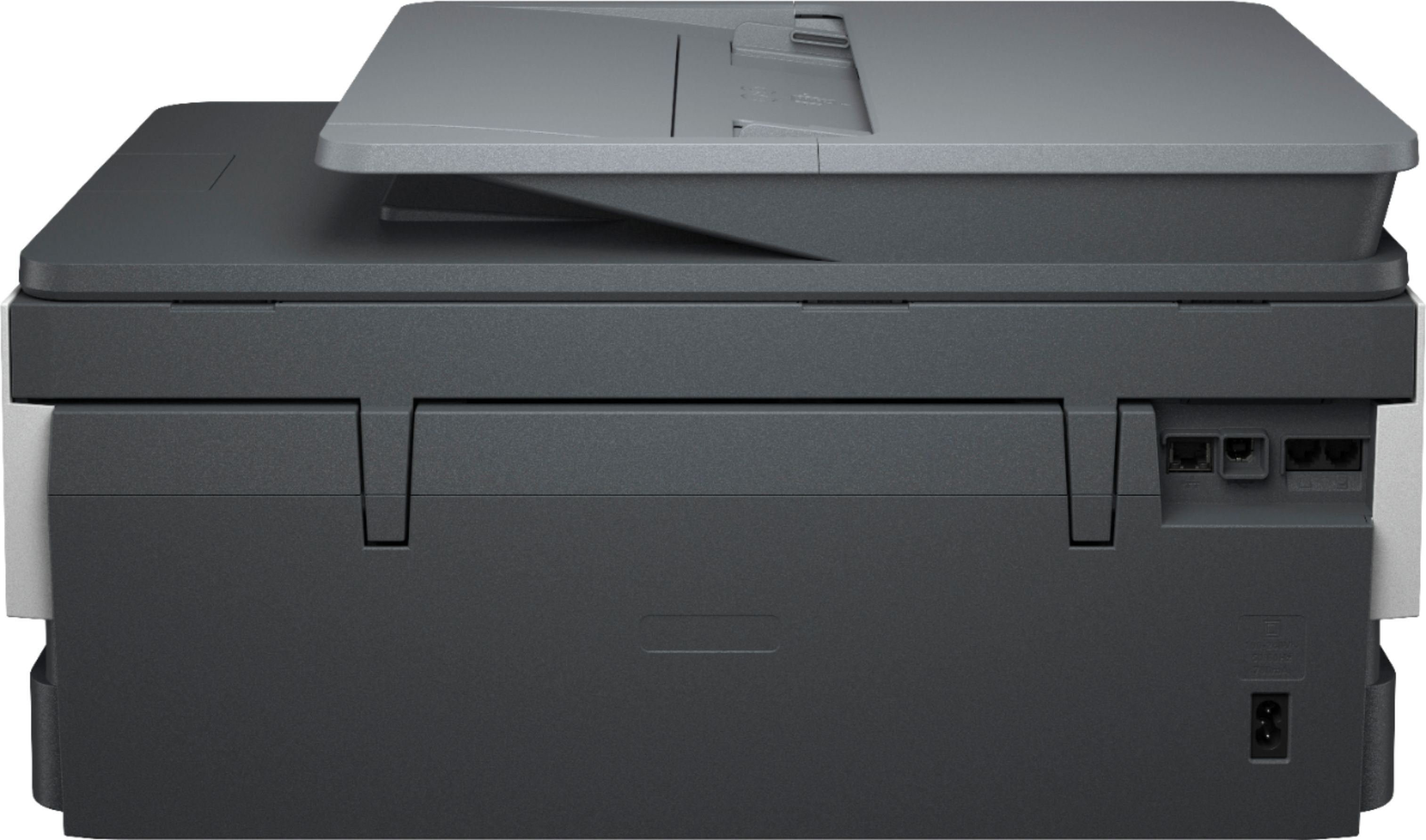
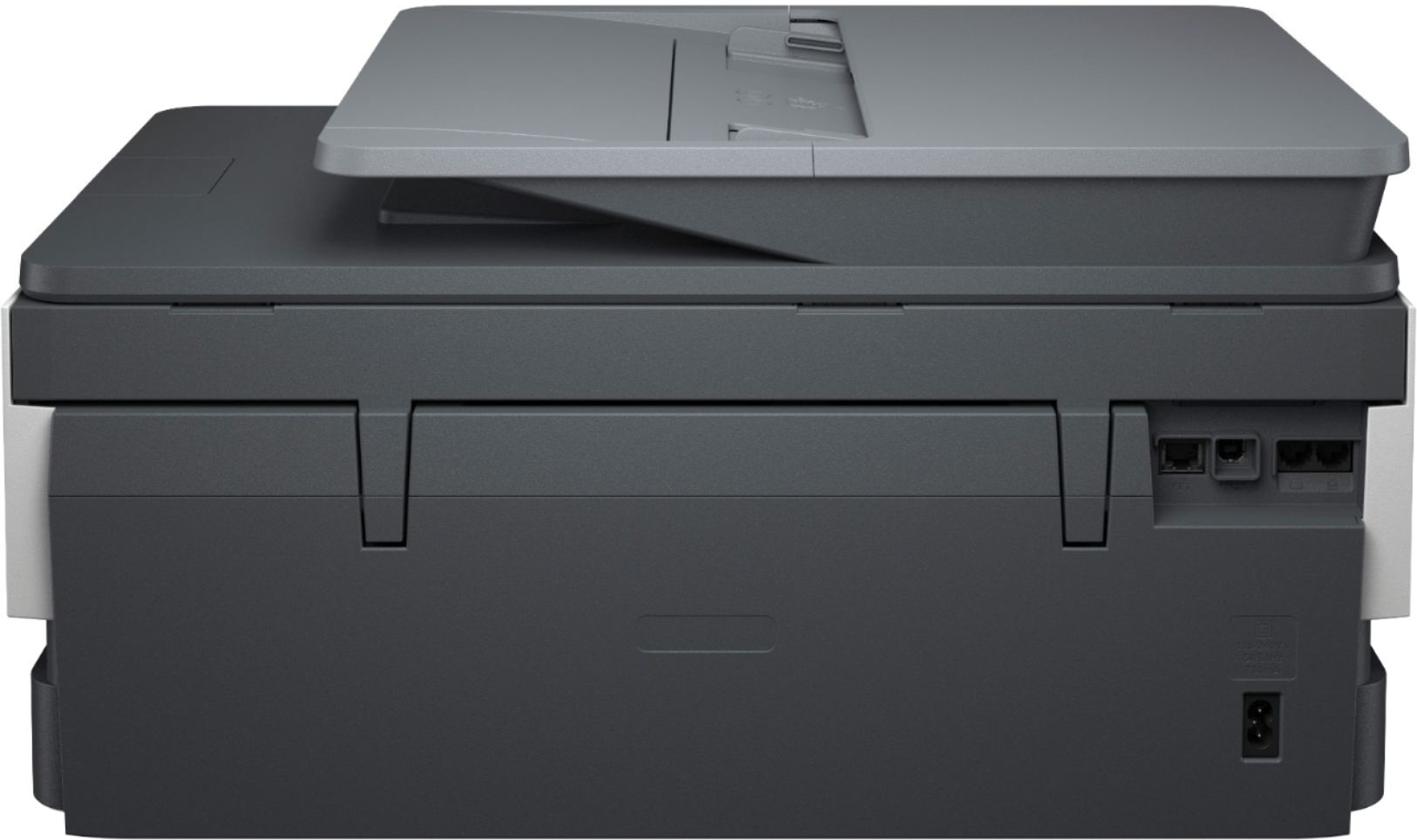
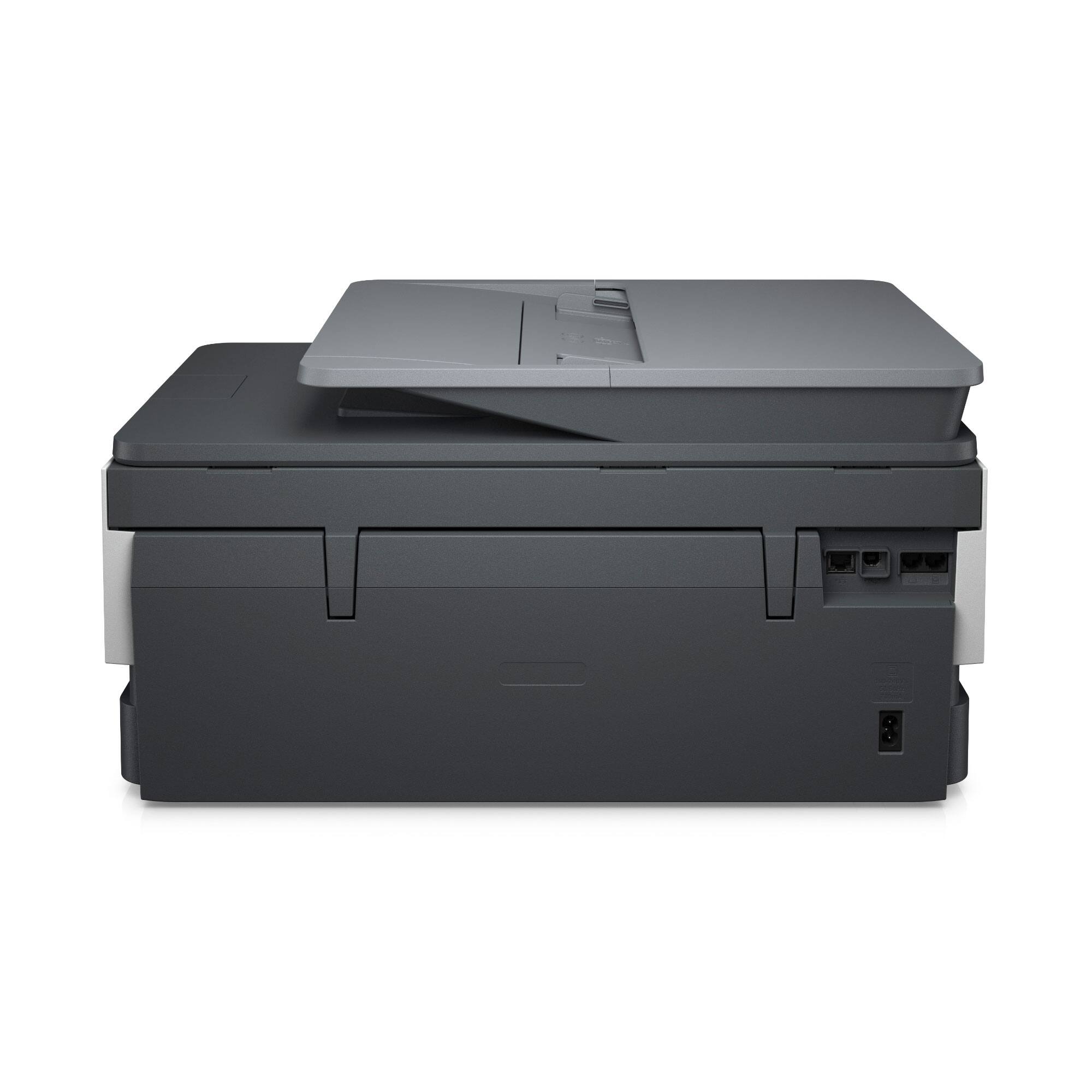
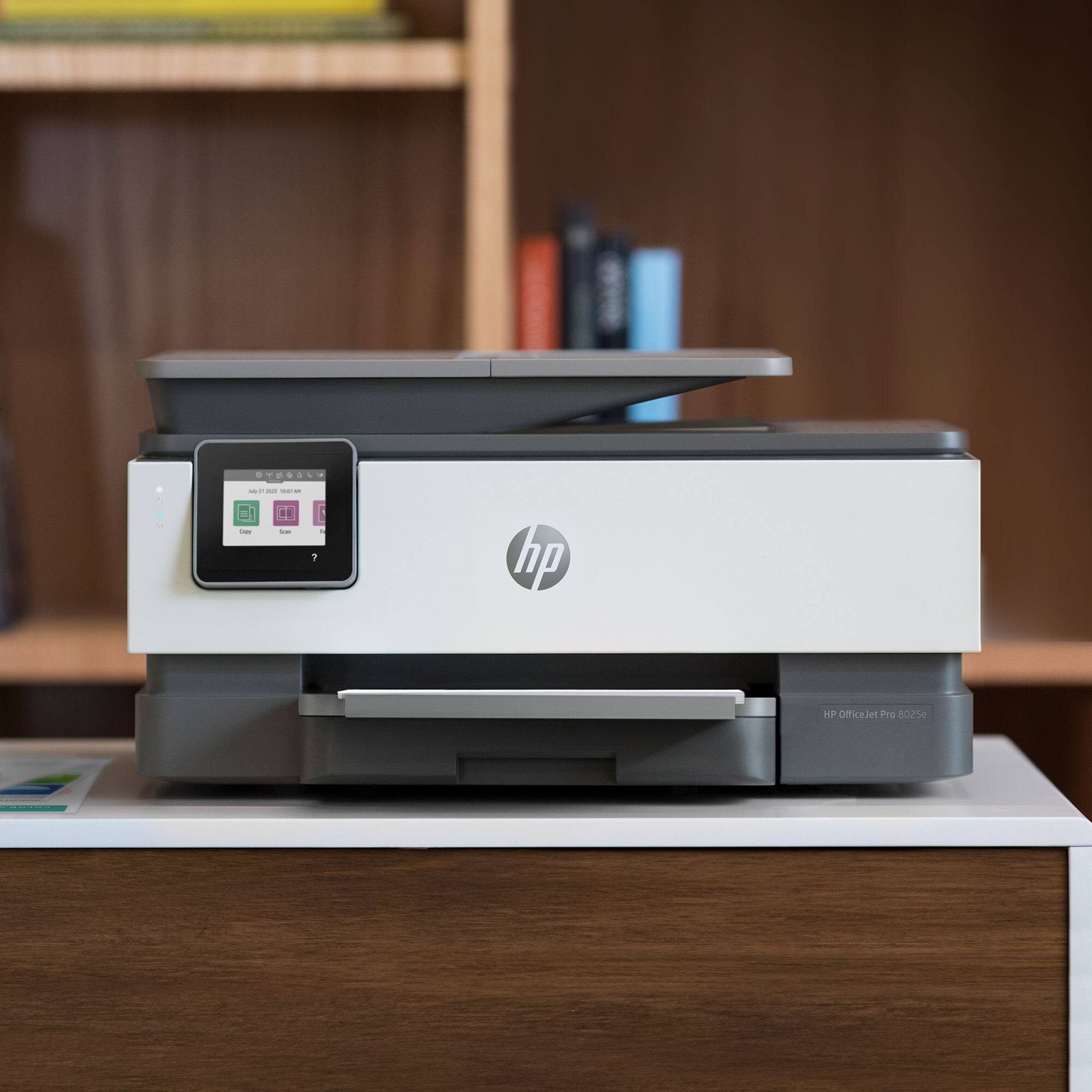
A:AnswerAll of our wireless printers (with very limited exceptions) can be connected to a computer with a USB printer cable-including all of the Deskjet, Envy, Envy Photo, OfficeJet, and OfficeJet pro models.
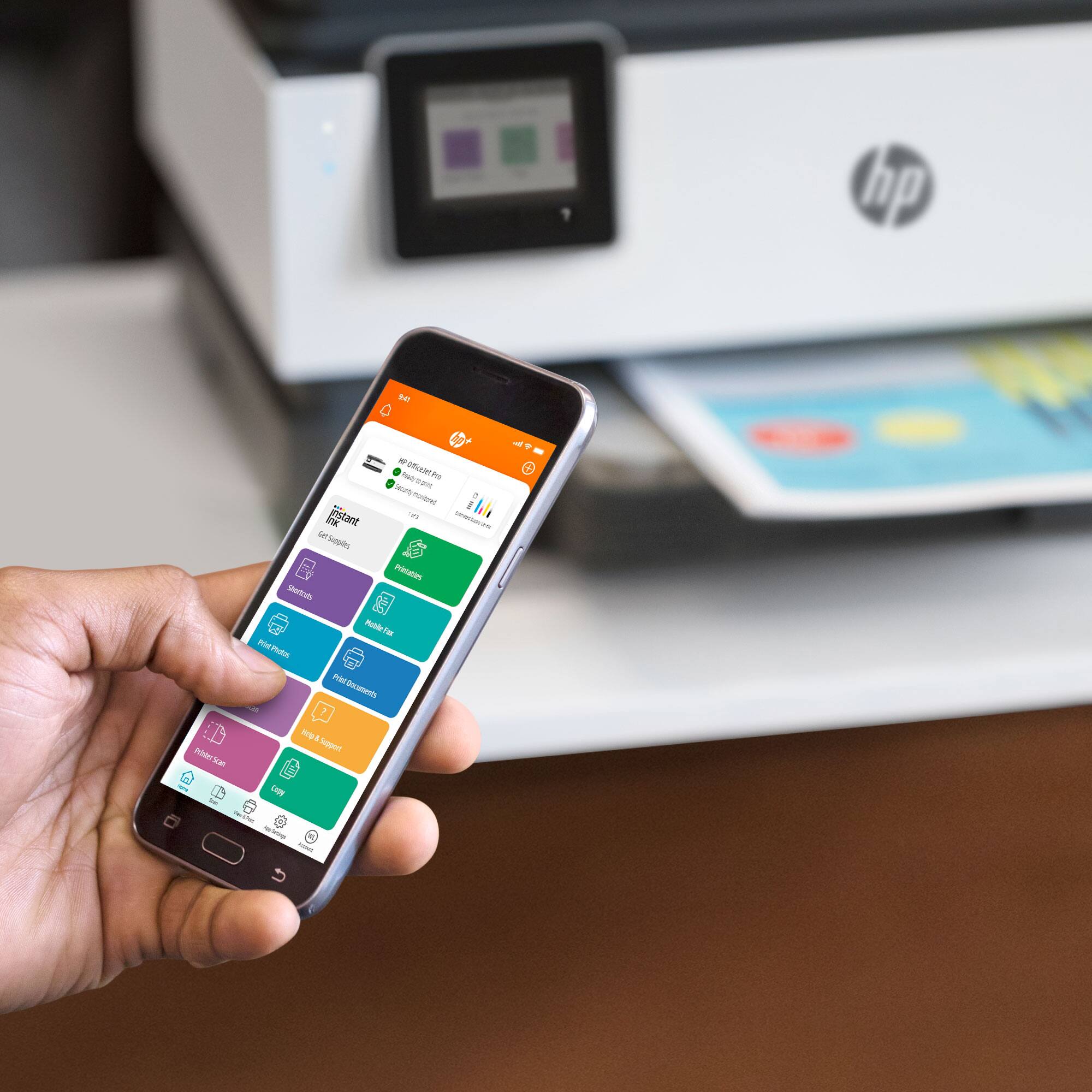
A:AnswerThe Officejet Pro 8025, 8035, 9015 and 9025 printers have dual band WiFi. A few tips on how to connect to the 5 GHz network, the SSID and network password has to be the same on both bands for the printer to be able to switch between them and most models will have a setting to enable the 5 GHz band in the printer menu. Running the setup wizard through the HP Smart App or by going to http://123.hp.com/setup will walk you through the setup process and allow you to enable the correct settings to ensure the best connection.
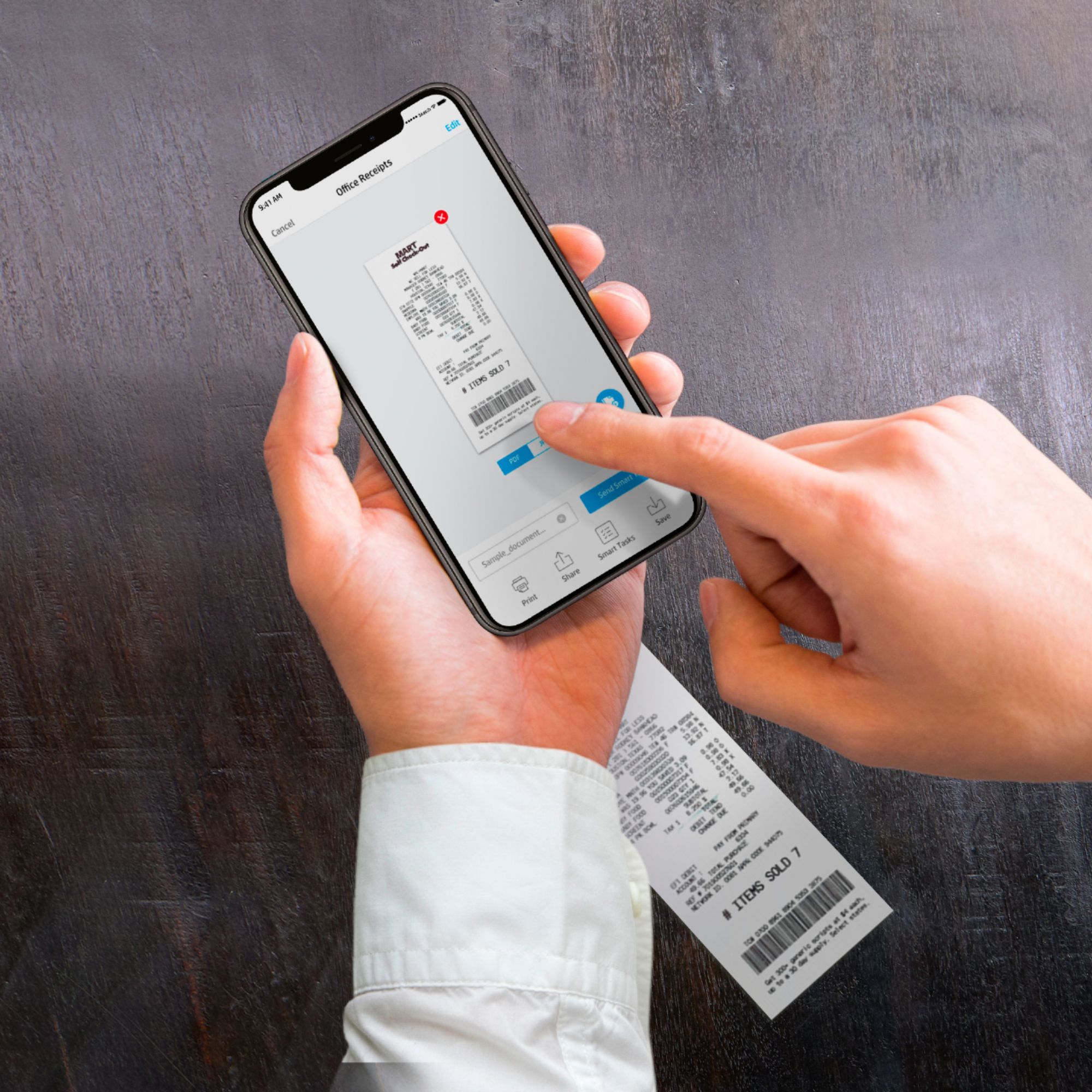
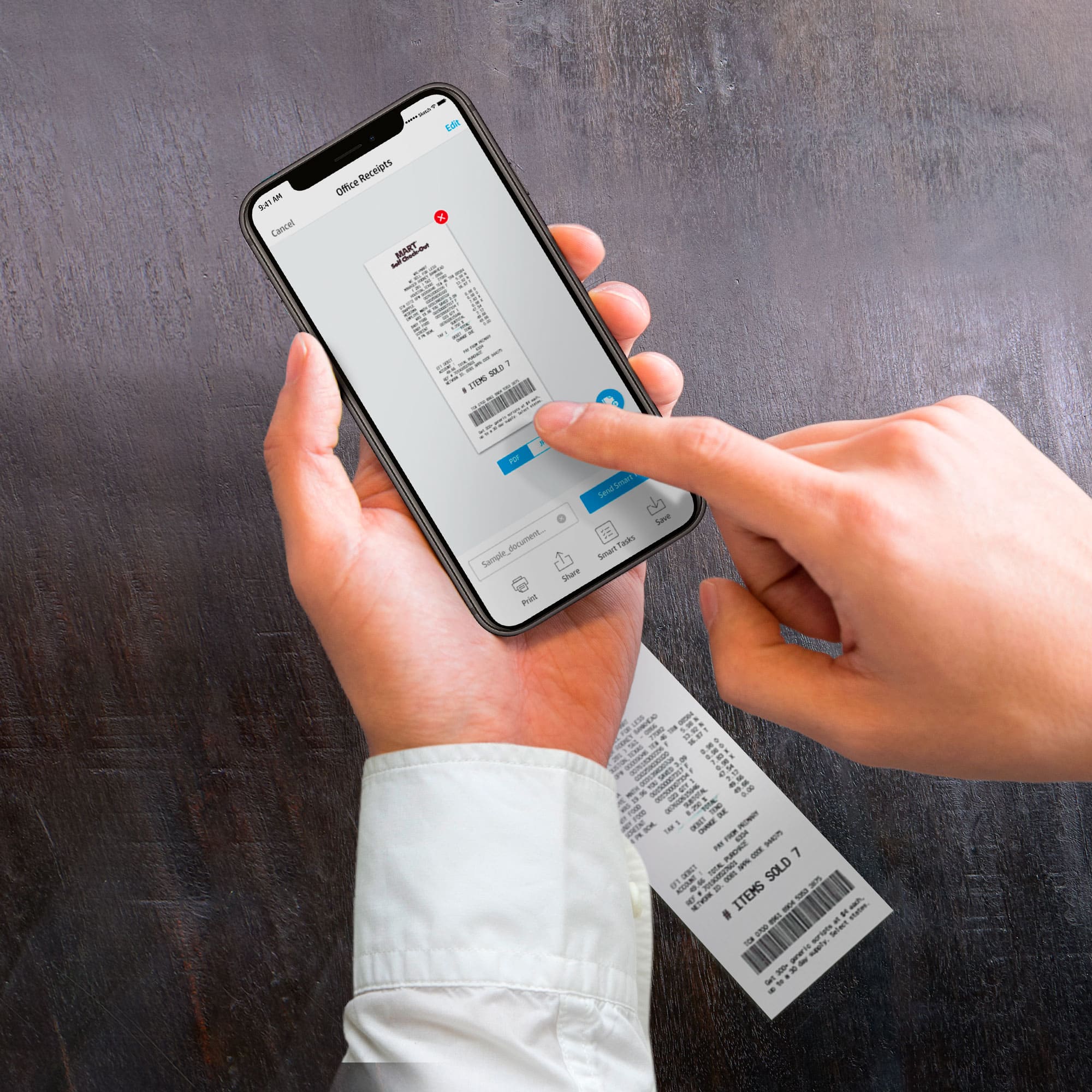
A:AnswerThe only file formats that documents can be scanned to are JPG, BMP, TIFF, PDF, RTF, TXT, and PNG on the Officejet Pro 8025. Word does allow you to scan the document as a PDF then you can open it in Word. Word converts the PDF into an editable Word document: https://support.office.com/en-us/article/scan-and-edit-a-document-7a07a4bd-aca5-4ec5-ba73-4589ac8b9eed Another way to get documents into a form so you can edit it in Word is through OCR software.
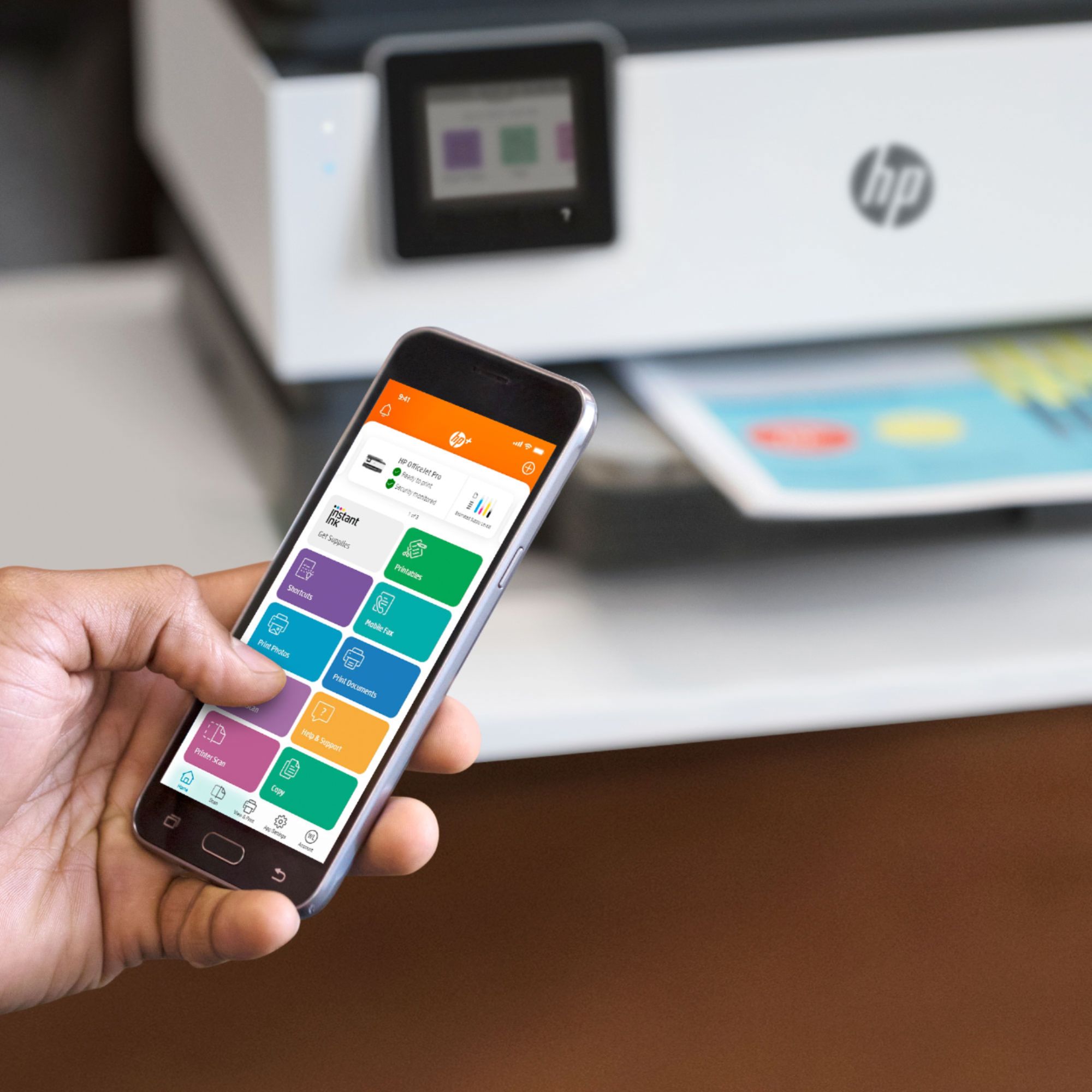
A:AnswerI don't know of any printer using Blue tooth. A direct hook up to your computer with a usb printer cord, ethernet cord, Air print for iPhones or HP Smart for smart phones.

A:AnswerYes, you can certainly send a fax with the printer, and the 8025e is a little over one year old, although the particular copy that you get will almost certainly be a couple of months old as the oldest.
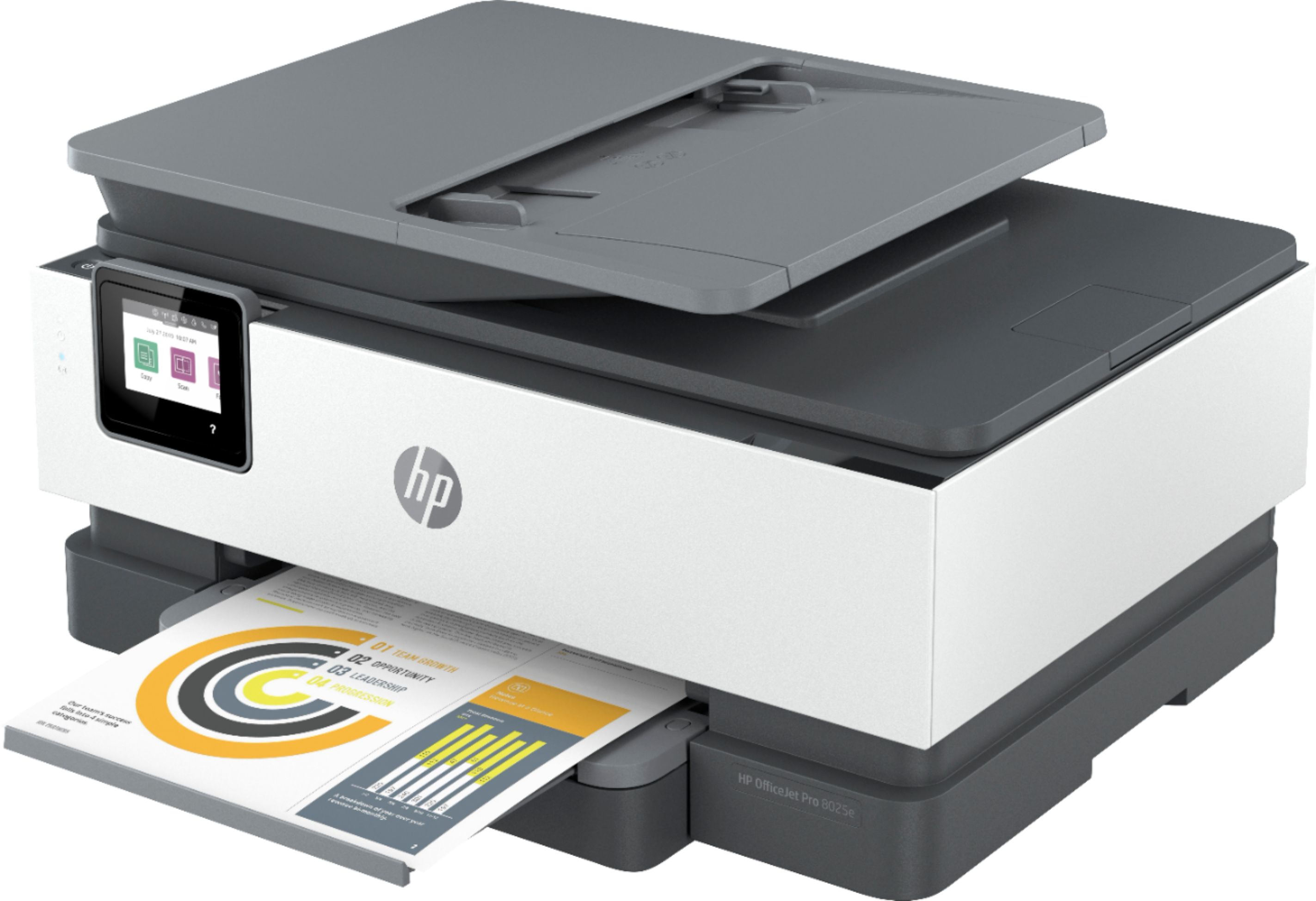
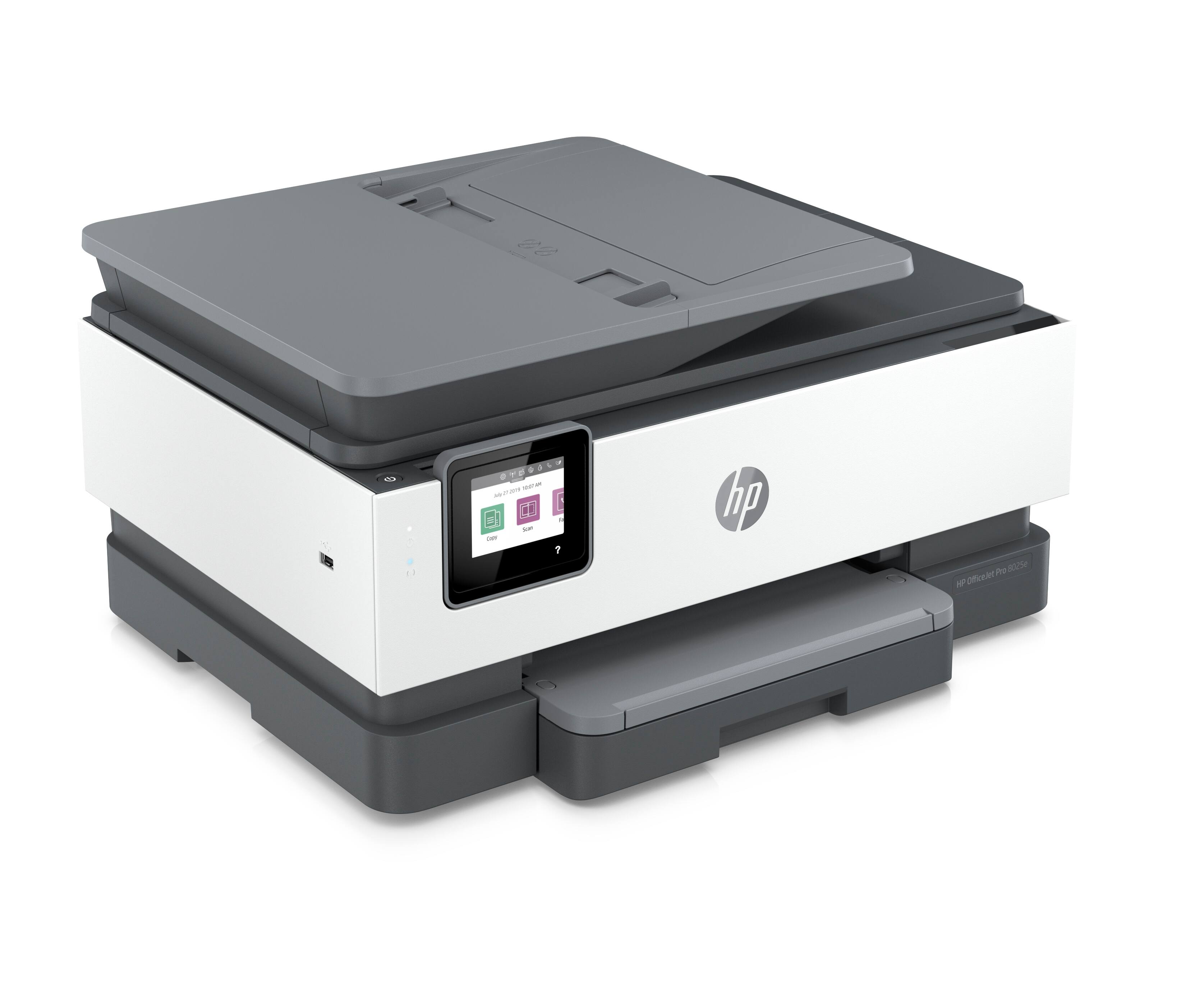
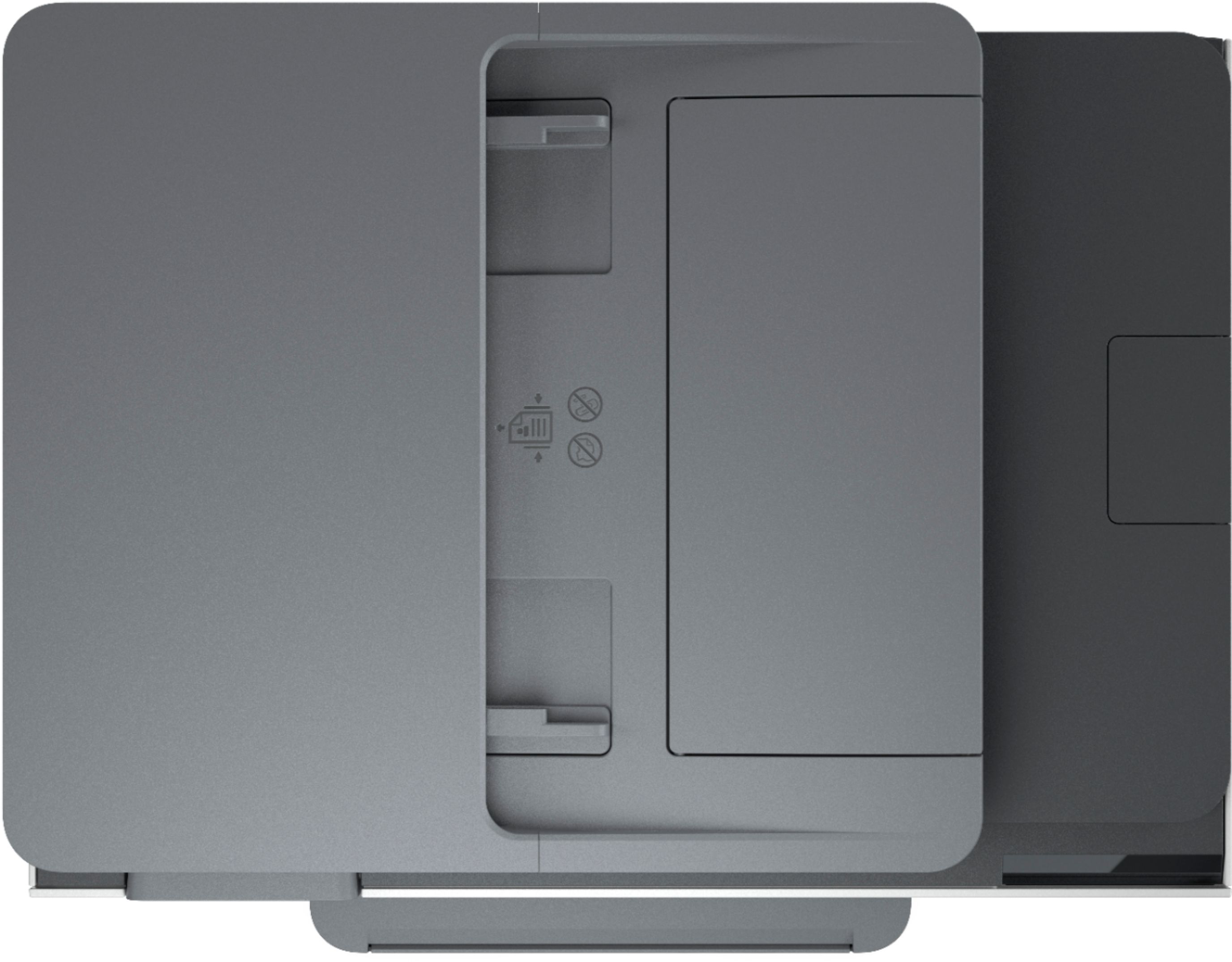
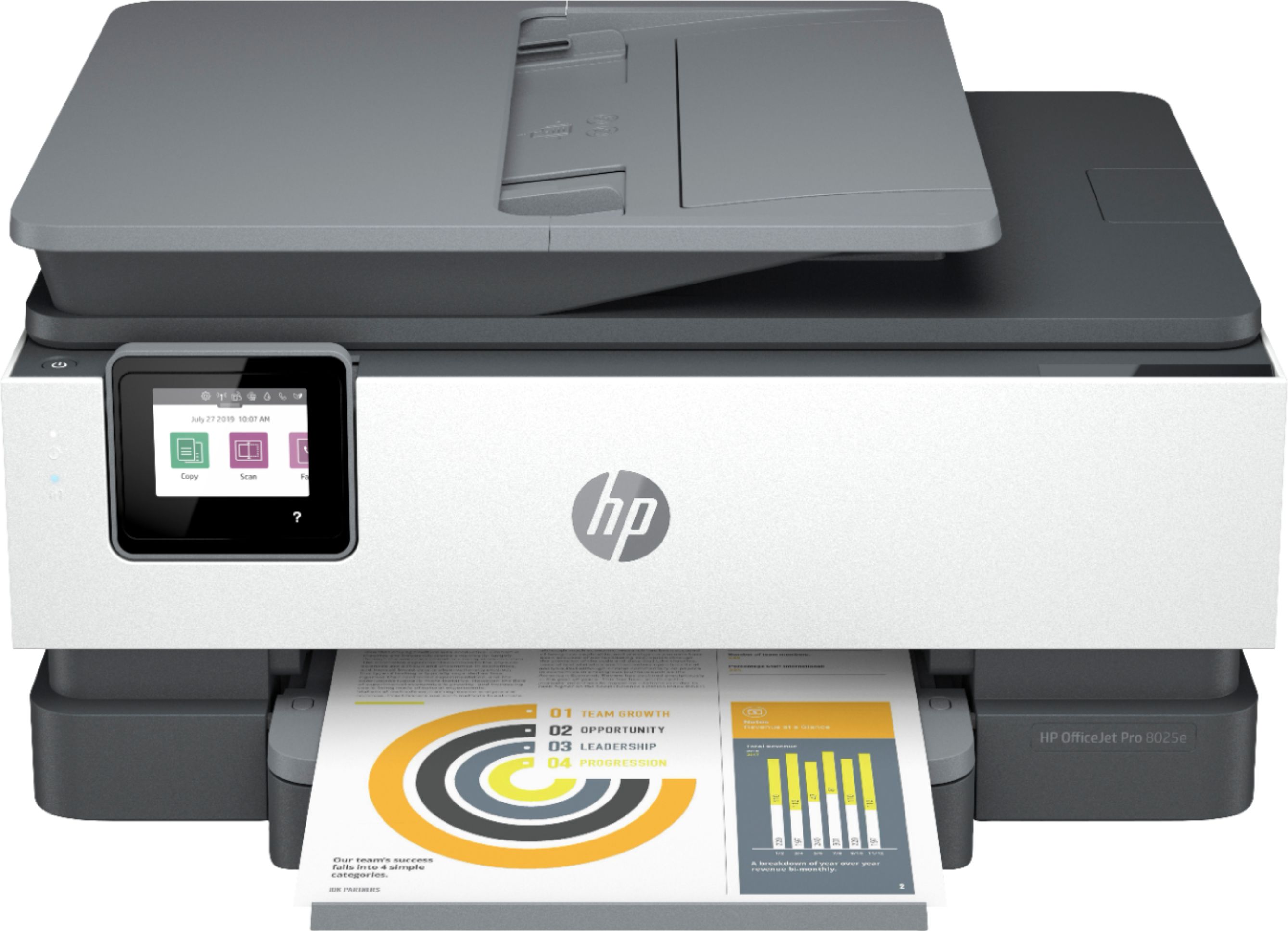
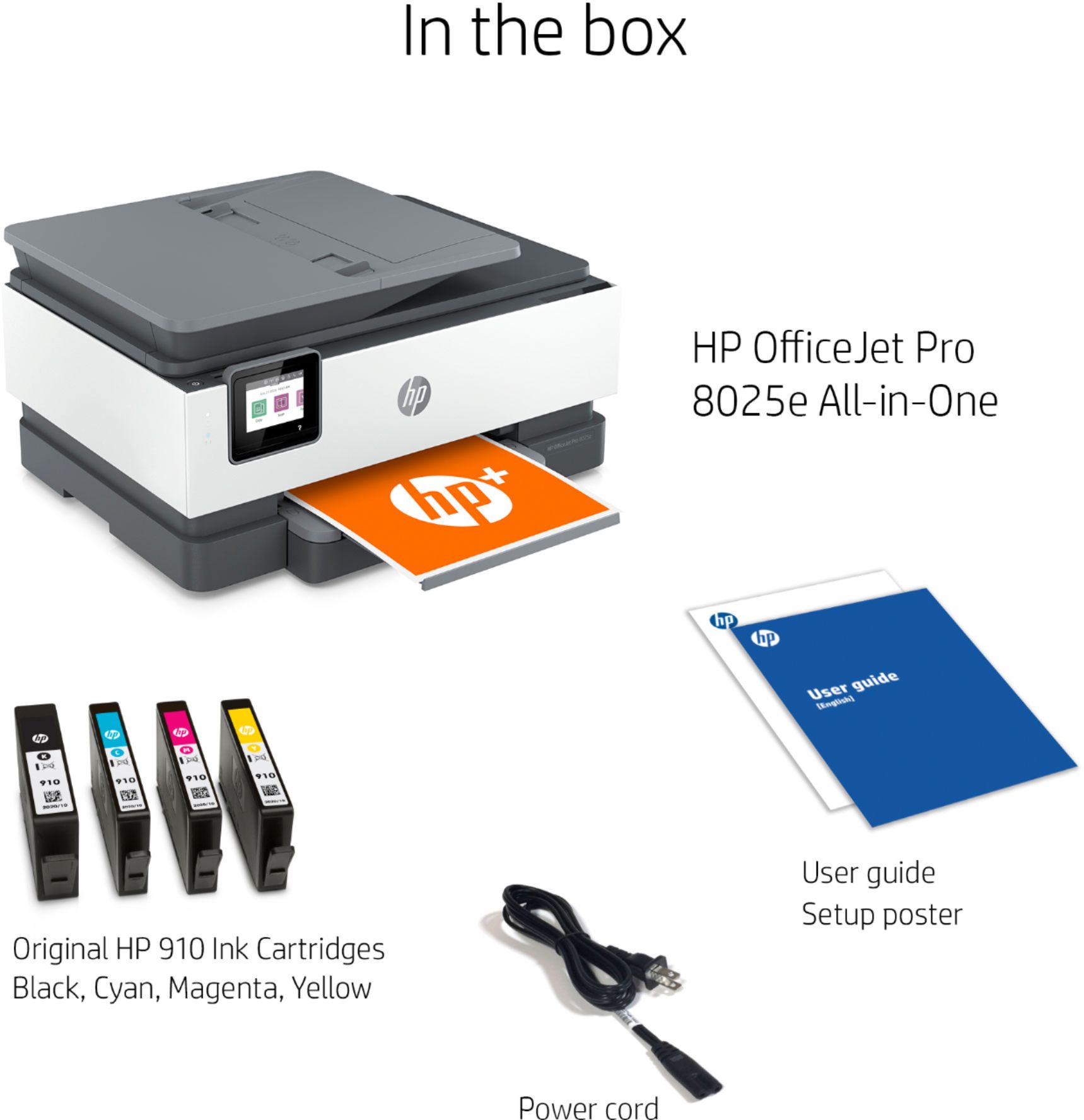
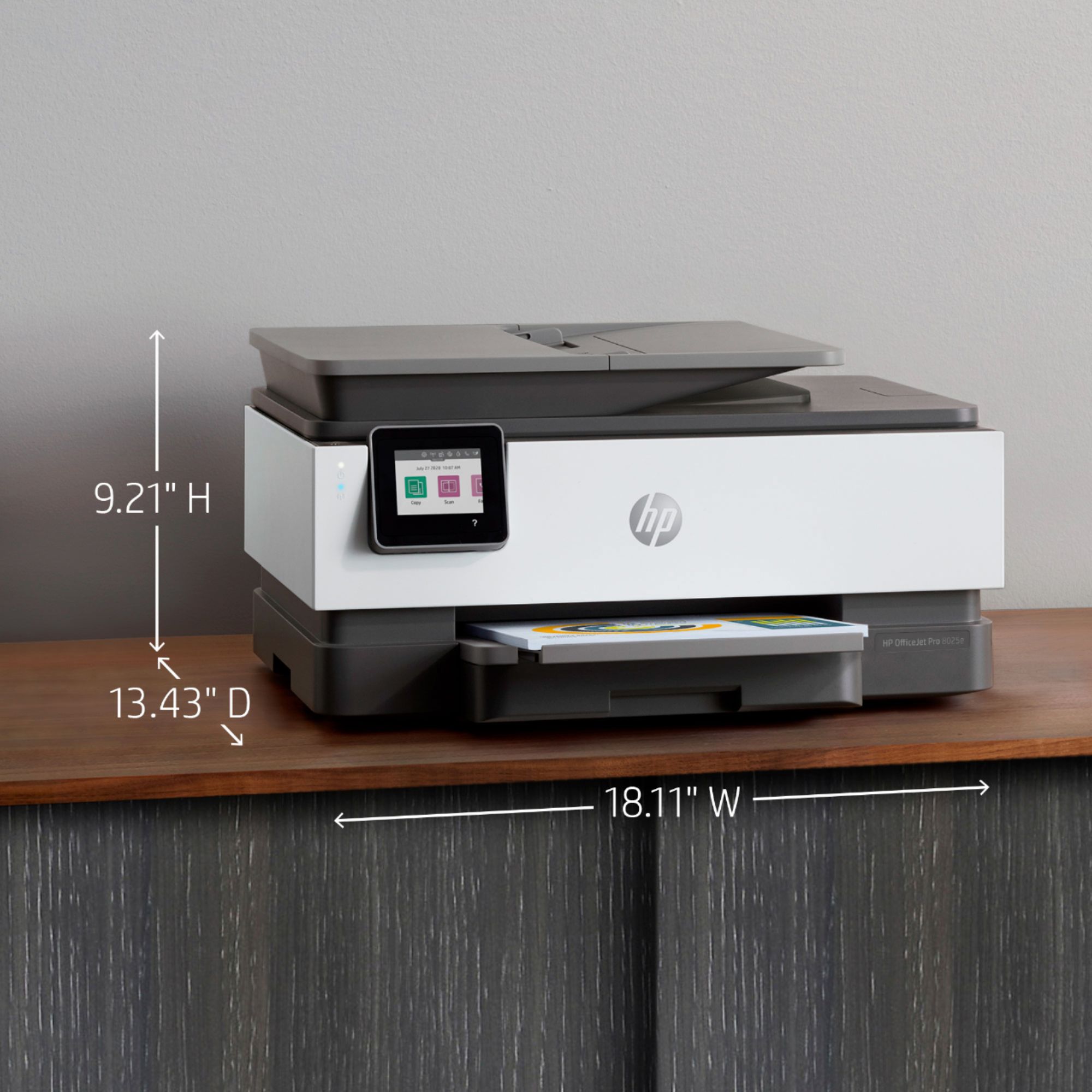
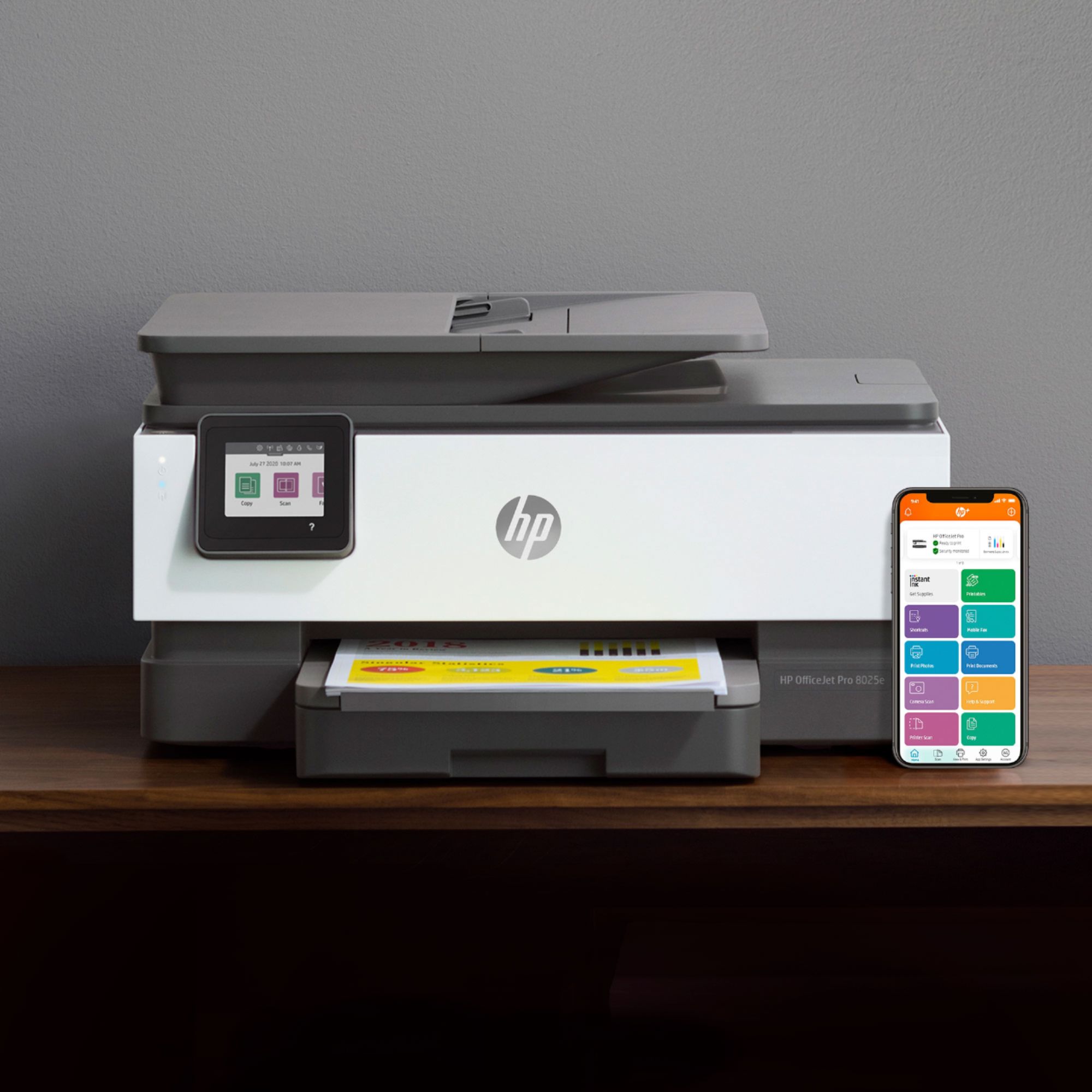
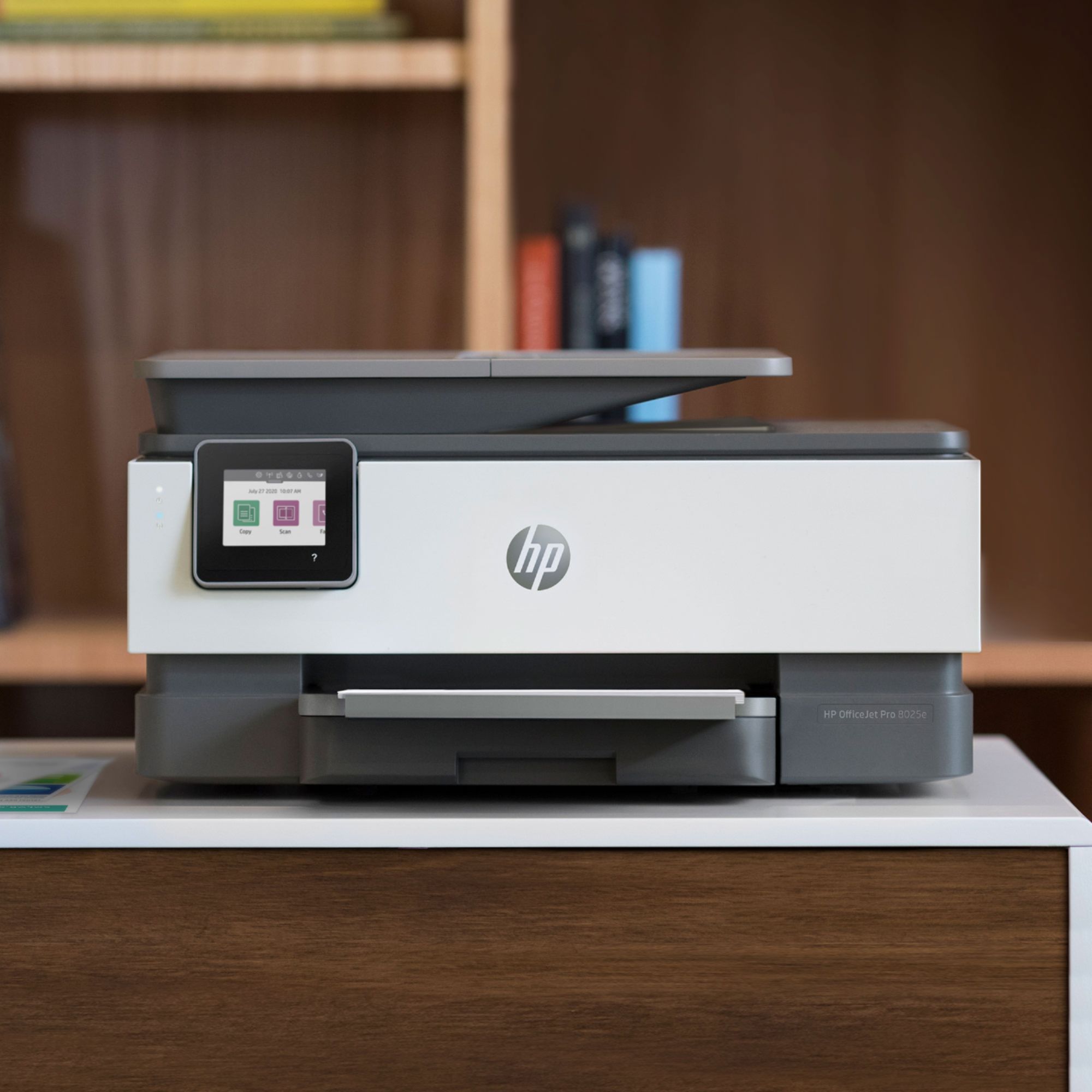
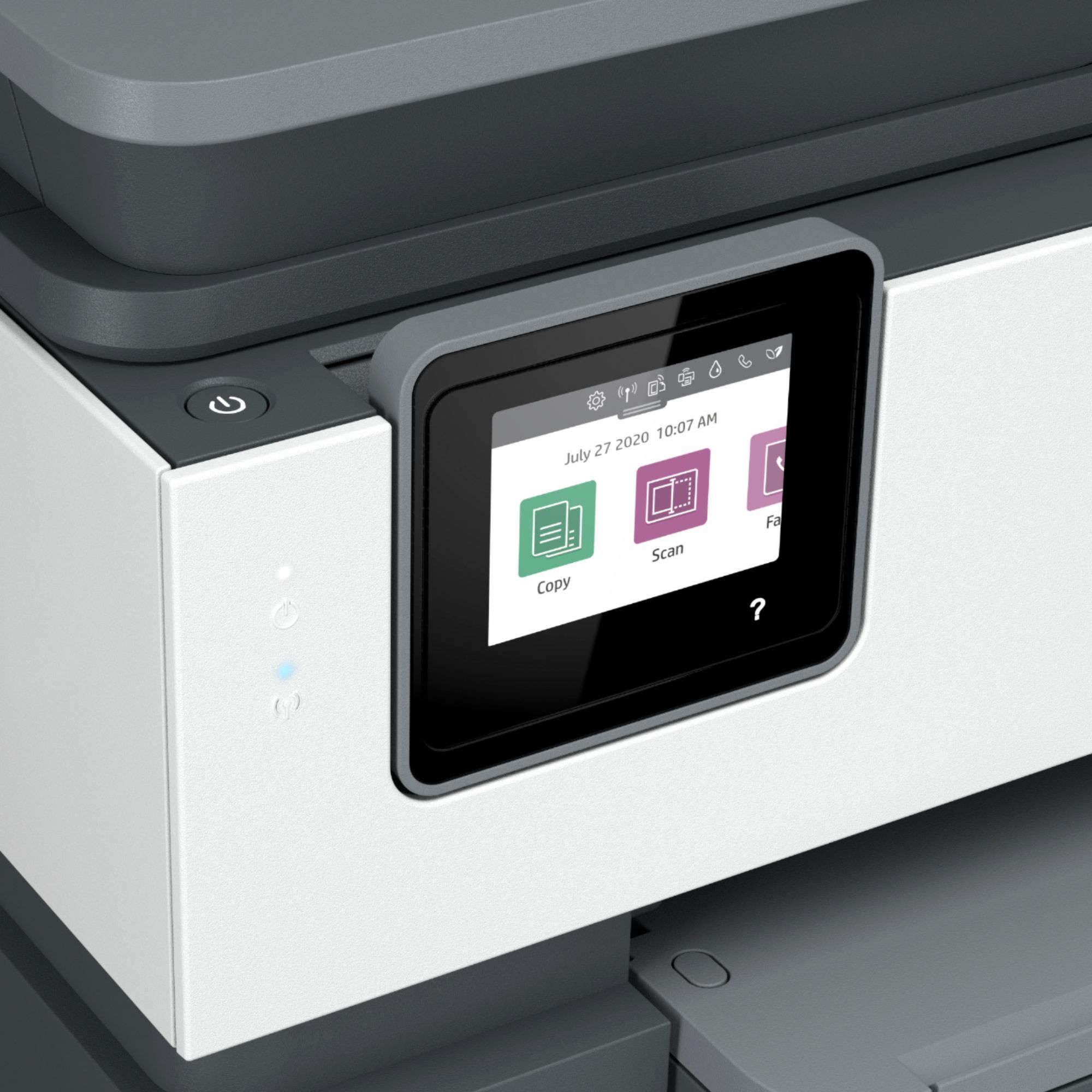
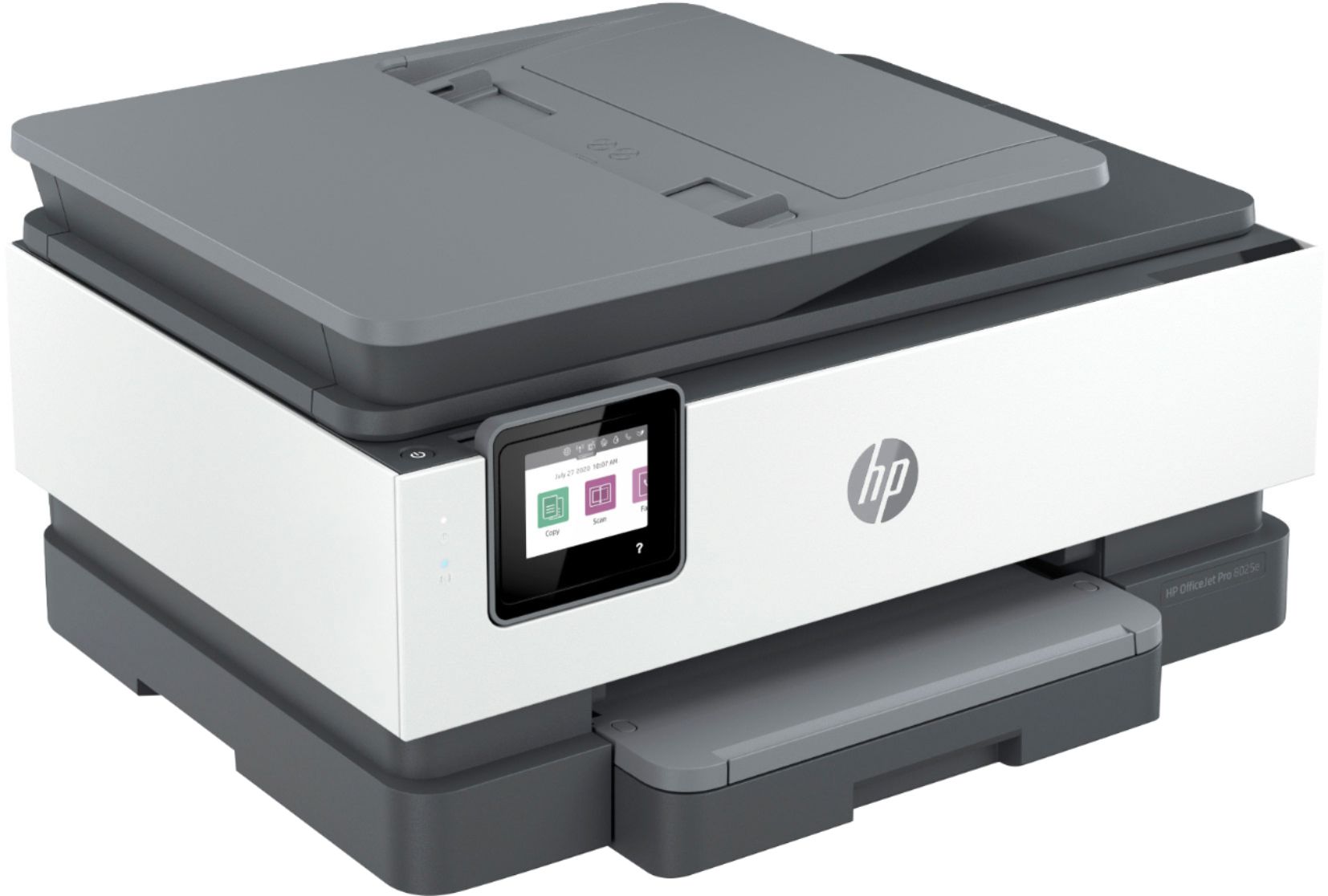
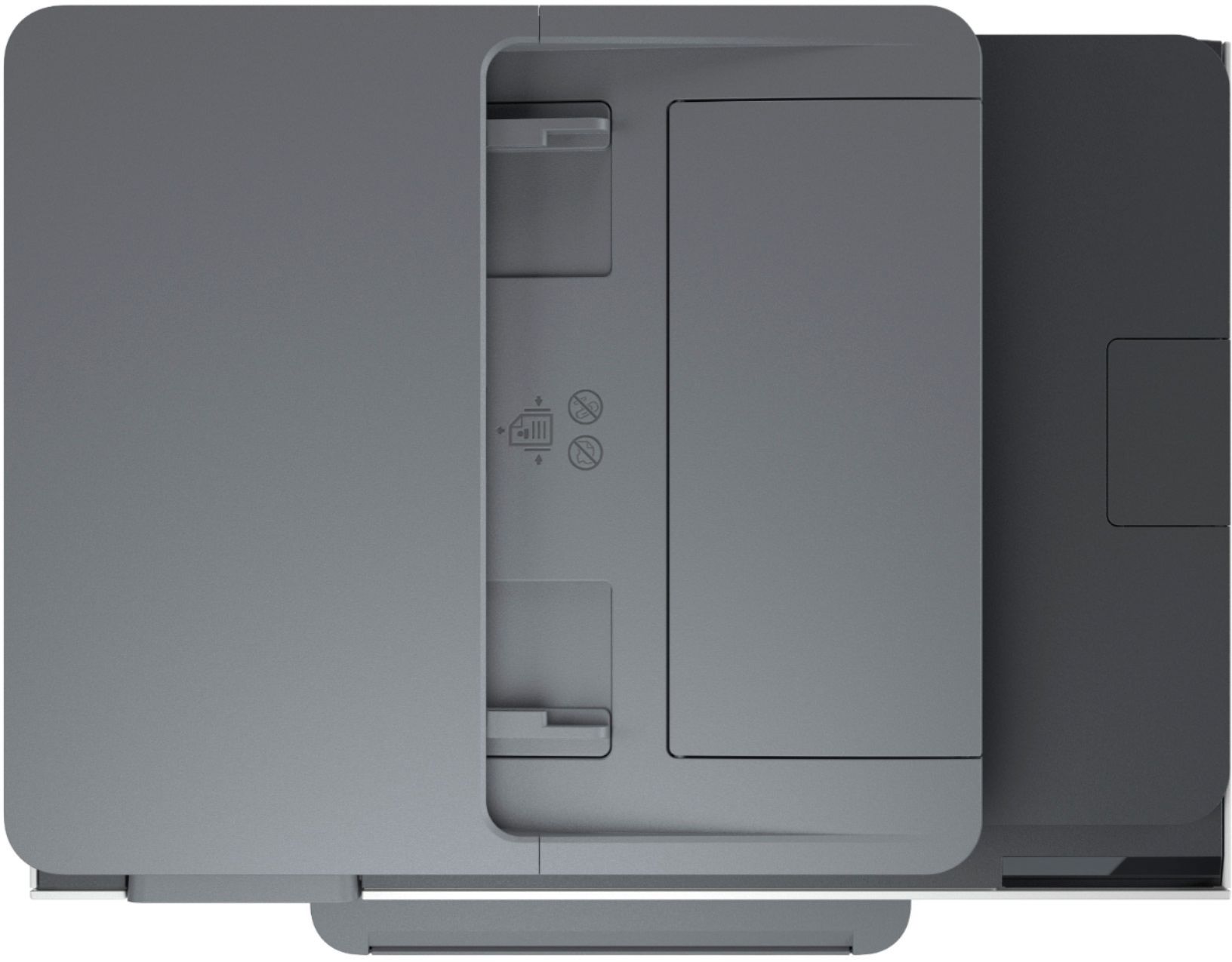
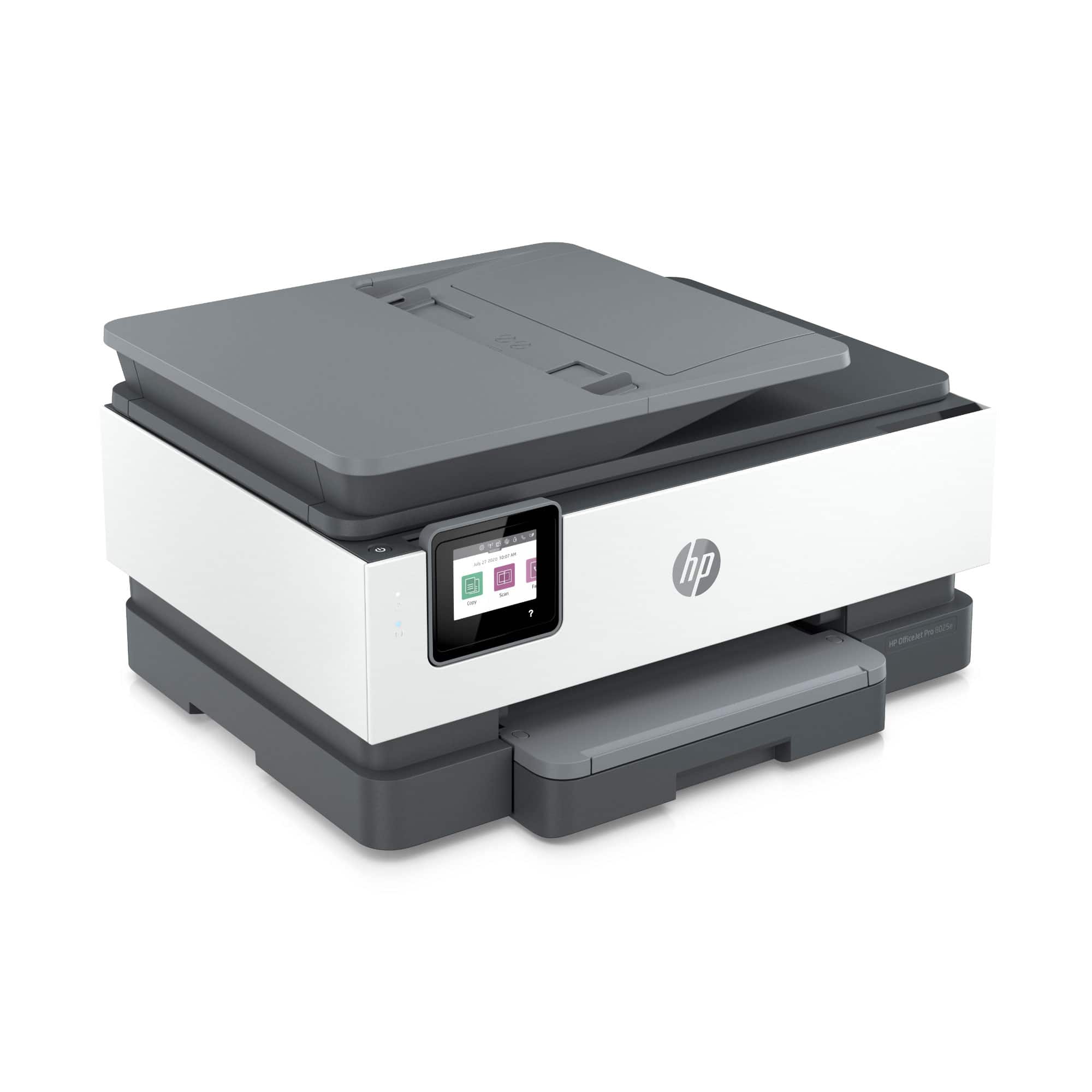
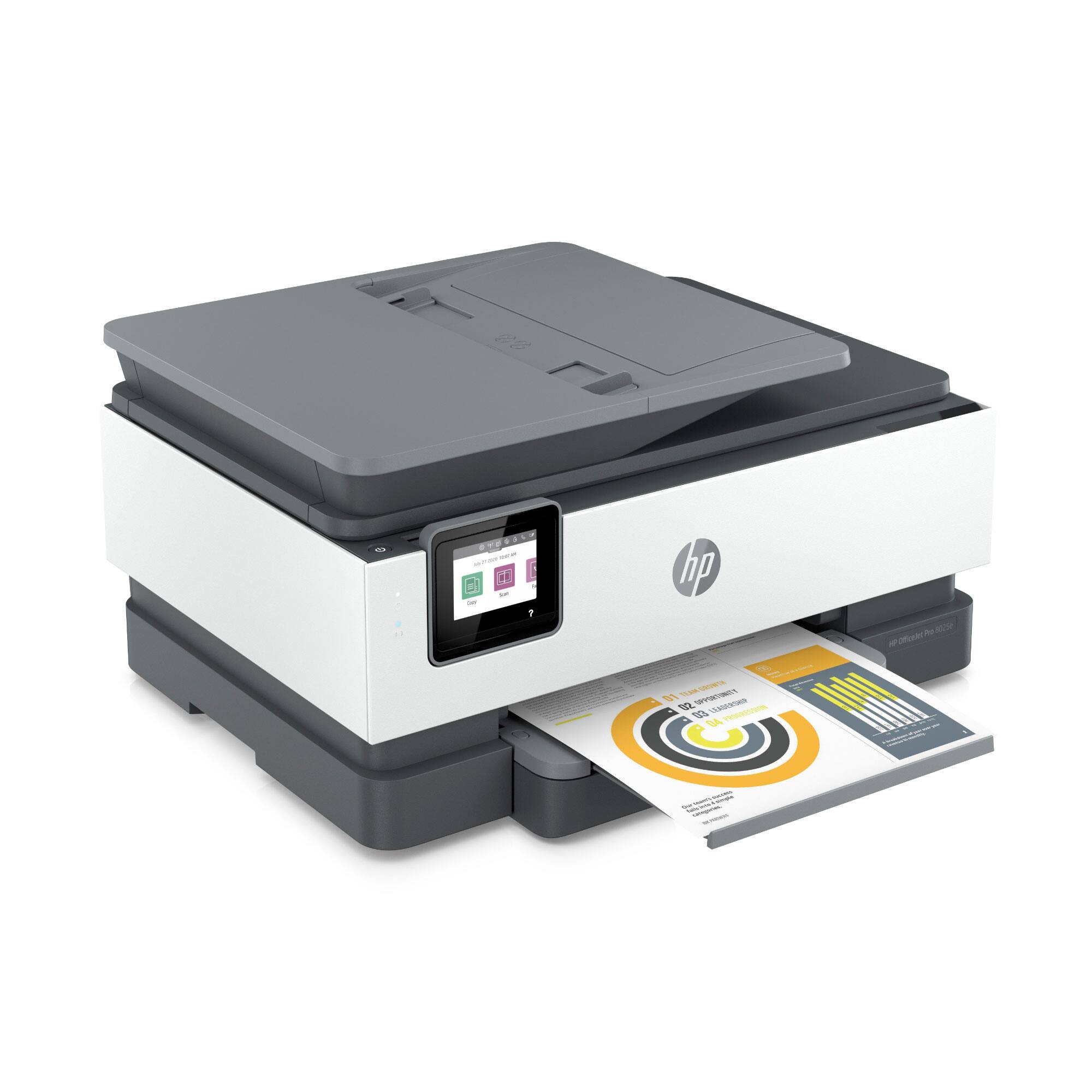
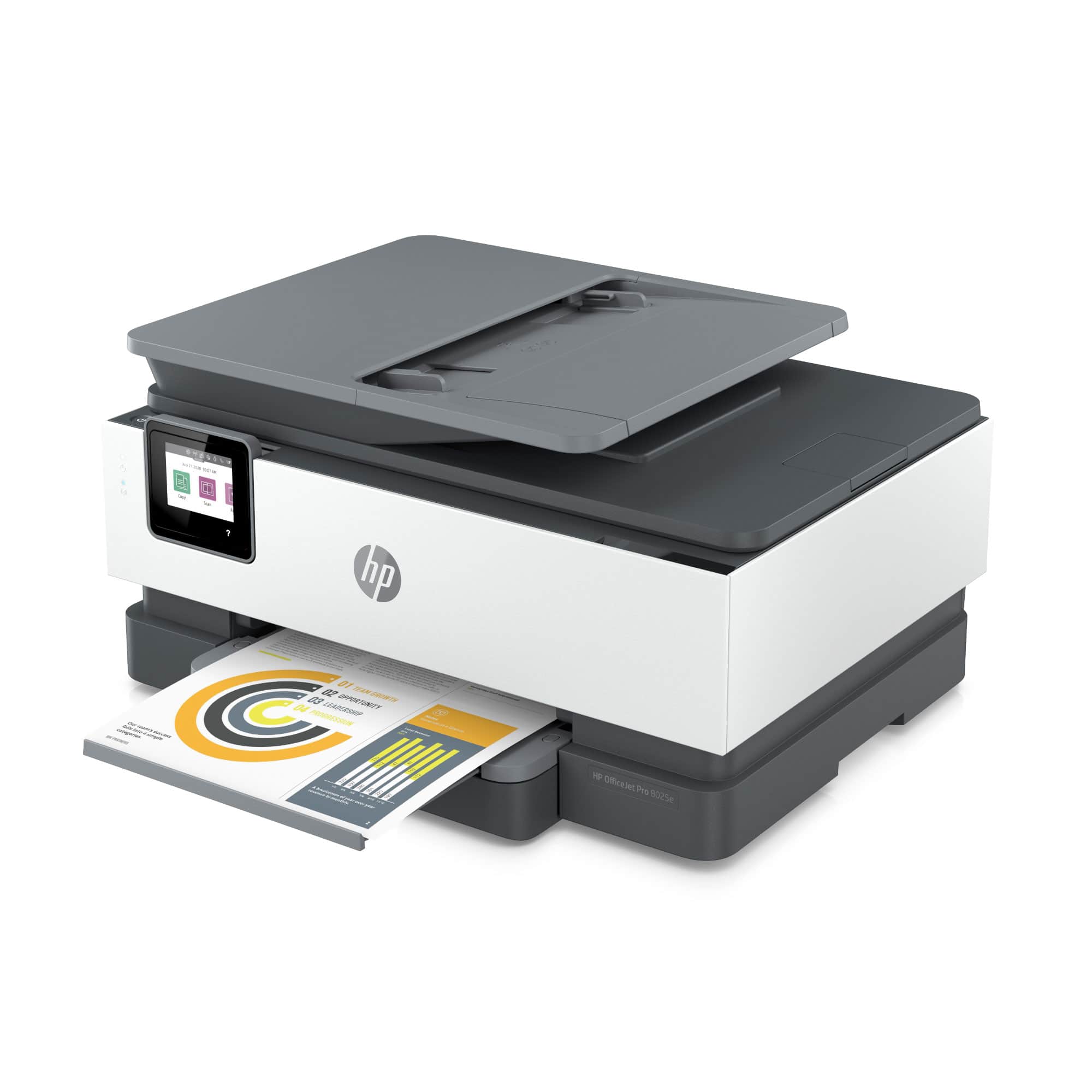
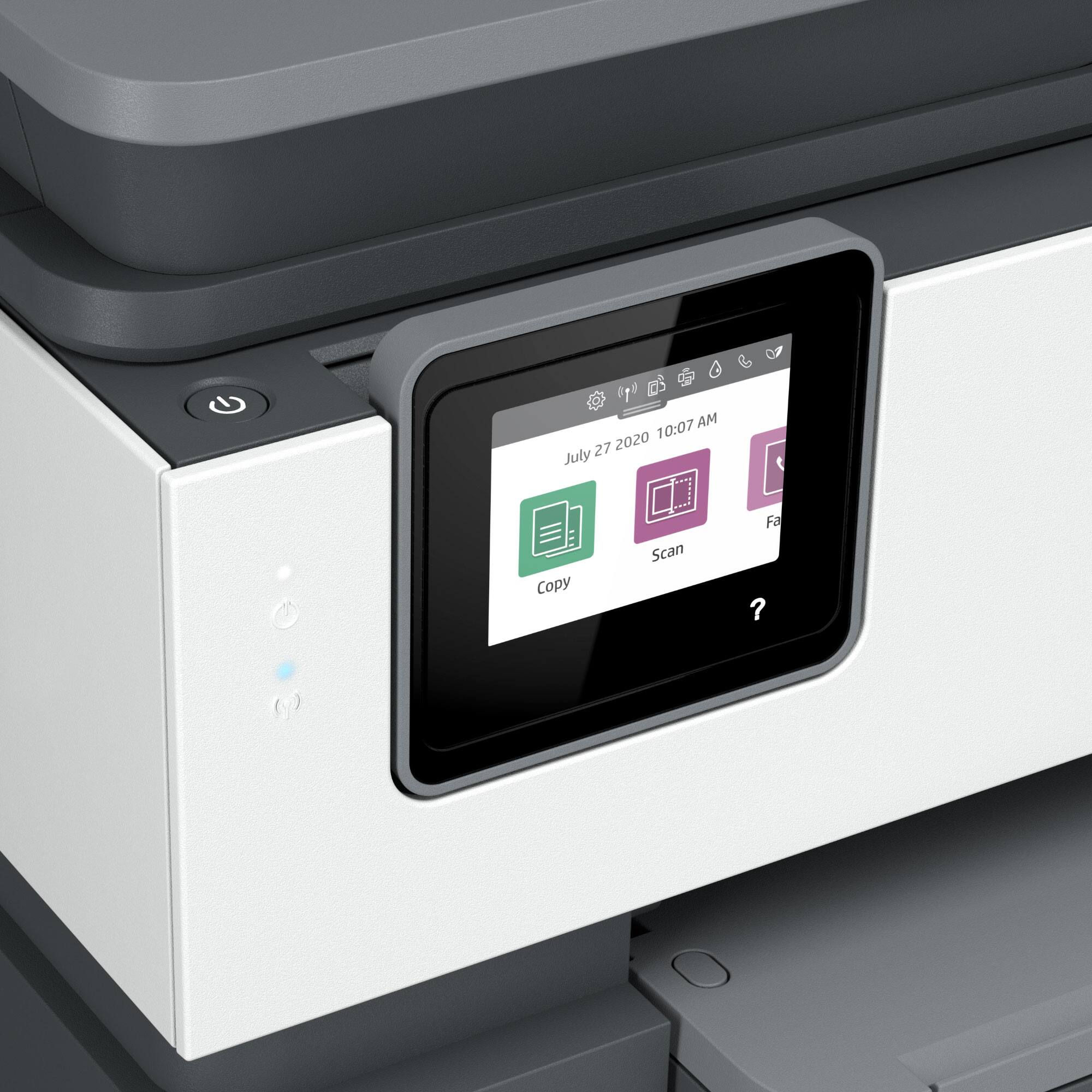
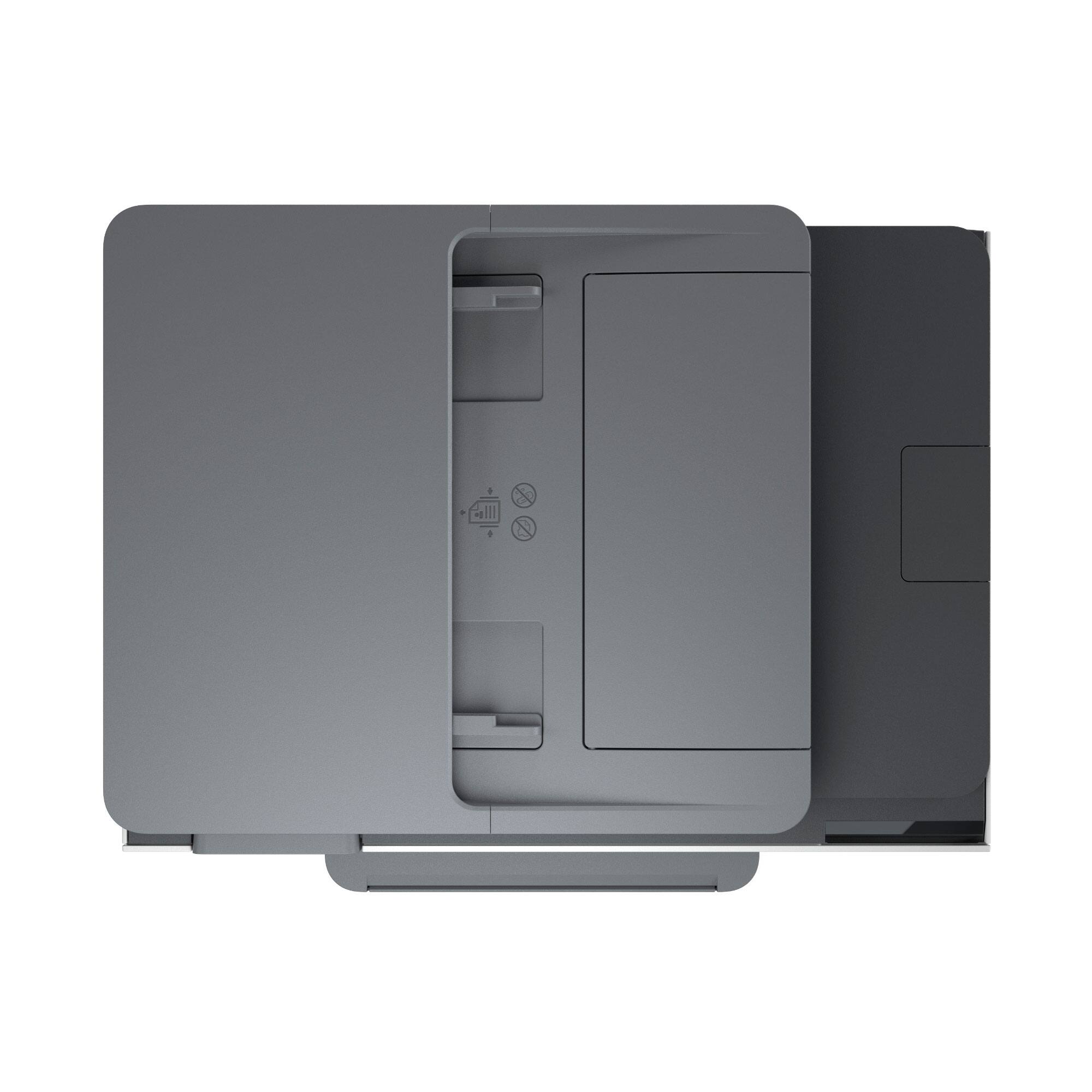
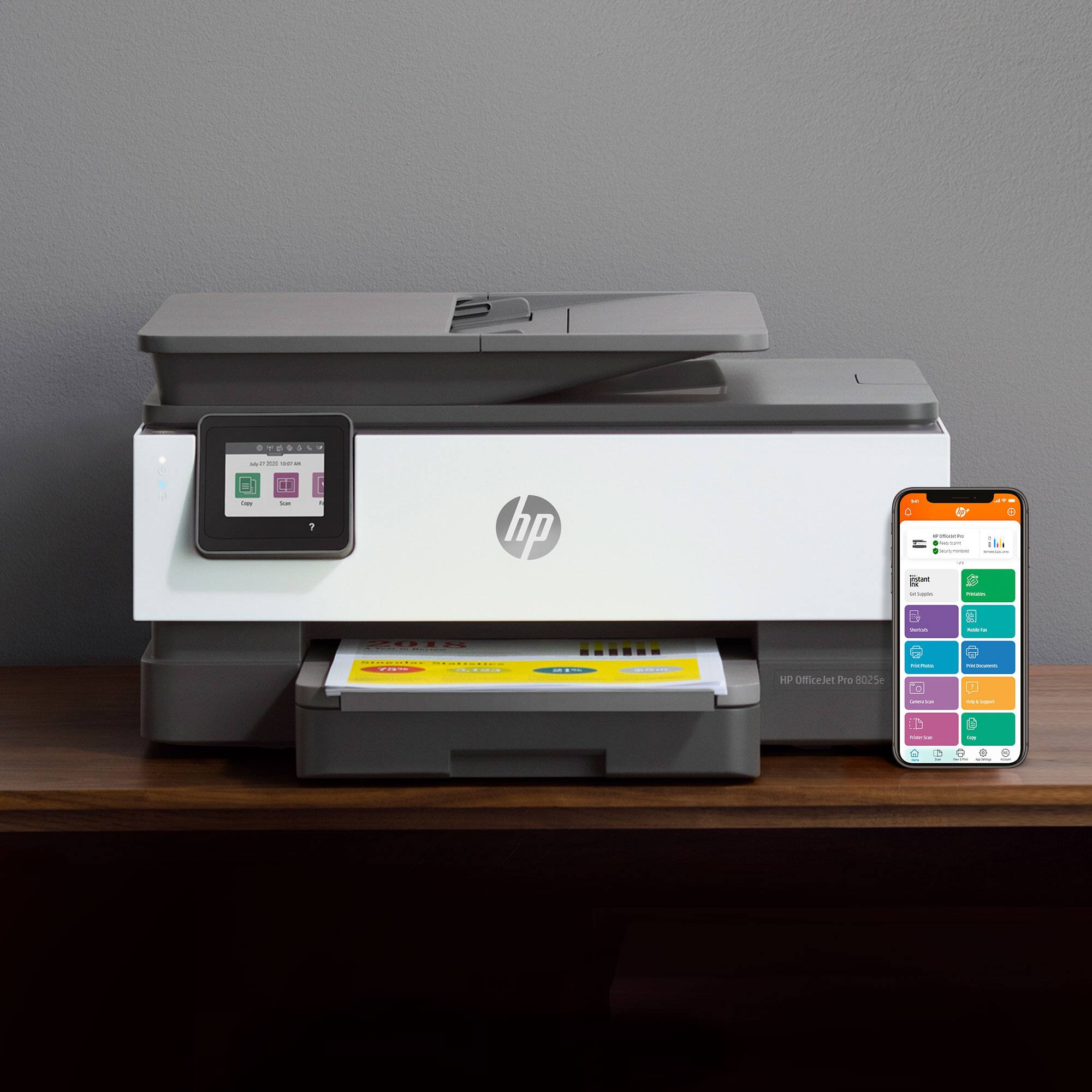
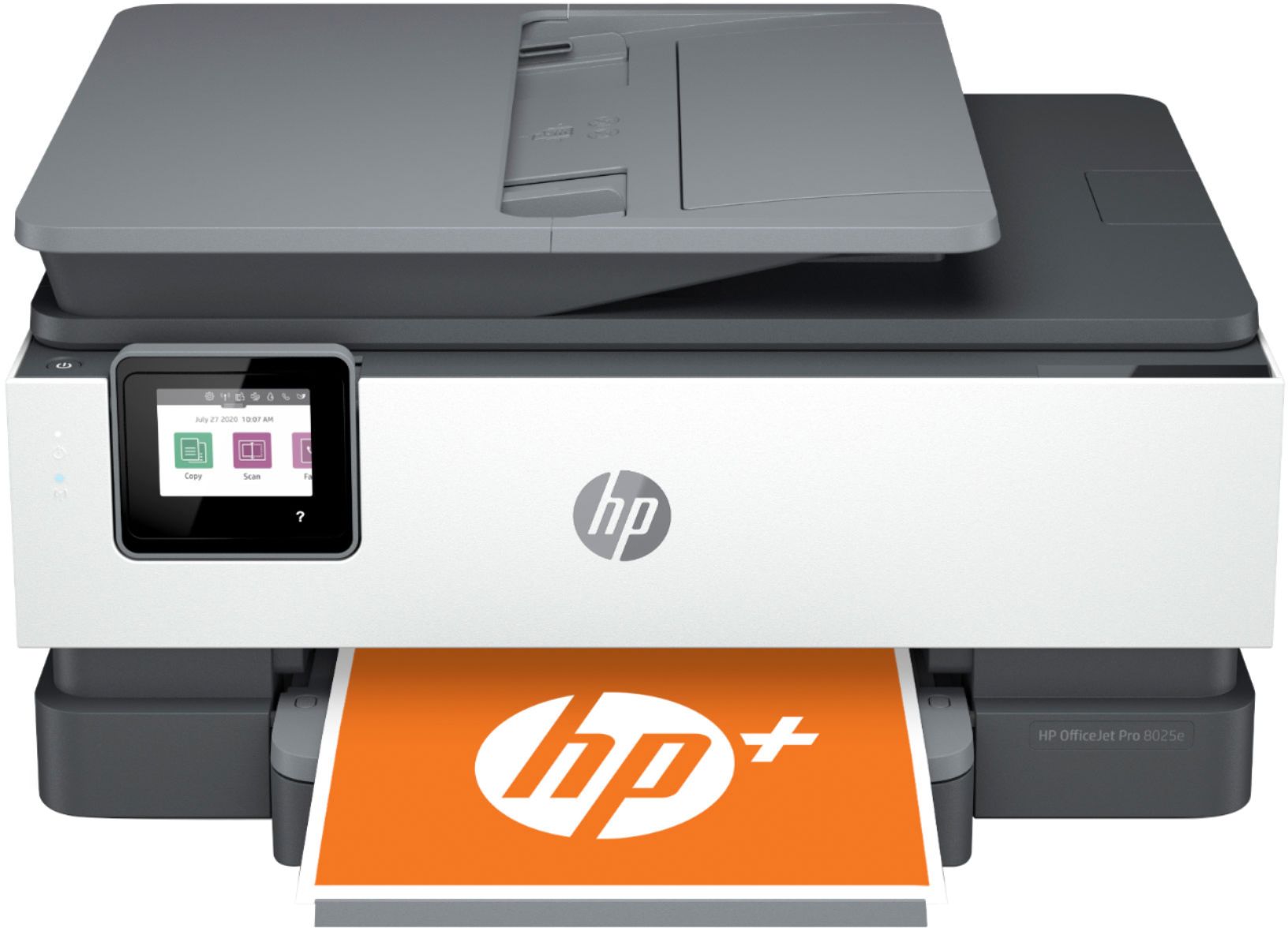
A:AnswerThe OfficeJet Pro 8025e has fast color print, copy, scan and fax, plus 2-sided printing, mobile and wireless printing, and an auto document feeder.
A:AnswerHello. Thanks for your question. The HP Officejet Pro 9015e printer is the recommended replacement model for the HP Officejet Pro 8710 printer.