A:AnswerHonestly I am not sure as I haven’t done that however, I don’t see why it wouldn’t print on transfer paper. I would think the mirror image would be computer based and the printer would print what computer told it to print … not really sure I’m very helpful…sorry
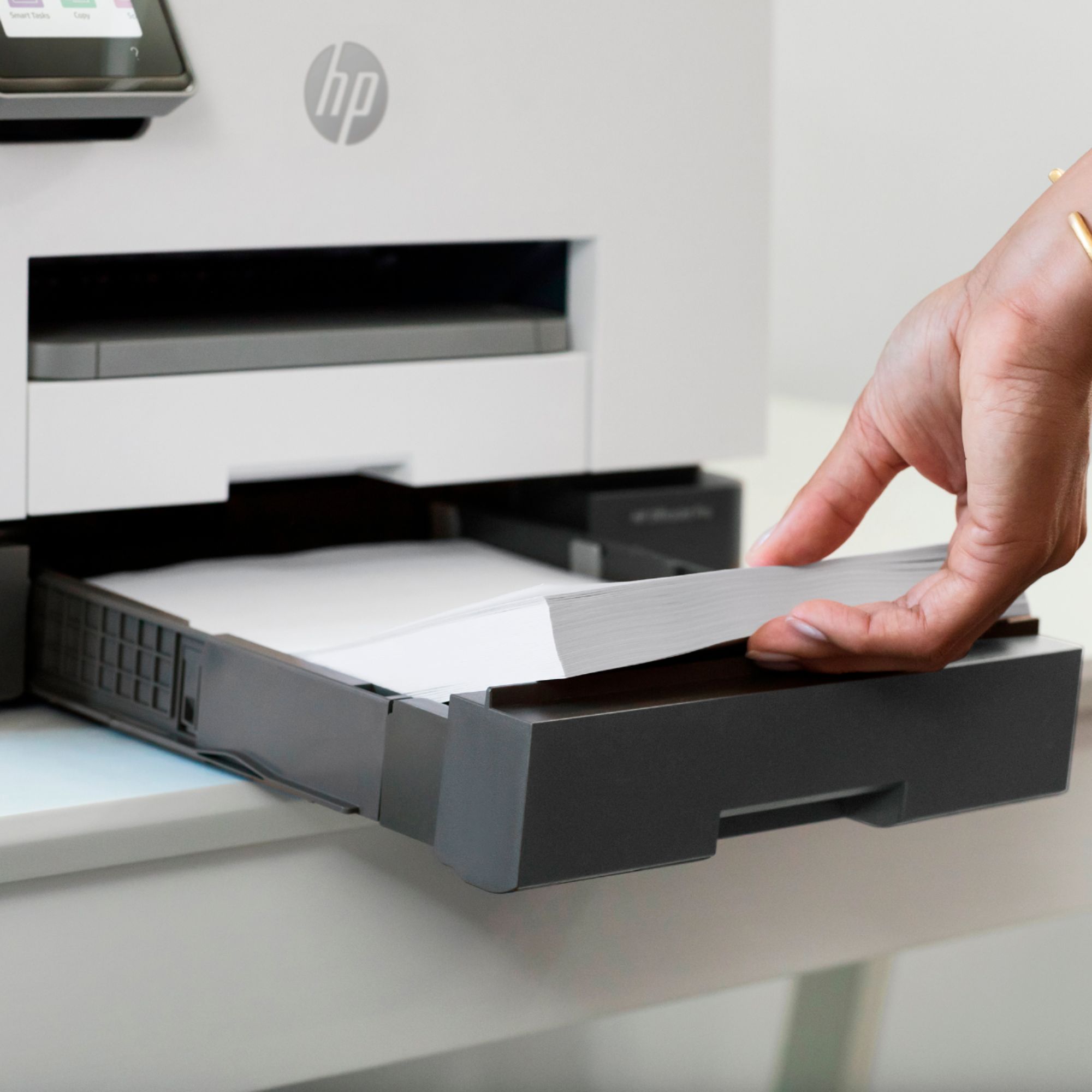
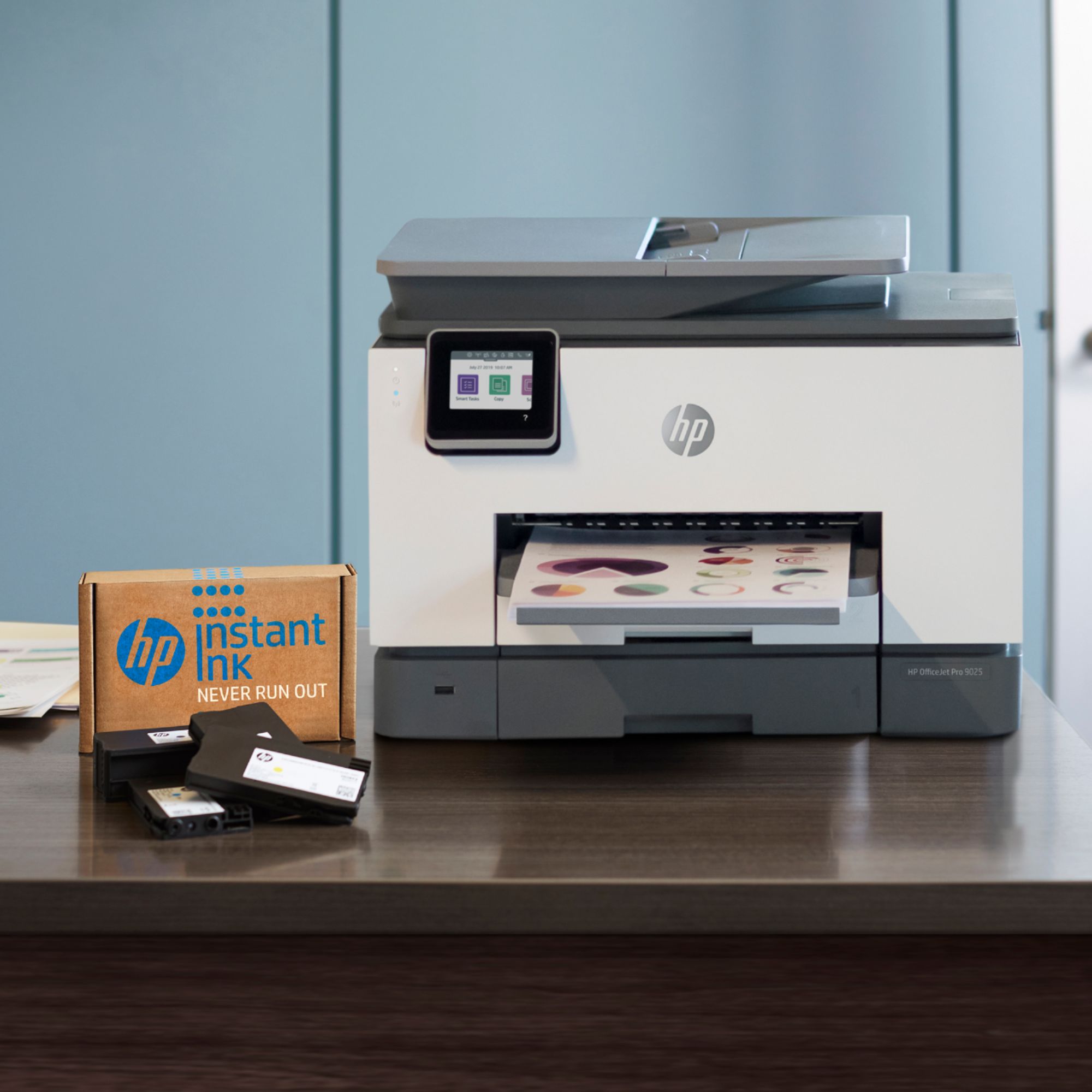
A:AnswerThe printer as most HP inkjet printers with horizontal paper feed (not rear feed) will print on the bottom of paper. The paper in the trey will pass over rollers at the back which will "flip" the paper and print on the paper. So put checks and photo paper face DOWN in the tray and it will print correctly.
A:AnswerYes, you can. When you do the initial setup, the printer will ask if you want to sign up, and you can just tell it "no". One thing to keep in mind is that the six months of free ink comes with signing up for Instant Ink.
A:AnswerYes, you can use this printer with both Mac and Windows computers. With the Mac, you can just add the printer since this is an AirPrint compatible printer. With the PC, you can setup the printer by visiting https://123.hp.com/setup.
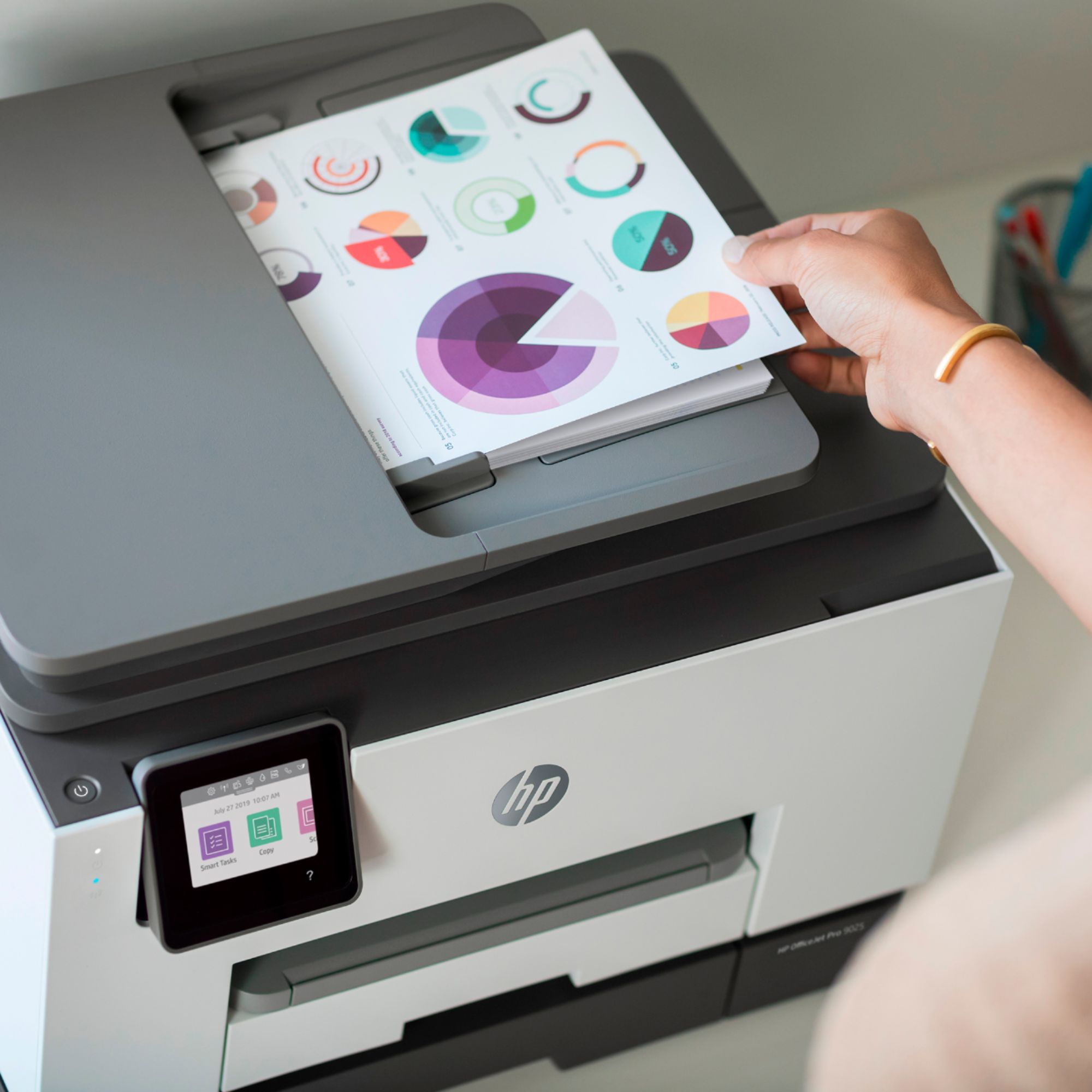
A:AnswerNo. You can only scan or copy legal size documents through the auto document feeder on top. The flatbed scanner can only scan or copy up to 8.5 x 11 inches.
A:Answer24 pages per minute in b&w or color per standard page.
Each side counts as a page.
Double sided are slower as, depending on the amount of ink per page, the printer allows for drying time before printing side 2 of a double sided page.
It prints on side at a time.
A:AnswerYou'll need to change the default printer choice in settings or in the program you are printing from. (Sometimes a program's default can be set differently.)