A:AnswerThat stumped me too, because that’s how my old printer (Laserjet Pro 8600) worked. This one you use the app to print remotely. The instructions explain how.
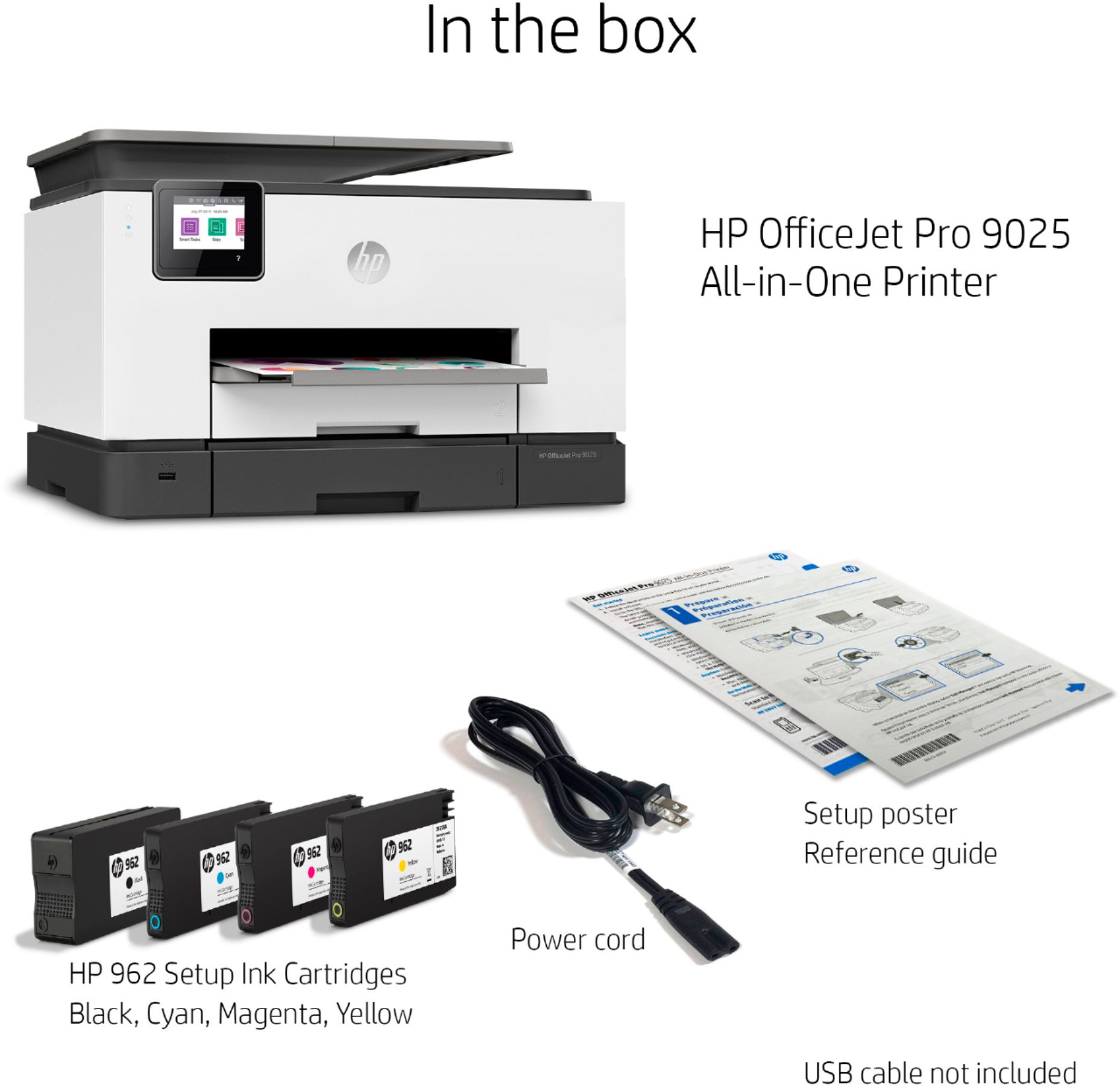
A:AnswerThe actual part number are easy to lookup but I think to answer your question, it uses 4 cartridges, each color is a separate color (cyan, magenta, yellow and black).
A:AnswerYes it can be separate as you describe, as long as the size your computer is trying to print is defined in the document setup and you’ve told the printer what sizes are in each tray when you print and select “automatic” for the tray selection, it will take from each tray appropriately.
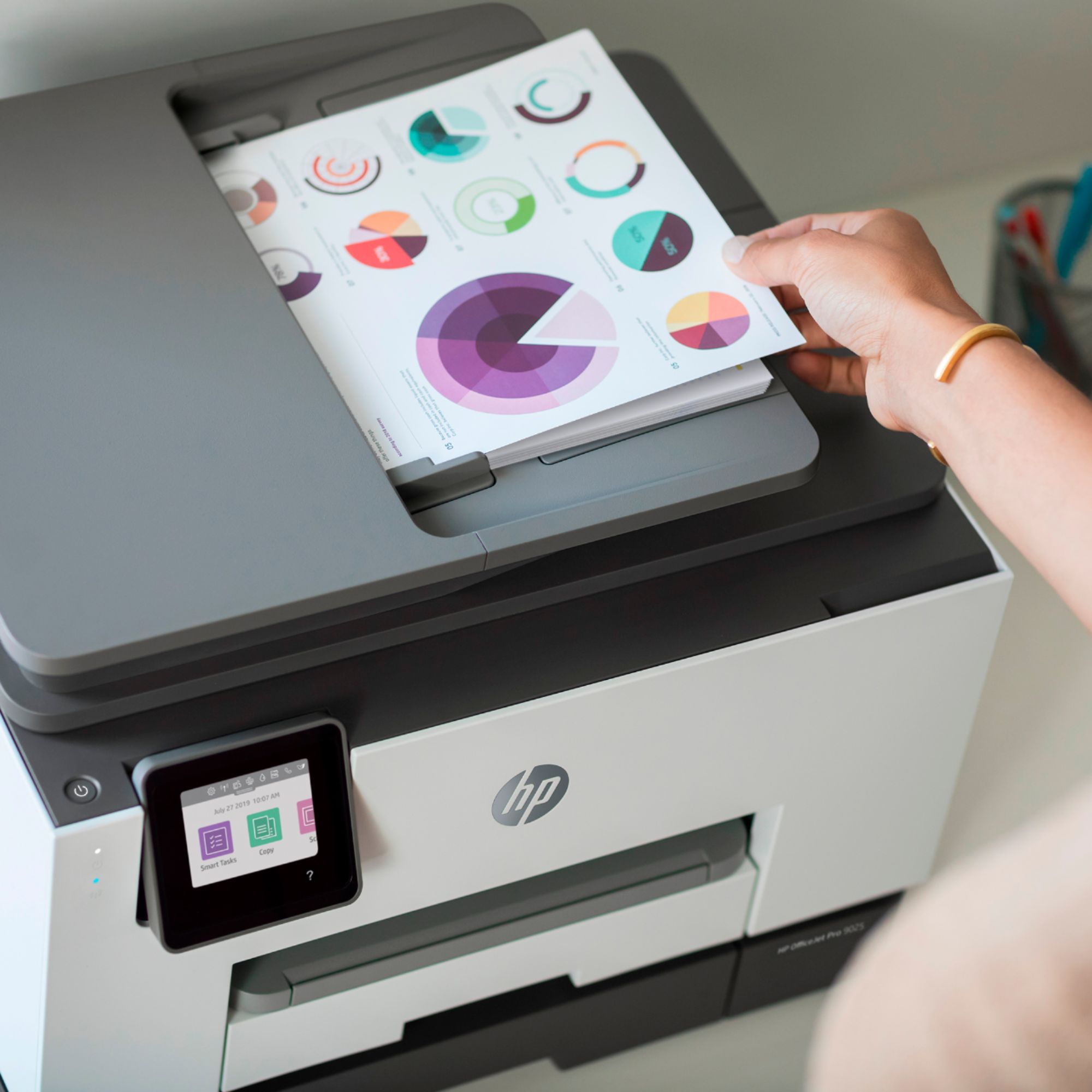
A:AnswerHello. Thanks for your question. You can scan and save the scanned items as PDF or JPEG with this HP Officejet Pro 9025e printer. You also have the option to use OCR (Optical Character Recognition) scanning with this printer. OCR allows you to scan text and then you would be able to edit it like in Word.
A:AnswerHello. Thanks for your question. Yes, you can save your scanned items as PDF or JPEG when you scan from the ADF (Auto Document Feeder) on top or from the flatbed scanner. If you want to scan several pages from the flatbed scanner, you would need to place each page on the flatbed scanner and then add the next page on the HP Smart app. Here is the process: You can scan several pages and save them as one file. With the HP Officejet Pro 9025e printer, you would need to place the first page. Scan it. And then select the Add button to add another page. Place the next page. You would repeat until you have scanned all pages. Then, you can save it as one file. Or you can use the ADF (Auto Document Feeder) on top that allows you to copy or scan up to 35 pages at a time.
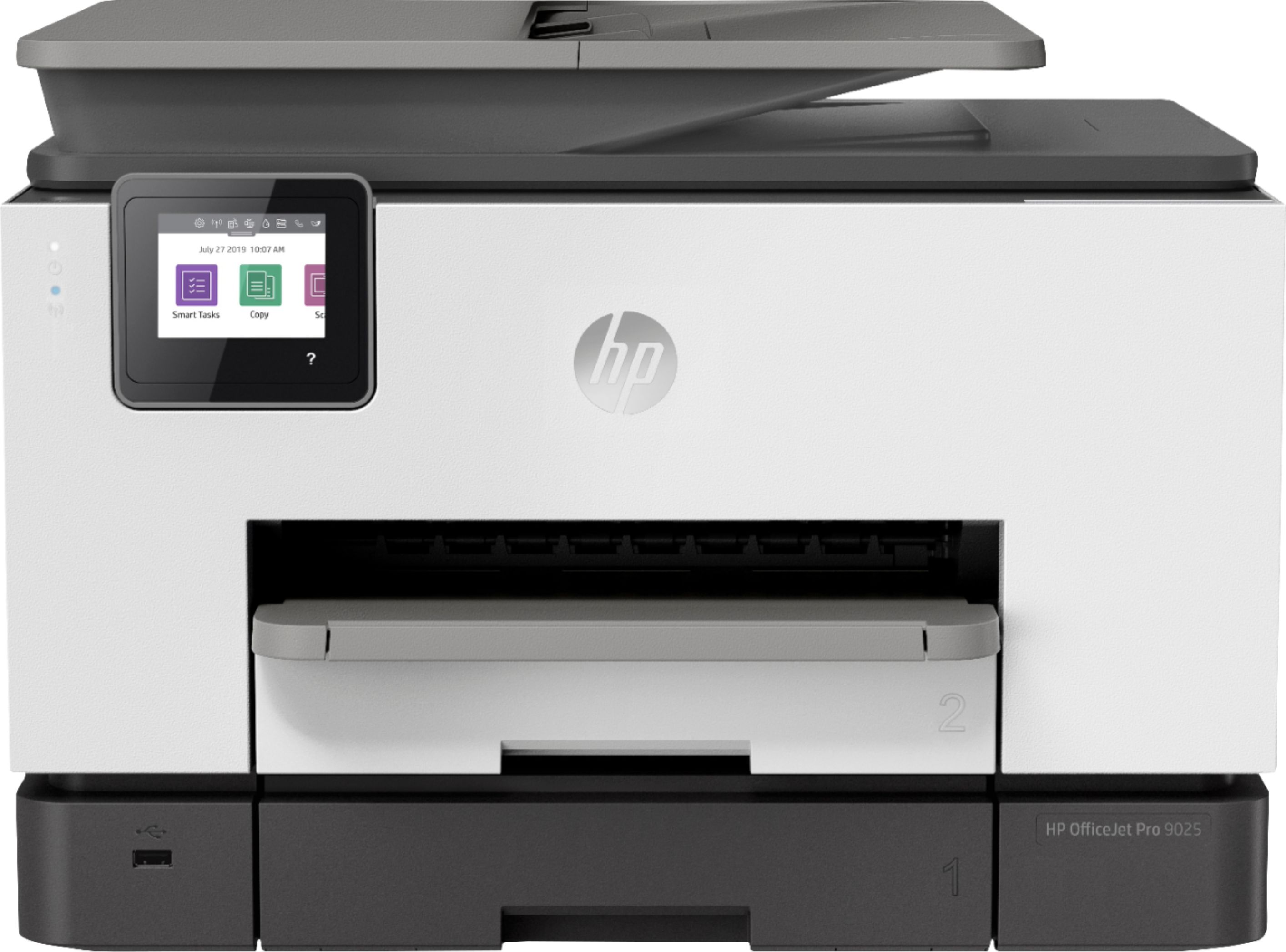
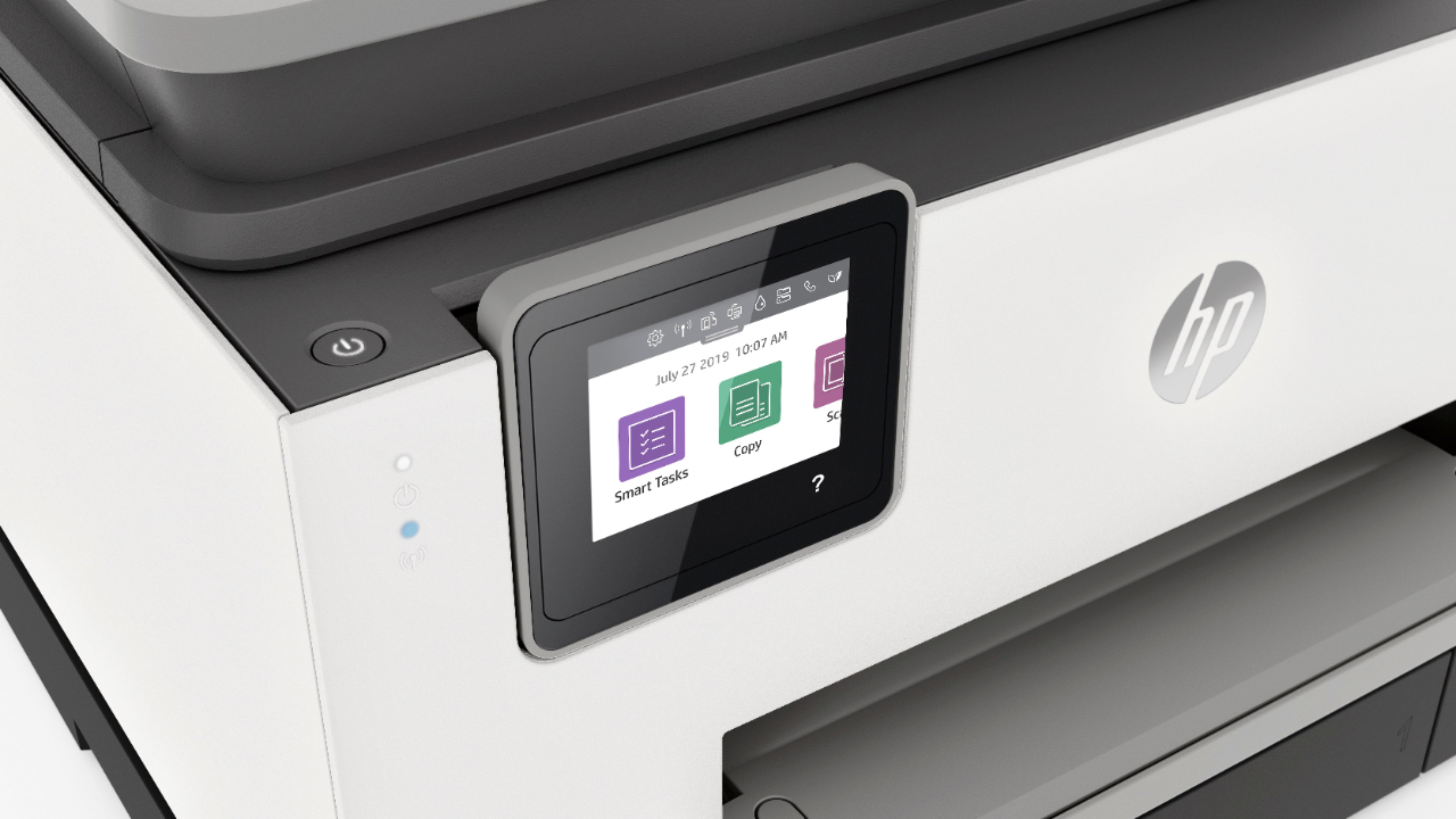
A:AnswerThank you for the question. Yes. Collate printing from the computer (file>print) and collate copies from the printer's touch screen. Click the gear icon and enable the Collate toggle, then press the back arrow and click on Start Copy.
A:AnswerHello. Thanks for your question. This HP Officejet Pro 9015e printer has a duplexer that allows you to print double-sided pages automatically. This printer can also scan or copy both sides of the page automatically.
A:AnswerThank you for your question. I recommend researching HP Enterprise printers for this level of page volume, specifically the M700-series and M800-series labeled "MFP" (multi-function printer). These printers will also take toner rather than ink.