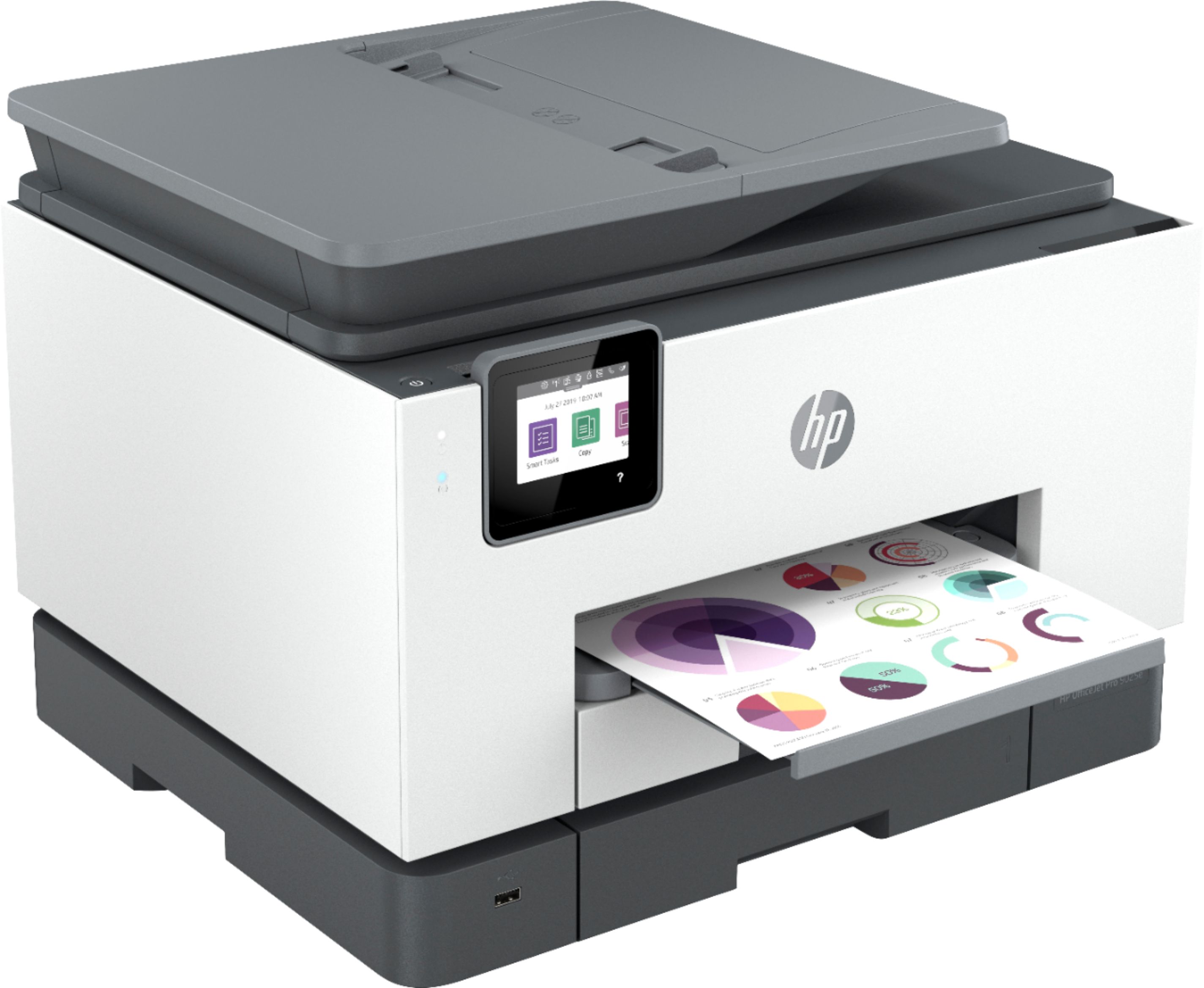
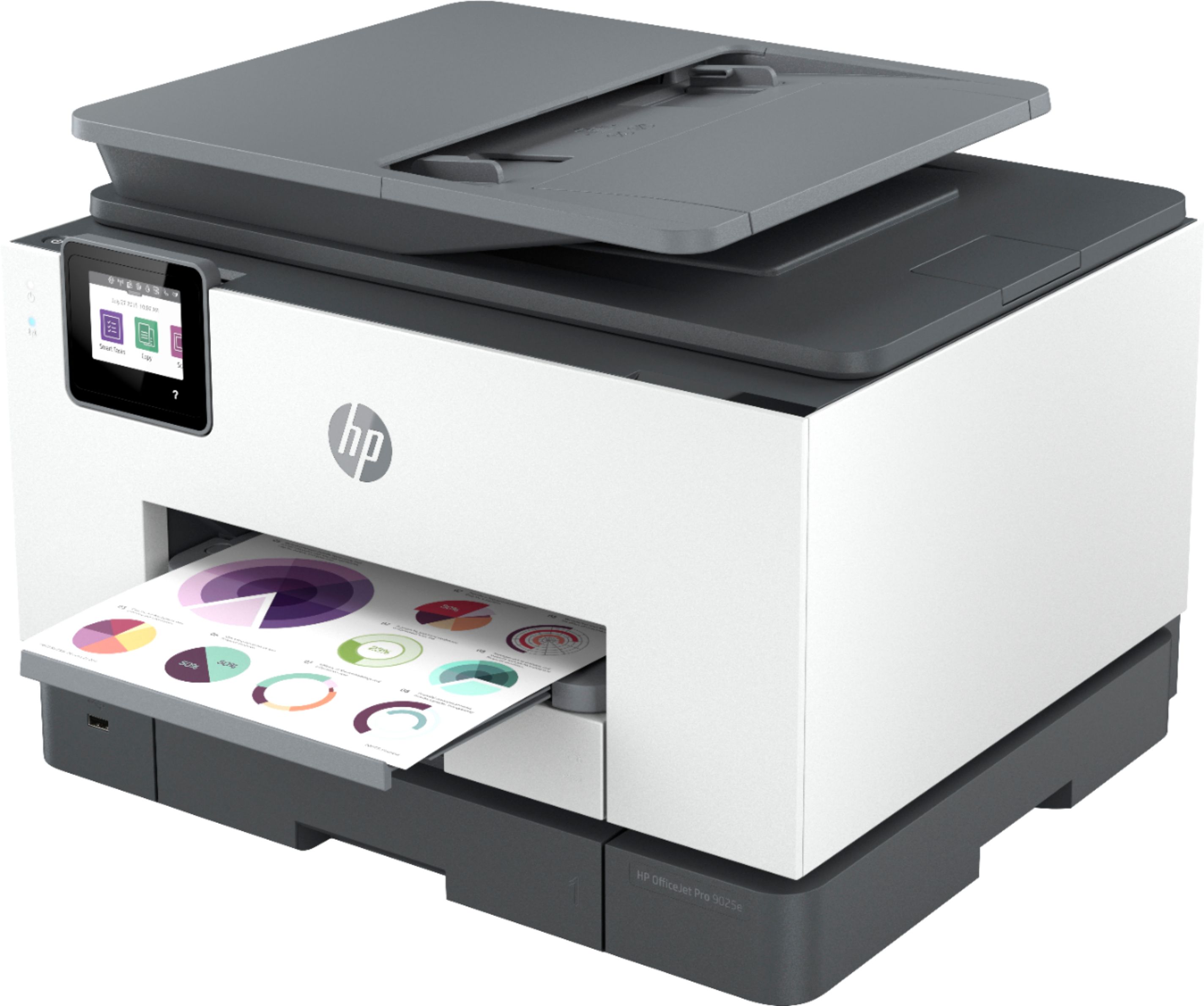
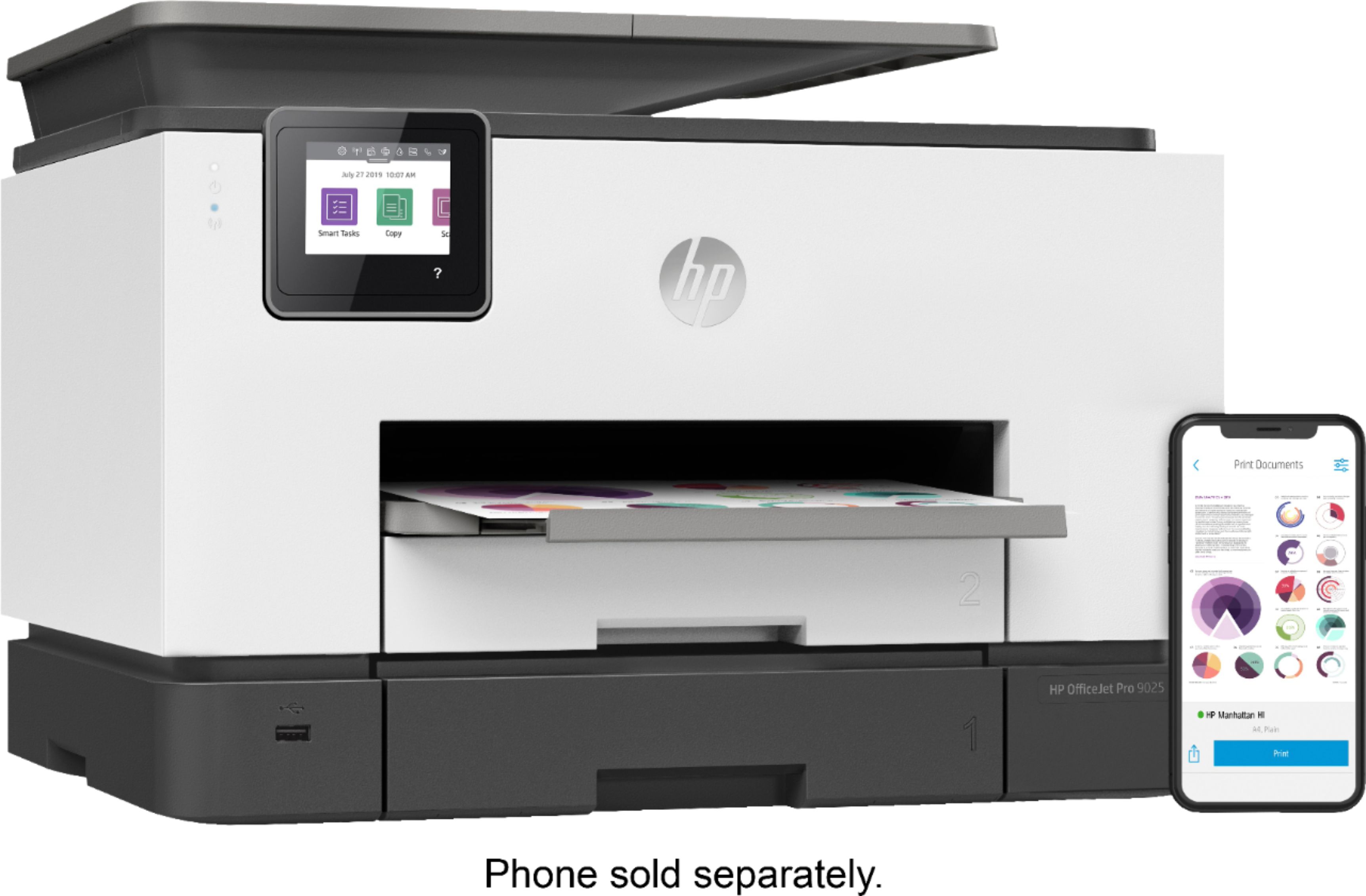
A:AnswerDon’t see any way that you would be able to add a third tray HP may be able to give you a better answer that I can.
My printer also seem to be printing much slower than my old GP 8600 Officejet printer which is 10 years old. I am going to ask HP to provide me a solution for this problem so that I can’t print per the ppm speck for this printer. I think it may be the print spoiler but I am not sure.
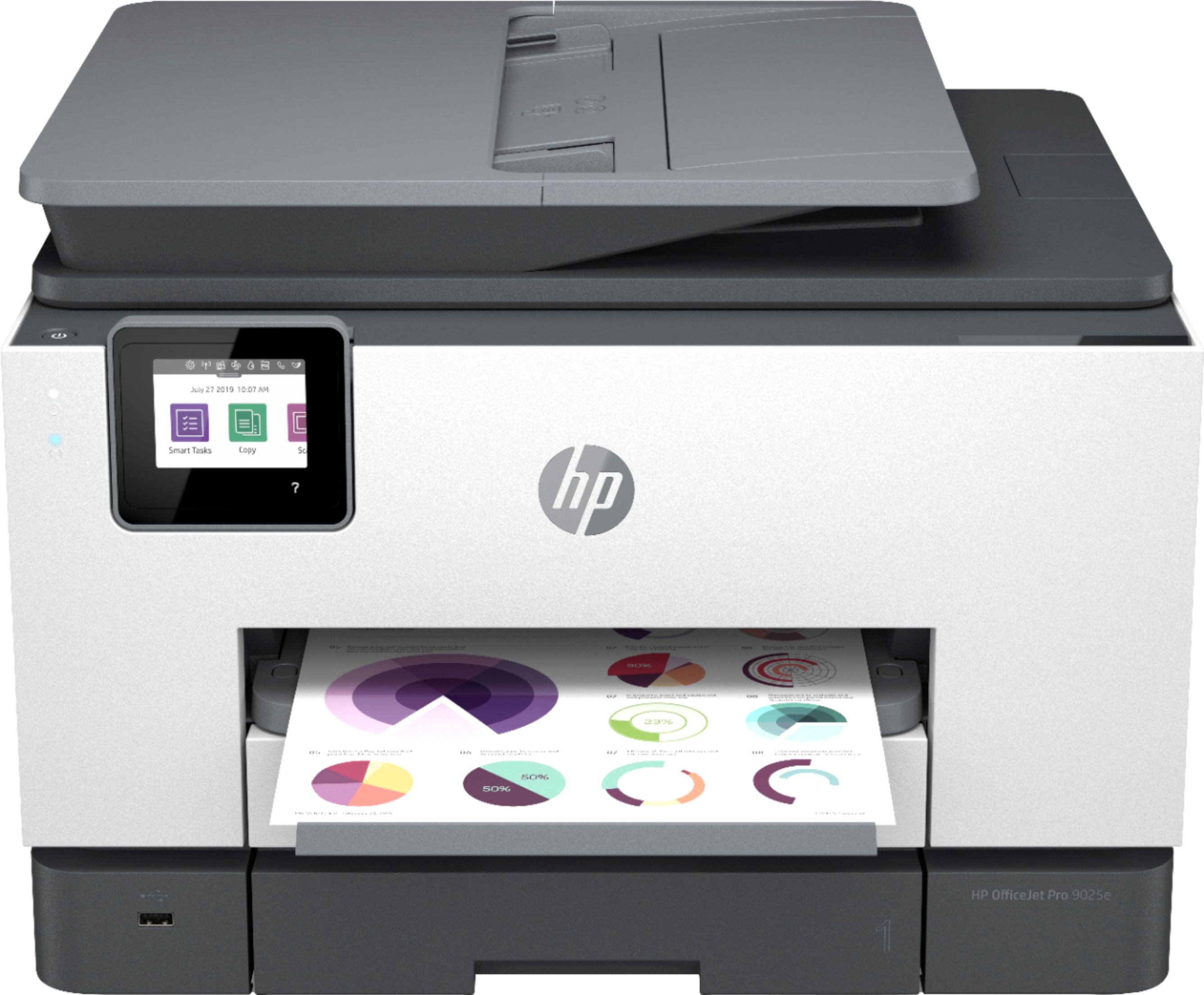
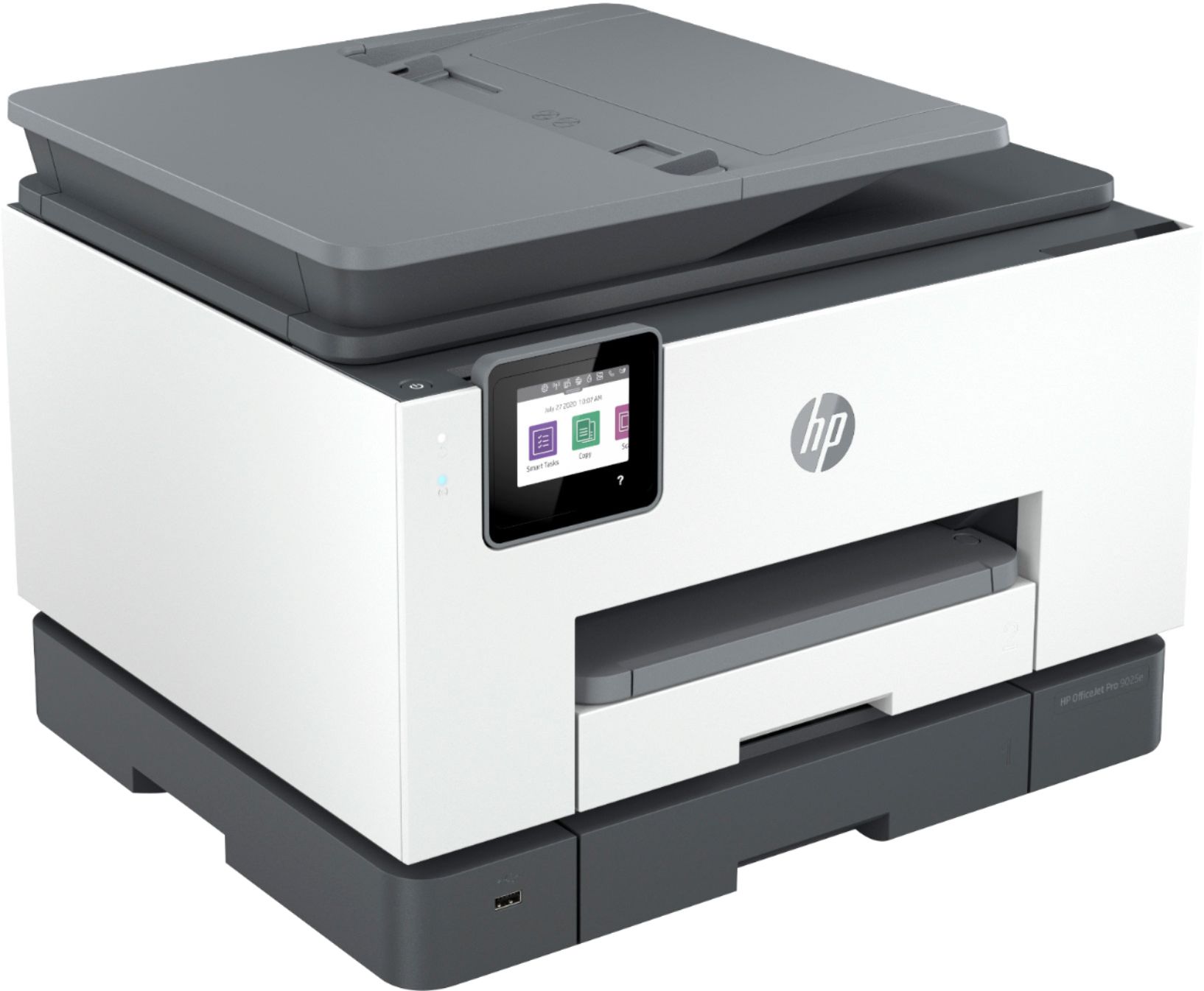
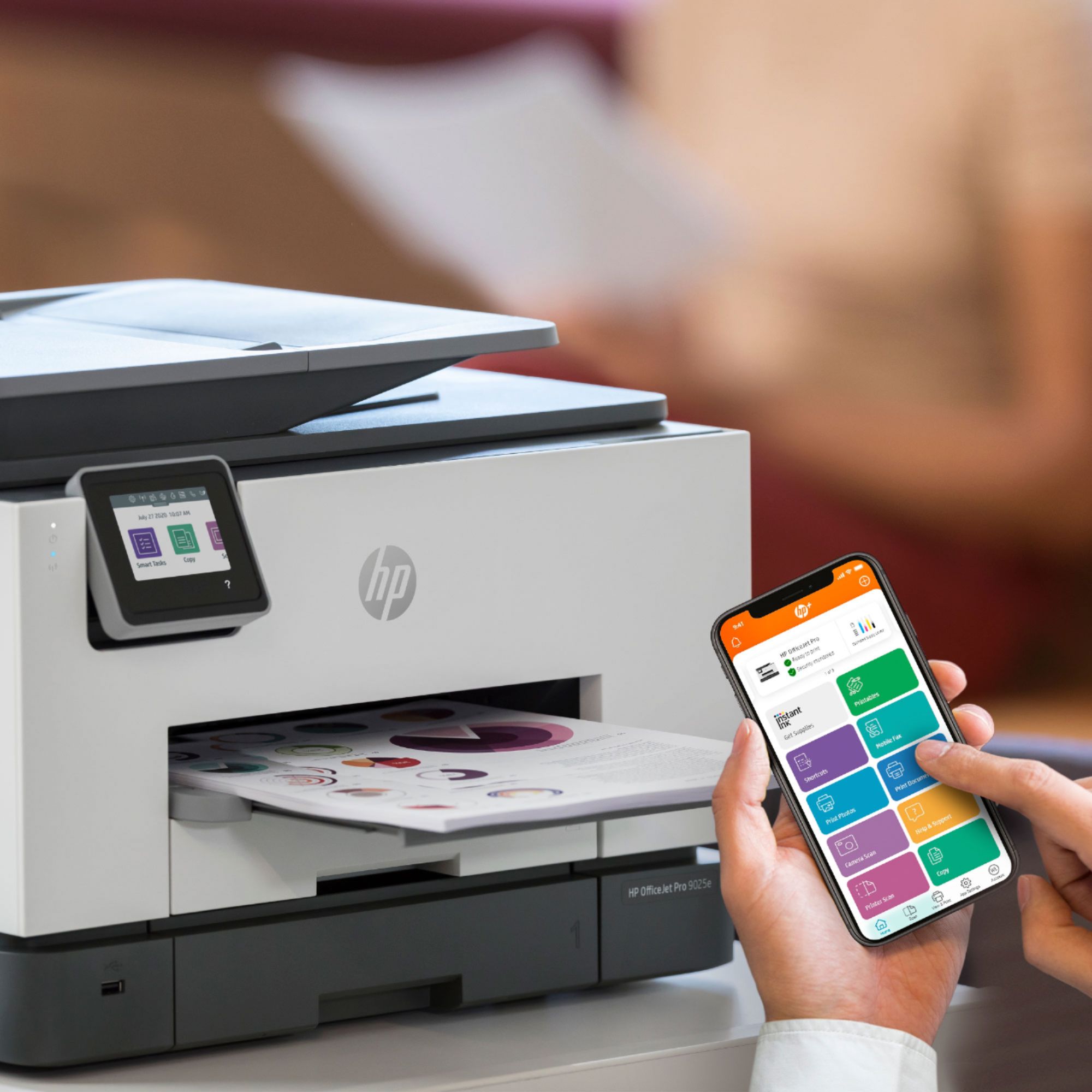
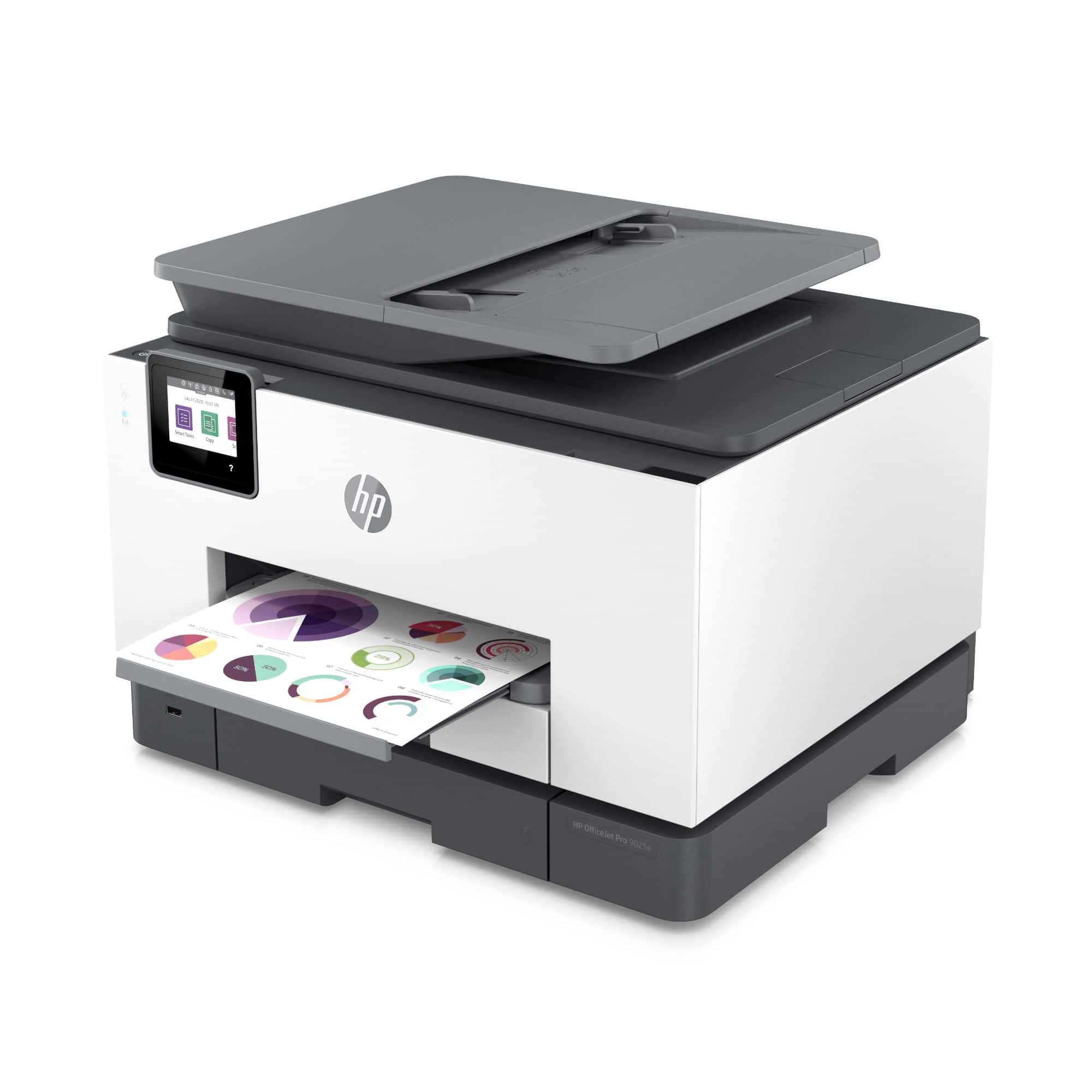
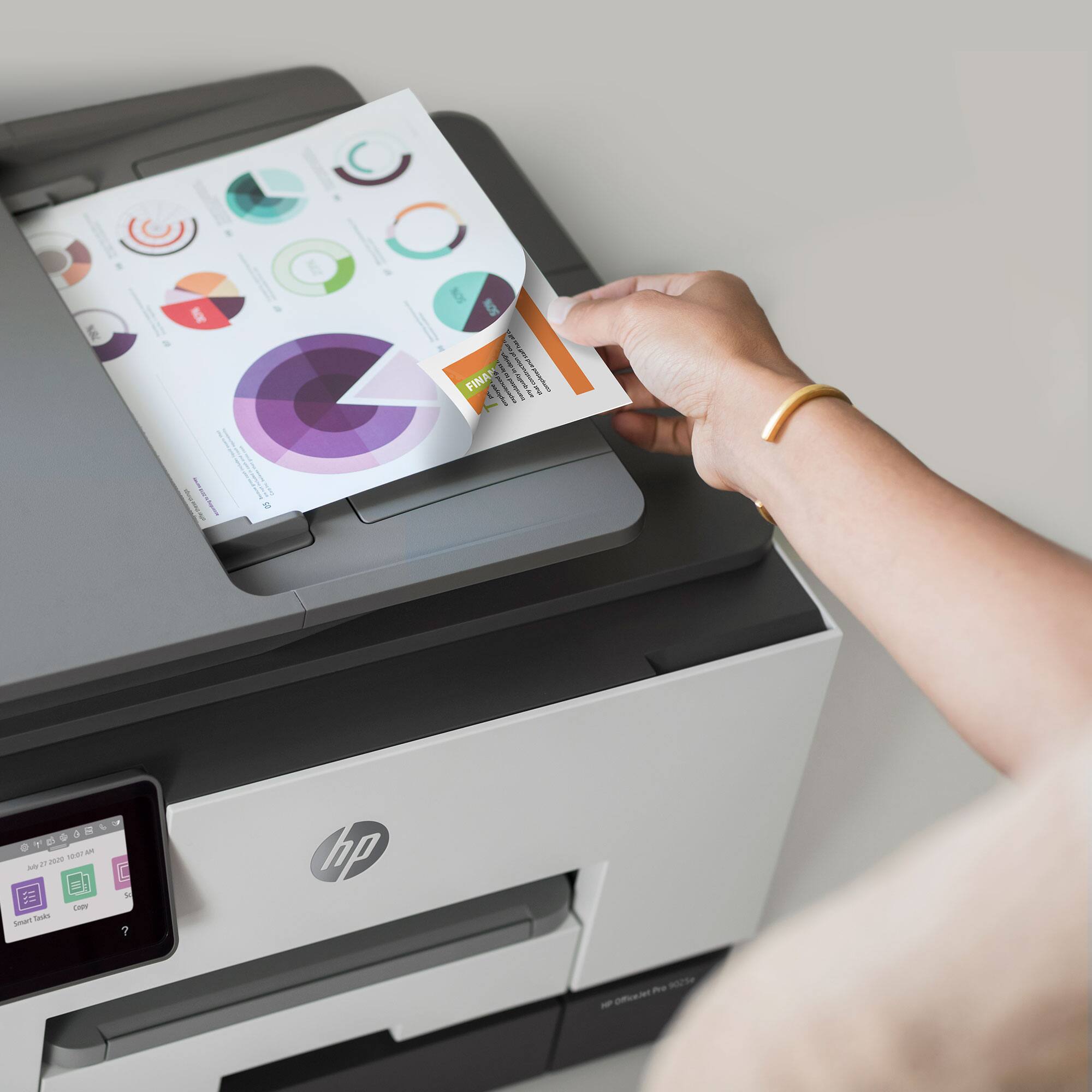
A:AnswerHello. Thanks for your question. Here are the differences between the two printers. The HP Officejet Pro 9025e printer can print double-sided. It can also copy or scan both sides in one pass. There are also two paper trays on the HP OJ Pro 9025e printer. The HP Officejet Pro 8025e printer can only print double-sided. The scan or copy function is only one-sided. There is only one paper tray.
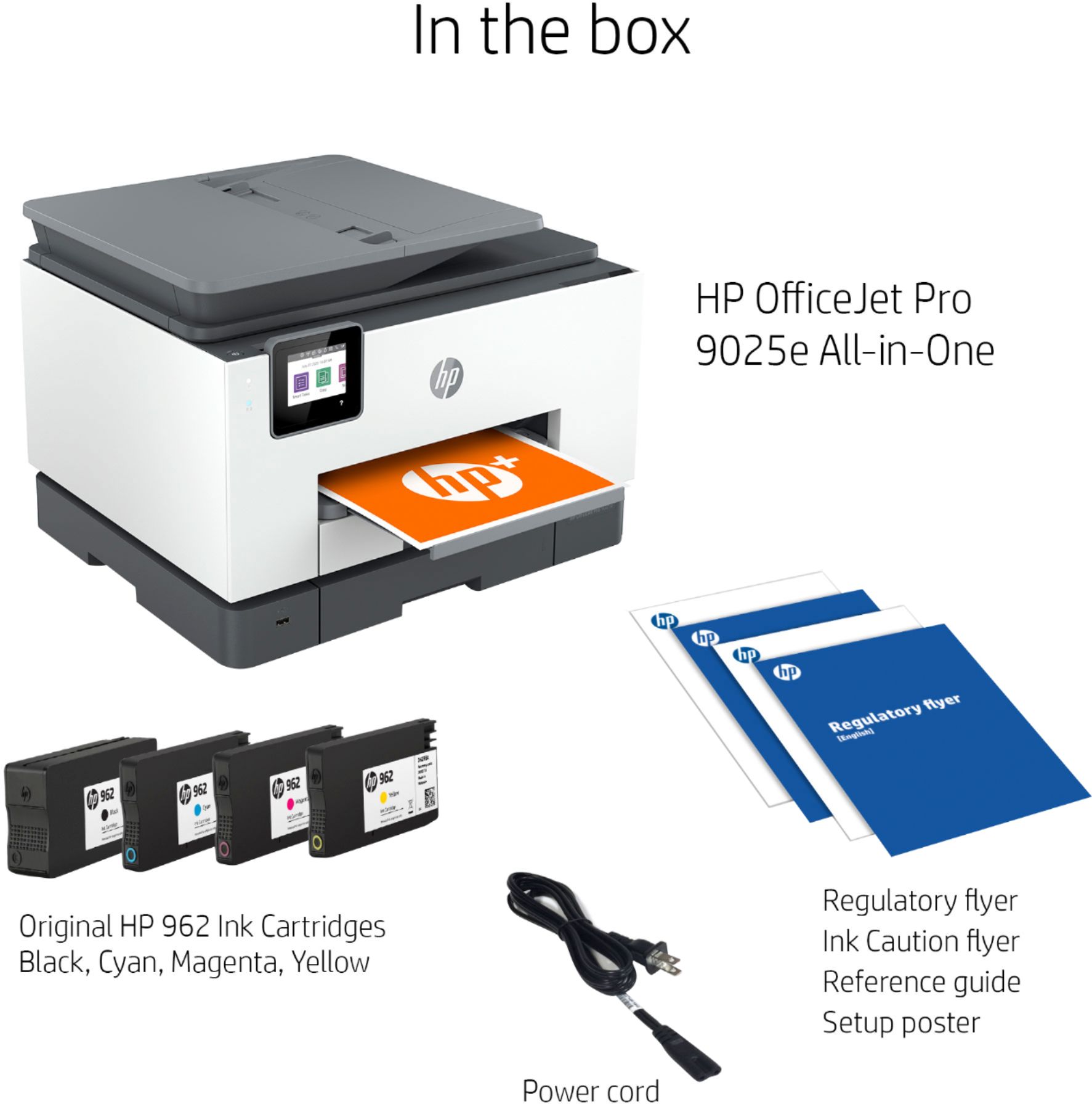
A:AnswerHello. Thanks for your question. There are three options available for the black ink cartridge for this HP Officejet Pro 9025e printer. The HP 966xl black yields about 3000 pages. The HP 962xl black would last approximately 2,000 pages. The HP 962 black is approximately 1,000 pages.
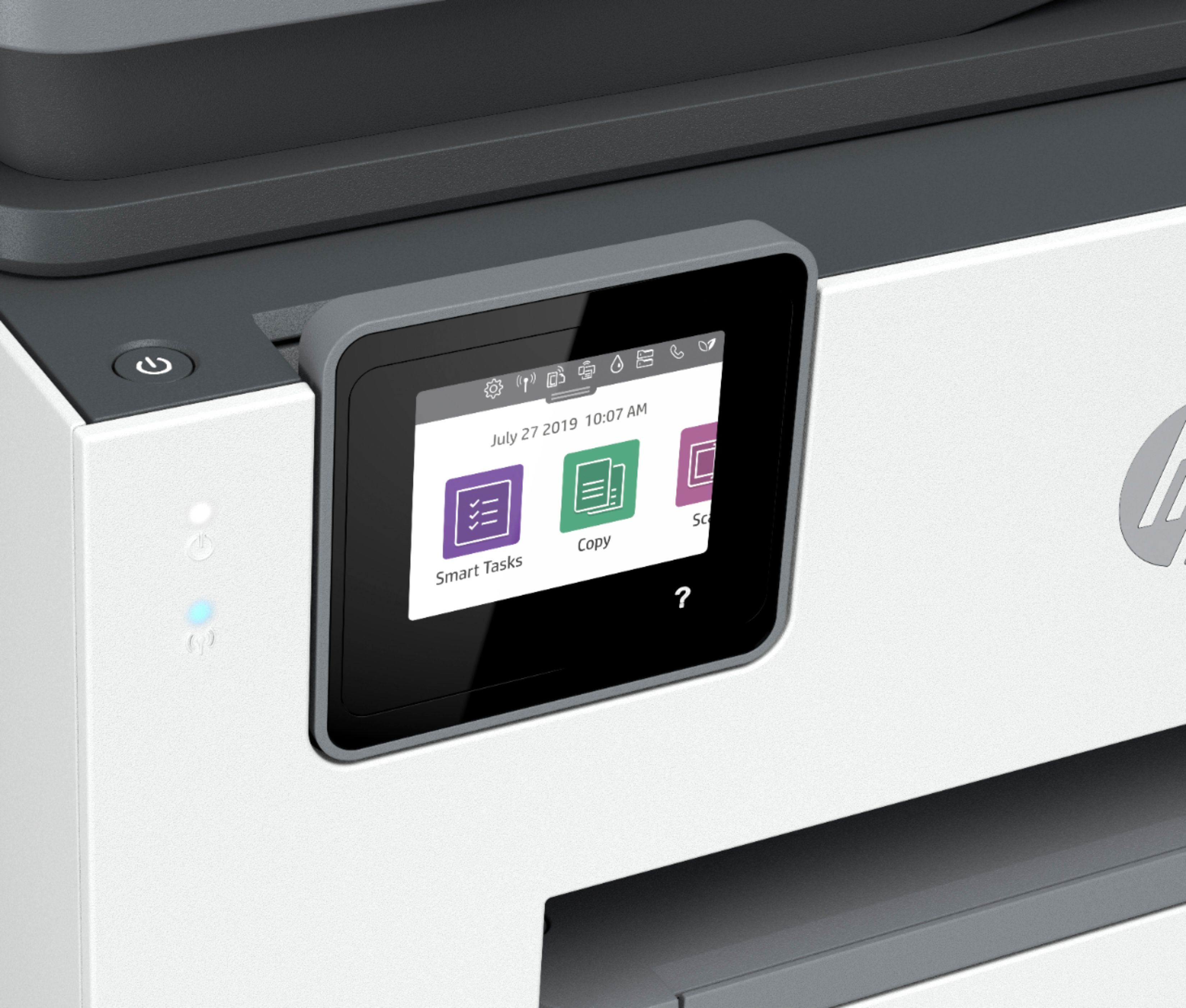
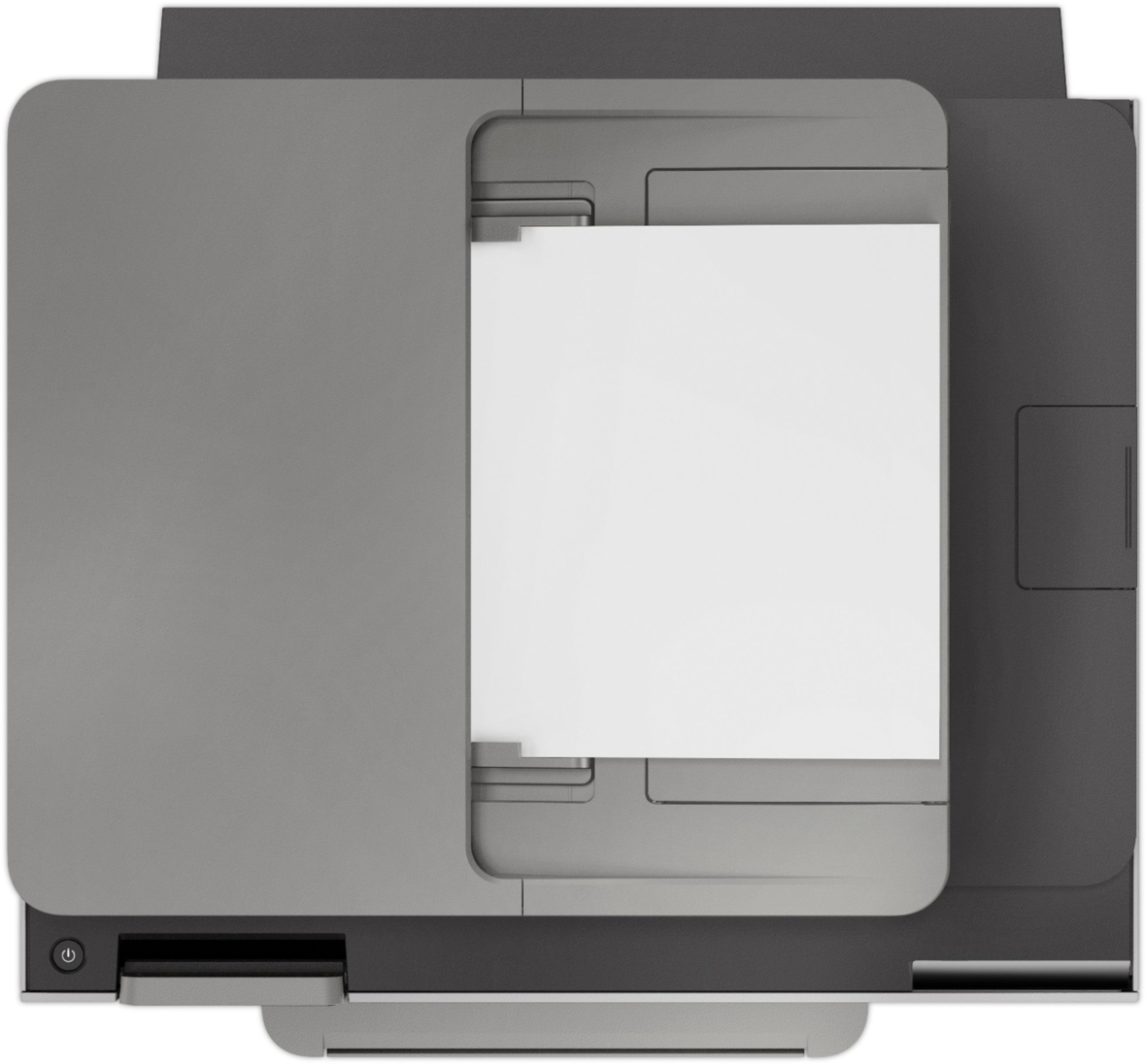
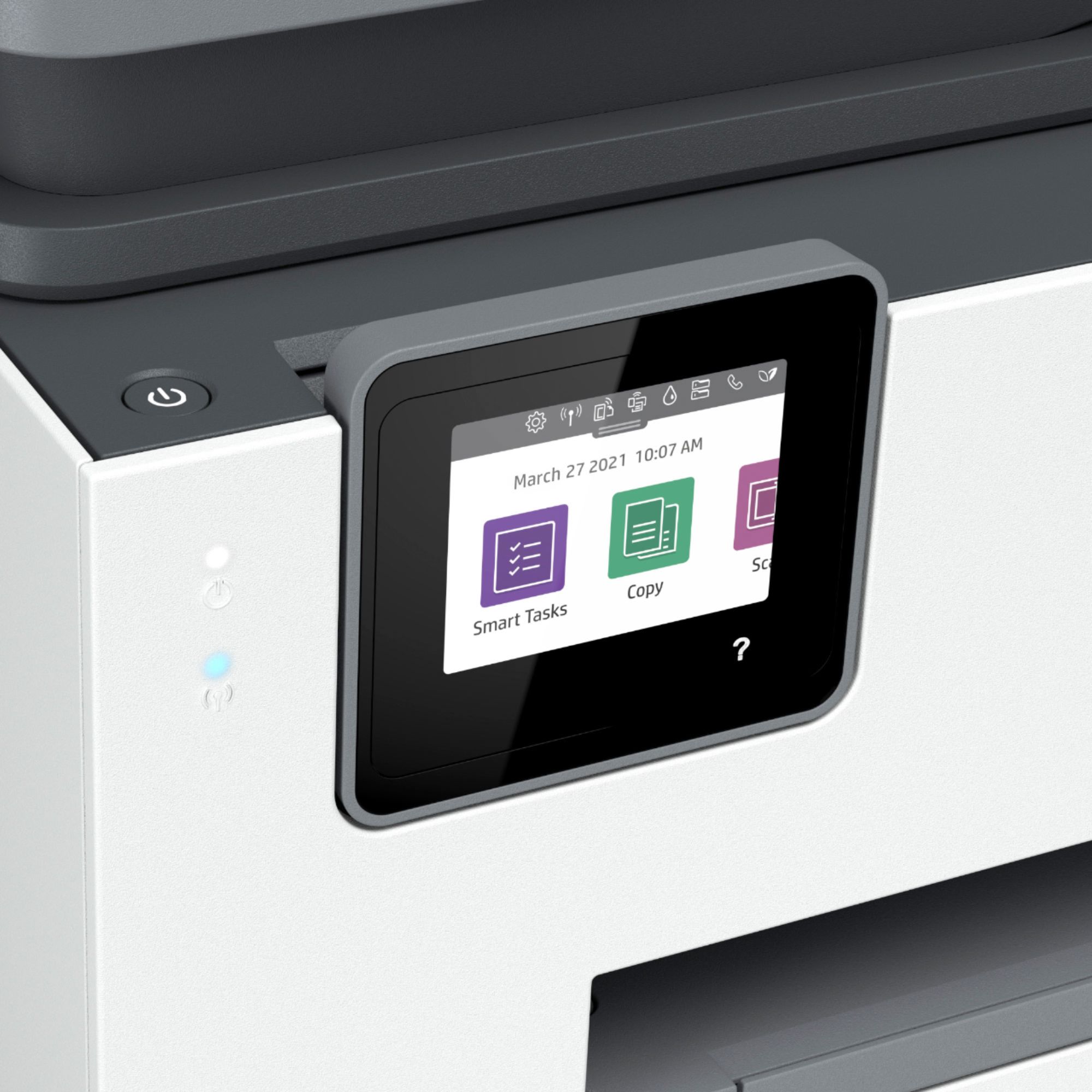
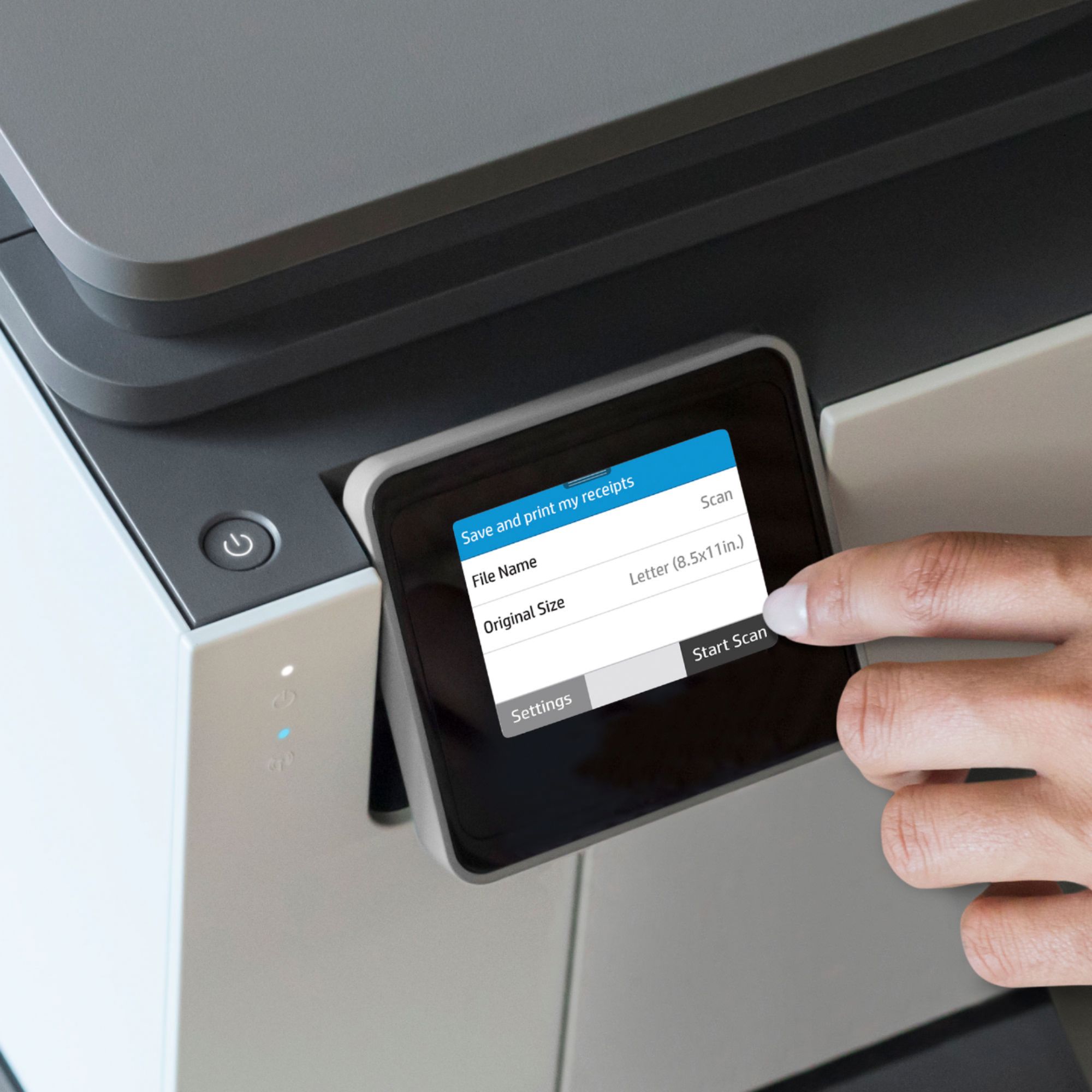
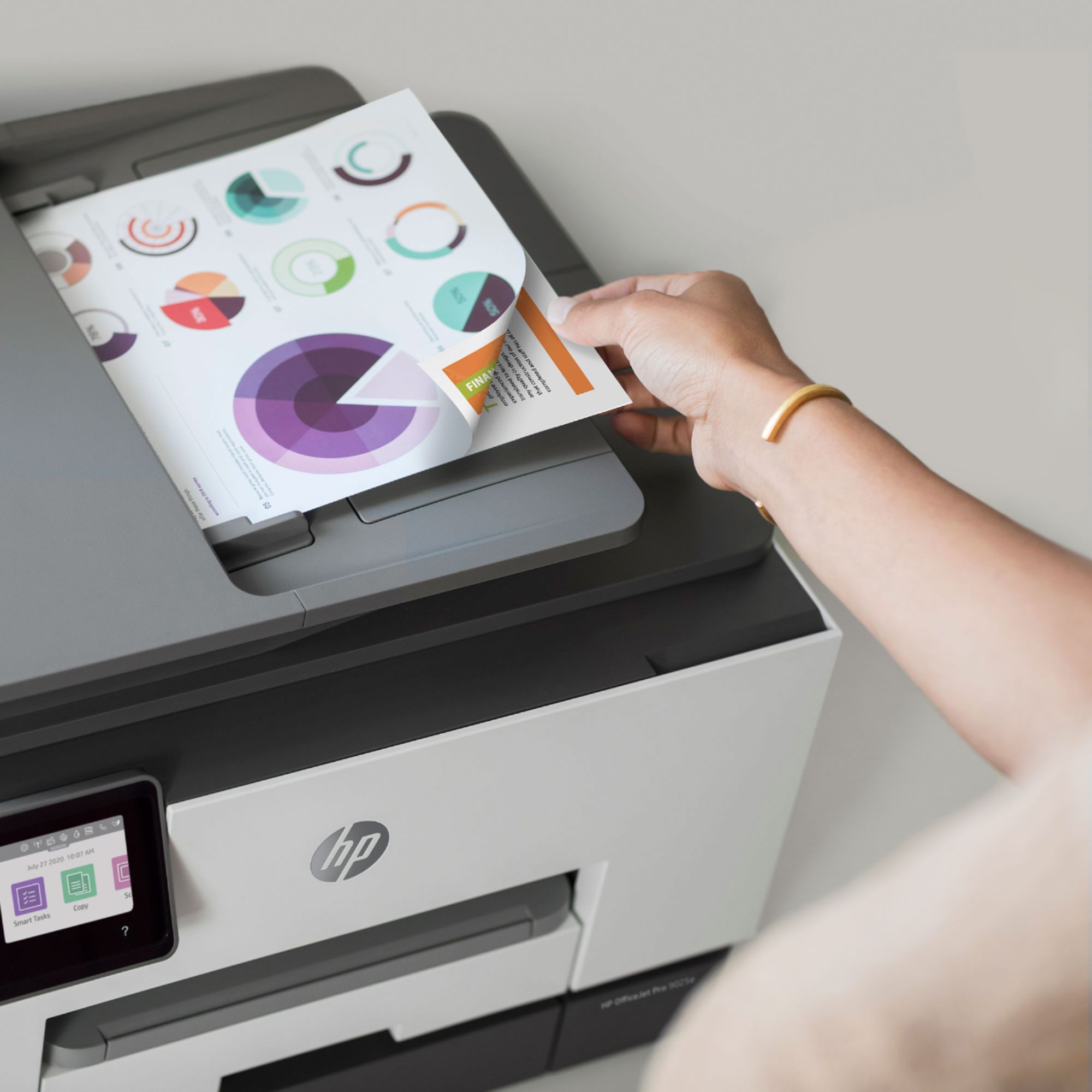
A:AnswerHi Sonny, thank you for the question. Yes, the OfficeJet Pro 9025e features two-sided scanning in one pass through the automatic document feeder. For items that may not feed smoothly (smaller items such as ID cards or "stiff" originals), it might be better to manually scan each side from the glass. You would make you scan choices from the touch screen or from your computer using the desktop scan software.
A:AnswerHi Gida! Here are the media handling specs for the HP OfficeJet Pro 9025e:
Media sizes supported (metric)
A4, A5, A6, B5(JIS), Card (A4, Hagaki, Ofuku Hagaki); Photo (13 x 18 cm, 10 x 15 cm); Envelope (A2, C5, C6, DL. Chou #3, Chou #4); 8.5 x 13 in
Media sizes supported (U.S. standard)
Tray 1:Letter, Legal. Tray 2:Letter; Legal; Government Legal; Executive; Statement; 3 x 5 in; 4 x 6 in; 5 x 7 in; 13 x 18 cm; 8 x 10 in; 10 x 15 cm; L; Photo 2L; Envelope( #10, Monarch, 5.5 bar); Card (3 x 5 in, 4 x 6 in, 5 x 8 in)
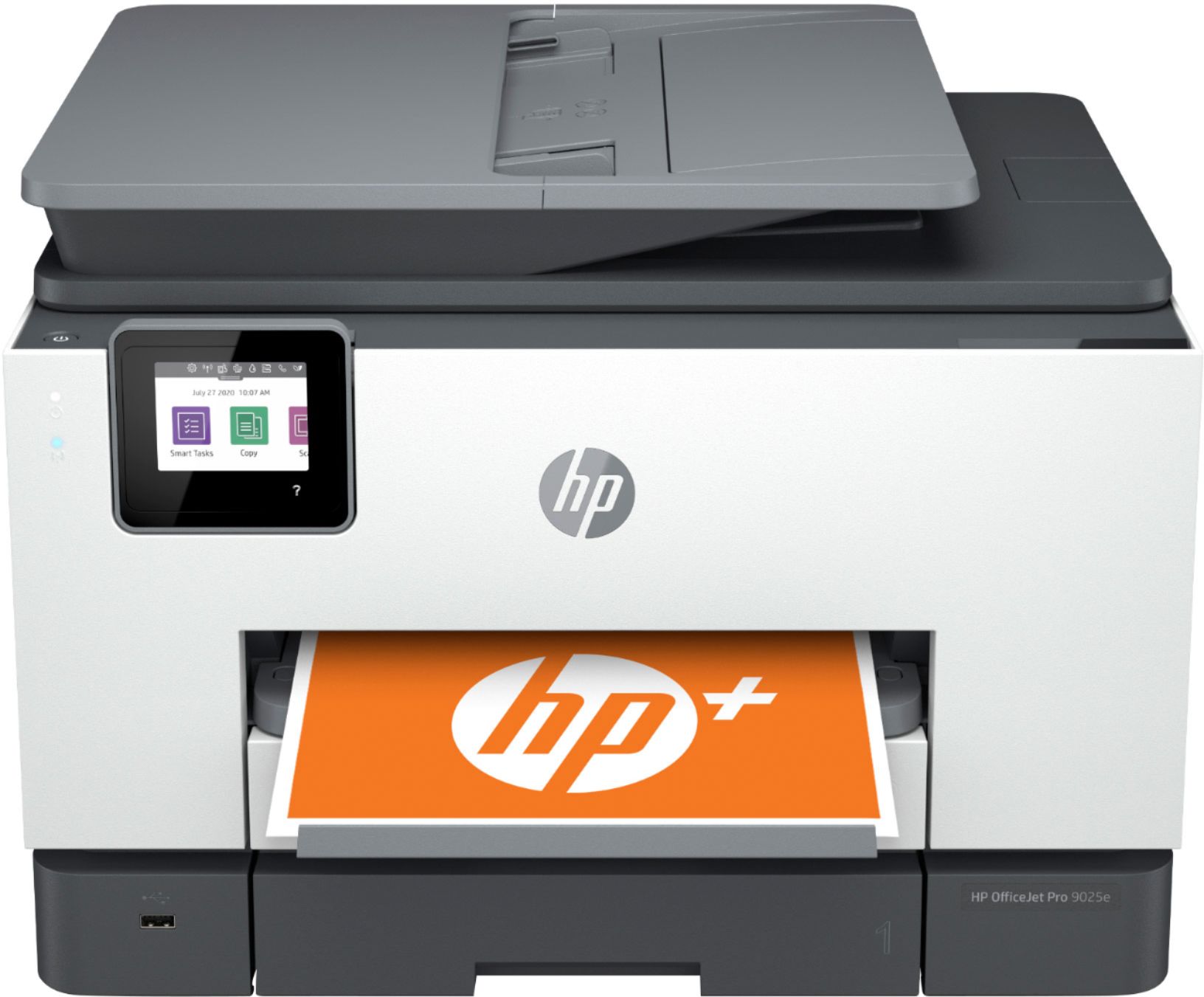
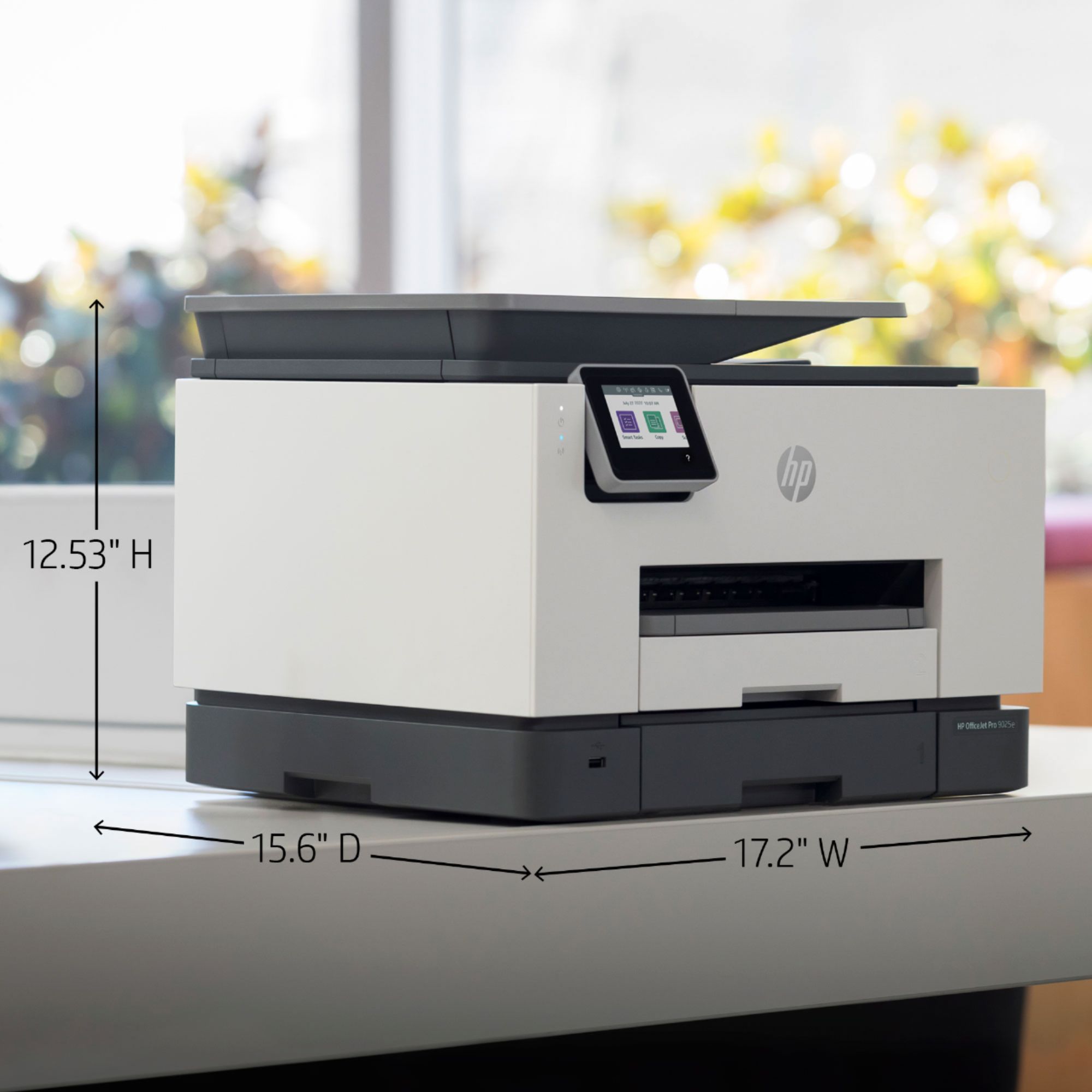
A:AnswerThe Officejet Pro 9025 can accommodate up to 8.5"x14" paper. It does support matte or glossy paper. The ISO speed is up to 24 ppm in black and up to 20 ppm in color which does not change in photo print settings.
A:AnswerNo, the HP Officejet Pro 9025 printer can only handle up to 8.5 x 14 inch paper. We recommend looking at the HP Officejet Pro 7740 printer which can handle up to 11 x 17 inch paper.
A:AnswerYes, HP Printer assistant works with printers from 2010 and newer. Here is a link to information about HP Printer Assistant: https://support.hp.com/us-en/document/c04995079
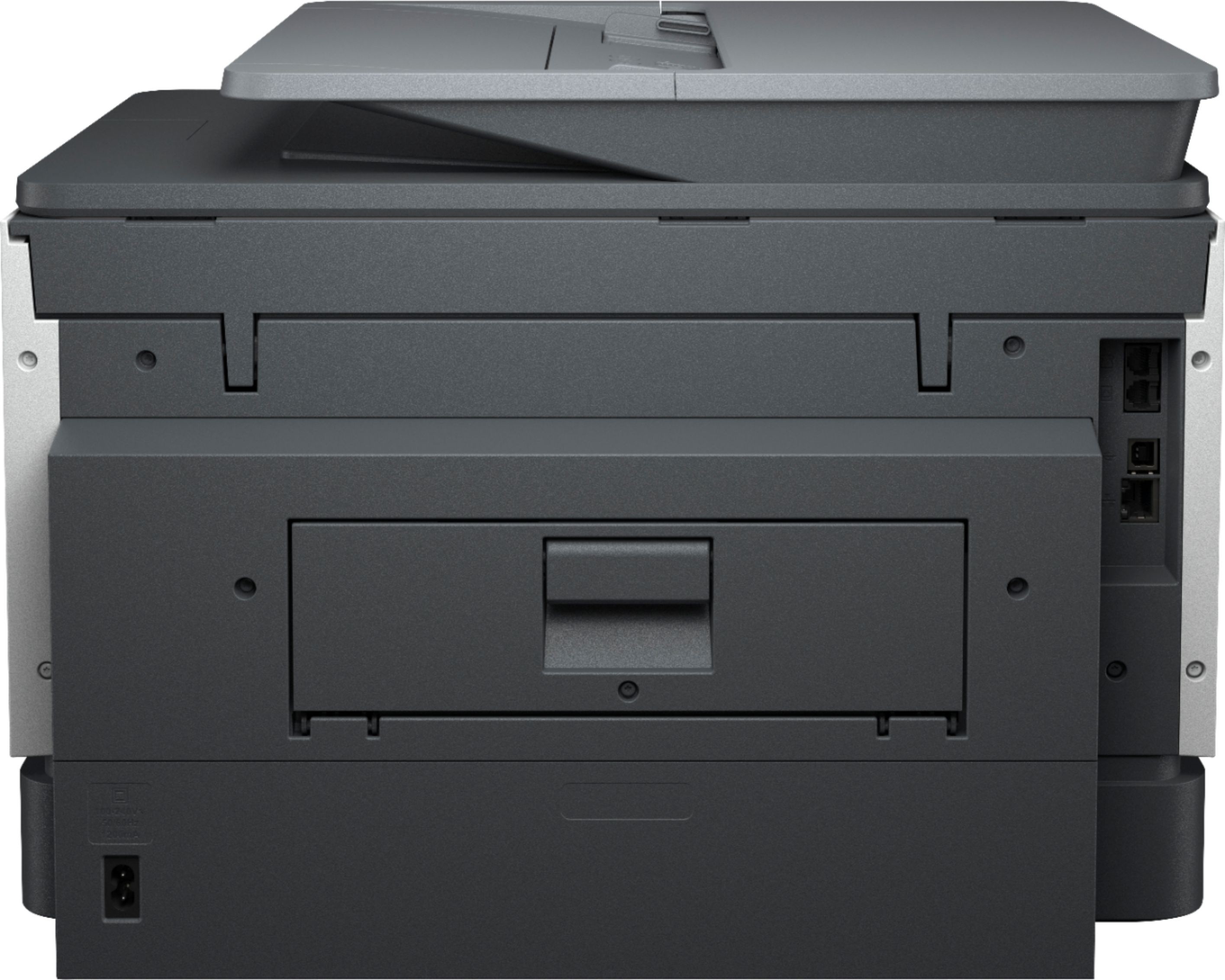
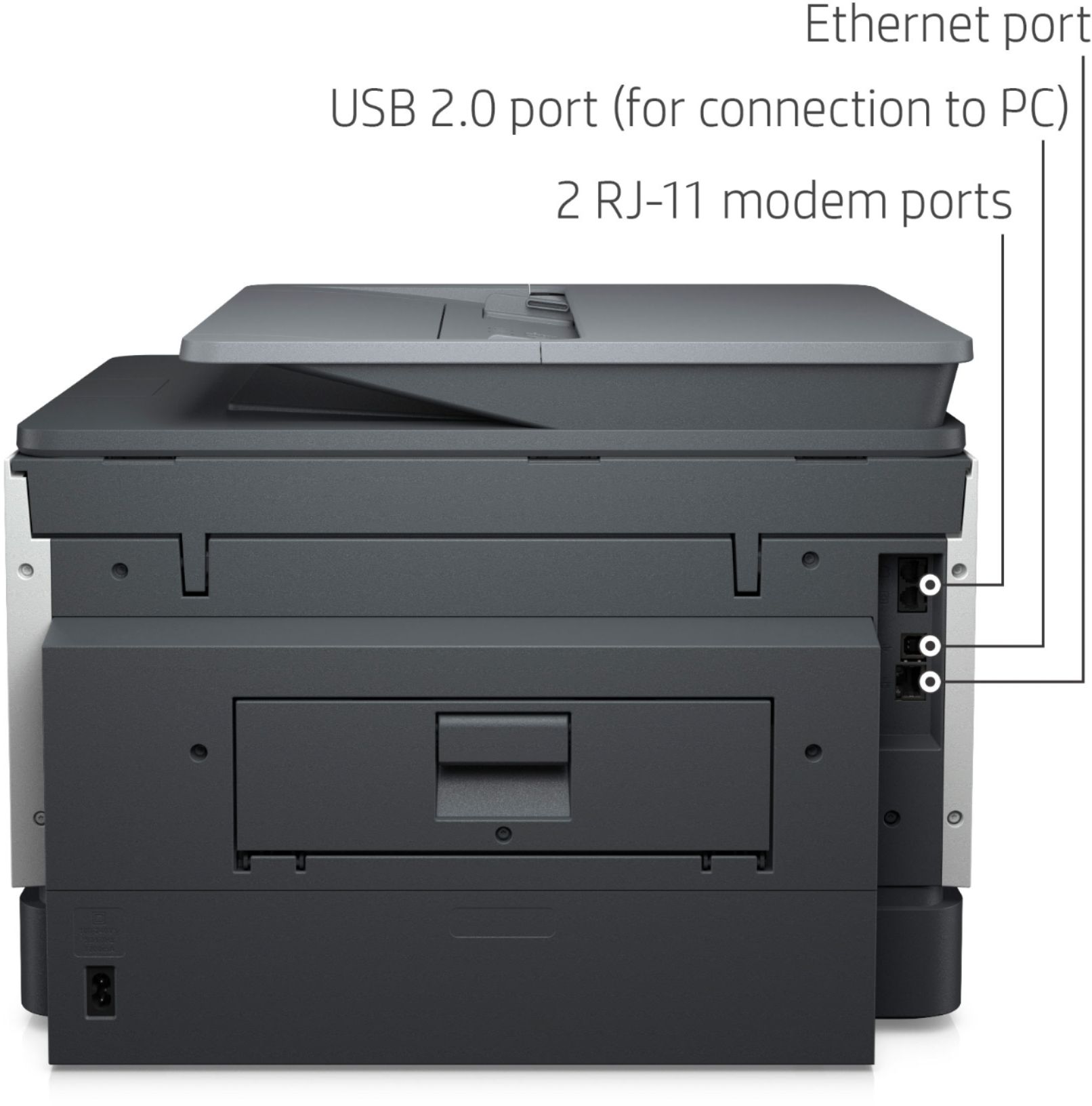
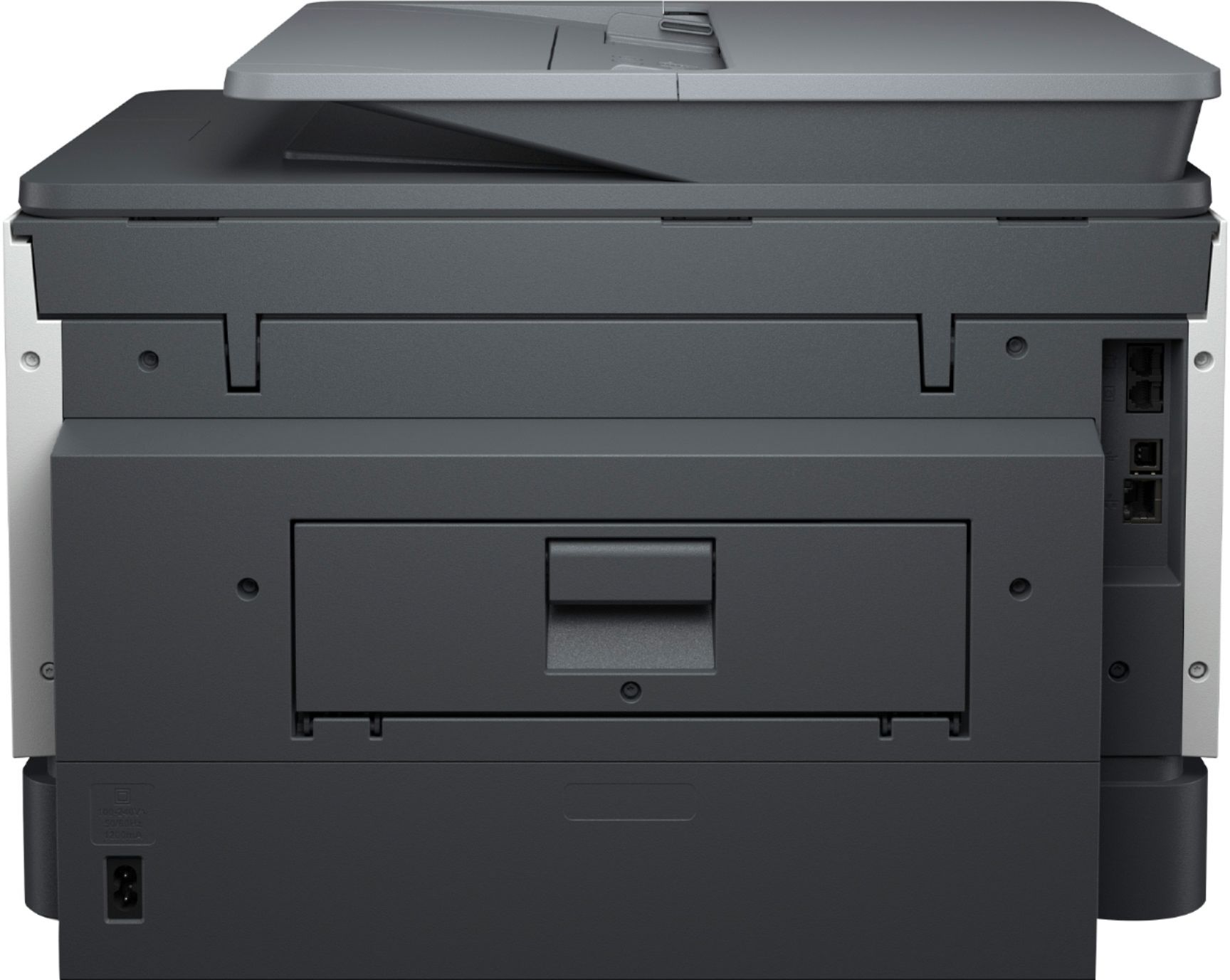
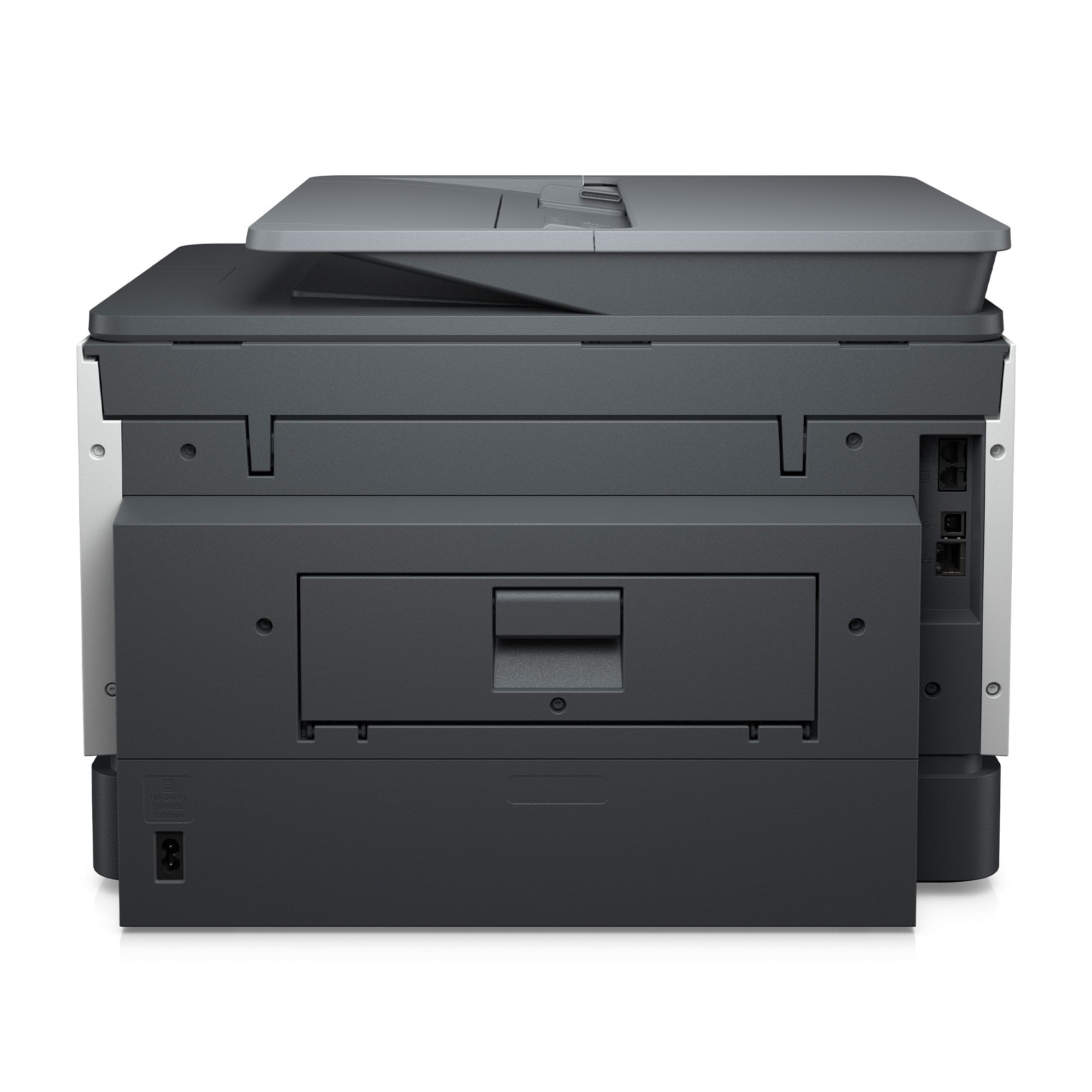
A:AnswerIf you have a digital phone system, it requires a converter because the phone jack on the printer is expecting an analog signal. It requires conversion the other way to send a fax, because the digital phone system is expecting a digital signal.
A:AnswerThe 8630 actually can scan legal-sized documents; however you need to run them through the document feeder on the top to do anything larger than letter sized. The OfficeJet 9025 is the current iteration of that printer. It will also handle legal-sized documents through the document feeder, and includes two paper trays-one or both of which can be set to handle legal sized paper.
A:Answer11" is the widest this printer will print. It would print labels for the envelopes, though. The 7740 Wide Format printer would handle the 12+ inch envelopes.
A:AnswerAffirmative. Had to finally find a YouTube video of a guy connecting a 5 GHZ router to the HP - OfficeJet Pro 9025, before buying the printer. The documentation didn't describe that capability very well, but it was a seamless connection.