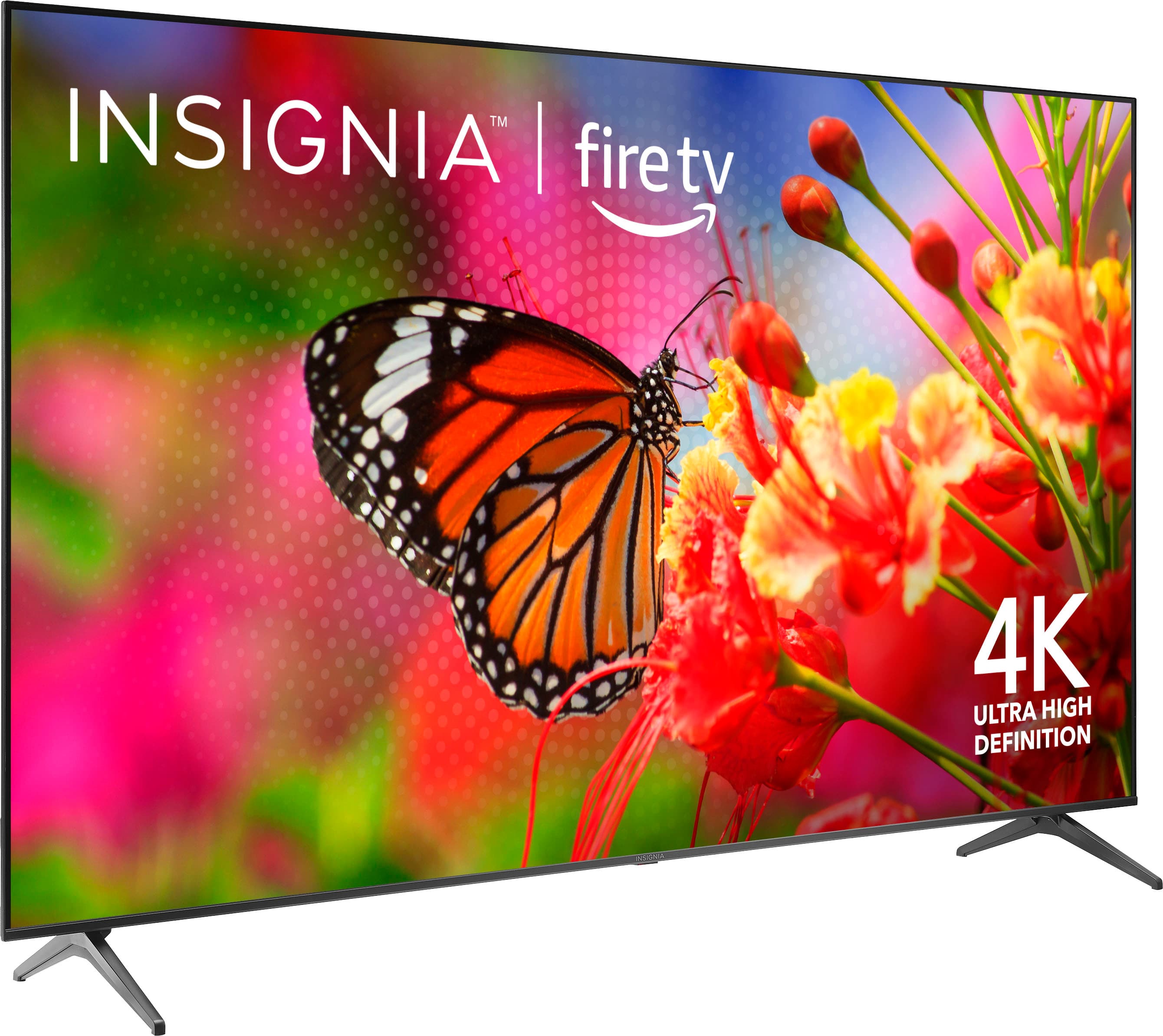
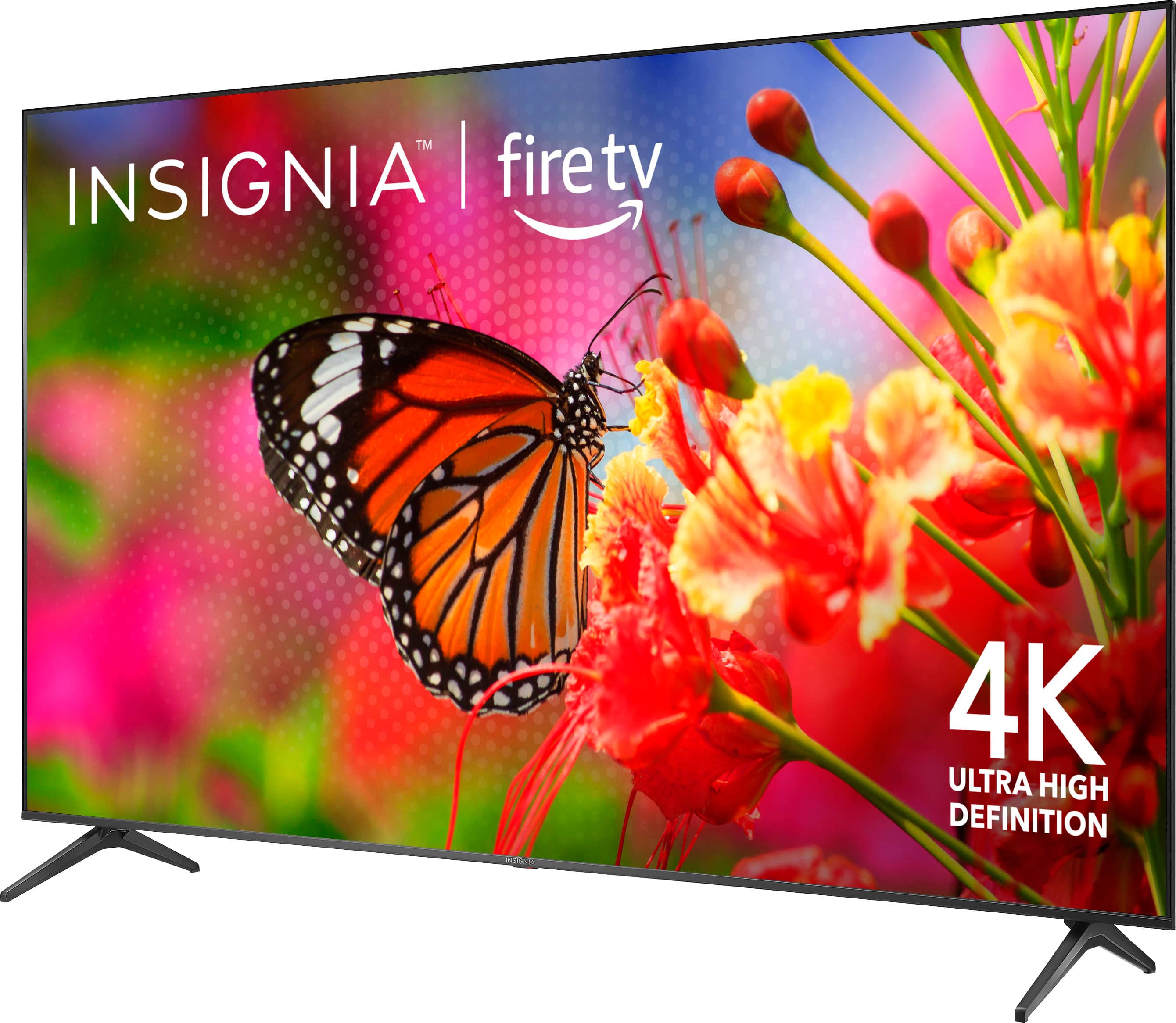
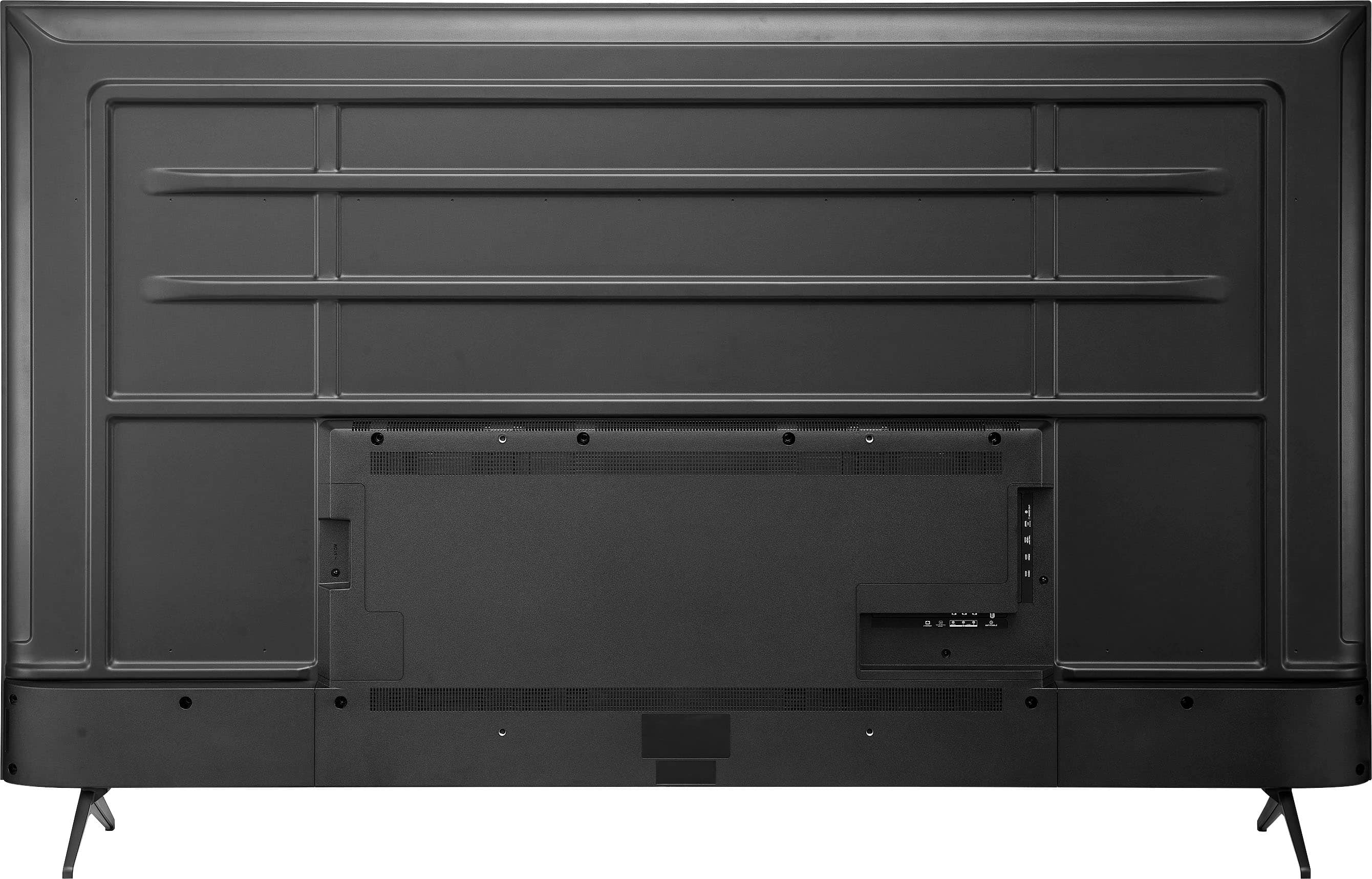
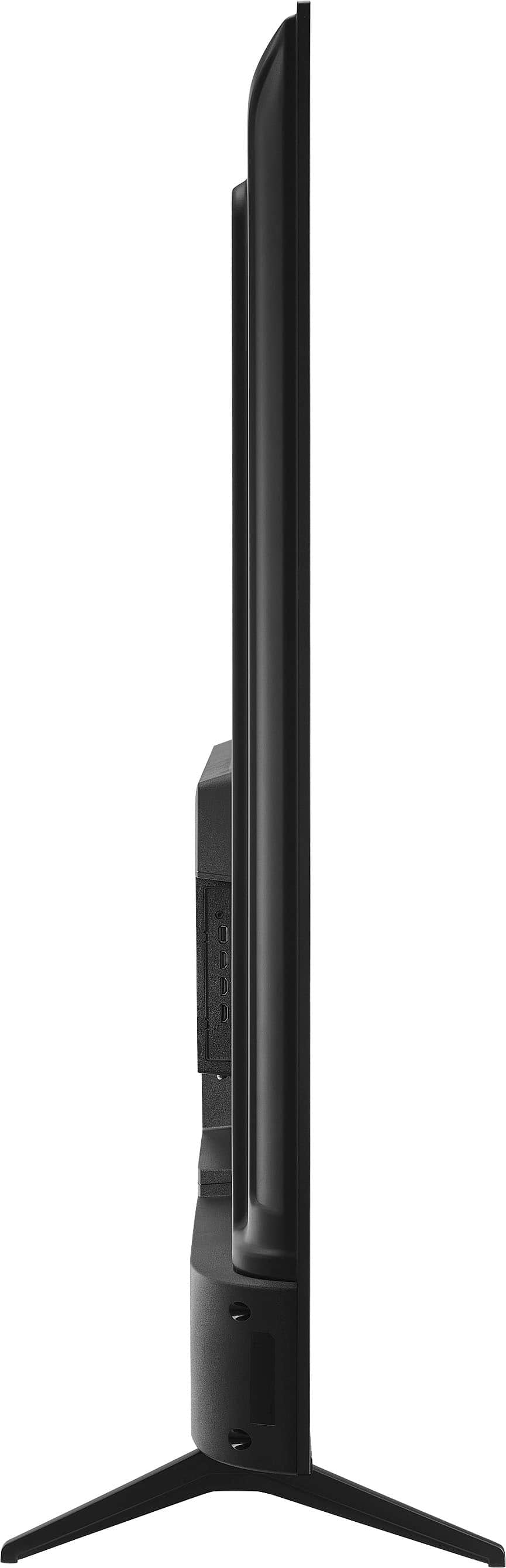
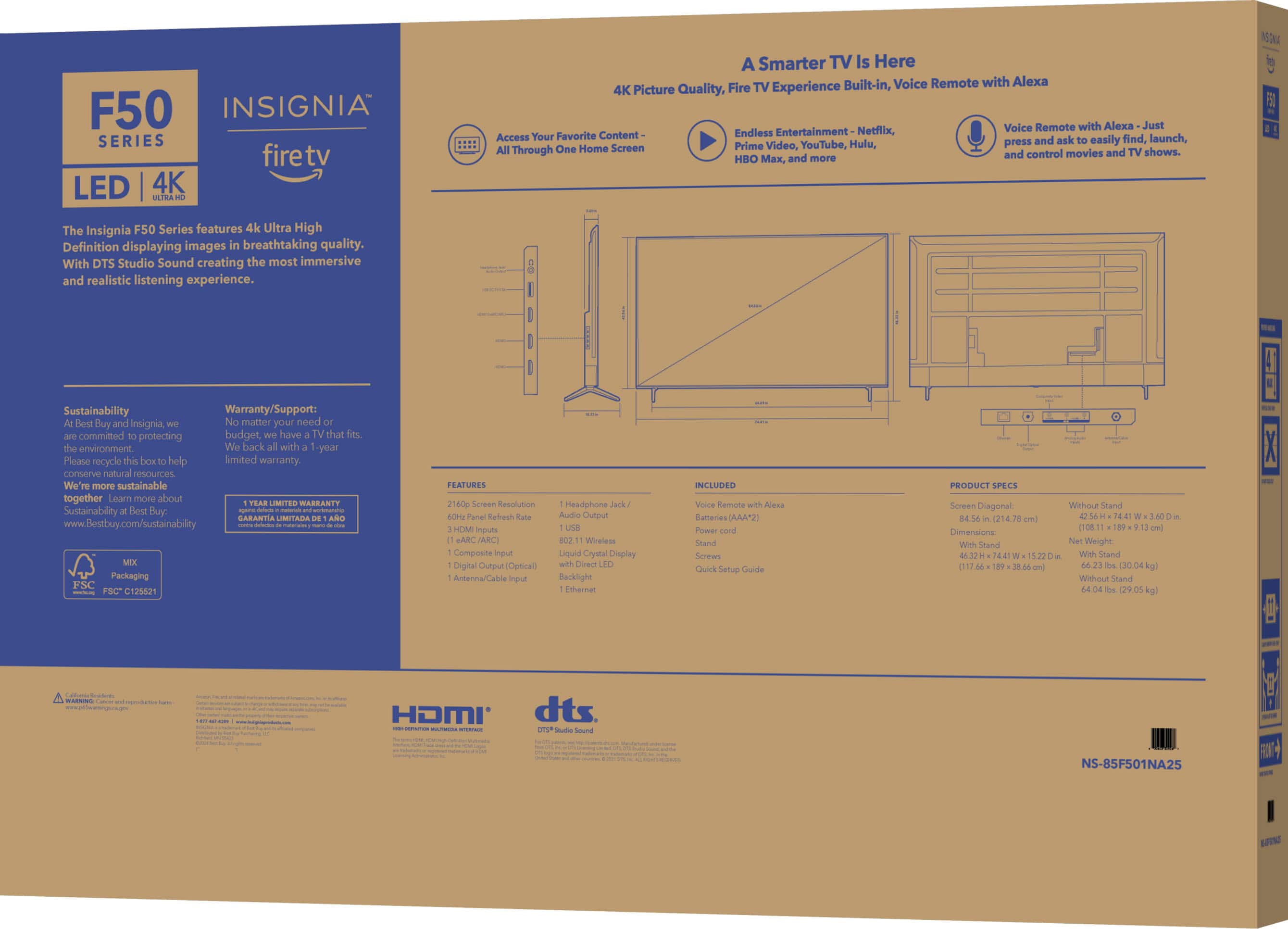
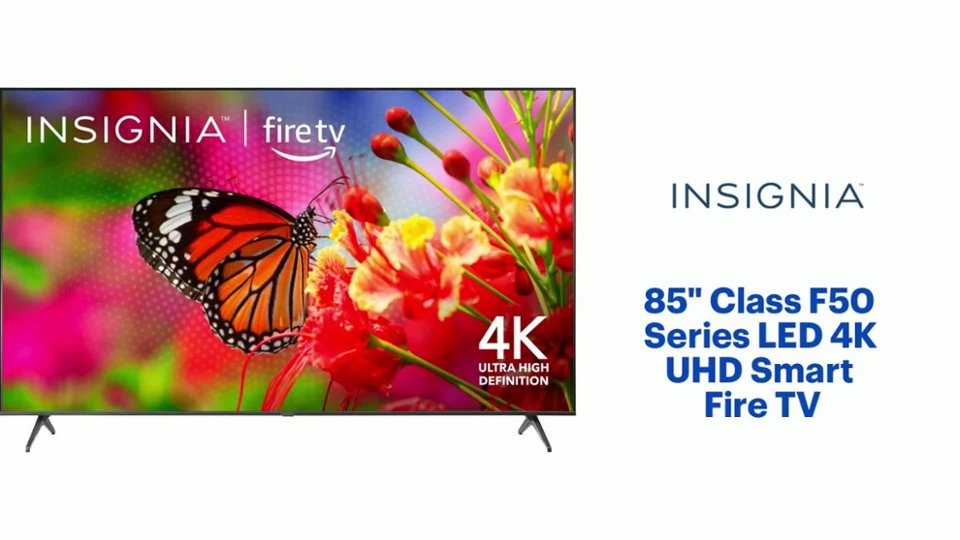
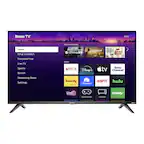
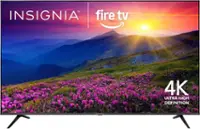
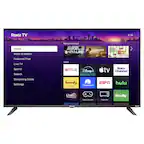
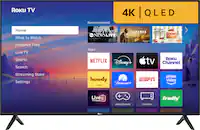
A:AnswerThank you for your inquiry! The Insignia™ 85" Class F50 Series LED 4K UHD Smart Fire TV supports screen mirroring and casting from both Mac and Windows computers. You can use the built-in Fire TV features to cast content from your devices. For Mac, you can use AirPlay, and for Windows, you can use Miracast or other compatible casting methods. If you prefer using Chromecast, you can connect a Chromecast device to one of the HDMI ports on the TV. This will allow you to cast from both Mac and Windows computers using the Google Home app. Keith | Insignia Support https://www.bestbuy.com/site/insignia-85-class-f50-series-led-4k-uhd-smart-fire-tv/6583974.p?skuId=6583974
A:AnswerHi Mark! Thank you for your question! To set your TV to automatically switch to the last input, start by navigating to Settings from the home screen, which is located on the right side. Then, go to Display and Sound settings, select Power Controls, and choose Power On. Finally, select Last Input and ensure that a checkmark appears next to it. Once you've completed these steps, you can switch the input by pressing the Settings button on your remote and selecting the option where your streaming device is connected, such as HDMI 1 or HDMI 2. Let us know if this resolves the issue!
— Shiela | Insignia Support
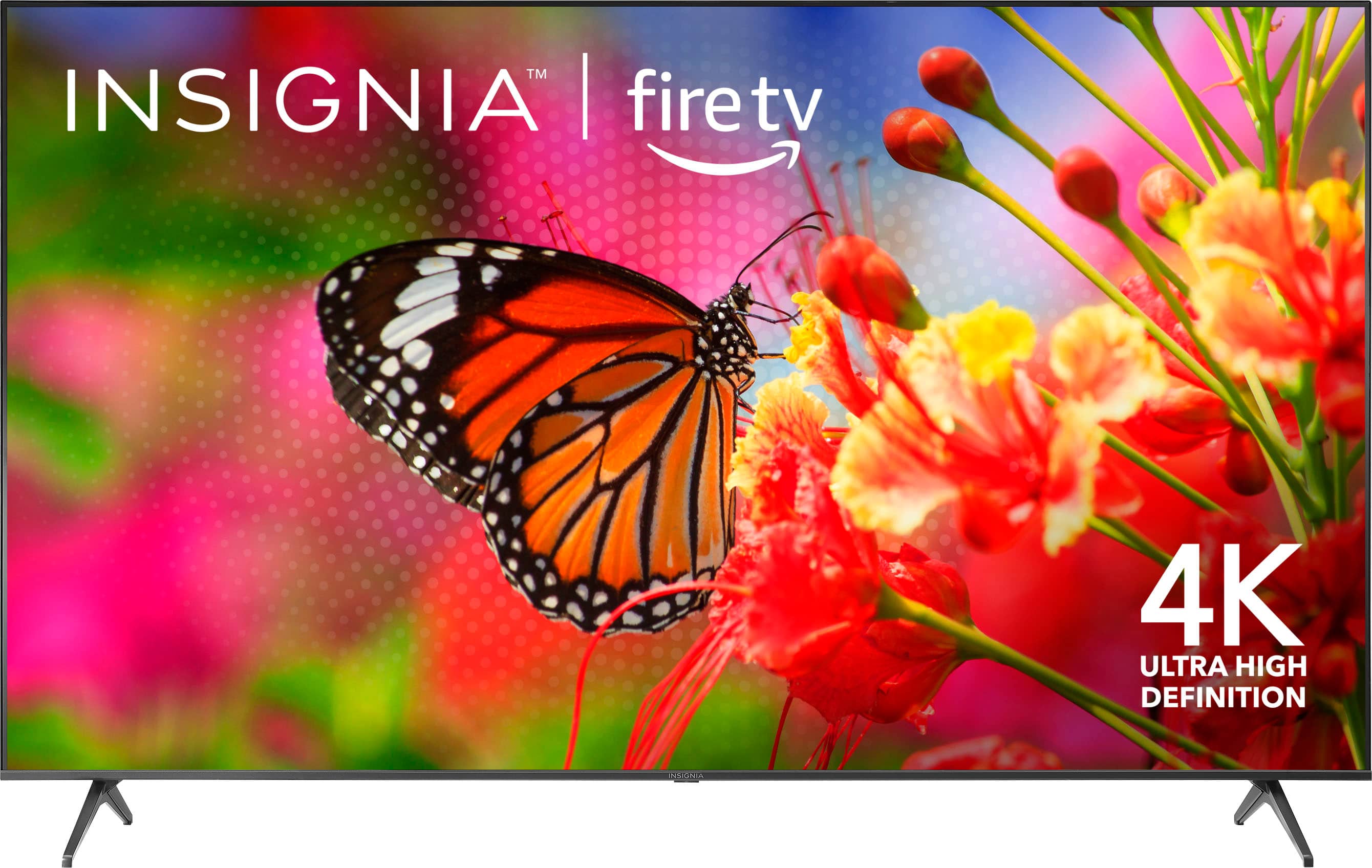
A:AnswerThe Insignia F50 series is superior to the F40 series, offering a better picture with Quantum Dot technology, Dolby Vision HDR, and DTS Virtual:X audio. The F50 series also has more advanced features like HDMI eARC, multiple HDMI 2.1 ports for gaming, and a wider range of screen sizes. The F40 series is generally a lower-end model, with basic LED, 1080p resolution, and 60Hz refresh rate specifications.