A:AnswerYes, if you connect to it using Bluetooth and stream your music. But if you are using the built-in Google Assistant/Home ("Hey Google..."), you're restricted to a few options, most notably Google Play Music and Pandora.
A:AnswerWe would like to work with you directly to help you with your issue. Please submit a case request at https://www.jbl.com/support-contact.html and the Customer Service Team will be more than happy to assist you.
A:AnswerThanks for reaching out, our apologies for the inconvenience and delay in response.
We would like to work with you directly. Please submit a case request at https://www.jbl.com/support-contact.html and the Customer Service Team will be more than happy to assist you.
A:AnswerThis can vary depending on the material used in the walls between rooms. Generally, the distance is around 10m (32ft) without interference, so the maximum distance should be around that range.
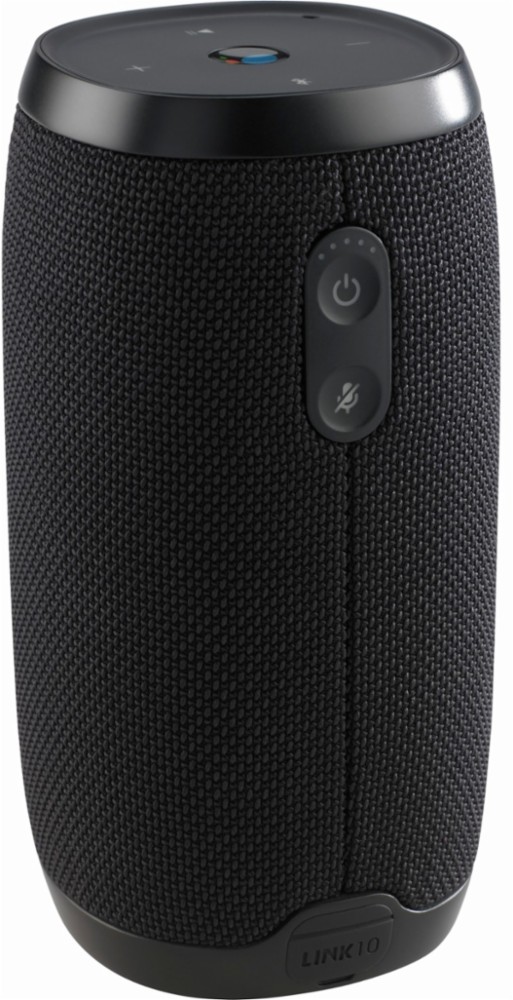
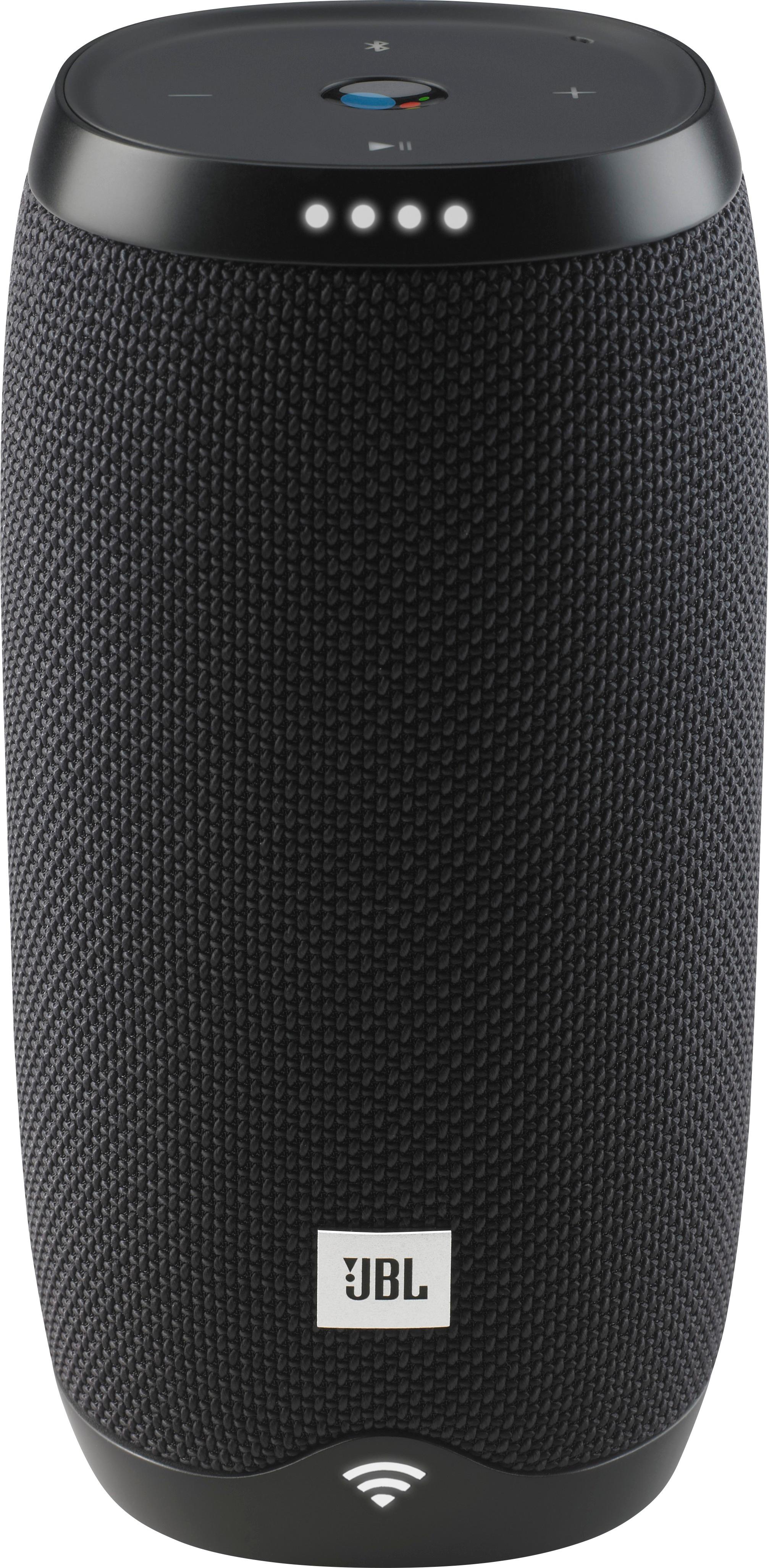
A:AnswerPlease try to reset the unit to its factory defaults by pressing and holding down the Microphone Mute button for 13-15 seconds and see if it helps. The unit will reboot and advise that its ready for setup. If the problem persist, please submit a case request at https://www.jbl.com/support-contact.html and the Customer Service Team will be more than happy to assist you.
A:AnswerIf you encounter issues when installing the JBL LINK product, then use below step-by-step guide.
1. Have the latest Google Home app version (Update if needed)
2. Make sure the internet connection is stable and working
3. Reboot your smartphone or tablet
4. Restart the LINK speaker by using the little pinhole next to the charging port (Note: This is not a reset but RESTART).
5. Make a factory reset of the LINK speaker, by pressing and holding the “Microphone Mute” button for over 10 sec
6. If you still experience setup issues, then make a screenshot of the error message during the setup and we would like to work with you directly to help you with your issue. Please submit a case request at https://www.jbl.com/support-contact.html and the Customer Service Team will be more than happy to assist you.
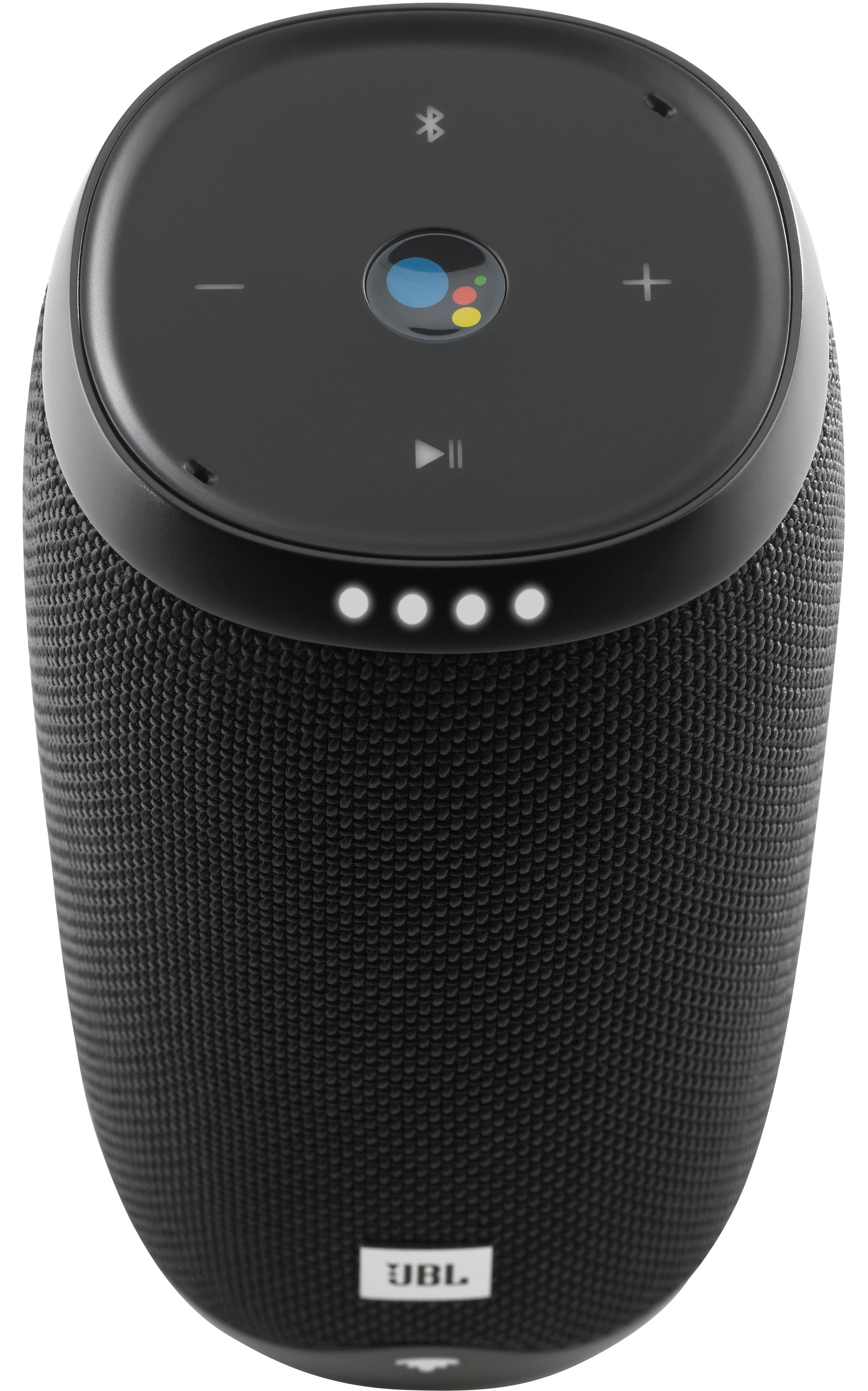
A:AnswerHi there, thanks for reaching out. You can confirm if doing the reset was successful for you JBL Link 10 when you press the Google Assistant button on top and a voice responds that you need to set up the speaker. It's also possible that when you press the button, you'll only hear beeping noise.
If in case that you haven't gone through the set-up yet, please download Google Home App on your device and follow the steps on how to set-up your speaker. Once it's successfully connected to your Wi-Fi network, that's the time that Bluetooth will be activated on the speaker. For more help, you can check out the videos we have on this link: https://bit.ly/2YSglt6.
A:AnswerThanks for reaching out. Sorry about what happened. We'll need some details from you so we could look into it. Please submit a case request at https://www.jbl.com/support-contact.html and our customer service team will be happy to help.