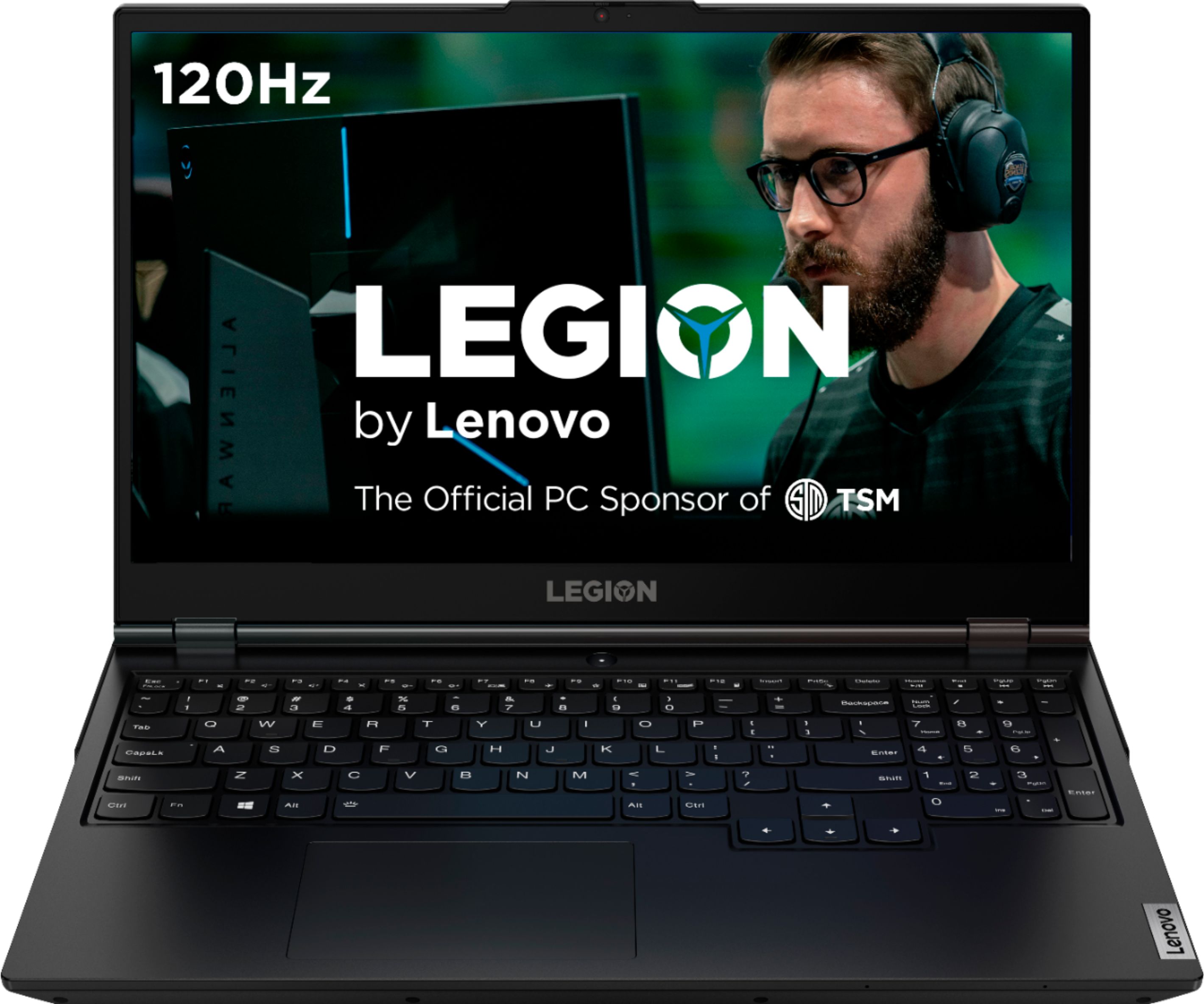
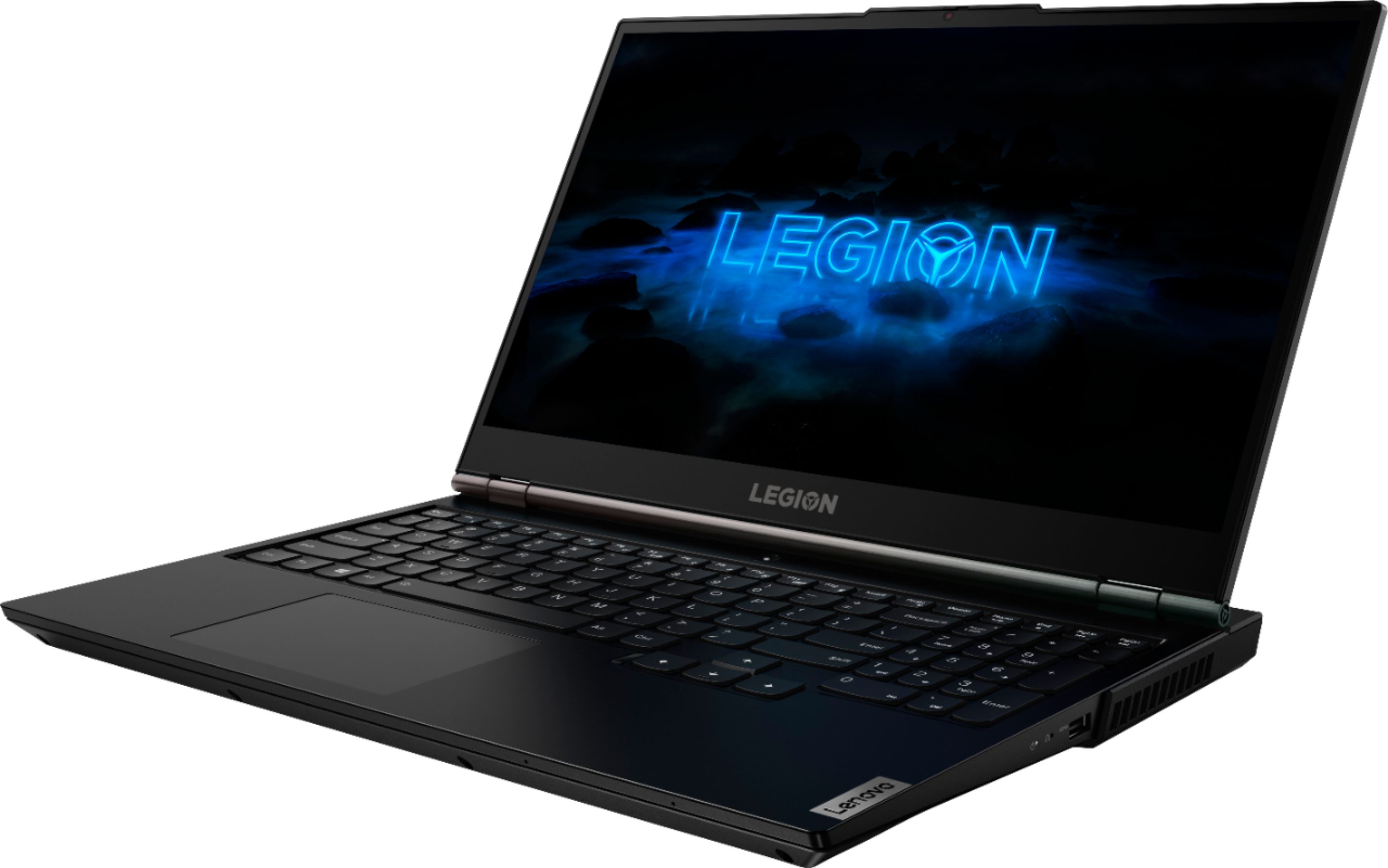
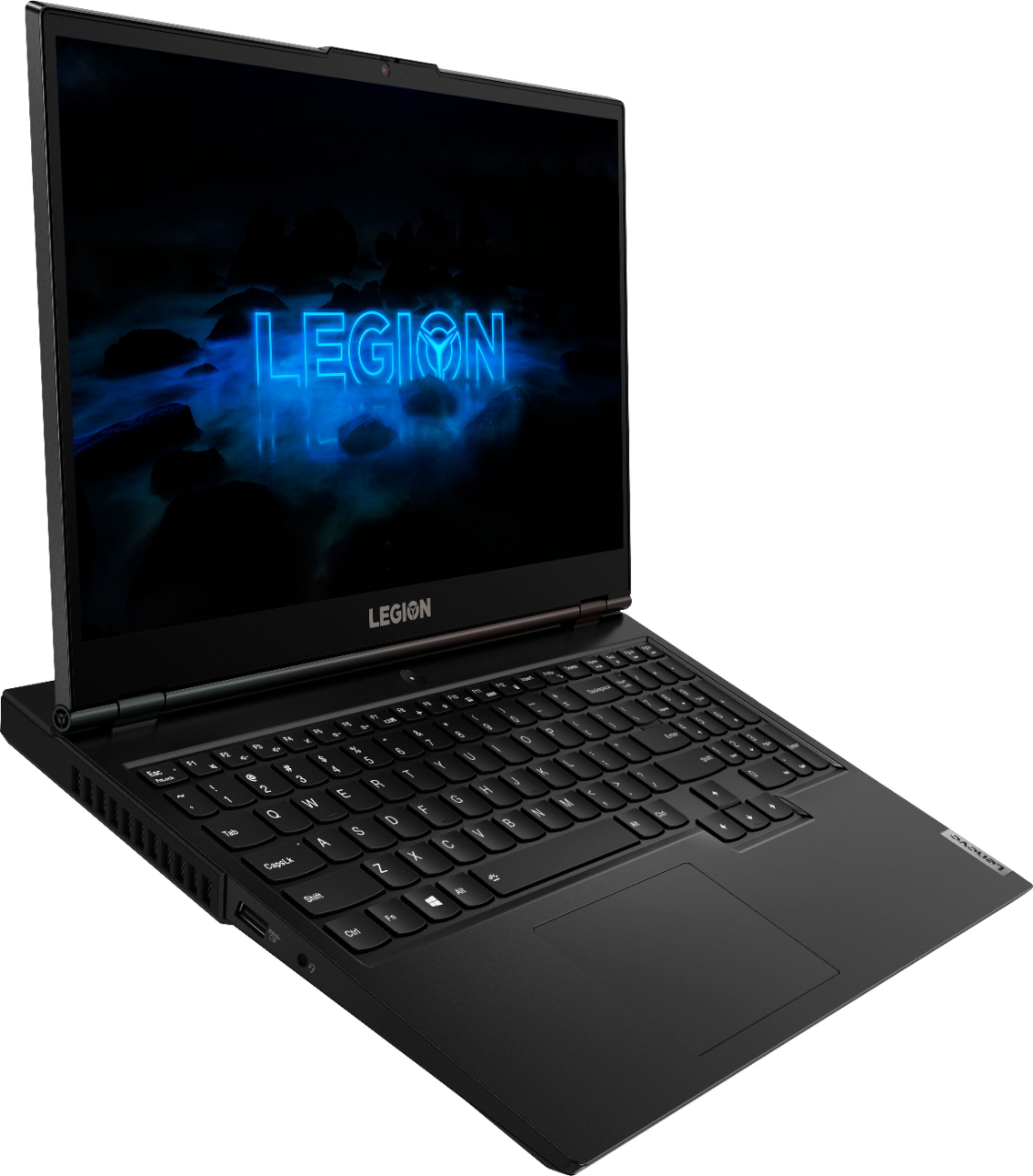
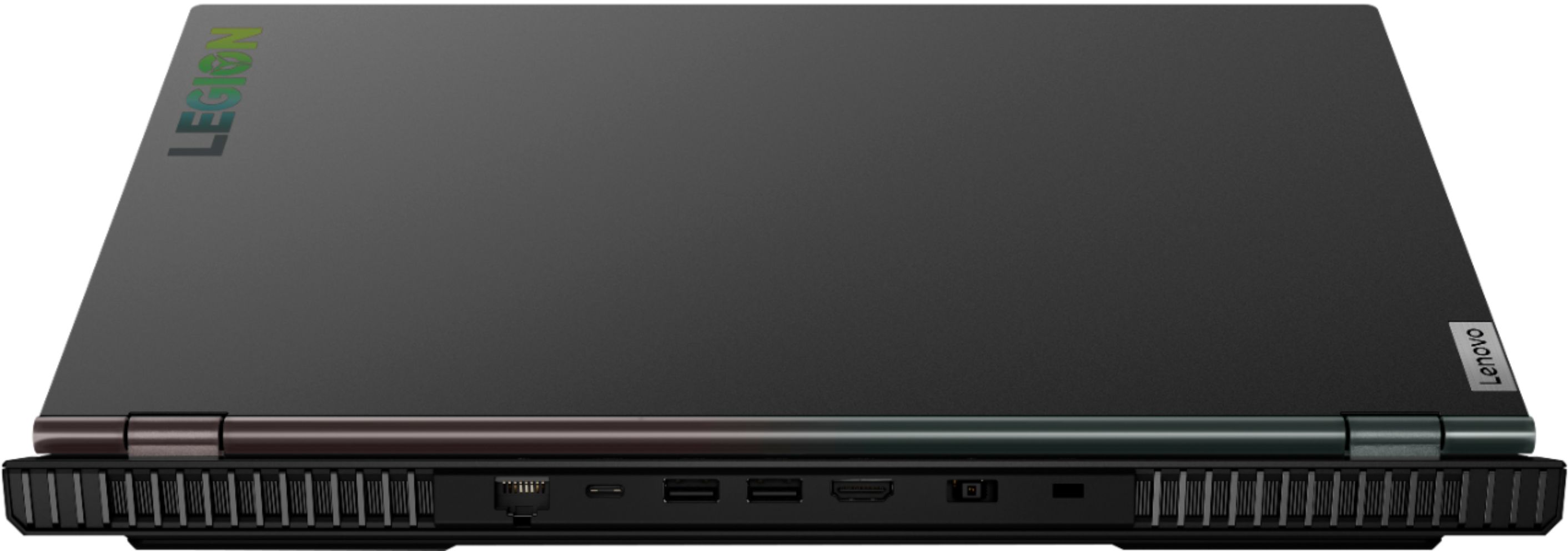
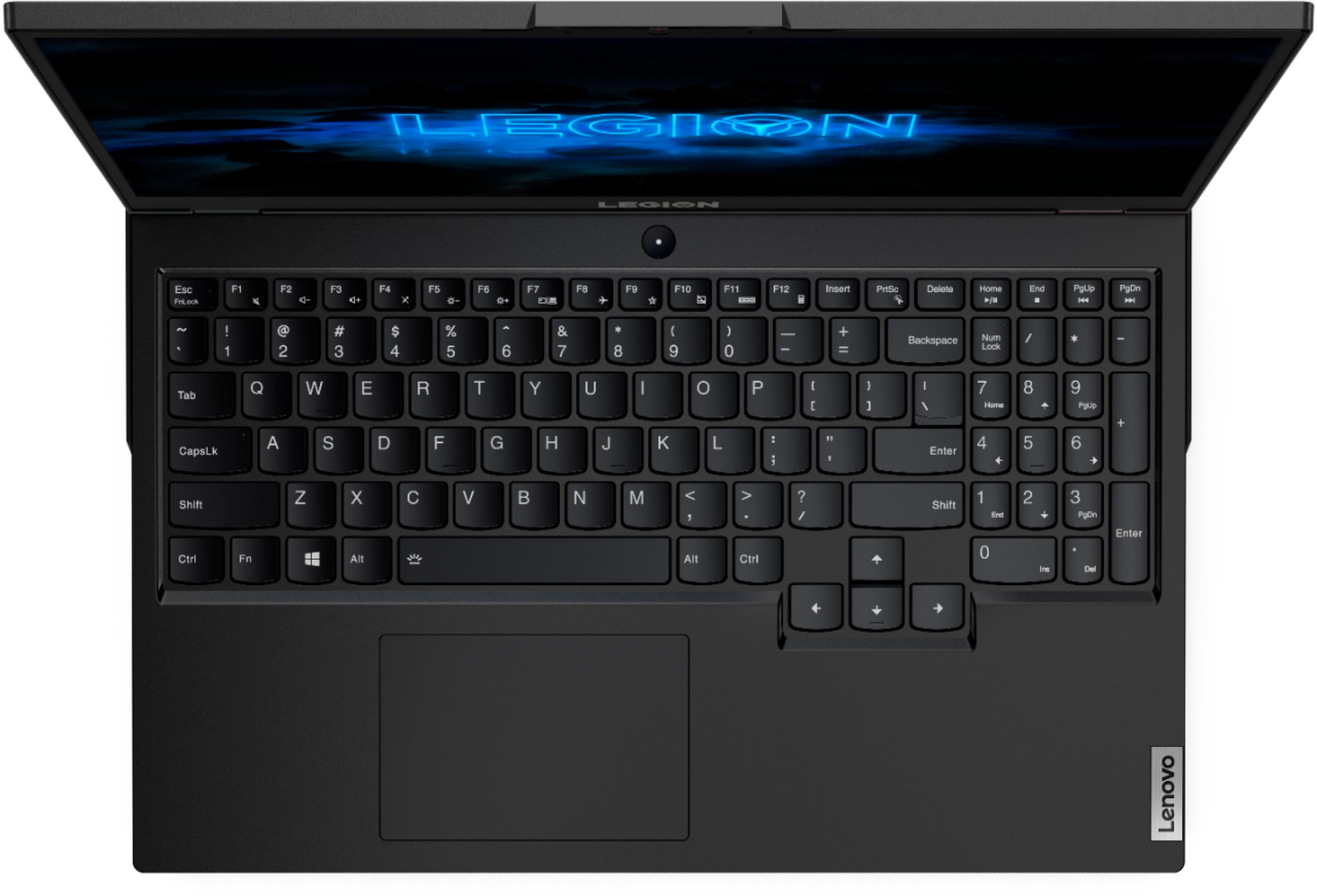
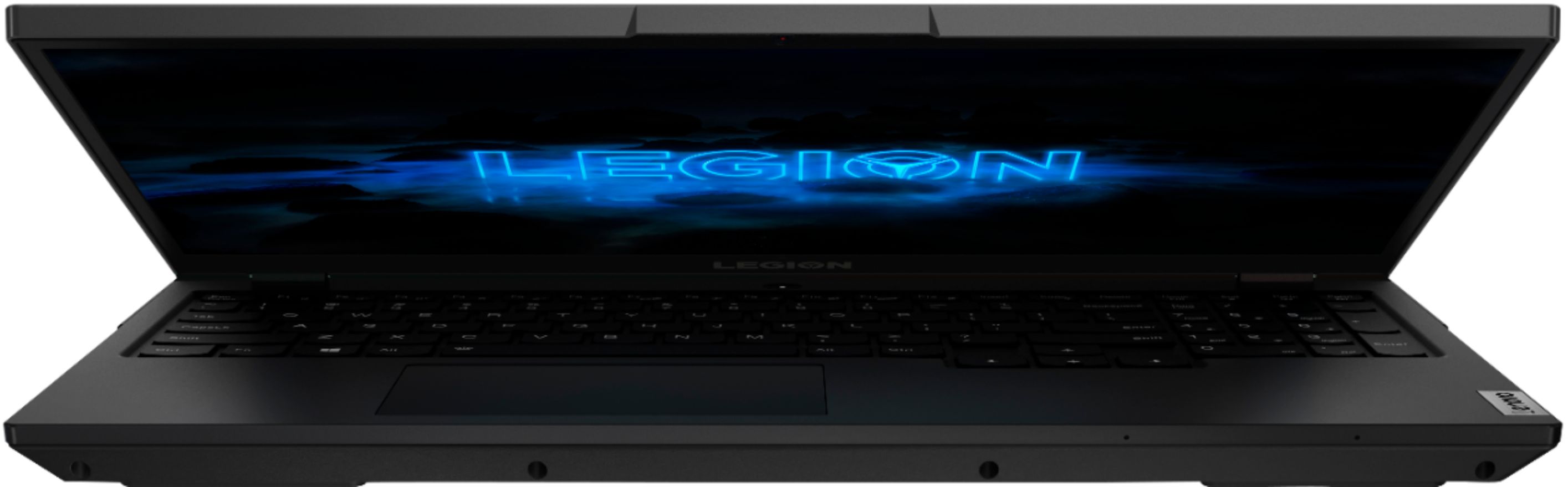
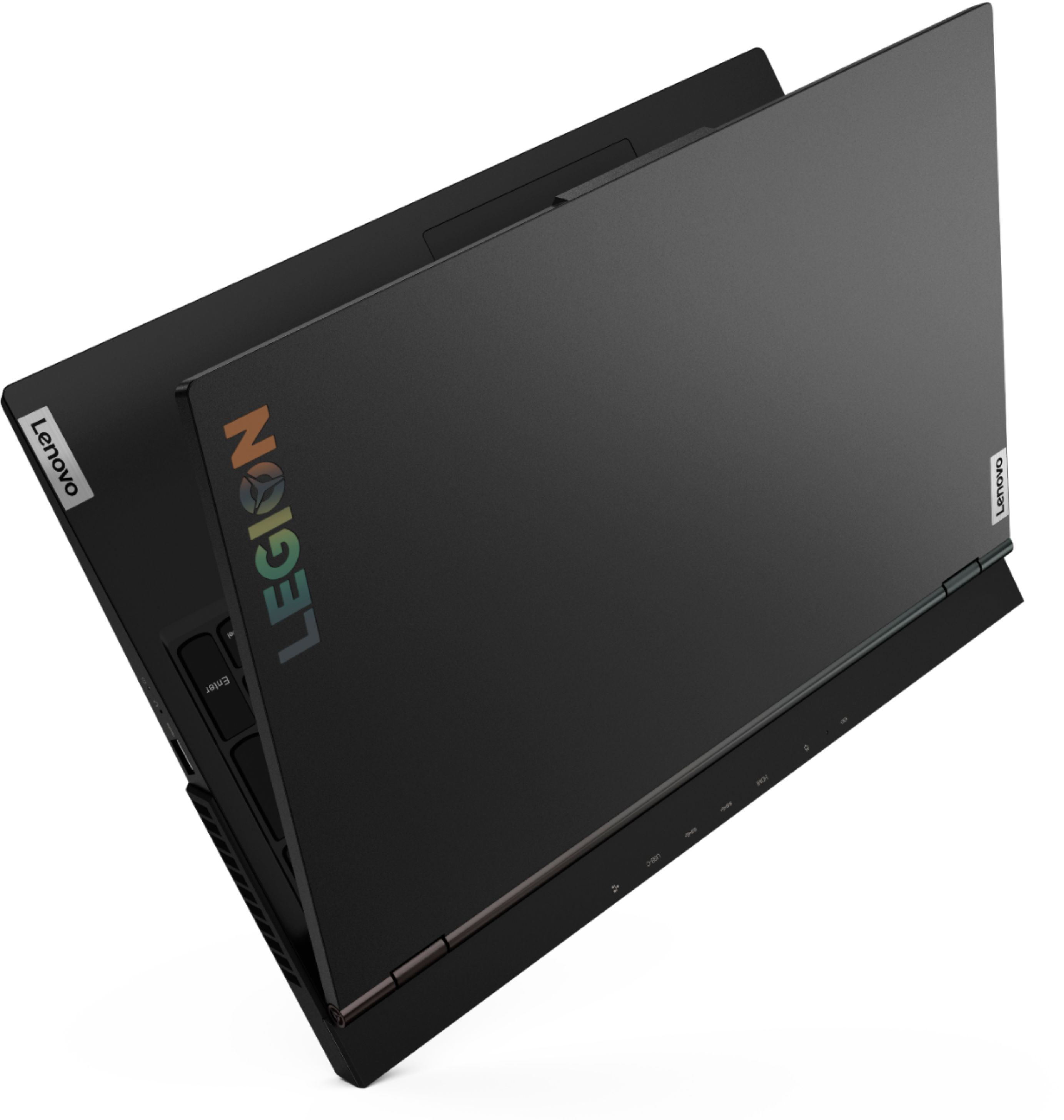
A:AnswerI have not tested Roblox on this system but I can say this, The laptop I upgraded from ran roblox with no problem. This system has 2 to 3 times the graphics power ( Yes it has a dedicated Nvidia GTX 1660Ti video card with 6GB DDR4)
I have ran many games that demand lots more power than roblox and can get 100+ FPS.
A:AnswerThe Lenovo Manufacturer's Warranty will only cover OEM hardware. 3rd party hardware will not be covered. You should check with your parts OEM for any warranty they may provide.
A:AnswerThat will depend on the requirements and compatibility of the GPU you want to use. We recommend you check with your GPU supplier for the compatibility and recommended requirements of the part you want to install, then compare those requirements and recommendations to this system's configuration.
A:AnswerBe sure any software you installed is compatible with Windows 10. There is no need to install Microsoft Office software. The software is already part of the operating system, you just need to activate the software with a purchased product key. If you have installed a copy of Microsoft Office, this is conflicting with the existing copy on the system and this will slow your system down. If you have installed a 3rd party anti-virus program, be sure that Windows Defender is turned off and that the trial version of McAfee Anti-Virus software is uninstalled. There can only be one anti-virus program on the system. You may need to restore your system to original factory default settings if any of the programming errors have occurred. You can do that by typing "restore" in the Cortana search window. Just click on the magnifying glass icon at the bottom left of your Windows 10 Desktop. Click on "Reset This PC" Then click on "Get Started" and follow the on screen directions to restore to factory defaults. If there is no incompatible software installed but the issues persist, check to be sure you have the latest version of Windows 10 on the computer. Then update all BIOS files and drivers up to that latest version of Windows 10. You can easily accomplish this by scanning the computer with the Lenovo Utility software available on this computer. This system has Lenovo utilities installed to help maintain the health of the device and keep the operating system software up to date. Type "Lenovo Vantage" in the Cortana Search window (if Lenovo Vantage is not installed on your device, you can download the APP and install it now). Select Lenovo Vantage from the list. In the window that opens, click on "Health and Support". In the expanded menu, select "Hardware Scan" In the window that opens, select "Run Quick Tests". This will scan your entire system for errors. Follow any directions that may pop up. If the problem continues after this scan, now click on "System Update". First select Windows update from the menu. Scan your system to be sure you have the latest version of Windows 10. Once that scan is complete, select "Additional Updates". This will scan your device to be sure there are no new BIOS/Driver updates needed. Follow any instructions that may pop up. If the issue still continues after these updates, we recommend you call Legion Ultimate Support for additional help at: 888-278-9707.
A:AnswerThe Lenovo Legion 5 15 Gaming Laptop, model number 81Y6000DUS, ships with a factory installed 512GB M.2 2280 PCIe 3.0x4 NVMe solid state hard drive, plus an Empty HDD Bay. The maximum storage support this configuration has is: HDD/SSD mode: up to two drives, 1x 2.5 inch HDD + 1x M.2 SSD. 2.5 inch HDD up to 2TB, plus M.2 2242 SSD up to 512GB, or M.2 2280 SSD up to 1TB. We recommend you consult with your certified technician about your storage upgrade options.
A:AnswerThe Lenovo Legion 5 15 Gaming Laptop model number 81Y6000DUS, ships with a 512GB solid state hard drive - M.2 2280 PCIe 3.0x4 NVMe + Empty HDD Bay. The maximum supported storage space within this configuration is: HDD/SSD mode: up to two drives, 1x HDD + 1x M.2 SSD - 2.5 inch HDD up to 2TB plus M.2 2280 SSD up to 1TB or M.2 2242 SSD up to 512GB. We recommend you consult your certified technician about your storage upgrade options.
A:AnswerThe Lenovo Legion 5 15 Gaming Laptop, model number 81Y6000DUS, ships with a 512GB M.2 2280 PCIe 3.0x4 NVMe solid state hard drive + Empty HDD Bay. The maximum supported storage space this configuration can support is: HDD/SSD mode: up to two drives, 1x HDD + 1x M.2 SSD
• 2.5 inch HDD up to 2TB plus M.2 2280 SSD up to 1TB or M.2 2242 SSD up to 512GB
A:AnswerThe Lenovo Legion 5 15 Gaming Laptop, model number 81Y6000DUS, ships with 1x 8GB SO-DIMM DDR4-2933MHz RAM. There are two DDR4 SO-DIMM slots, dual-channel capable. The maximum supported RAM memory is: Up to 32GB DDR4-2933MHz.
A:AnswerThe Lenovo Legion 5 15 Gaming Laptop, model number 81Y6000DUS, ships with a 512GB M.2 2280 PCIe 3.0x4 NVMe solid state hard drive + Empty HDD Bay. The maximum storage support for this configuration is: HDD/SSD mode: up to two drives, 1x HDD + 1x M.2 SSD - • 2.5 inch HDD up to 2TB plus • M.2 2280 SSD up to 1TB or • M.2 2242 SSD up to 512GB
A:AnswerThat really will depend on the requirements and compatibility of the specific game you want to play. We recommend you check with the specific game's software publisher's web site for their compatibility with Windows 10 Home 64-bit operating system and the minimum/recommended hardware requirements (Is a Graphics card required, the processor speed and the minimum required system RAM and the minimum available hard drive space) to run their program, then compare those requirements to this system's configuration.