A:AnswerIt does not come with a rechargeable battery, it uses only an AA battery, I think it would not be worth it, being that with an alkaline battery its durability is great, more than 6 months.
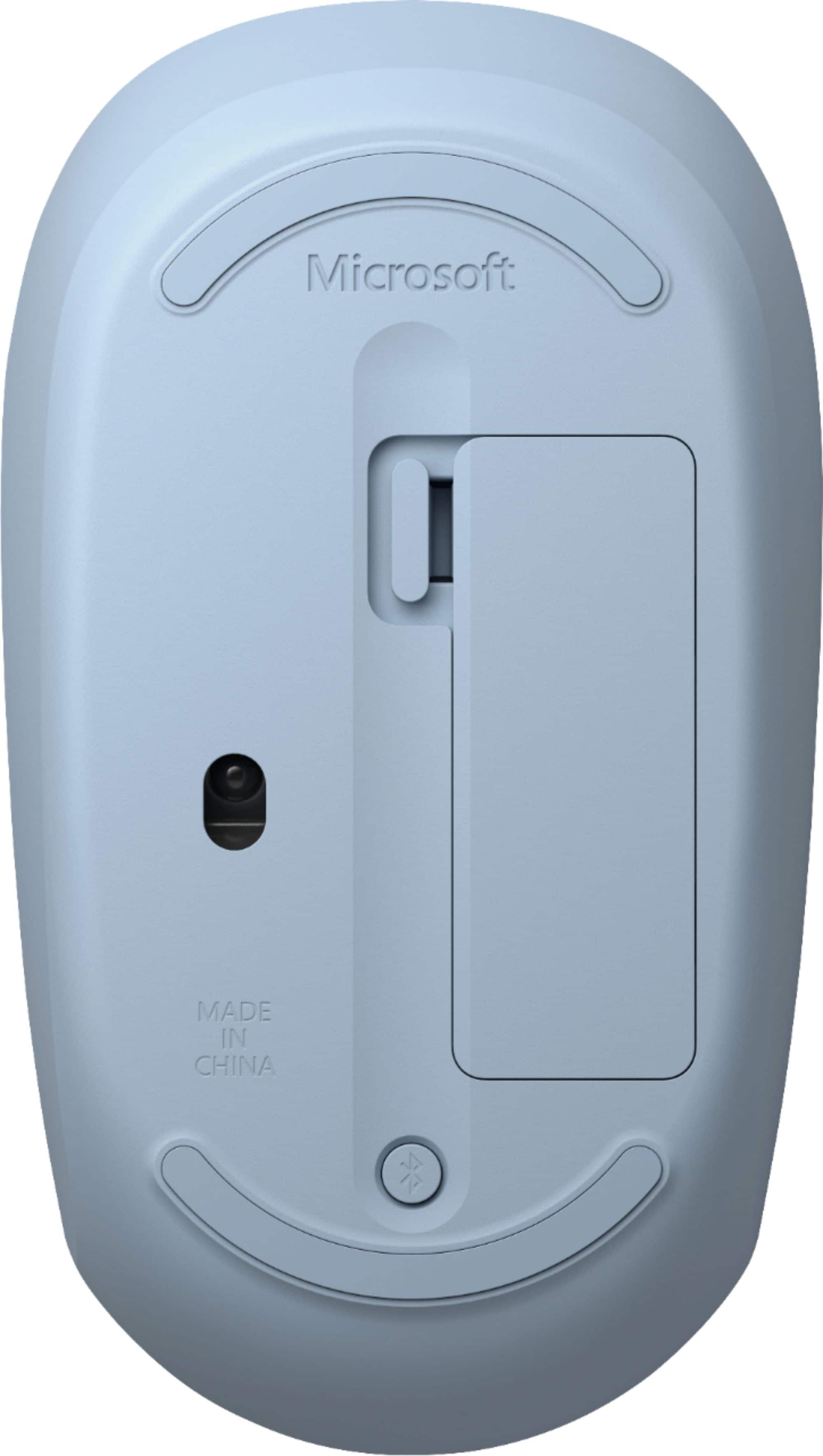
A:AnswerYes. Just put the mouse in pairing mode by holding down the little button on the bottom of the mouse until the light blinks. Then on the iPad go to settings, then Bluetooth, and make sure it’s on and allowing new connections, then select the mouse when it pops up under devices.
A:AnswerI have a Macbook Pro, and you can tell from my review, I truly regret buying this mouse. My bluetooth does work, but the mouse will not open documents, folders, etc on a double click. Also, it has a very loud clicking noise. Good luck.
A:AnswerWhile the mouse may work with your device, it is specifically designed to work with the following system requirements:
"Microsoft Windows 10/8.1 and Bluetooth 4.0 or higher support"
A:AnswerYes this mouse will work once you have your Bluetooth activated. It is very nice to use and I would recommend anyone wanting to get a wireless mouse to get it and the price isn’t bad.
A:AnswerFind a basic mouse at five below, click your bluetooth button.... connect to mouse.... return cheap mouse to five below.... enjoy your new life with the mouse that automatically connects from now on