A:AnswerEach Google Nest Wifi router/point is capable of handling up to 100 connected devices. As long as the Wi-Fi signal from your modem is strong and reliable, you shouldn't have any issues.
If both your Google Nest Wifi mesh system and your traditional Wi-Fi router are on the same Wi-Fi network, you may experience a Double NAT which is a case of both your routers broadcasting their own private networks. It can negatively impact the connectivity of your devices and we recommend putting the traditional router in Bridge mode by disabling its Wi-Fi function. You can find out more about Bridge mode and Double NAT here: https://support.google.com/wifi/answer/6240987
A:AnswerYou can easily set up Nest Wifi in minutes and manage it in the Google Home app alongside your other connected devices. You can check this link for the requirements and the setup process: https://support.google.com/wifi/answer/9548301
You can check the following support link to see an estimate of how many Google Nest Wifi units you would need to cover both your house and barn: https://support.google.com/wifi/answer/7182840
Regarding wiring, you need to wire one Nest Wifi router to the WAN port of your modem to set it up as the primary router. You can then connect additional Nest Wifi routers or points wirelessly to extend the coverage. You can also place a Nest Wifi router in the barn wired to the primary router with an Ethernet cable if you choose to. You can't use your current router and extender in a Wi-Fi mesh with Nest Wifi or Google Wifi units. If you still want to utilise them, you can use as a switch by turning off the Wi-Fi functionality.
A:AnswerNest Wifi router replaces your current router, and connects directly to your modem with an Ethernet cable. If you intend to keep your router in the Wi-Fi network, you may run into a double NAT (Network Address Translation) as both your current router and Nest Wifi router will be broadcasting their own private networks with identical SSID and password. We recommend disabling the Wi-Fi functionality of your current router to avoid this issue or remove it from the network. You can find more info here: https://support.google.com/googlenest/answer/6277579
A:AnswerGoogle Nest Wifi router can support up to 2 x 867Mbps on 5GHz thanks to its 4x4 radio, while 2.4GHz can go up to 433Mbps. Please keep in mind that Wi-Fi speed you receive on your connected devices generally depends on your network plan and reception on your modem.
A:AnswerNest WiFi works with most ISPs including Xfinity/Comcast. Google Nest Wifi router can help distribute the full speed it receives from your modem with its faster processor, and its 4x4 radio can help cover larger areas. Moreover, you have an option to prioritize a device (e.g Xbox, laptop) with the Priority Device feature that gives a device of your choosing the fastest connection on your Wi-Fi network. This means less buffering and better download speeds. You can find more info here: https://support.google.com/wifi/answer/6246483
If your modem is a modem/router combo, we recommend disabling its Wi-Fi functionality to avoid a Double NAT that may cause issues while gaming online.
A:AnswerYes, Google Nest WiFi mesh system is compatible with your router, but it is recommended to connect Nest WiFi router directly to your modem's WAN port as your primary router to establish your Wi-Fi mesh network. If you connect Nest WiFi router to your Century Link router, then both routers will broadcast their own private networks. This is called Double NAT and it will likely cause connectivity issues when port forwarding and gaming.
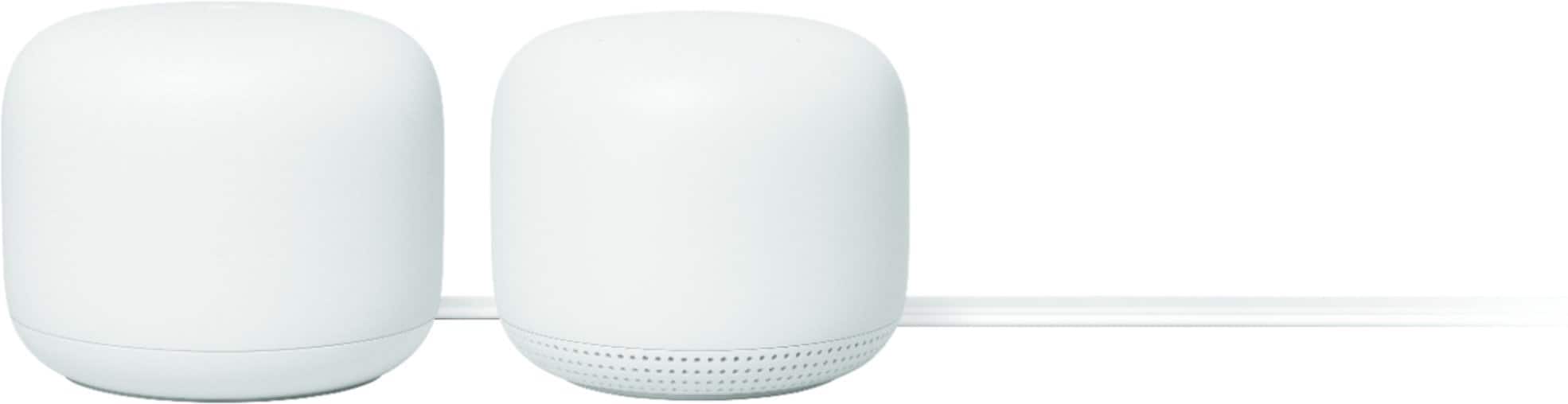
A:AnswerIt is a mesh with one WiFi point. HOWEVER...be very aware these are a little different than the original google WiFi in that the single WiFi point DOES NOT have any 1394 (eithernet) jacks on it. The original google WiFi ones did. This was a disappointment for me. However... to answer your question , when you get these, there is one that hooks up to your cable modem with one either port jack to be used by whatever you need to hook up to it...maybe like a computer. The second u it or WiFi point, will be set up somewhere in another location. This is what creates the mesh. Except for the above mentioned issue, they work great.
A:AnswerYes, you can connect Nest WiFi router directly to your modem via the WAN port to broadcast internet throughout your home. Nest WiFi mesh system can help cover a larger area with its 4x4 radio and ease the network traffic with its faster processor.
You can set it up yourself by following the step-by-step instructions here: https://support.google.com/wifi/answer/9548301 and if you need further assistance, you can reach out to us via the "contact us" button on top right corner of the same page.
A:AnswerYes, you can integrate another Nest WiFi 2-Pack (router & point) to expand your current mesh Wi-Fi system. You can connect the new Nest WiFi router as a downstream to the primary router either wireless or with an Ethernet cable to avoid a possible Double NAT. You can then add the additional Nest WiFi point to the mesh system. The new additions will help you expand your coverage by up to 3,800 sq.ft. depending on your setup.
A:AnswerYes, Google Nest WiFi can work with your modem/router combo. You can put your combo in bridge mode or disable its Wi-Fi functionality in order to set up Nest WiFi as your primary router and create a mesh Wi-Fi system throughout your home.
A:AnswerGoogle Nest WiFi router has 2 Ethernet ports (LAN and WAN) while the point doesn't have any Ethernet port. You can hardwire one device to the LAN port of the router.