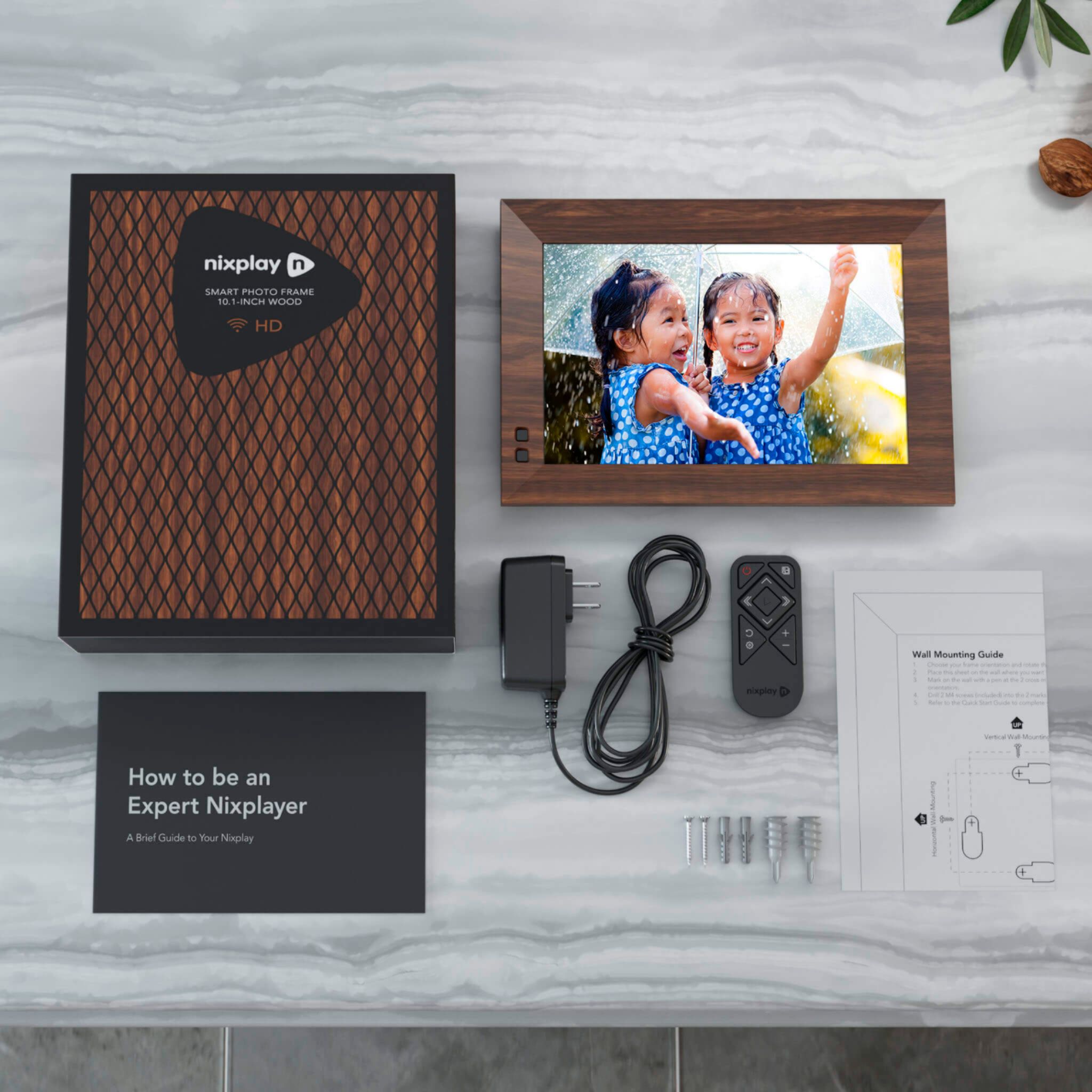
A:AnswerThe nixplay frames works with WiFi. If you create a WiFi hotspot via using a 5G device such as your phone or tablet, the Nixplay frame would be able to connect to it.
A:AnswerThe following formats are supported by Nixplay Frames:
Photo formats:
You can upload photos in JPEG, PNG, and TIFF file formats.
Using iOS devices, you can also upload photos in HEIC format. However, these photos will be transcoded to JPEG before they are uploaded to Nixplay Cloud.
HEIC format is currently not supported in Android devices. We are working on supporting this in the near future.
Video formats:
In general, MP4 file format encoded using H264 or H265 is supported. Other device models may also support MOV video file format.
Videos are transcoded up to 720p, 30 FPS and Mpeg4 video Codec before they are uploaded to Nixplay Cloud.
The recommended video format for newer devices (less than 5 years) are as follows:
Format: MP4
Codecs: H264, H265 [HEVC, AVC1, HVC1]
Minimum resolution: 128 x 128
Maximum resolution: HD 1080p
Aspect ratios: 16:9
Frame rate: 30 FPS
Maximum bitrate: 20 Mbps
Note: Slow-Mo videos not supported
Live Photos are converted to static photos
A:AnswerAll Nixplay frames have an 8 GB storage on the frame itself. In addition, all Nixplay users get 10 GB of free Nixplay Cloud Storage. Users can chose to join the Nixplay Plus annual or quarterly membership to get additional storage of 50 GB plus access to additional benefits such as up to 80% discount on Nixplay Prints, up to 1 min video playback etc.
A:AnswerThe Nixplay frame does not display the date and time of photo. However, the Nixplay frame can display a clock showing the current date and time. The Nixplay frame can also display captions that you add to the photos. If you add date and time in captions when you upload the photo, the Nixplay frame will display it.
A:AnswerYes, all Nixplay frames come with a built in speaker so you can hear the audio of the videos. The volume can be controlled via the remote control or the Nixplay mobile app.
A:AnswerYes. There's an option to have the photos do a slideshow chronologically and also an option to slideshow randomly. You can also set the duration of how long each photo stays on before they change to the next one.
A:AnswerThe number of photos depends on the size of the photo. The Nixplay Frame has an internal memory of 8GB that allows that frame to play photos/videos even if the frame gets disconnected from wi-fi. All Nixplay users also have a 10GB cloud storage where additional content from the user can be stored. Once connected to Wi-Fi, the new content will be continuously pushed from the Nixplay Cloud to the Nixplay Frame. Users can subscribe to be a Nixplay Plus members to get 50GB of Nixplay Cloud storage in addition to other benefits such as extended warranty, print discounts and longer videos.
A:AnswerThanks so much for your question. No if you setup a NIxplay cloud account you get 10GB of storage. We do have a premIum service available in Nixplay Plus that increases the storage from 10GB to 50GB as well as some other value added features.
A:AnswerThanks so much for your question. In the Nixplay Cloud, you get 10GB of storage as part of the Standard Account. At any given time, the frame itself can play and hold up to 8GB of content on the frame. Depending on the quality and resolution of your photos, this means several thousand.
A:AnswerHello,
No. No music.
Nixplay does make a frame that allows you to play music (as you are indicating) called the "Nixplay Seed Wave" (and is much more expensive than the frames that Best Buy sells) - but Best Buy does not sell this type of frame.
Best Buy only sells Nixplay Frames that display pictures (photos).
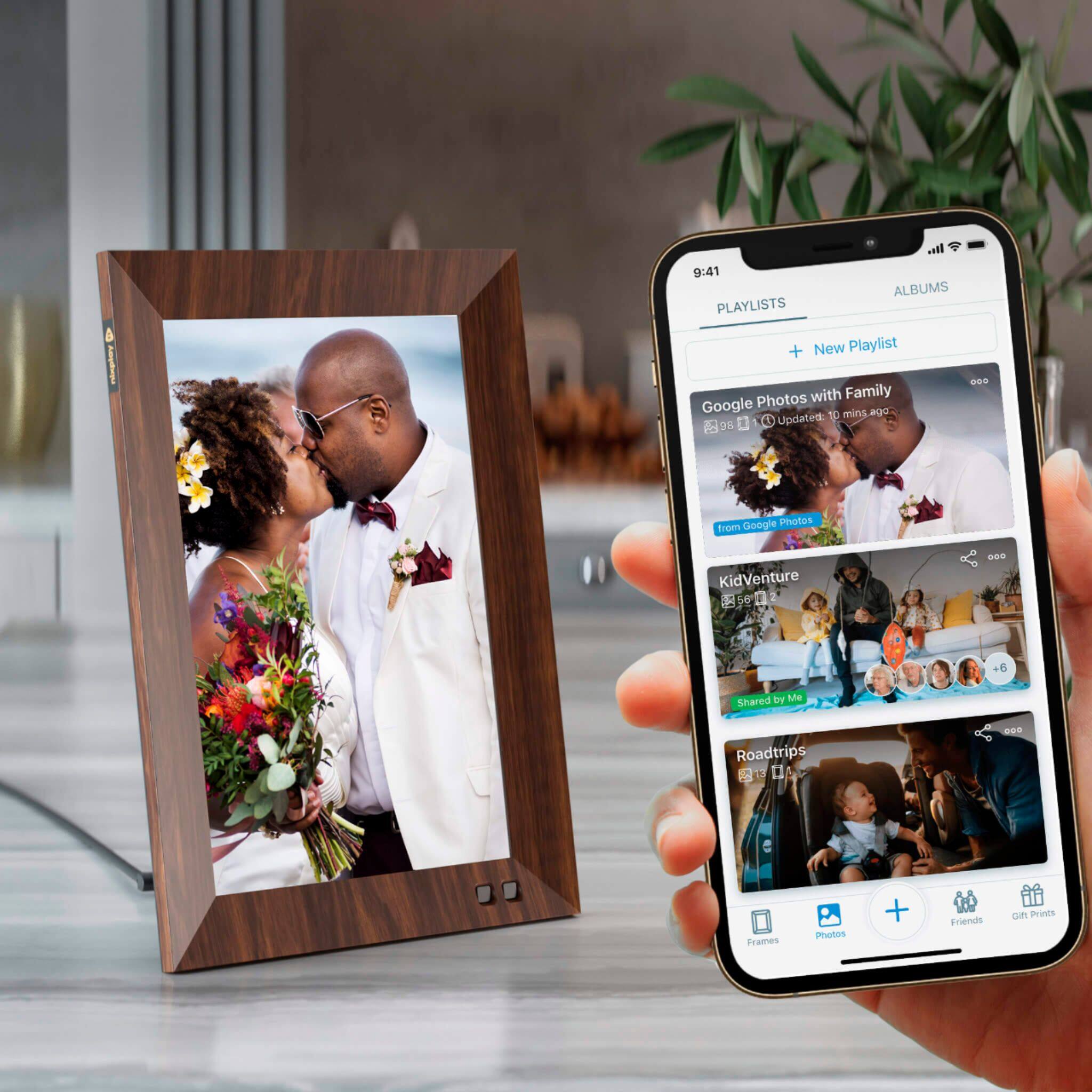
A:AnswerYou can go to the settings of your Nixplay frame using the Nixplay remote control or the Nixplay Mobile app. From there you can select different playback modes to show all photos or the latest photos and you can also chose the shuffle photos option. Please note that for photos and videos to show up on your Nixplay frame, they need to be added to the playlist assigned to your frame. Kindly also make sure your frame is connected to WiFi so the new content is synced. Feel free to reach out to support@nixplay.com if you need more help.
A:AnswerYour Mom should most likely have WiFi. If you like, contact Nixplay Customer Support and we will gladly discuss directly with you. We can even help with the setup process, no problem.
A:AnswerThis should not be the case. Please reach out to reach out to our customer service team at support@nixplay.com or all us at +1 (855) 649 7529 between 9am to 5PM Central time. Our friendly and experienced customer service team will assist you with this.
A:AnswerYou can adjust the settings of the Nixplay frame to show pictures in fit to screen or fill the screen etc. With Nixplay Plus membership, users have access to full video and photo editing suite that allows them to adjust the size of their photos in the Nixplay cloud. Non-Nixplay Plus users can adjust the picture from their phone or computer and reupload it to the Nixplay cloud.
A:AnswerOnce you hover over the photo, you'll see a menu (3 horizontal lines) appear in the top right corner of the photo. Click on this menu and hit the rotate icon until your photo appears in the orientation of your choice.
For more details, please click this link: https://support.nixplay.com/hc/en-us/articles/360021423971-What-orientation-or-rotation-settings-are-available-on-Nixplay-frames-#:~:text=Once%20you%20hover%20over%20the,the%20orientation%20of%20your%20choice.