A:AnswerYes. My husband's last two phones were Motorola and he connected with no problem. Now he is on a Samsung and had no issues syncing it to that either.
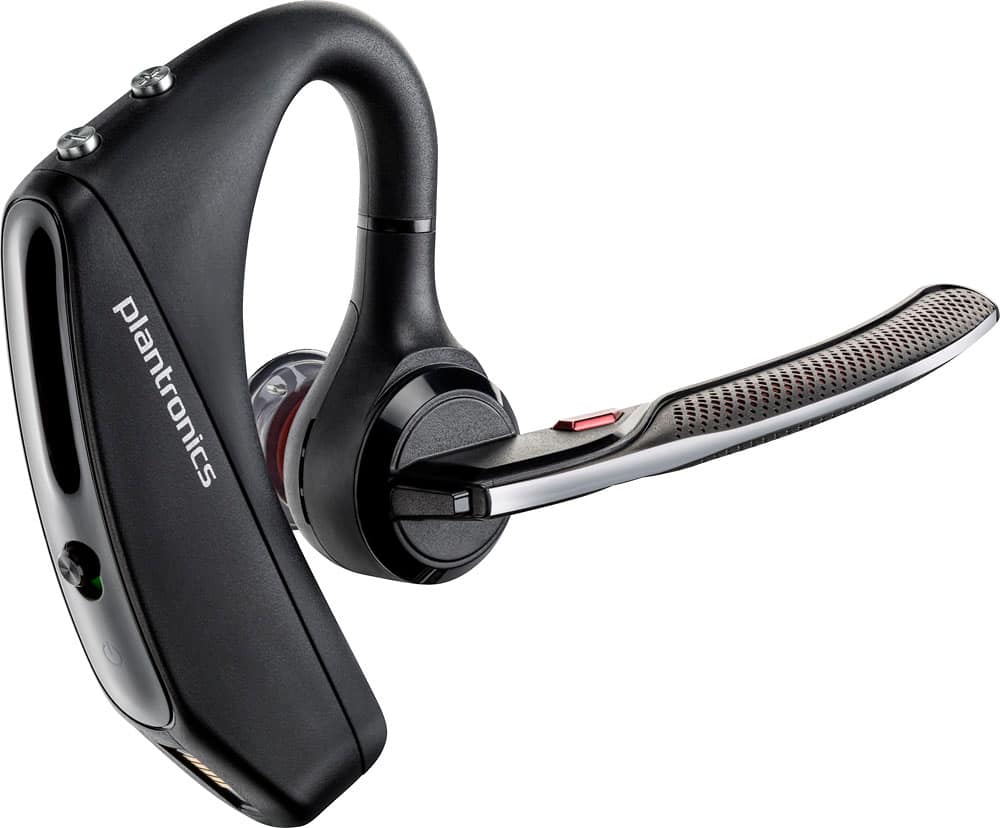
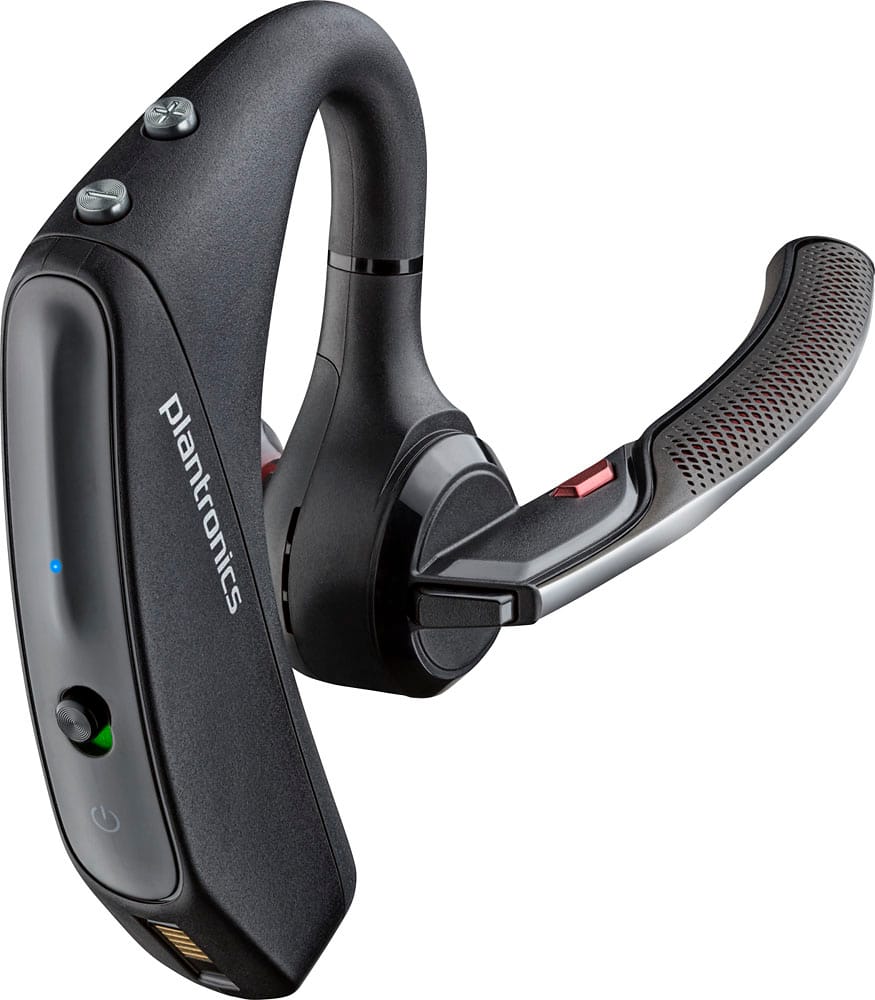
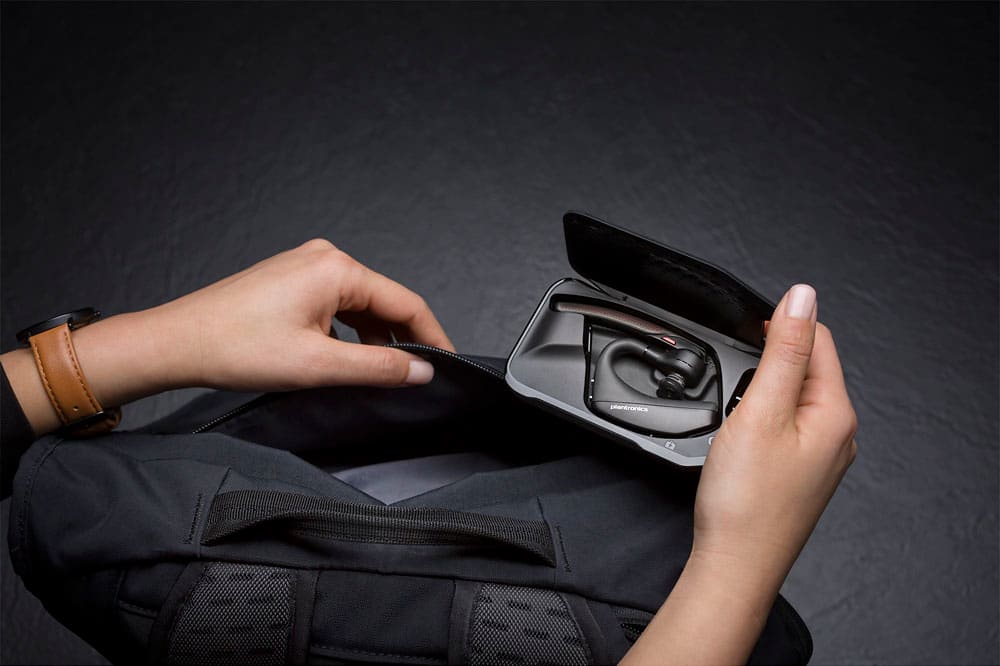
A:AnswerIt has a Micro USB port on the bottom of the part that goes behind your ear. There is a tiny rubber plug that hides the charging port. You no longer have to use the proprietary Plantronics connector to charge the device.
A:Answermake bluetooth ON on laptop. Press the call button for sometime and you will hear a pairing sound. Then the headset will be shown for pairing on laptop.
A:AnswerHi Speeder, I have this headset and it's wireless. Your phone just needs to have blue tooth capability. I love this headset. I have to wear it over 8 hours a day and it's very comfortable and the sound is perfect.
A:AnswerIf your computer support Bluetooth then you need to purchase no additional Hardware. Just make sure that you set your PC to use the Bluetooth headset as its Sound Source for Skype.
A:AnswerOn the previous 5220 (5200) there is a button on the mic arm that is used to mute during a conversation. I use it frequently during the ever popular ZOOM meeting if it is not my turn to talk. Unfortunately the replacement 5220 i ordered is defective and the button does not work.
The red button in the attached photo shows the mute button
A:AnswerHi! Yes. According to our Compatibility Guide it seems to be that the Voyager 5200 is compatible with your desk phone. You will need to first put the headset in pairing mode so the desk phone can detect it. To do so: 1) Press and hold down the call control button until you hear "pairing". 2) Access to your phone Bluetooth settings and wait for "PLT_V5200" to come up and select it. 3) Once successfully paired you will hear "pairing successful". Please don't hesitate to contact our Customer Care Team at https://www.plantronics.com/us/en/support/contact if you require assistance.
A:AnswerHello, in order to pair, please try the following: 1) Turn on the headset. 2) Press and hold the call button for 7 seconds, let go when the LED flashes red/blue. 3) Scan with your phone. 4) Tap on the headset's name on your screen. The headset should now be connected. If you have any other questions, please don't hesitate to contact Plantronics Customer Care at 855-765-7878.
A:AnswerHello! Your phone seems to support Class I Bluetooth, in this case, the range would be up to 98 feet. However, this will depend on several factors like: Interference, the case you have on the phone, line of sight, etc.
A:AnswerThey are not sweat proof!!! absolutely not! I warranty one every eight months thank God for geek squad before that I was buying one every eight months. Where are the charge port goes in always gets crusty and it works its way inside
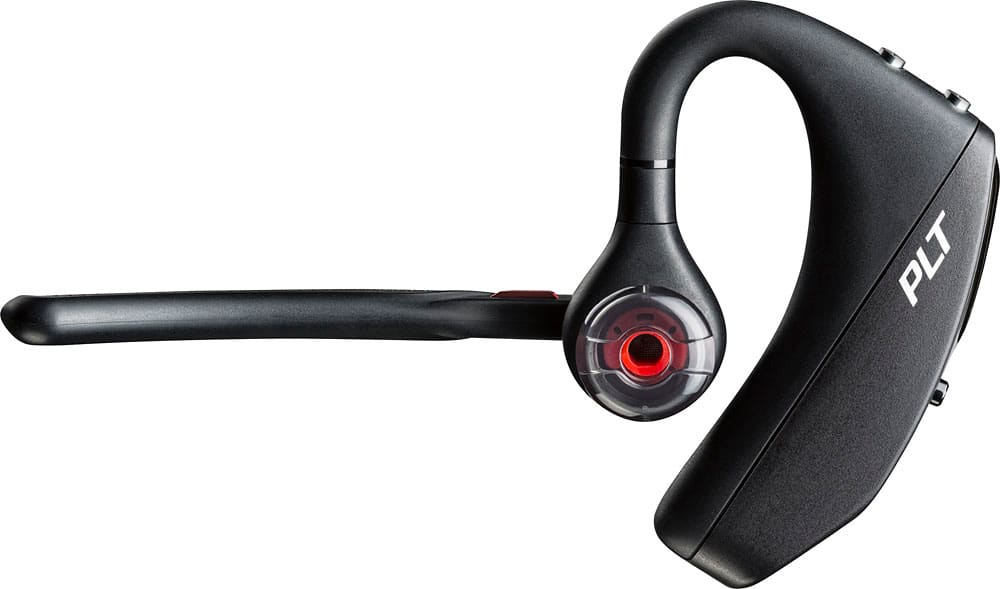
A:AnswerThis headset is amazingly versatile. I forgot to mention this in my rating, but the earpiece and microphone are designed for simple rotation that allows you to use it in either ear.
A:AnswerThe headset by itself is unable to use internet or cellular data, but you can initiate a call or send/read a message if your phone's voice assistant supports those features.
You would have to contact your phone's manufacturer to ask if the phone allows a Bluetooth headset to perform the functions you require, if it does then you can do so by holding this headset's mute button to call your phone's voice assistant and perform the requested command.
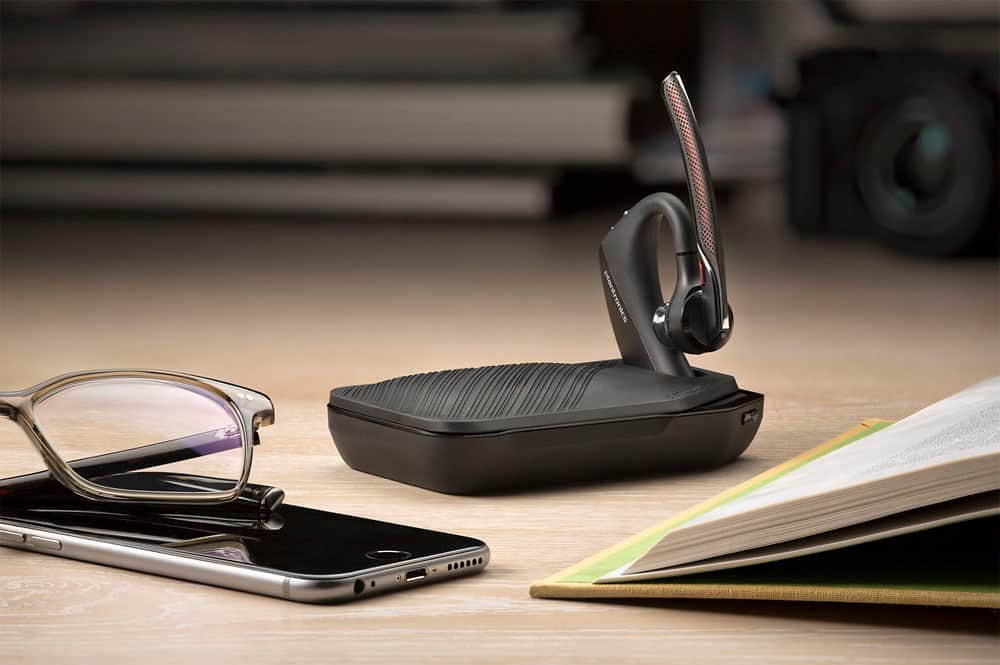
The iPhone 6S and 6S Plus do support Bluetooth headsets and our Voyager series are compatible.