A:AnswerHi HB,
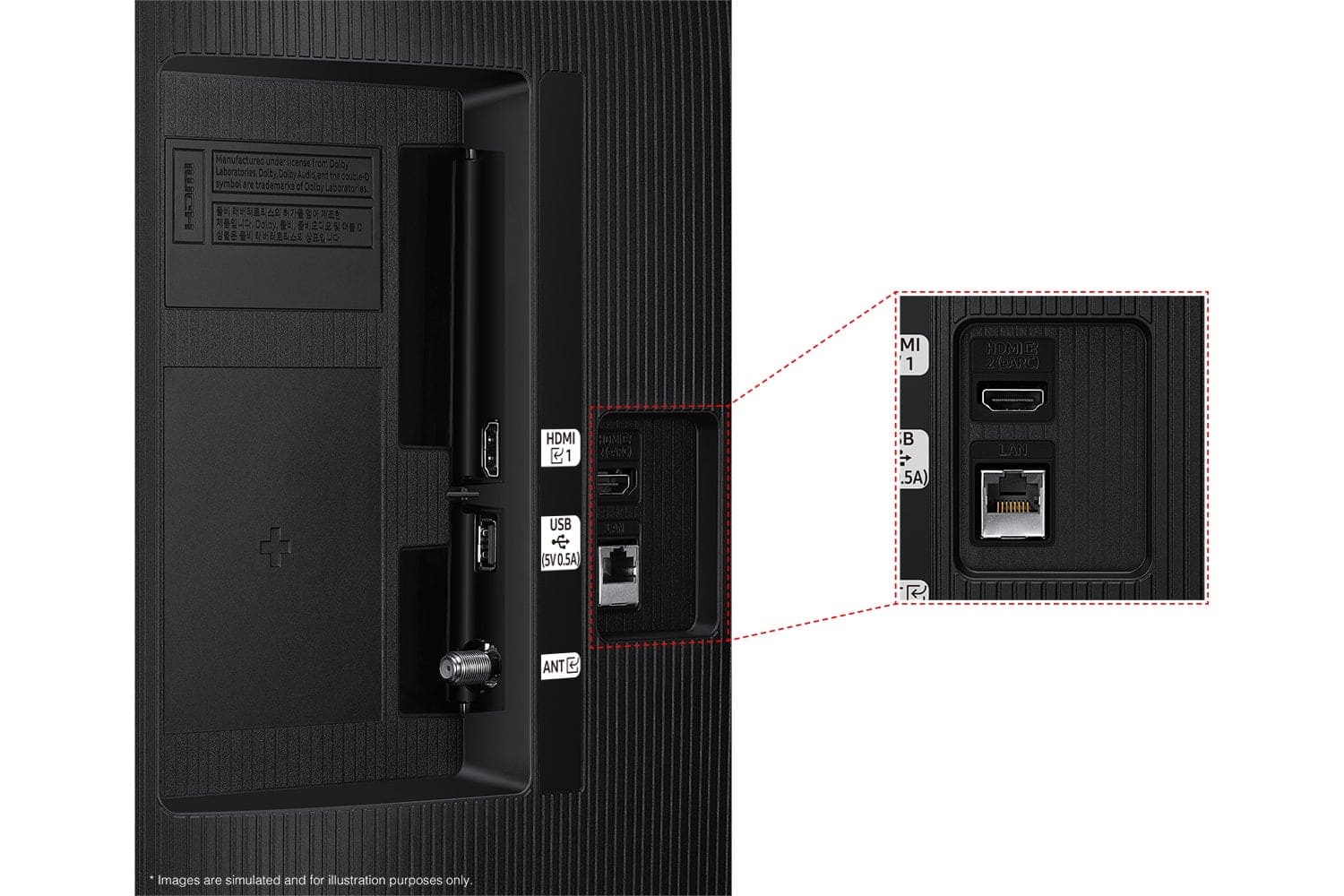
Yes, you can connect to a DVD Player via HDMI. Otherwise you'll need to utilize an RCA to HDMI converter like this item found at Best Buy: https://www.bestbuy.com/site/insignia-rca-to-hdmi-converter-black/6134312.p?skuId=6134312
~Samsung Advisor
A:AnswerHI JMD,
This will all depend on the type of content you are attempting to play. Please refer to the user manual: https://downloadcenter.samsung.com/content/UM/202503/20250330041751001/BN81-25561A-800_EUG_ROPATSCD_NA_ENG-US_250305.0.pdf
~Samsung Advisor
A:AnswerYes, but 4 hours is the shortest time. I don't recall the other sleep timer settings, only that 4 was the first one. I wish it had a 1 hour setting or the option to set your own. From what I could tell, it doesn’t.
A:AnswerHi Bobby,
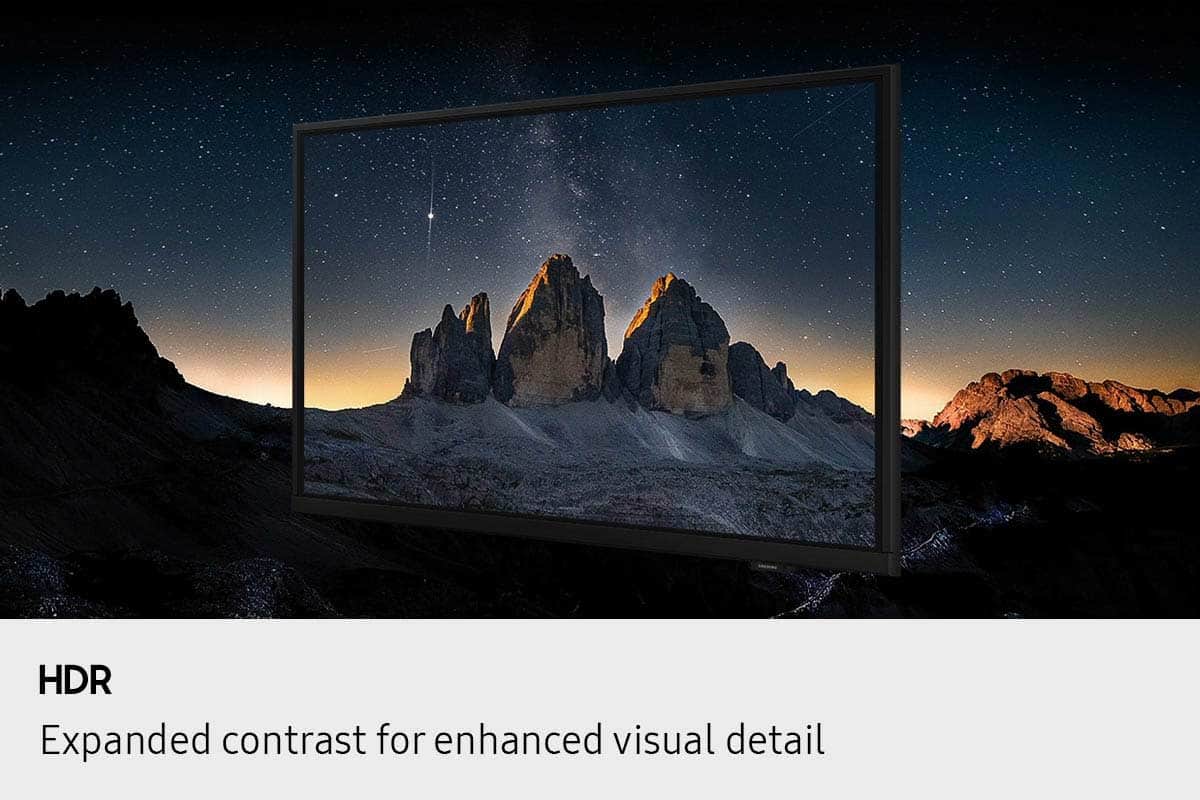
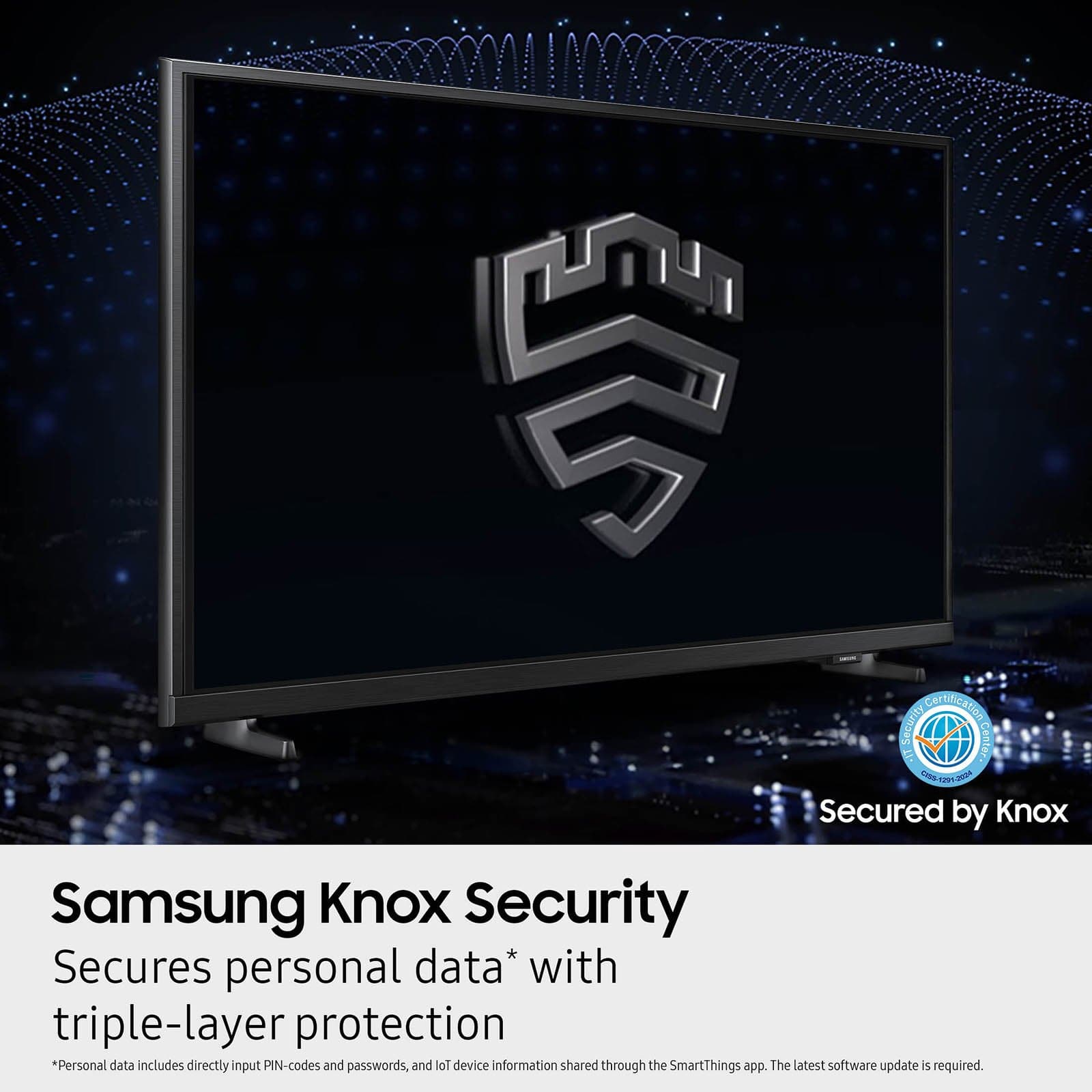
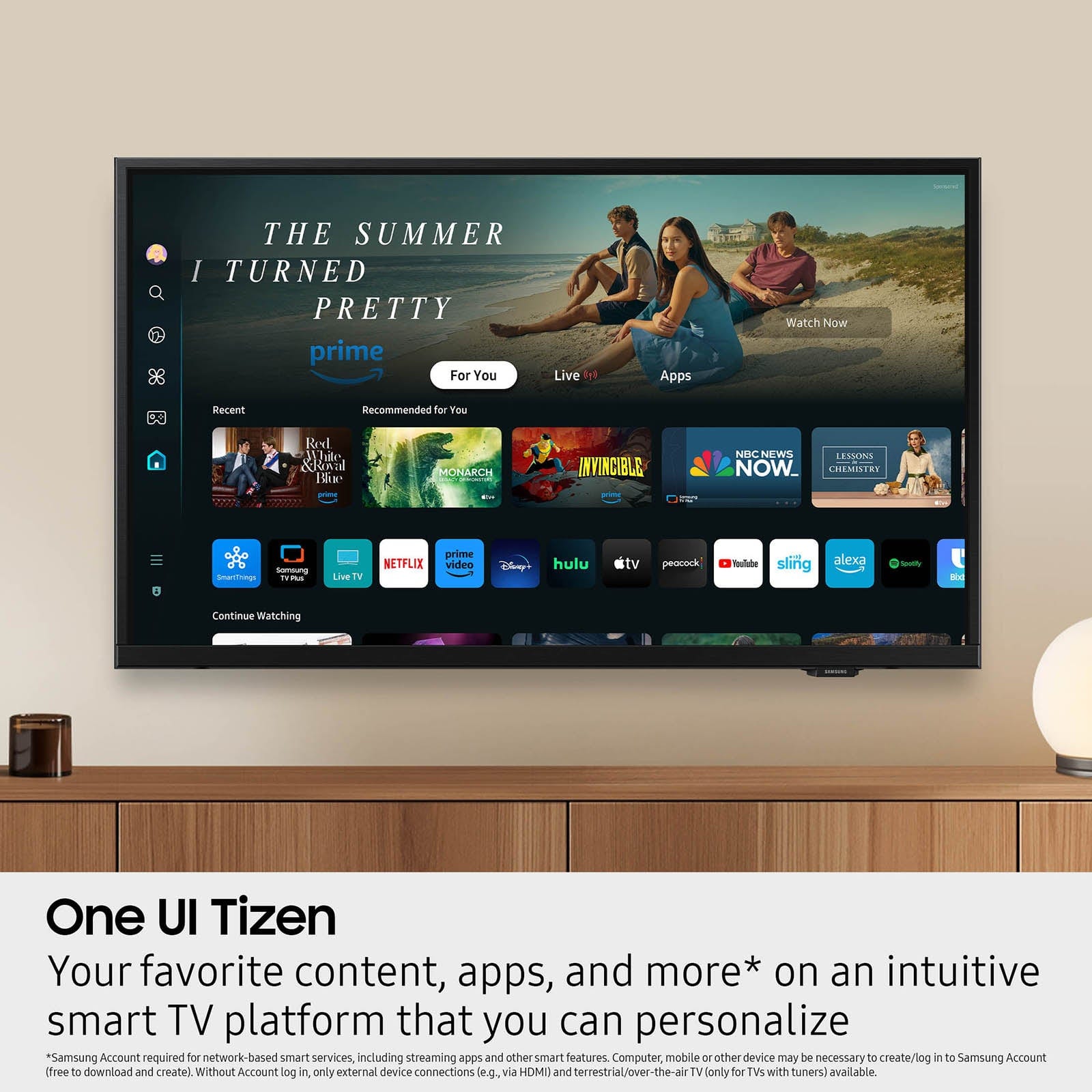
Stepping up from the Samsung H5000F to the Samsung F6000F gives you a sharper Full HD picture, richer sound, and more smart features. Both TVs include Samsung’s One UI Tizen smart platform with popular apps and Samsung TV Plus, but the F6000F adds Bluetooth connectivity, Sound Mirroring, and Samsung Knox Security for extra convenience and peace of mind. Picture quality also gets a boost with Full HD resolution and HDR10+ support for clearer images with better contrast.
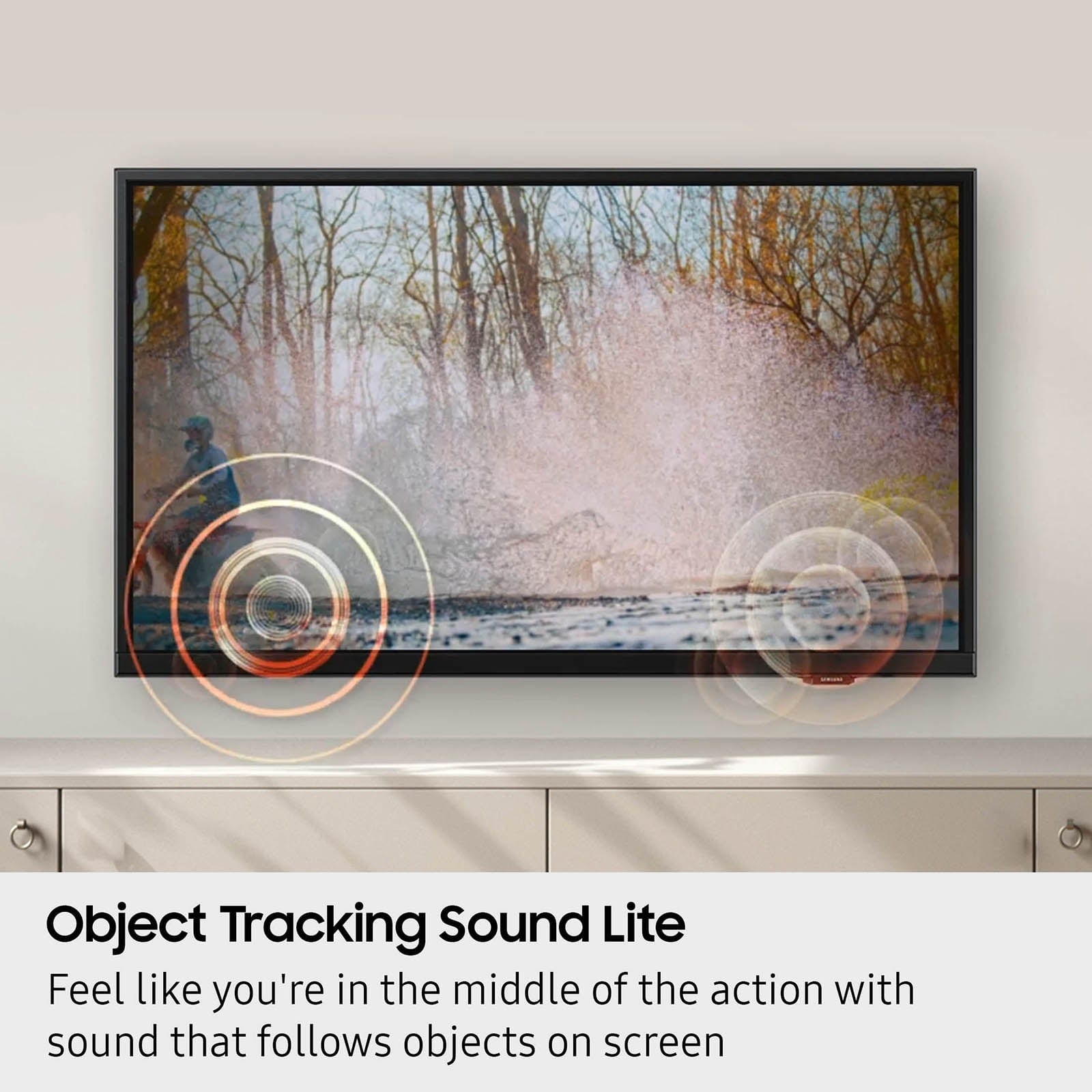
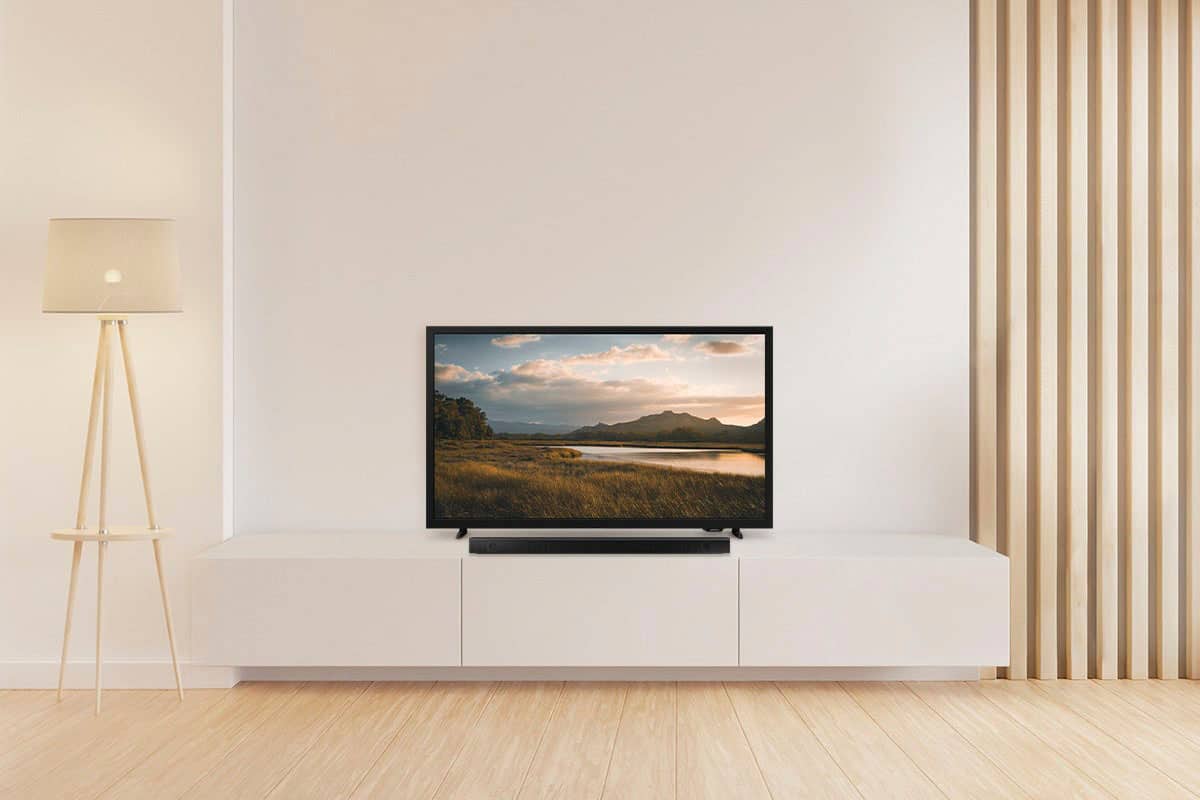
Audio steps up with more powerful speakers and Q-Symphony compatibility to pair seamlessly with Samsung soundbars. Plus, the F6000F’s sleek 3 Bezel-less Design gives it a more premium, modern appearance.
~ Samsung Advisor
A:AnswerHi 12pak,
The Spectrum app is available for download via the built-in app store. To find and install apps please use the below instructions.
1. From the Home screen, press left on the remote’s directional pad.
2. Navigate to and select Search.
3. Using the search bar, enter the content or app you’d like to find.
4. Navigate to and select the app you’d like to install, then select Install.
~Samsung Advisor