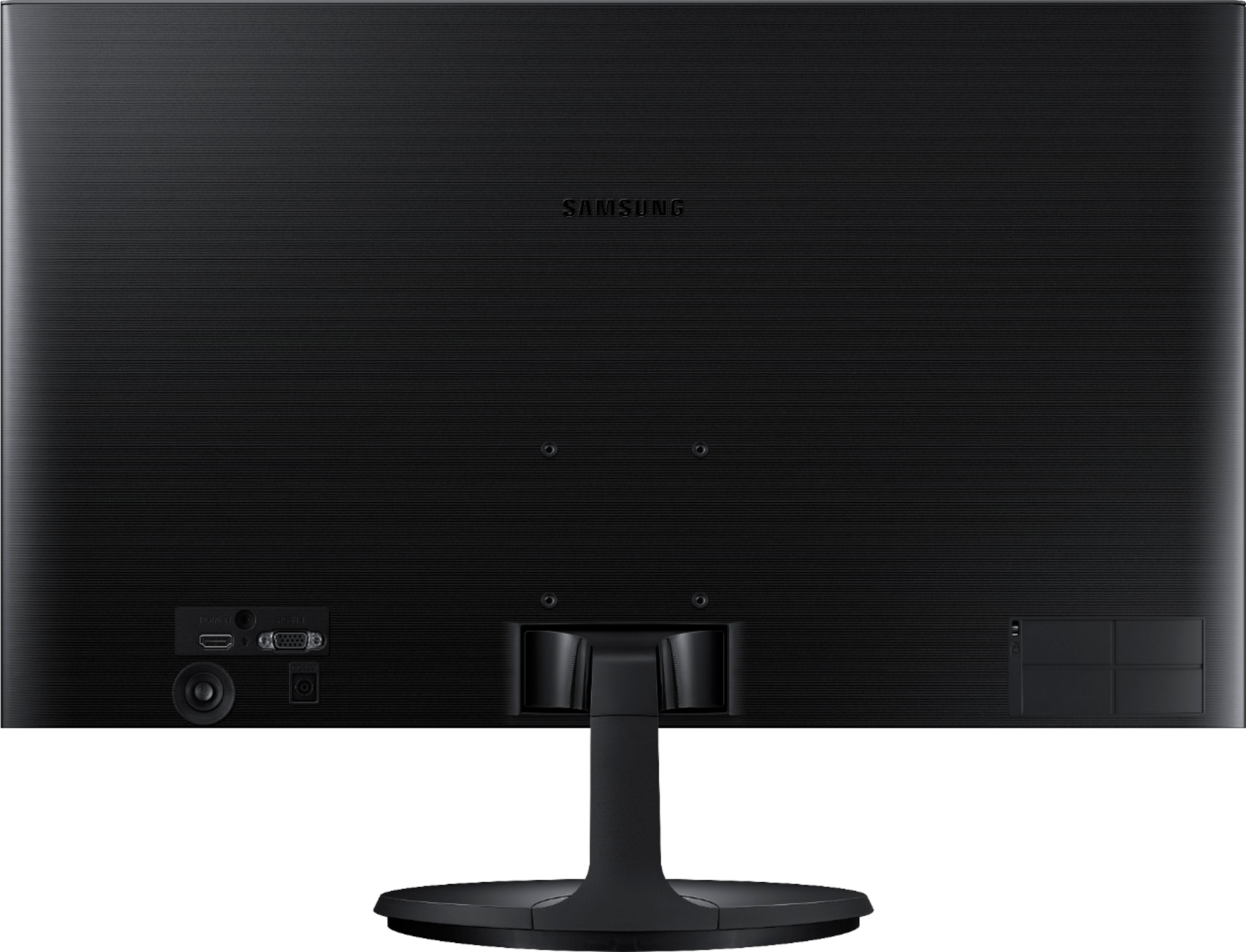
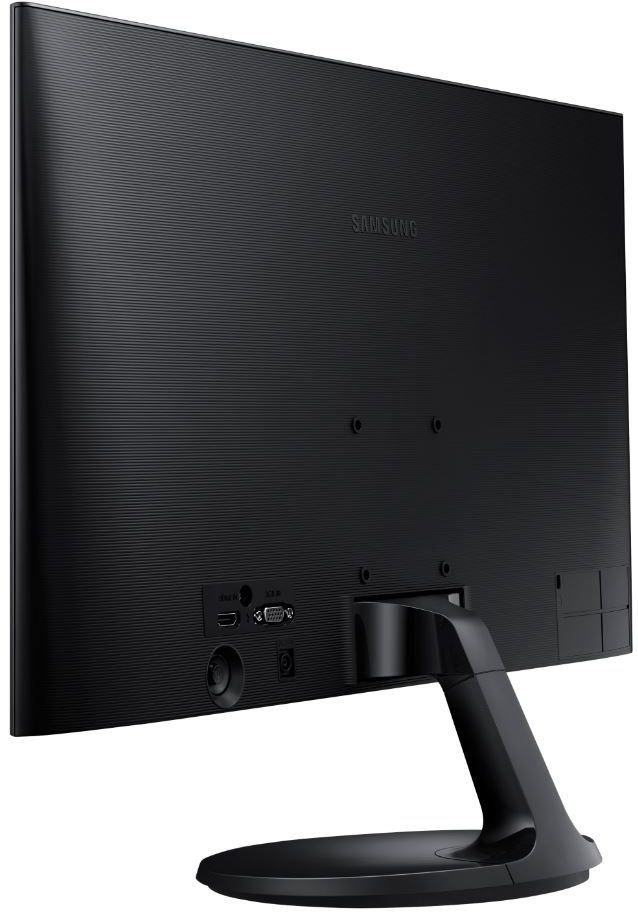
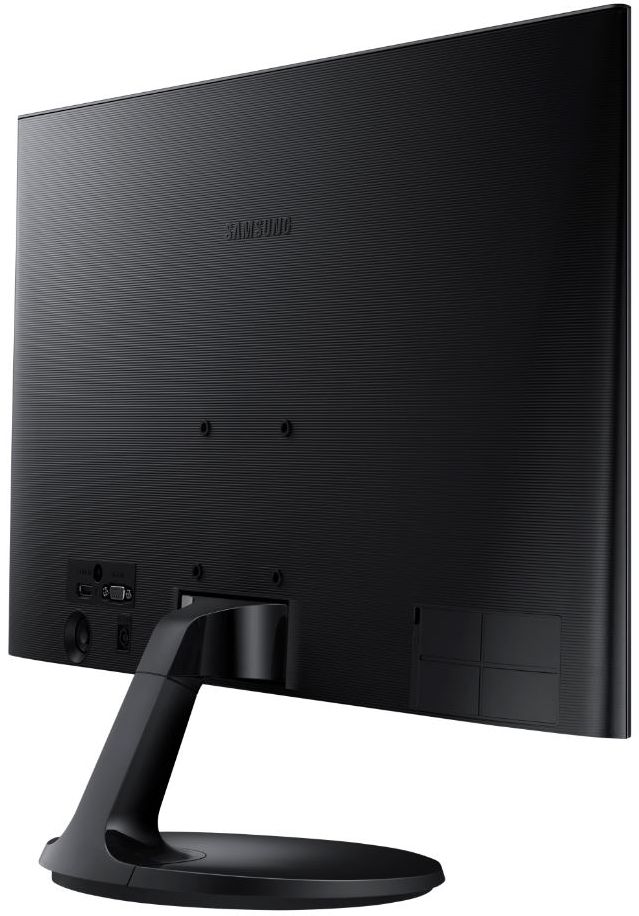
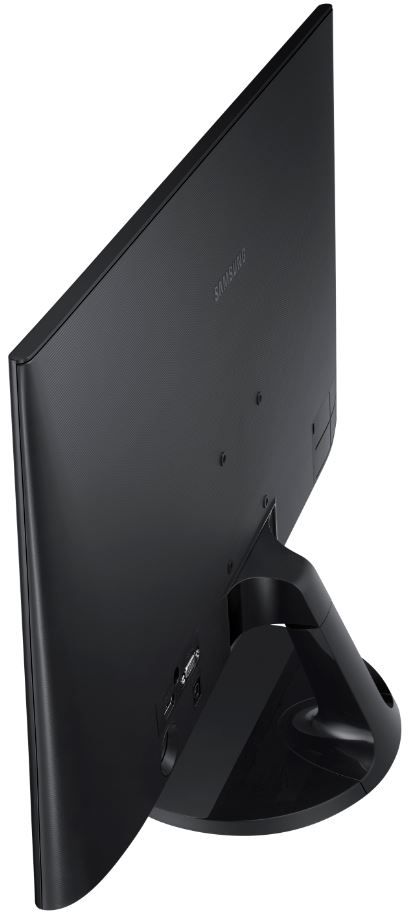
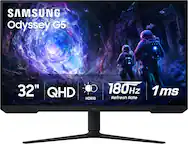
A:AnswerYou should be able to just push the power button on the back, and that will open up a small settings menu, from there you just use the power button almost as a joystick and go into the settings section and find brightness.
A:AnswerI have the same setup and I just bought the HDMI cable that the webpage suggested.......like $6 and it works great...The Lenova and this monitor are really good together.
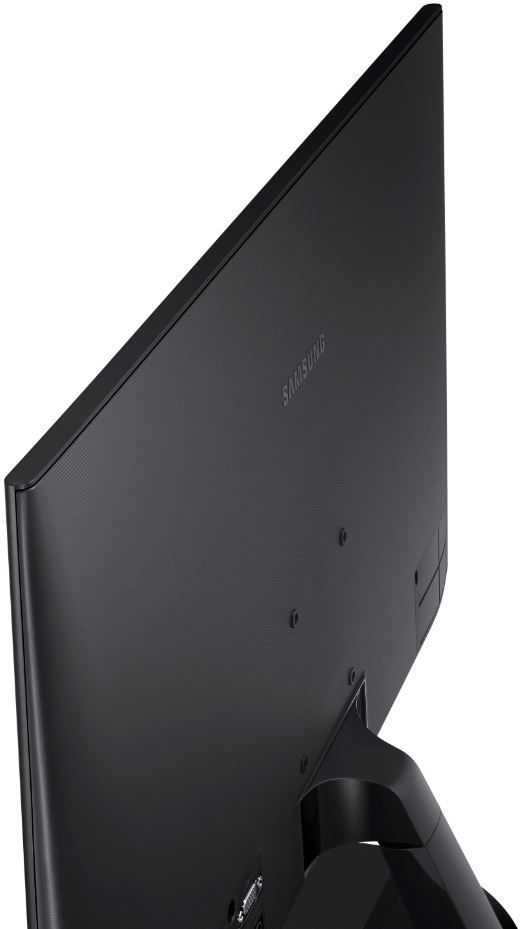
A:AnswerYes, but only with 75mm VESA mounts. If you have a mounting bracket that is 100mm/75mm (where there are 8 holes drilled in the bracket instead of just 4) then it won't fit due to space constraints between the bottom 75mm mount holes of the monitor and the monitor's non-removable stand-mount. Even if you have a 75mm dedicated mounting bracket, if the flange beyond the bottom 75mm hole is too large, it could bump into the stand-mount.
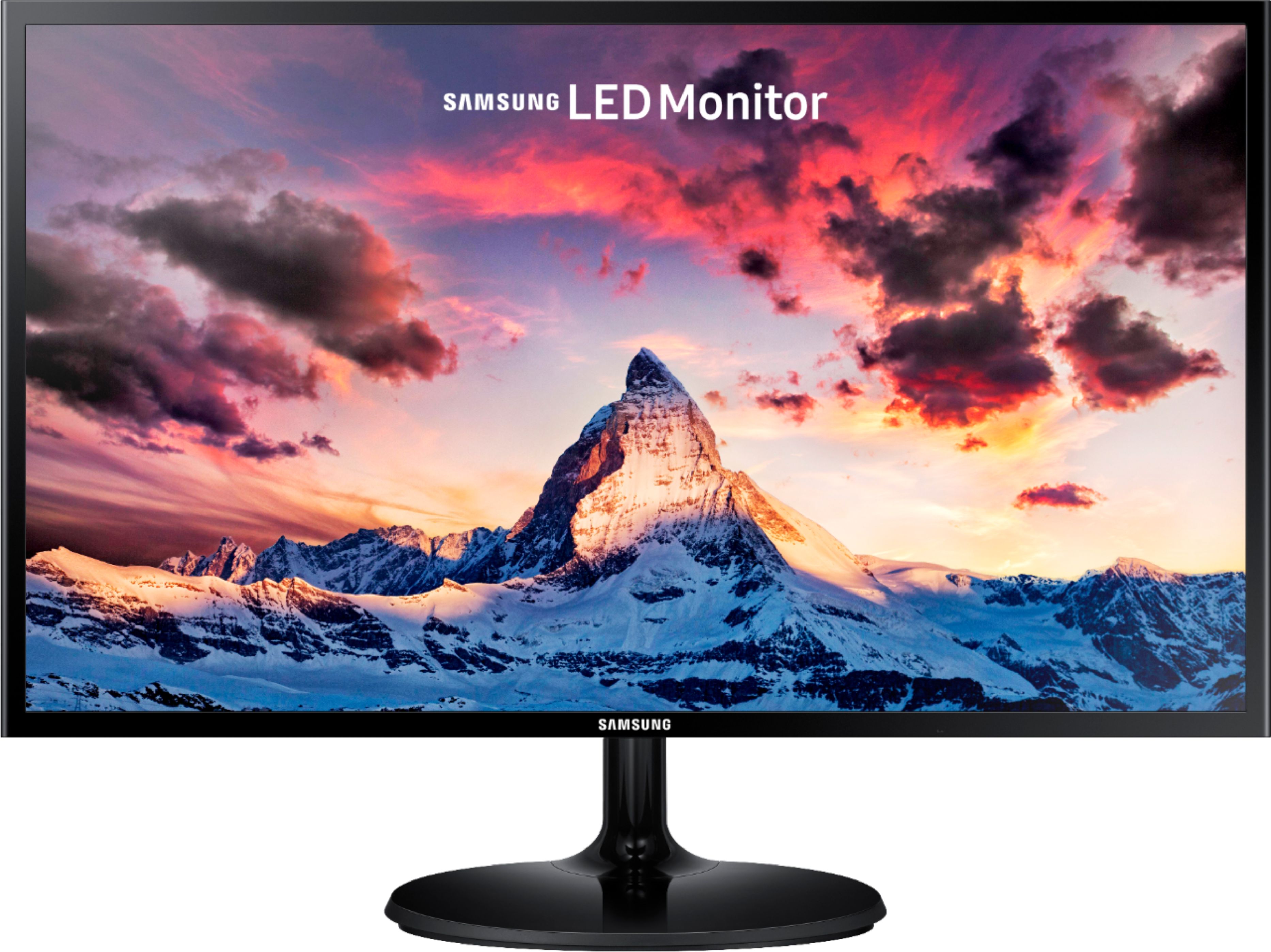
A:AnswerHi, I have recently bought this monitor and tried several Displayport to HDMI cables and it will not work. Finally, I found the full specs on the Samsung website and it says that no, this display does not support displayport interface (link below)
https://displaysolutions.samsung.com/monitor/detail/1046/S24F350
A:Answerdepending what your computer graphics card is, HDMI will give you the best picture as long as what screens you purchased & that it does have HDMI's port. it Should if these are newer screens. I just replaced at least 5 -8 year old HP screen & it had one. If you screen also has speakers, HDMI can also take sound to the speakers too. Also be sure to get the newer HDMI. It should be at least a 2.0, or 2.0a HDMI cord....Good Luck
A:AnswerMy experience has been that it is likely Windows and not the monitor. Every Windows update throws something off that was previously working fine. If your Windows has not updated recently, check to see if it needs to. Either way, it can still create (usually) temporary problems.