A:AnswerYes. It should work with any USB audio device (including newer vehicles that have such a feature.) I have a Jambox MINI and it plays audio fine from this device.
A:AnswerThe spec section states 2000 songs but will vary depending on format, and size of files. The reason I went with this model is that it has expandable memory and I was able to add a 64 gig Micro SD Card, That is 8 times more memory that it comes with.
A:AnswerIt's a little tricky, but...
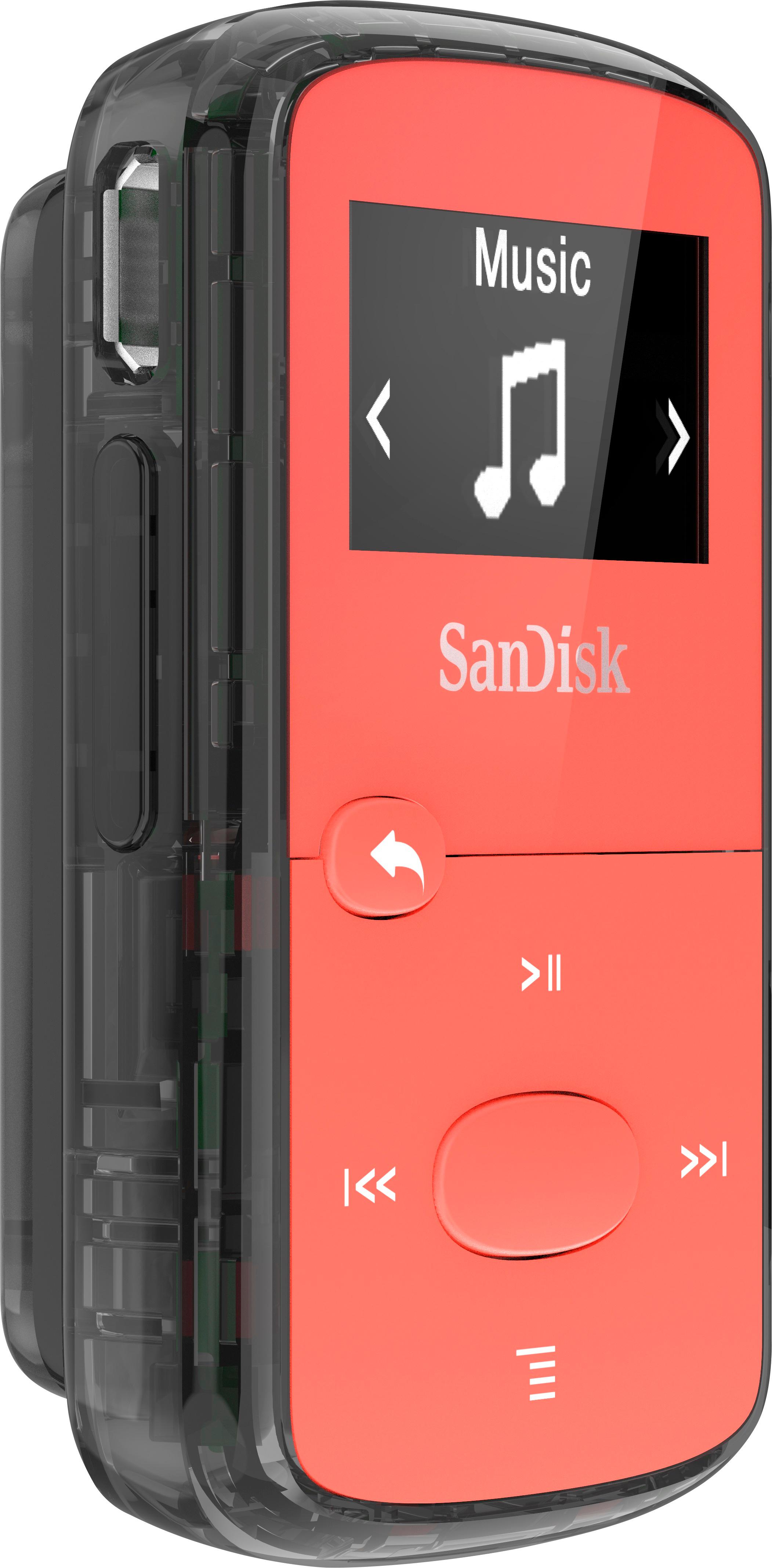
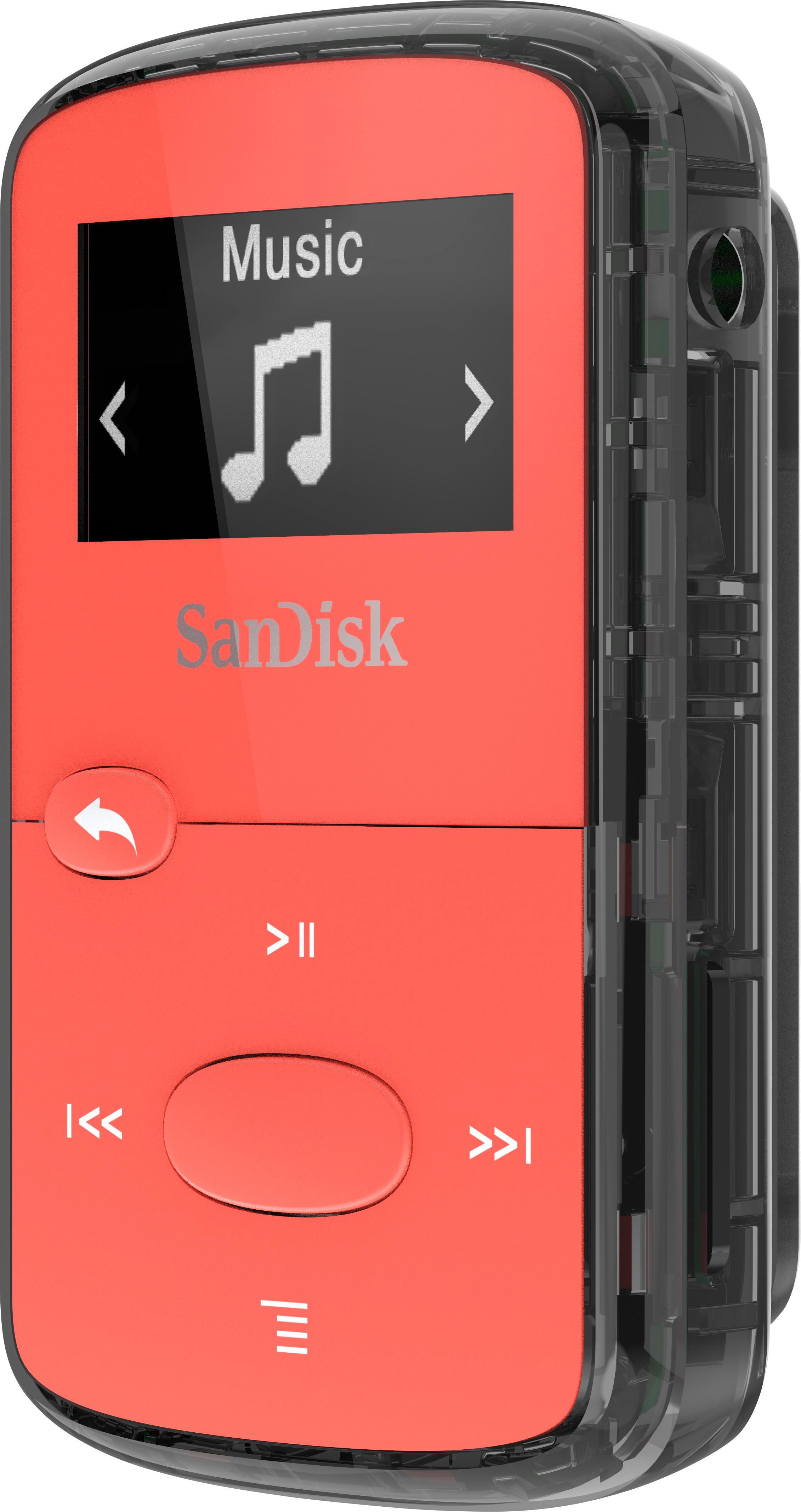
1. Scan thru using the "left or right" buttons. Click on the large button when "Music" is on the screen. This locks in the Music category. Press the the "left / right" buttons for other options. Whatever option (topic) you're looking for, click the larger button. Again, this locks in that category.
Also, the backward arrow button sends you to the previous screen.
2. Scan thru (up and down buttons) and find "Artist" or "Unknown Artists" if you downloaded your own music.
3. Or, see 1. above (lock in Music), scan thru and click "Shuffle" to "on" for random or "off" for sequential playing.
4. There were no directions, so learned by trial-and-error. Just keep clicking / scanning on the pull-down menus.
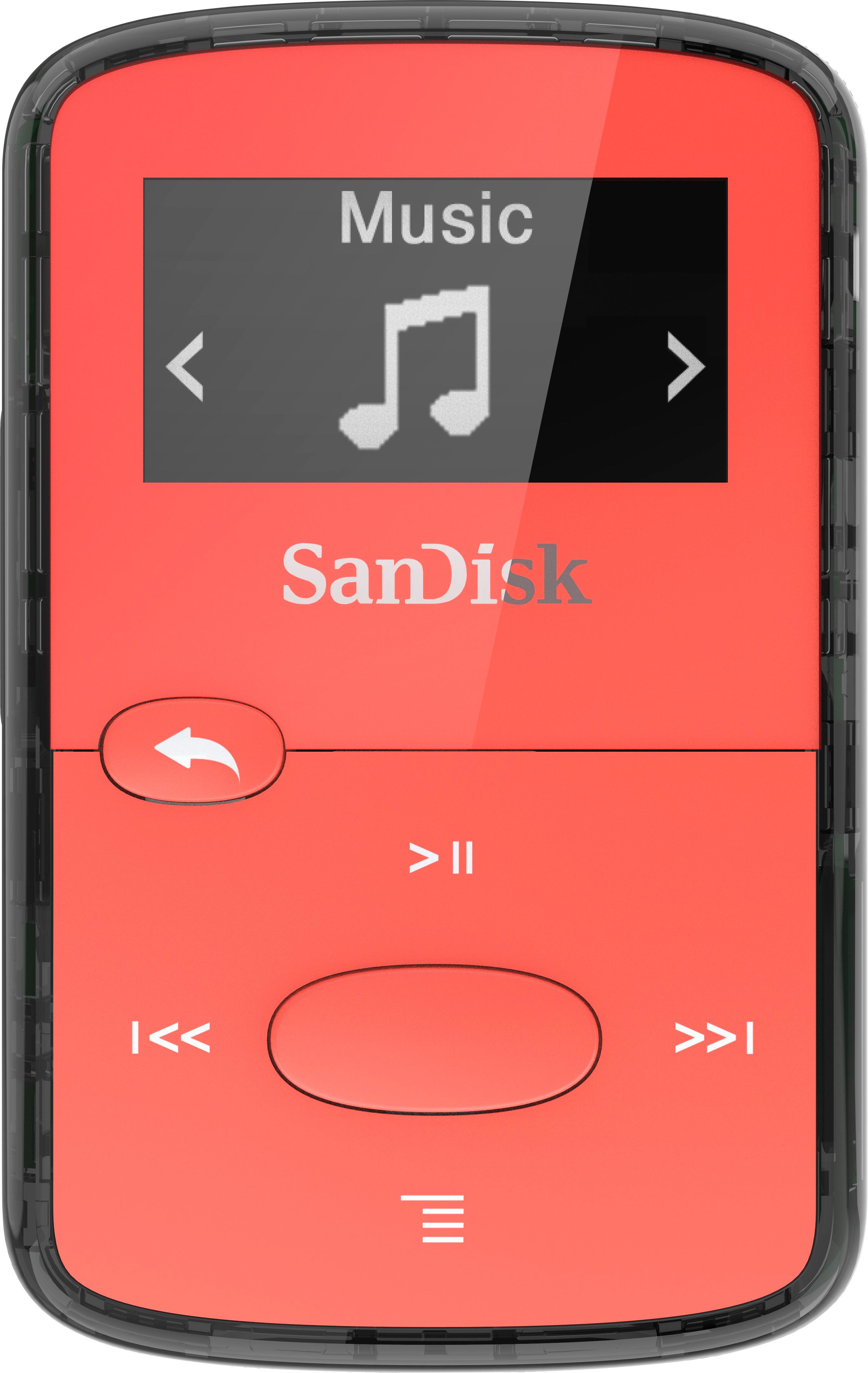
A:AnswerIf you number mp3's in a folder on a device or computer, and put them in a separate folder on the Clip Jam (you can create folders on it just like on a remote drive), it will play them in order automatically.
A:AnswerYes, you just need to download the music from your itunes account (click the cloud with the arrow in it) then it's as simple as dragging and dropping it onto the mp3 player.