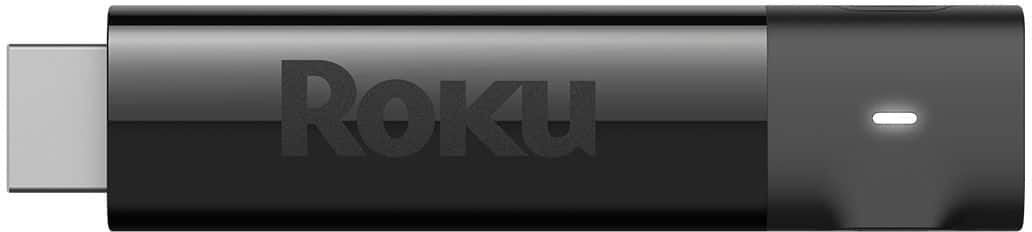
A:AnswerHi Polly! If you have already set up and activated your Roku Streaming Stick+ you will not need to re-program the device when moving it to another TV. However, if your Roku Streaming Stick+ will be connected to a different network, then you will need to connect your Roku Streaming Stick+ to the network you have access to.
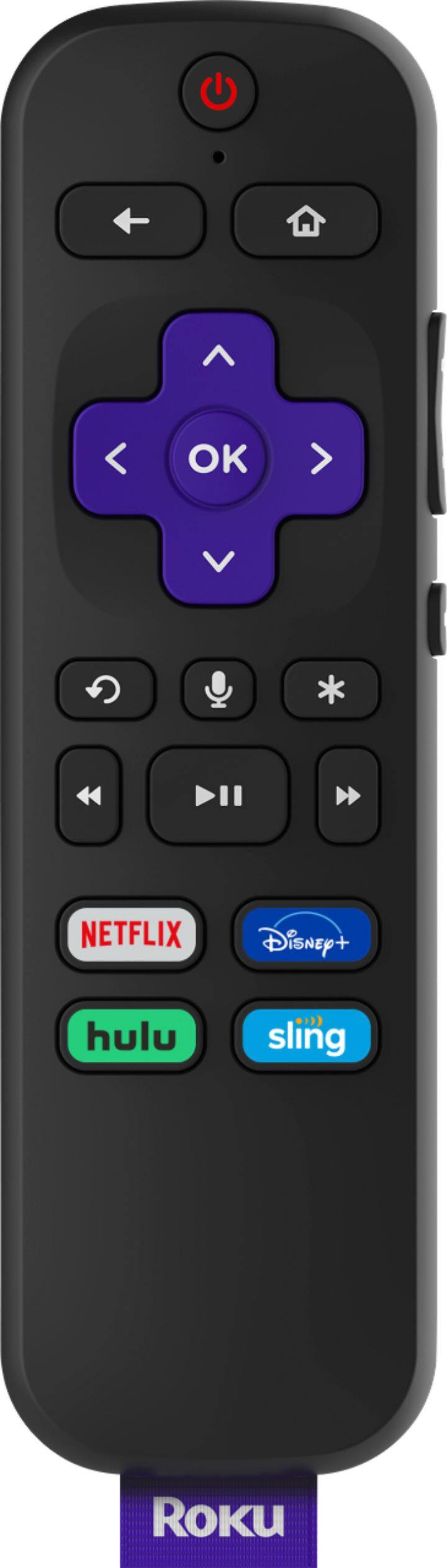
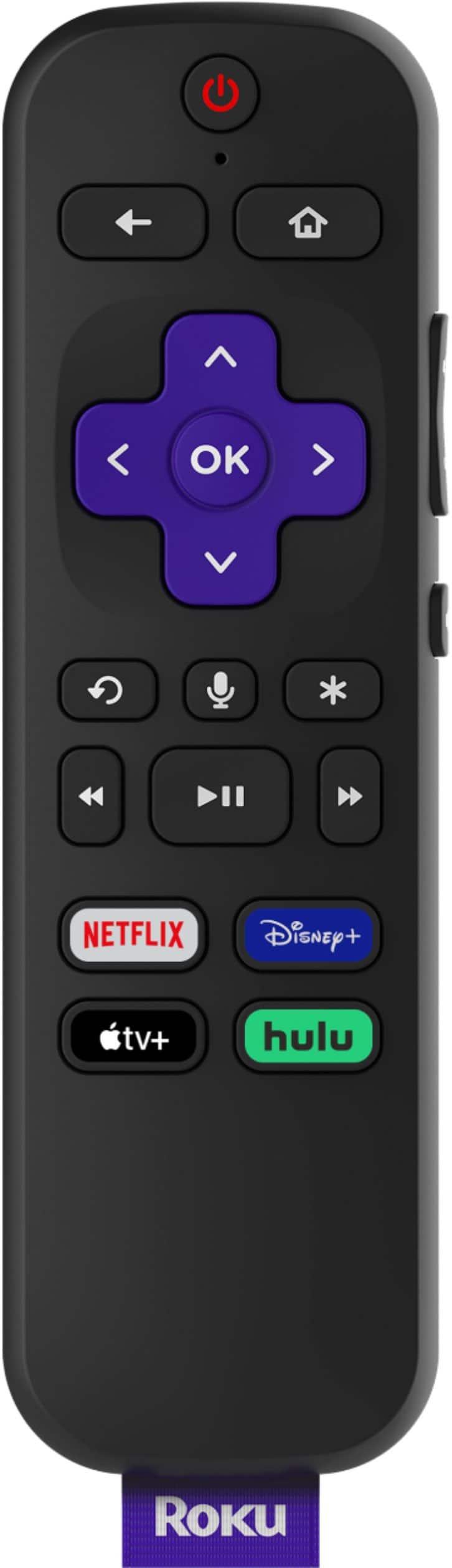
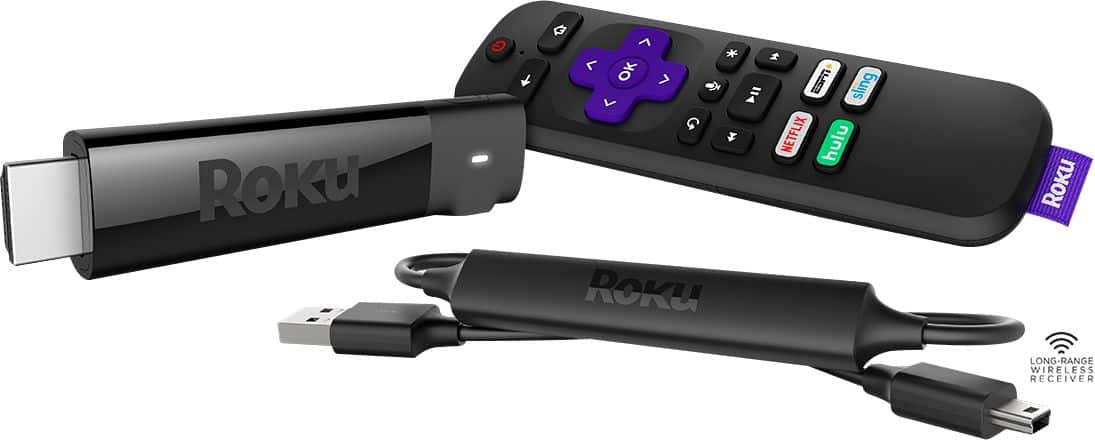
A:AnswerHi, bdub41! The Roku Streaming Stick+ features a point anywhere voice remote that will allow you to control the streaming player without the remote having line of sight to it.
A:AnswerHi GRIXLY! It is possible to connect the Roku Streaming Stick+ to an audio video receiver (avr). To successfully stream 4K Ultra HD (4K) or High Dynamic Range (HDR) content, all devices connected via HDMI to your Roku Streaming Stick+ must support HDCP 2.2. This includes your TV, an audio video receiver (AVR), and any other devices connected in between. If even one device does not support HDCP 2.2, then the 4K or HDR movie or TV show can only be viewed in a lower resolution, such as 720p or 1080p.
A:AnswerHi ! The Xfinity Stream channel is available on the Roku Channel Store. Just like your smartphone accesses an “app store” to add new applications, your Roku streaming player accesses the Roku Channel Store to add new channels. To add a channel to your Roku Streaming Stick+ start by pressing the Home button on your Roku Remote. Scroll up or down and select Streaming Channels to open the Channel Store. You can enter a keyword in Search Channels to find choices based on the title of a channel. Below that are a variety of genres to browse. When you want to learn more about a channel, press the OK button on your Roku remote to open the details. From there you can select Add Channel to install the channel on your Roku device.
A:AnswerHi ! After performing a search on the Roku Channel Store it appears the following channels are available; ESPN, Fox Sports, NBC Sports and CNN Go. There are also other sports channels you may want to consider such as FuboTV. You can always check channel availability by searching or browsing he Roku Channel Store linked here: https://channelstore.roku.com/browse
A:AnswerHi! Roku® streaming players can be connected to any TV with an HDMI® connection. Unfortunately using a USB to HDMI adapter to connect your Streaming Stick+ to your TV without an HDMI port will not work.
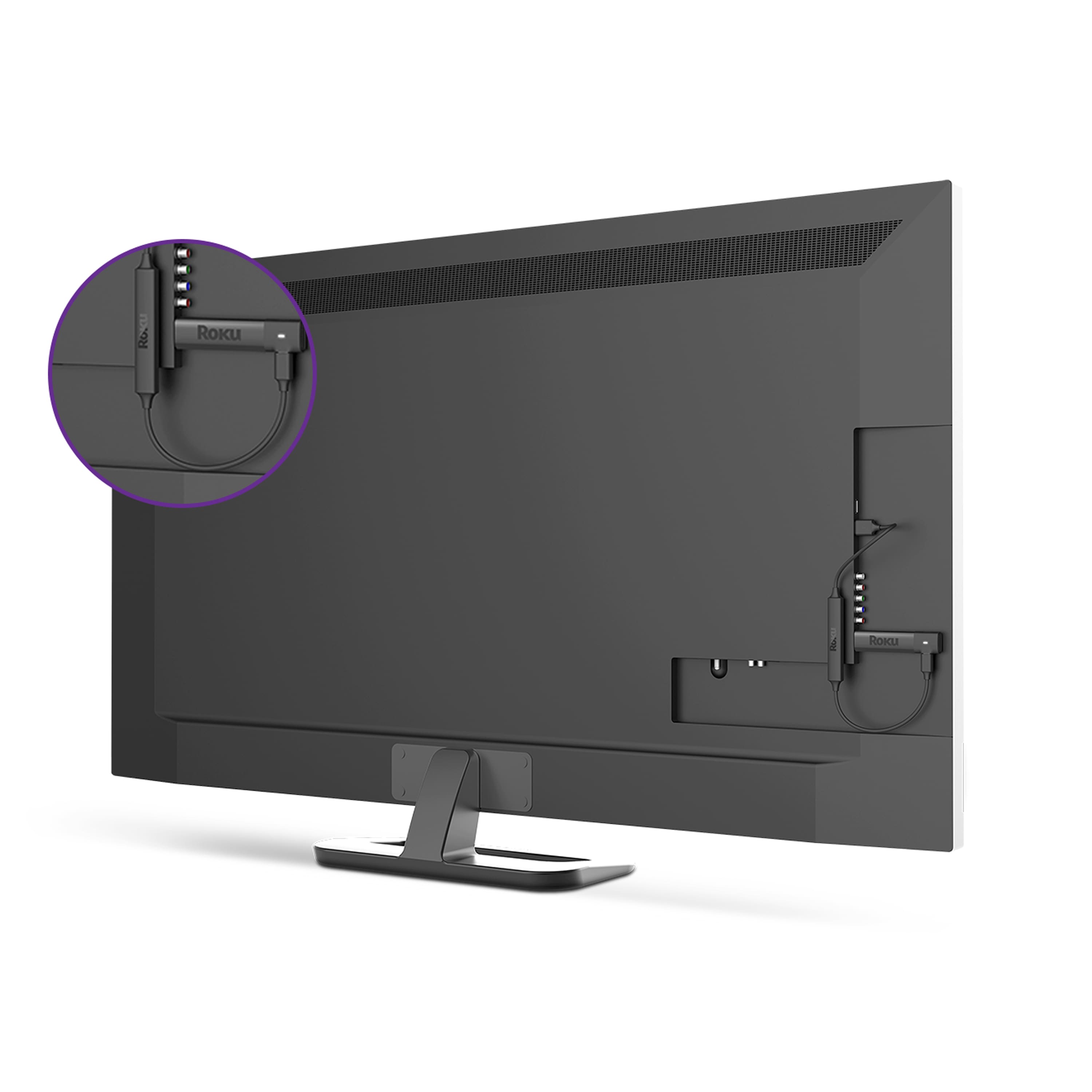
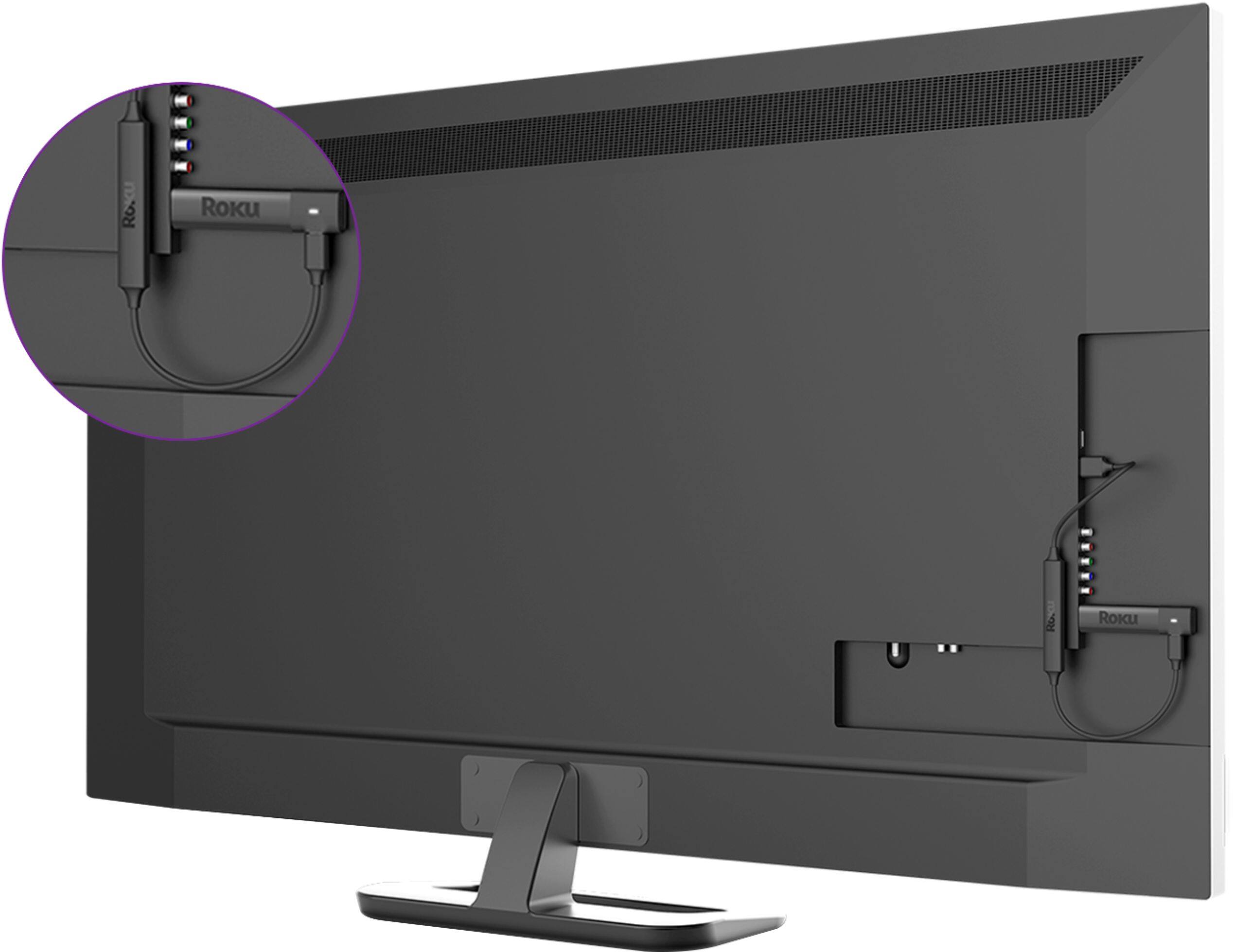
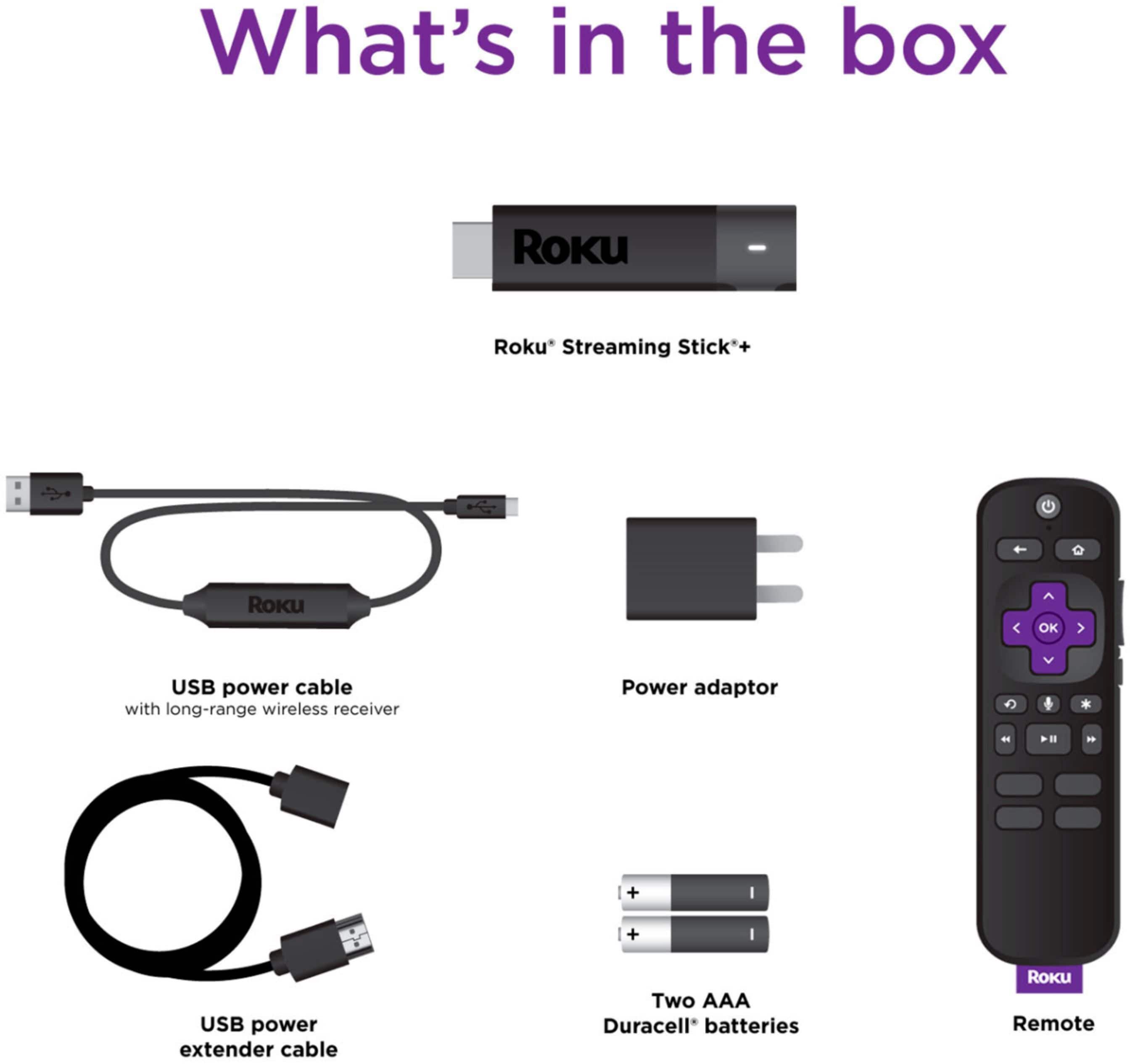
A:AnswerHi Josefina, when your Roku player is too hot, a warning message saying, “Your device is overheating” will appear in the corner of the screen. If you are seeing this message, it is best to carefully (it may be hot) unplug the device and let it cool down. It does help to add an HDMI extender so that the device isn't tucked inside an area it cannot get air circulation. Roku will gladly send you a free HDMI extender to help with this issue. Simply fill out the form here: https://my.roku.com/hdmi
A:AnswerHi ! Yes, a Roku streaming player or Roku TV would give you access to the channels mentioned in your question. In addition you will also be able to access over 10,000 channels and apps via the Roku Channel Store. Similar to how your smartphone accesses an “app store” to add new applications, your Roku streaming player or Roku TV™ accesses the Roku Channel Store to add new channels. You can always check channel availability by browsing or searching the Roku Channel Store linked here: https://channelstore.roku.com/browse
A:AnswerHello Chuck! On your Roku device you can access streaming services which offer the ability to watch local channels and record using cloud recording. Cloud DVRs function like traditional DVRs, but they store your recorded content online without the need for a physical DVR, so recording shows has never been easier. The following streaming services (subscription required) offer local stations and the ability to cloud record; DirecTV Stream, fuboTV, Hulu + Live TV, SlingTV and YouTube TV.
A:AnswerHi Deer! It depends on the model number of your Streaming Stick+, but rest assured, there are a few options available for you. Check out the Voice Remote (for model 3810, 3800, or 3600) or the Voice Remote Pro (for model 3810, 3811). To find replacement options for additional model numbers, check out https://www.roku.com/products/accessories.
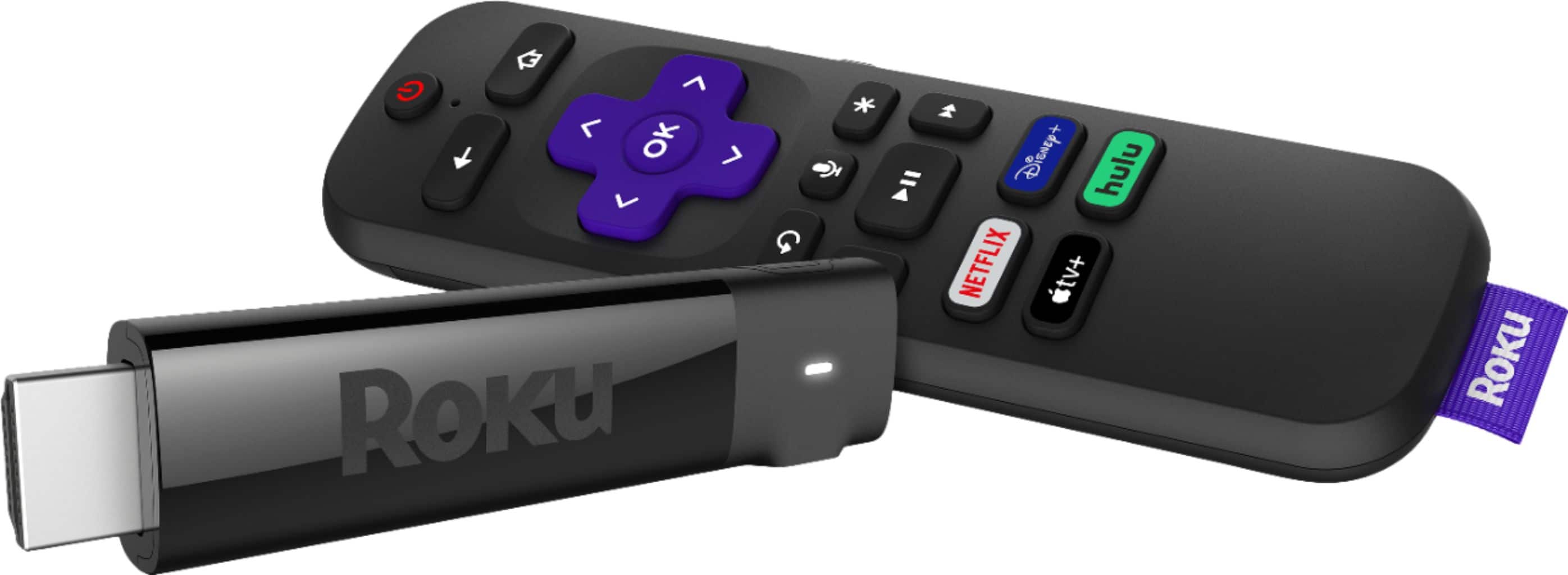
A:AnswerHi! Each Roku player will work with any TV with an HDMI port, even if your TV is already a smart TV. Simply plug the Roku player into your TV's HDMI port, connect it to your homes Wi-Fi network and follow the easy setup instructions on the screen. Just make sure when you're ready to use your Roku player for your streaming needs, to select the HDMI input you have it plugged into.
A:AnswerHi! There are a few options available for you. To find the right replacement for your specific needs, check out https://www.roku.com/products/accessories/roku-tv