Emergency Disks
-
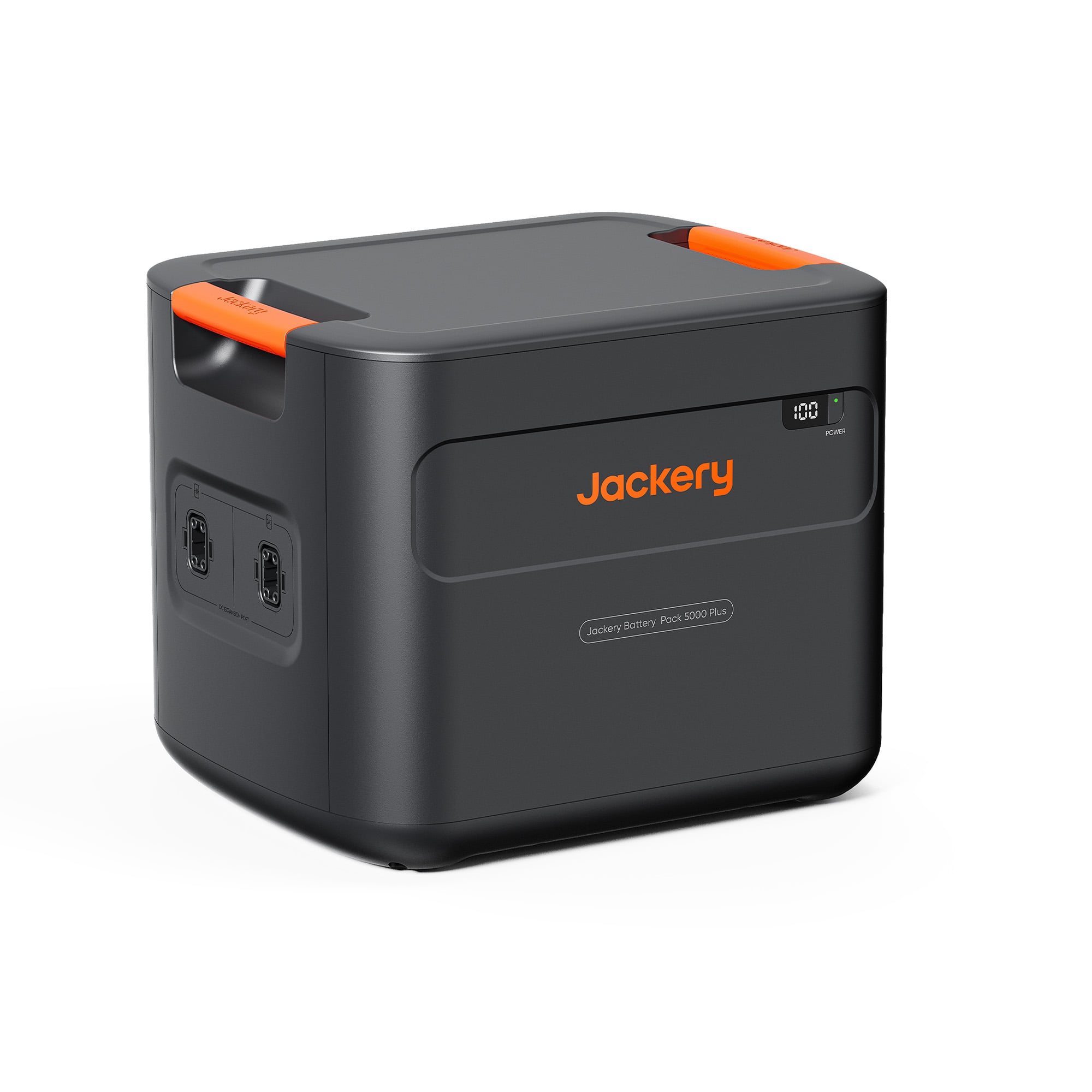
Jackery - Battery Pack 5000 Plus (5040 Wh Capacity) - Black
SKU: J3GWXZ249VOn a side note, I wish Best Buy allowed for store pickup, so I wouldn't need to be home during delivery...Our system is primarily for outages in our area( 3 outages in a 12 month period), but these are...
See all Battery Powered GeneratorsProduct Description
A compact black portable power solution with 5040Wh capacity, durable LFP batteries, and smart safety features.Your price for this item is $2,999.00 -
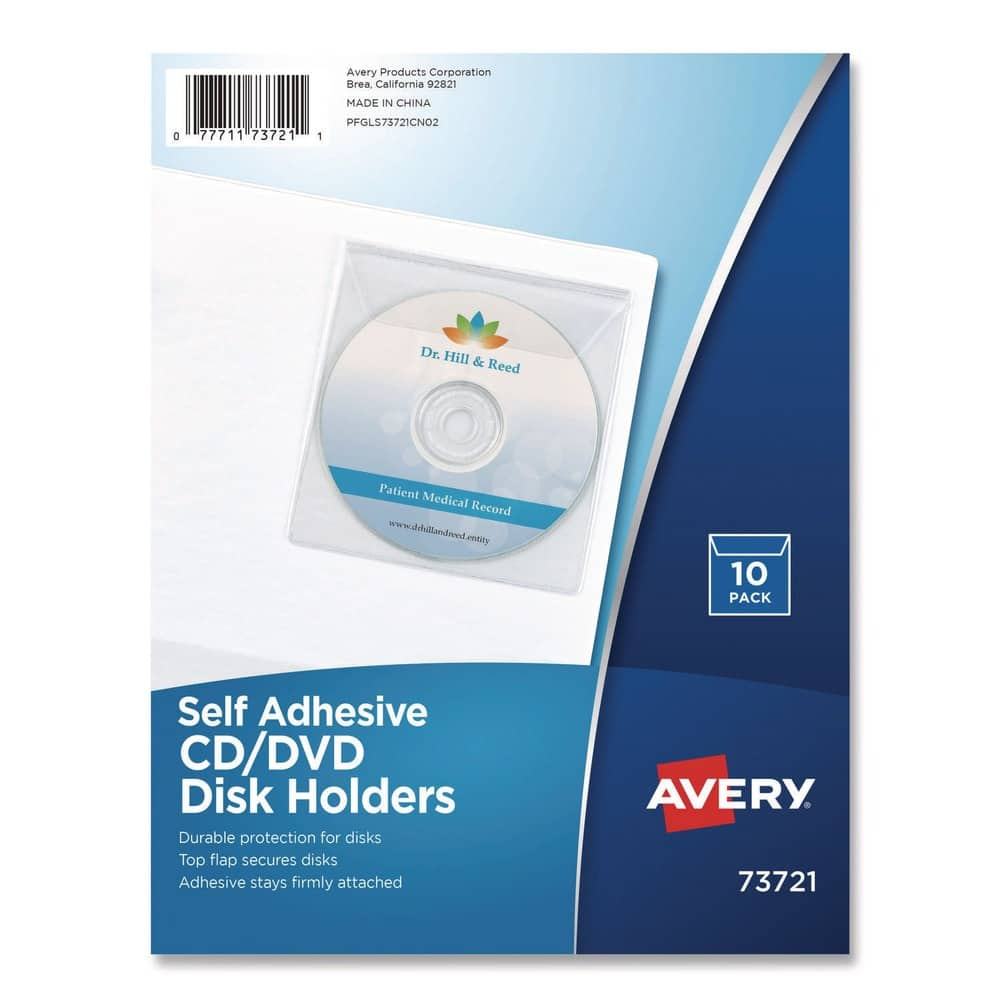
Avery - 73721 1 Disc Capacity Self-Adhesive Media Pockets - (10/Pack) - Clear
SKU: J79WGTJX6SSee all CD & DVD BurningProduct Description
A pack of clear, self-adhesive pockets that securely protect and organize your CDs, DVDs, or Zip disks.Your price for this item is $30.51
Best Sellers


![Corel - Easy CD & DVD Burning 2 - Windows [Digital]](https://pisces.bbystatic.com/image2/BestBuy_US/images/products/6403/6403924_sd.jpg;maxHeight=144;maxWidth=200?format=webp)


Related Pages




FAQ
An emergency disk is used to troubleshoot, repair, or recover your computer system in case of critical errors, boot failures, or malware infections. It typically contains essential tools and files to help restore your device to working order.
Some emergency disks are designed specifically for Windows or Mac operating systems, while others offer cross-platform support. Be sure to check the product details to ensure compatibility with your computer.
Many emergency disks include data recovery tools that can help you retrieve lost or accidentally deleted files, provided the data has not been overwritten.
To use an emergency disk, insert it into your computer and restart the device. Enter the boot menu or BIOS settings (usually by pressing a key like F12 or ESC during startup) and select the emergency disk as the boot device.
Some emergency disks come with software that can be updated online to ensure you have the latest recovery tools and virus definitions. Refer to the manufacturer’s instructions for update procedures.