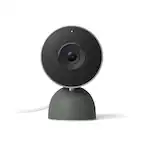
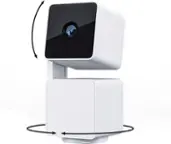
Wyze - Battery Cam Pro 2k HDR Wireless Outdoor/Indoor WiFi Security Camera with Motion Detection and Two-Way Audio - White
Wyze - Battery Cam Pro 2k HDR Wireless Outdoor/Indoor WiFi Security Camera with Motion Detection and Two-Way Audio - White
Color
WhiteRelated Item

Highlights
- Key Specs
- Field Of View: 135 degrees (The area of a target, measured as an angle from the location of viewing, that can be observed.)
- Night Vision: true
- Number Of Cameras Included: 1
- Camera Power Source: Battery-powered
- Works With: Amazon Alexa, Google Home (Compatible with or able to be connected to other smart devices or applications.)
- Wireless Connectivity: Bluetooth, Wi-Fi (The manner in which a device sends data to another device over a short distance without the use of wires or cables.)
- Maximum Operating Temperature: 130 degrees fahrenheit (The highest recommended ambient (surrounding) temperature in which the product can ideally operate stated by the manufacturer. Generally long-term exposure of the product to temperatures more than the maximum can result in ineffective operation.)
- Storage Type: Cloud, Memory card
- Indoor Or Outdoor Use: Indoor and outdoor (Indicates the appropriate environment product was designed to be used in.)
- Minimum Operating Temperature: -4.0 degrees fahrenheit (The lowest recommended ambient (surrounding) temperature in which the product can ideally operate stated by the manufacturer. Generally long-term exposure of the product to temperatures less than the minimum can result in ineffective operation.)
- Audio Communication: 2-way (1-way communication devices allow a user to hear detected audio, while 2-way communication adds the ability for a user to talk back through the device.)
- General
- Brand: Wyze
- Model Number: WYZECOP
- Product Name: Battery Cam Pro 2k HDR Wireless Outdoor/Indoor WiFi Security Camera with Motion Detection and Two-Way Audio
- Color: White
- Camera
- Camera Resolution: 2560 x 1440 (Refers to the number of pixels, both horizontally and vertically, used to capture video/images. The higher the resolution the finer the detail that can be seen.)
- Effective Pixels: 4 megapixels (The actual number of pixels which make up the viewable image.)
- Field Of View: 135 degrees (The area of a target, measured as an angle from the location of viewing, that can be observed.)
- Night Vision: true
- Night Vision Distance: 30 feet
- Night Vision Image: Color
- Camera Movement: Fixed
- Zoom Mode: Digital
- Number Of Cameras Included: 1
- Frame Rate: 20 frames per second (The frequency at which consecutive images can be captured. The higher the frame rate, the more detail that can be captured.)
- Day/Night Mode: true (Captures images/video with optimal clarity by automatically adjusting settings to various light levels.)
- Number of IR LEDs: 6 (Quantity of infrared (IR) LED lights for emitting IR light and allowing the camera to detect objects in low light.)
- Camera Iris: Automatic (The iris is the opening on a camera that controls how much light reaches its image sensor, which in turn affects image/video clarity. Fixed and manual irises are generally suited for locations with consistent levels of light. Automatic and "P" (precise) irises automatically adjust in response to changing levels of light and are suited for a wider variety of environments. "P" irises feature additional capabilities for improving footage clarity.)
- Image Sensor Type: CMOS (CCD and CMOS are the two main technologies used in image sensors. CCD, the older of the two types, turns analog light signals into digital pixels. This conversion happens without distortion, resulting in high-quality images. Newer CMOS sensors use transistors at each pixel to move electrical charges. CMOS sensors are typically less expensive, but also require more light to create distortion-free images.)
- Power
- Camera Power Source: Battery-powered
- Rechargeable Battery: true
- Battery Chemistry: Lithium-ion
- Charging Interface: USB-C
- Voltage: 5 volts (Amount of power needed to support an electrical current.)
- Compatibility
- App Compatible: true (The product can be connected to a program or software application on a mobile device, which then receives collected data from the product.)
- App Features: Live View, Record, Zoom, 2-way talk, Siren control, Spotlight control
- Compatibility: WYZE
- Operating System Compatibility: Android, Mac, Apple iOS
- Works With: Amazon Alexa, Google Home (Compatible with or able to be connected to other smart devices or applications.)
- Voice Assistant Built-in: Amazon Alexa, Google Assistant (A digital assistant built into the device that uses voice commands to answer questions and control smart devices.)
- Connectivity
- Camera Connectivity: Wireless (Security system cameras can be set up in several ways. Wired cameras require cables for power and footage transmission, while wire-free cameras don't need cables for either. Wireless cameras still require cables for receiving power but are able to transmit footage via a wireless network.)
- Wireless Connectivity: Bluetooth, Wi-Fi (The manner in which a device sends data to another device over a short distance without the use of wires or cables.)
- Wireless Networking Standard: Wi-Fi 6 (The wireless networking standard used by the device. Each iteration of the standard developed by the Wi-Fi Alliance corresponds to an existing IEEE 802.11 protocol; for example, standard 802.11ac (or AC) is termed Wi-Fi 5. Refers specifically to the standard the device is designed to use, but ultimately determines product interoperability and backward compatibility including previous versions.)
- Frequency Band: 2.4 GHz, 5.0 GHz (Bands may be grouped into categories such as low- and high-band VHF (Very High Frequency), low- and high-band UHF (Ultra High Frequency), or certain frequency channels (measured in MHz or GHz). Generally, higher frequencies transmit information faster but have shorter range than lower frequencies.)
- Encryption Type: WPA2 (The security protocols or certification programs that protect the Wi-Fi network.)
- Recording & Playback
- Streaming Video: true (The ability to transmit a live video feed from the product.)
- Video Recording Capability: true
- Records Audio: true
- Subscription: Optional but not included
- Video Recording Prompt: Alarm, Continuous Video Recording (CVR), Doorbell, Motion detection
- Performance
- Maximum Operating Temperature: 130 degrees fahrenheit (The highest recommended ambient (surrounding) temperature in which the product can ideally operate stated by the manufacturer. Generally long-term exposure of the product to temperatures more than the maximum can result in ineffective operation.)
- Indoor Or Outdoor Use: Indoor and outdoor (Indicates the appropriate environment product was designed to be used in.)
- Protective Qualities: Water resistant, Weather resistant
- Minimum Operating Temperature: -4.0 degrees fahrenheit (The lowest recommended ambient (surrounding) temperature in which the product can ideally operate stated by the manufacturer. Generally long-term exposure of the product to temperatures less than the minimum can result in ineffective operation.)
- Storage
- Storage Type: Cloud, Memory card
- Memory Card Type: microSD card
- Lighting
- Lighting Type: Spotlight, Automatic, Motion activated
- Features
- Audio Communication: 2-way (1-way communication devices allow a user to hear detected audio, while 2-way communication adds the ability for a user to talk back through the device.)
- 3-Axis Adjustable: true
- Auto-On Detection: Motion
- Mount Type: Flush mount, Ceiling mount, Dome Mount
- Alarm Type: Audible, Silent, Visual, Voice
- Alarm Location: On camera, Via app
- Geo-fencing: true (Indicates whether the product has a location-based capability used to determine when a device(s) being tracked is inside or outside a geographic boundary. Programmed events can be set by a user for when the tracked device is inside or outside the boundary.)
- Dimensions
- Product Height: 3.5 inches (The out of box height of the item. Height is measured as the vertical distance from the bottom of the item to the top as it would be primarily used or placed.)
- Product Width: 2.5 inches (The out of box width of the item. Width is measured as the horizontal distance from one side of the item to the other as it would be primarily used or placed.)
- Product Depth: 1.8 inches (The out of box depth of the item. Depth is measured as the distance from the front of the item to the back as it would be primarily used or placed.)
- Product Weight: 0.94 pounds (The out of box weight of the item.)
- Sensor
- Sensors: Light sensor, Motion sensor, Smoke sensor, Proximity sensor (Detects stimuli such as heat, light, sound, motion, or pressure and responds accordingly by operating a control or initiating a function of the device.)
- Motion Detection Range: 100 feet
- Included
- Cable(s) Included: true
- Warranty
- Warranty - Parts: 1 year
- Warranty - Labor: 1 year
- Other
- UPC: 810083471174
Wyze Battery Cam Pro-simply the best wireless outdoor camera Wyze has ever made, with upgrades on every feature, from 2K HD video with Color Night Vision to a removable, easy-to-recharge battery. But Battery Cam Pro takes it even further with new features like a built-in, automated spotlight and Deep Sense Radar Detection, which not only knows exactly where and how fast objects are moving, but also saves you precious battery life by eliminating the need to constantly run the camera. Get alerted when motion is detected, now with a wider, 134° field of view, and set custom motion detection zones for only the alerts that matter to you. Plus, take advantage of the usual built-in features like a motion-activated siren, two-way audio, and voice commands through Google and Alexa. Best of all, it's easy to mount, has a 6-month battery, and you can even connect it to Wyze Solar Panel to eliminate the need to recharge ever again.
- 2K Full HD with Color Night Vision: Clear and detailed footage that captures every important moment, day or night.
- Two-Way Audio: Communicate with anyone on the other end of the camera, whether it's to say hello to your pets or warn an intruder that the authorities are on their way.
- Radar & PIR Powered Accurate Motion Notifications: Receive precise detection that filters out false alarms and ensures you receive alerts when it matters most.
- Integrated Spotlight and Siren: An extra layer of security, illuminating dark areas and warning intruders with a powerful siren.
- Removable, Rechargeable Battery: Never miss a moment of footage, allowing you to easily charge and swap out batteries as needed.
- Works with Wyze Solar Panel: An eco-friendly and cost-effective power solution that keeps your camera charged and ready to use at all times.
- No Hub Required: Set up and start using your camera in minutes, without any complicated installations or additional hardware. Enjoy peace of mind knowing your home is secure with minimal hassle.
Whats Included
- Camera, Battery, Battery Charger, Mounting Hardware
Q: Can this camera be used with a solar panel?
A: Yes, you can connect this camera to a Wyze Solar Panel for continuous charging.
Q: What is the maximum range for motion detection with this camera?
A: This camera has a motion detection range of up to 100 feet.
Q: How long does the battery last on this camera?
A: The camera has a battery life of up to 6 months.
Q: What is the field of view for this camera?
A: This camera has a 135° field of view.
Q: Does this security camera require a hub?
A: No, this camera does not require a hub for setup or use.
Q: What type of night vision does this camera have?
A: This camera features color night vision.
Q: Can I speak to someone through the camera?
A: Yes, the camera has two-way audio, allowing you to communicate with anyone on the other end.
Q: Can you turn the camera through the app?
A: Hi there! Yes, you can control the Wyze Battery Cam Pro through the Wyze app using Automations. Here's how you can turn it on or off: Using Automations to Turn On/Off the Camera 1. Open the Wyze app. 2. Tap on the Home tab. 3. Tap the plus sign (+) in the top right corner. 4. Select Automation > Shortcut. 5. Add a name for the shortcut (e.g., "Turn Camera On" or "Turn Camera Off"). 6. Tap Add Action and select your Wyze Battery Cam Pro from the list. 7. Choose the action you want (e.g., Turn On or Turn Off). 8. Tap Save to finalize the shortcut. This allows you to control the camera with a single tap in the app. You can also set up schedules or triggers to automate turning the camera on or off at specific times or under certain conditions.
Compare similar products
Reviews
Customer Images
The vast majority of our reviews come from verified purchases. Reviews from customers may include My Best Buy members, employees, and Tech Insider Network members (as tagged). Select reviewers may receive discounted products, promotional considerations or entries into drawings for honest, helpful reviews.