How to Connect Your Phone to Your TV
Best Selling Products carousel(6 Items)
How to connect phone to TV
How to cast phone to TV
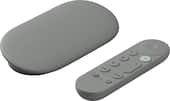
To cast your phone to your TV, you'll typically need a streaming device like a Google TV Streamer or a smart TV with built-in casting capabilities. Google TV Streamer, formerly known as Google Chromecast, is a small device that plugs into your TV's HDMI port, allowing you to cast content from your phone or other devices to the TV.
Here is how to cast your phone to your TV:
- Connect your streaming device or smart TV to Wi-Fi. Most casting devices, including Google TV Streamer, require the same network connection as your smartphone.
- Open a casting-enabled app on your phone. Popular apps like YouTube and Netflix support phone casting.
- Tap the Cast button and select your TV. Once connected, your chosen content will play on the big screen.
- Control playback from your phone. You can pause, rewind, fast-forward or switch content without touching the TV.
Casting sends the selected content to the TV while your phone remains available for other tasks. This differs from screen mirroring, which duplicates your entire phone display and everything you do on it. If you use Google TV, casting may be built in; otherwise, a compatible Chromecast or Google TV Streamer connected to your TV can add the feature.
What is screen mirroring?
Screen mirroring lets you display your entire phone screen on your TV in real time. Screen mirroring can be useful when you want to share content that doesn't support casting or show exactly what's on your phone to a group of people. If you're looking for how to screen mirror your phone, the exact steps vary by device and TV model, but the process is generally straightforward.
Here is how to mirror phone to TV:
- Connect your phone and TV to the same Wi-Fi network. Many TVs require both devices to be on the same network to establish a connection.
- Turn on screen mirroring on your TV. Depending on your TV brand, this feature may also be called AirPlay, Smart View or Screen Share.
- Open the screen mirroring feature on your phone. On Android devices, look for options such as Smart View, Cast or Screen Mirroring. As for a screen mirroring iPhone, open Control Center and tap Screen Mirroring.
- Select your TV from the list of available devices. Your phone may prompt you to confirm the connection.
- Begin sharing your screen. Anything displayed on your phone will appear on your TV until you disconnect.
Understanding the difference between casting and mirroring can help you choose the right option for what you want to share. This makes it a great choice when you want to share content that isn't available through a casting-enabled app.
What is Apple AirPlay?
If you’re asking yourself, “How can I use AirPlay?” you're not alone. Similar to Google Cast, Apple AirPlay is Apple's wireless streaming technology that lets you share videos, music, photos and even your entire iPhone or iPad screen on a compatible TV. For many Apple users, iPhone mirroring through AirPlay is one of the easiest ways to display content on a larger screen.
AirPlay works similarly to casting and screen mirroring, but it's designed specifically for Apple devices. It's a convenient way to enjoy content on a larger screen without connecting any cables.
Here is how to AirPlay to a TV:
- Connect your iPhone or iPad and your TV to the same Wi-Fi network. AirPlay requires both devices to be connected to the same network.
- Make sure AirPlay is enabled on your TV. If you're using a compatible smart TV, AirPlay can typically be found in the TV's network or Apple AirPlay settings.
- Open the content you want to share. This could be a video, photo, song or other supported media.
- Tap the AirPlay icon. In some apps, you may first need to tap the Share button before selecting AirPlay.
- Choose your TV from the list of available devices. Your content will begin playing on the TV.
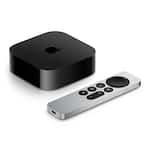
Like casting and screen mirroring, AirPlay makes it easy to enjoy content on a larger screen. If your TV doesn't support AirPlay natively, adding an Apple TV streaming device can give you access to the feature.
Using your phone as a remote control
Casting and screen mirroring are useful features, but if you’re wondering, “How do I link my phone to my TV to use it as a remote control?” you have several options for connecting your devices.
Many smart TVs and streaming devices offer companion apps that let you control your TV directly from your smartphone. These apps can provide familiar remote controls for adjusting the volume, changing channels, navigating menus and more. Some TVs also support features that let you use your phone as a keyboard or voice remote.
Using a phone remote control can be a handy backup when your physical remote isn't available or when you prefer using your smartphone instead of a traditional remote.
Connect your phone to your TV your way
Whether you choose casting, screen mirroring or a remote control app, connecting your phone to your TV can make it easier to enjoy your favorite content on a bigger screen. With built-in support on many modern TVs and streaming devices, getting started often takes just a few taps.
The right option for you depends on your device, the content you're sharing and how you want to control the experience, but each method offers a simple way to get more from both your phone and your TV.