Universal Remote Controls: A Complete Setup Guide
Best Selling Products carousel(6 Items)
Easily program a universal remote to use across devices
Why use a universal remote?
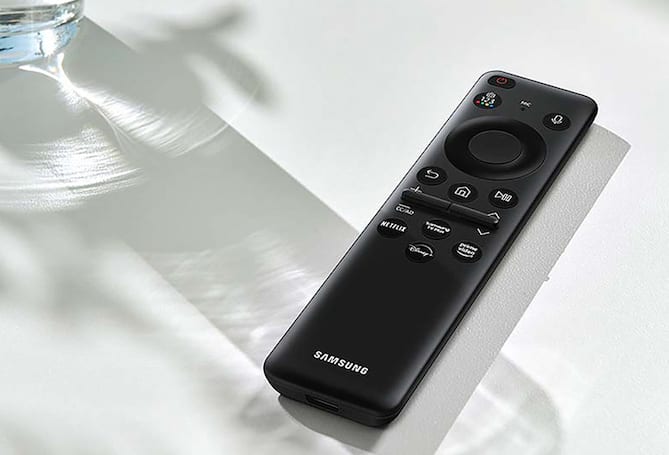
A universal remote control is designed to control multiple devices, like your TV, streaming device, sound bar, Blu-ray or DVD player or satellite receiver, all from one place. Instead of juggling three or four remotes, you just need one. And apart from consolidating your remotes, the time might come when you lose the original factory remote control included with your device when you first bought it. Whether a new puppy chews it beyond function or it mysteriously disappears to a realm beyond the couch cushions, it’s simple to program a universal remote to replace the old one.
The key to doing this work lies in universal remote control codes. These are specific numeric sequences that tell your remote how to communicate with a particular device. Different brands use their own code libraries, which is why you’ll often see references to things like RCA universal remote program codes or GE universal remote control codes.
Getting started with your universal remote setup
1. Gather what you need for your universal remote
Before you start, make sure you have:
- Working batteries installed in the remote
- The device you want to control (TV, streaming box, etc.)
- A list of codes (usually in the manual or found online)
If you’re using the internet to find the codes, be sure you are specific based on your brand. For instance, with an RCA remote, you’ll want to search for things like “programing codes for RCA universal remote” or “codes for programming RCA universal remote.” Similarly, for GE remotes, you’ll need to search something like “control codes for GE” or “GE universal remote control codes.”
2. Turn on the device you’ll pair with the remote
3. Put your universal remote in programming mode
Most universal remotes follow a similar process:
- Press and hold the “Setup” button until the indicator light turns on.
- Press the button for the device you want to program (TV, DVD, AUX, etc.).
The light will either blink or stay steady, indicating you are in programming mode.
At this point, you’re ready to enter one of the codes to program RCA universal remote controls, GE remotes or whichever brand you’re using.
4. Enter the remote control programming code
Using your code list, input one of the codes for your device. After entering the code, the indicator light should turn off if the code is accepted. Try using the remote to turn off the device. If it works, you’ve found the right code.
If not, don’t worry, because this is normal. Devices often have multiple possible codes, so you may need to try several from the list of programing codes.
Trying an auto code search for universal remote control setup if needed
If manually entering codes isn’t working, many remotes offer an automatic search feature. This is especially helpful if you can’t seem to find a working universal remote control code.
Here’s how it typically works:
- Enter programming mode again
- Press the button on the remote for the type of device you’re trying to control (TV, DVD, HDMI, AUX, etc.)
- Press and release the power button while pointing at the device
- When the device shuts off, press “Enter” or “OK” to lock in the code. If it does not shut off, continue step 3 until it does. This method cycles through all available codes until it finds one that works
Additionally, follow these tips to make your universal remote setup smoother and faster:
- Keep your code list handy: You may need it again if you reset the remote
- Program one device at a time: Don’t rush through multiple setups at once
- Label your devices: Some remotes allow customization so you don’t forget what each button controls
- Use auto search as a backup: It’s slower but often more reliable when manual codes fail
Programming specific universal remotes: Q&A
A: DIRECTV remotes can be programmed either manually or through on-screen menus:
- Press “Menu” on your TV
- Navigate to Settings > Remote Control
- Select “Program Remote”
- Follow the prompts
Troubleshooting common universal remote control issues
Even when you follow the steps perfectly, things don’t always go smoothly. Here are some common problems and fixes:
1. The code doesn’t work
Not all codes work for all models. Make sure you are using the proper codes for the remote model you have, or that your device isn’t incompatible with it. Try another code from the list of codes for your specific remote make and model.
2. Some buttons work, others don’t
This usually means you’ve found a partially compatible code. Try a different one from the universal remote codes for RCA remote control list.
3. The remote won’t enter programming mode
Check the batteries and make sure you’re holding the setup button long enough.
4. Device turns off but won’t turn back on
You may need to repeat the process and try a different code. This can happen with incomplete matches in programing codes for RCA universal remote lists.
Universal remote controls vs. smartphone remote control apps
It might seem tedious to scroll through pages of RCA universal remote program codes or remote control codes for GE, but these codes are what make universal remotes truly universal. Without them, your remote wouldn’t know how to “speak” to your TV or streaming device. While you might think it’s simpler to connect your phone to your TV, the benefits of putting in the bit of effort to get your remote working include streamlining all of your device controls in one place and faster, more reliable performance than using your smartphone as a remote. Both options have their place, but a remote control requires zero apps and does not depend on your phone’s availability, battery life, and other factors that can impede using your phone to control a smart TV or streaming media player.
Think of each code as a language translation. Once the correct one is found, your remote and device are finally on the same page. Luckily, the universal remote and your devices will do all the language learning needed, so you can sit back and enjoy your new setup.