Rating 4.8 out of 5 stars with 138 reviews
4.8- Refresh rate (29)
- Price (15)
- Adjustable stand (6)
- Graphics (6)
- Size (6)
- Resolution (4)
- Speakers (3)
- Ghosting (1)
- Internal damage (1)
- Ips glow (1)
Customer Images
The vast majority of our reviews come from verified purchases. Reviews from customers may include My Best Buy members, employees, and Tech Insider Network members (as tagged). Select reviewers may receive discounted products, promotional considerations or entries into drawings for honest, helpful reviews.
- Rated 5 out of 5 stars
Excellent monitor for the prize
This is a fantastic monitor and the price if very reasonable! Would absolutely recommend for gaming
Posted by SJLD
- Rated 5 out of 5 stars
Love love love it
Absolutely love this monitor. I play games for college and I can tell you I’ve never had any problems with how clear everything looks. Absolutely beautiful. Definitely wanna get a second one.
Posted by Sebastian
- Rated 5 out of 5 stars
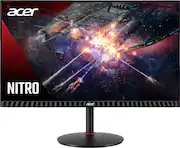
Acer - Nitro XV271
Purchased to future proof my older system as I will be upgrading sooner than later and needed a monitor that would be capable of running current titles. Impressed with its performance/capabilities even with a lesser capable machine.
Posted by SBaron
- Rated 5 out of 5 stars
Vibrant colors, super smooth gameplay
The Acer Nitro XV271 Z gaming monitor paired amazingly well with my gaming laptop's NVIDIA GeForce RTX 3060 GPU, providing a smooth, stutter and tear-free gameplay experience across a number of genre games I played on it including racing games, FPS, and RPG/MPORG. The bezels on the monitor are pretty thin, around 1/16th of an inch, though keep in mind there is a pixel-less border along the top and sides of the screen, setting the viewable screen in about 1/4 inch from the outside edge of the monitor. The chin of the monitor is about 3/4 inch tall and has a single status LED in the bottom right-hand corner that cannot be disabled. On-screen display (OSD) controls for the monitor are on the back of the monitor and include a 5-function joystick and three programmable hot keys which you can customize to perform the adjustments you use most frequently. The monitor includes a blue light filter setting that reduces the amount of blue light emitted (by 50% or 60%) in order to protect your eyes from strain and overexposure, but note that this will give your screen a slightly yellowish tint. It's less noticeable, though, after your eyes adjust to the color offset and I did find that the filtered brightness was easier on the eyes over longer sessions in front of the screen. The Adaptive Contrast Management (ACM) setting utilizes a setting to automatically adjust brightness and contrast of the monitor, though personally I found the automatic settings to be too bright (without blue light filtering). There are default profiles in the OSD for Action, Racing, Sports, Standard, ECO, Graphics, and HDR, as well as a User profile that you can customize and save for quick access. Built into the monitor are two 2W speakers which, honestly, sounded better than I expected, and were decently capable although the sound quality won't be blowing anyone away. Thankfully the monitor also includes a headphone out port, so you can attach a set of external speakers or headphones for a better audio experience. Setup was plug-and-play using the included HDMI cable to both my laptop and gaming console, though I appreciate the inclusion of a DisplayPort 1.2 port and cable, as well, since that allowed me to connect it to my desktop rig. The monitor has a second HDMI 2.0 port for a total of 3 simultaneous inputs. Despite the monitor's size, it is surprisingly lightweight, even when attached to the included stand. The metal center column of the stand attaches to a weighted plastic base that swivels a full 360 degrees. The monitor can also be pivoted into portrait orientation in both directions and tilted about 20 degrees up/down. The height of the monitor is adjustable from about 1.5" from the tabletop to 6.5" and all positioning adjustments are quite smooth. If you prefer, the stand can be removed and the monitor is VESA mount compatible. Out of the box, I checked for dead pixels and found no issues with either whole pixels nor any sub pixels. This is a 1080p monitor and not 4K which, given the amount of screen real estate, I thought the resolution would be a bit low for this size monitor. However, text and object edges are still very crisp and clean at this pixel density. Since it is an IPS display, viewing angles at near parallel produced little to no variation in color or clarity of the image on the screen. The native resolution of the monitor is 1920 x 1080 and the refresh rate can be set up to 240 Hz, though it can be overclocked in the OSD to achieve up to 280Hz. Enabling FreeSync Premium with compatible AMD GPUs effectively eliminates tearing and stuttering, while Visual Response Boost (VRB) decreases blur in fast moving images to effectively achieve the equivalent of 1ms MPRT. This along with the 0.5ms GtG response time give this monitor ultra smooth, blur-free motion during gameplay. The color depth is 8-bit and the color space spec is 99% sRGB making this monitor suitable for digital video post-production and editing in addition to gaming. I did notice though, that in pitch dark conditions, there was some degree of IPS glow, manifesting as slightly orangey-brownish illumination along the edges and particularly in the corners of the screen. Despite this, I still feel the contrast of the monitor is very good in general. Since the brightness can go up to 400 nits with HDR enabled, I found it to be plenty bright in a well-lit room and bumped up the level of detail in dark scenes. Overall, this monitor performed well for me while gaming, doing creative work, and even watching movies. The high refresh rates and low latency have definitely improved my gaming experience, and the performance and visuals look great, even at 1080p.
Posted by ReviewedByPhil
- Rated 5 out of 5 stars
A fantastic value for 1080P gaming
As an owner of the 1440p Acer Predator 27" Monitor I had to decide what to get my wife who is rather new to PC gaming and so it was the Acer Nitro XV. Before I get started I must say that I cannot say enough good things about the Acer Predator monitor series. They look like a gamers monitor but also professional and not overly saturated and gaudy. When I got my Acer Predator I gave it 5 stars and that is also what I am giving this one, although I would not hesitate to say that I think my Predator monitor is better (but it's also more expensive so...). The monitor comes in a nice, very cool looking box and is very clear when you open it how to get everything out. Although me like a big dummy discovered this after I started pawing at the box and not able to get the thing out. For starters make sure you read what it says to open it right side up. Again, I did not so part of the difficulty I had was getting it right side up. Next, if you have a friend or significant other nearby it would be great if they could grab the box while you pull. Don't get me wrong, it's easy enough with one person but it takes way too long when you're excited and wanting to see your new monitor. So once I got it out of the two huge styrofoam blocks (it's VERY well protected folks) then it was unwrapping plastic, ties, you know the drill. 2 and a half hours later...just kidding, 5 minutes later, we had it out on the table. Congratulations, that was the hardest part of getting the monitor up and going. Actually putting it together is a piece of cake that took me just a few minutes. You put the stand into the base of the monitor, it locks. Then take the actual base on to the stand with a screw. Don't worry, no screwdriver is needed. They have a nice little piece of metal that pops up and allows you to turn the screw (seriously why can't all companies do this???) Once you get it tighened down it is just a matter of moving it up and down (which is quite easy mind you) and then you're ready to fire it up. Windows 10 immediately recognized it but did not install any special monitor driver. I used the PC for a bit without any issue so not sure there's any real need to do so but I did end up going to Acers website and getting the drivers there to install. Once installed I saw no difference but at least I know if there are issues it is not my drivers. I was hoping that the Nitro copied the Predators excellent joystick model and I was happy to see that it did. If you are really fearful of, or dread changing your monitor settings due to how difficult it is to navigate well don't worry here because using the small joystick makes things very easy to be whizzing around in settings and getting it all exactly how you like it. Pick color calibration, also pick what type of media you are going to be using: movies, sports, gaming, etc. Of course one great thing about this monitor is the overclocking and be aware it is not on by default. I believe out of the box the default is 120Hz but you can bump it up to the extreme, 280Hz, with the menu and I would suggest that you do this immediately. The monitor also ships to a default of warm 2 and you do not want to use this. Either switch to standard, self tune or do like I did and use Cool 2 setting which is a great look...but your mileage may vary. After you've chosen all of your settings its time to fire up a game and see how it all looks. Well first of all I can tell you this monitor is nice and bright and has a lot of WOW! factor in just displaying even the basic Windows 10 screen. Everything looks bright and vibrant and colorful (but not overly exaggerated like "torch mode" in stores where everything is bright and colorful enough to blind you. My first game is Doom Eternal. A game that now supports raytracing, DLSS and the new AMD Fidelity X Super Resolution. I got in and fired it up to Ultra Max (I have a Radeon 6800M on the just released AMD ROG STRIX G15 Advantage. What's this? An error message about how my new monitor does not support HDR? Ok, here's the part where you have to know if you haven't used HDR before that you have to enable it in Windows. Just connecting up an HDR monitor will not give you HDR. So I went and did that in Control Panel. Come back, try again, nope. Reboot, try again, nope. HDR works just fine in Windows but not this game? Well hopefully it was just this game. So off I go to boot up Ori, a game that sports fantastic HDR by the way, and yes HDR comes up just fine. After a couple of quick tests with other games I find it was just Doom Eternal that didn't see the HDR for some reason. Now some of you may be wondering how do you know if it's running in 60Hz, 120Hz, or 280Hz? Well simple, fire up the monitor settings, and in the settings you'll see a template overlay. This will tell you the Hz in Windows and then change over to game frames per second (FPS) in the actual game. This will help you to know that your monitor is doing everything you paid for it to do. Last but not least there are two ways to use the cable management clip that comes on the back of your monitor near the base. I know when you set this up you were wondering what in the world this is for? Well that's for cable management and there's a wrong way to do it (see pic) and there's a right way to do it (see pic after I redid it!) so be sure to get that kosher now and don't put it off, lest you have a friend come over and #cablemanagement you. So in the end I have to say this is an extraordinary, high quality, amazing looking, 27" monitor and what I would consider to be a value-version of the vaunted, many say the best, Acer Predator 27" monitor. And folks, you just can't say much better than that in my view. Be sure to take a look at the pics I've attached for more information related to this review. HIGHLY RECOMMENDED
Posted by Shaunh20