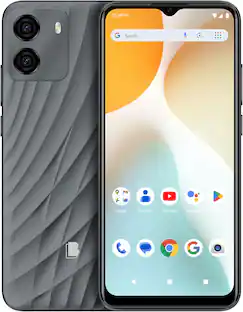
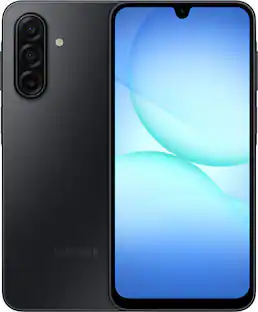
BLU - G33 16GB (Unlocked) - Black
- Key Specs
- Screen Size: 6.26 inches (Size of the screen, measured diagonally from corner to corner.)
- Rear-Facing Camera: 5 megapixels
- Carrier Compatibility: T-Mobile, Metro by T-Mobile, Mint Mobile
- Built-in Storage: 16 gigabytes
- Processor Model: Octa-core (Your computer's processor is like its brain. Working in combination with system memory, the power of the processor determines the complexity of software you can run, how many programs you can have open at the same time, and how fast those programs will run. Most computers feature an AMD, Intel or Snapdragon processor.)
- Phone Memory (RAM): 2 gigabytes (Random-access memory (RAM) temporarily stores data so that it can be accessed quickly. The size of the RAM determines how efficiently the phone can handle large amounts of information at once, such as switching between several open apps.)
- General
- Brand: BLU
- Model Number: G0890UU
- Product Name: G33 16GB (Unlocked)
- Color: Black
- Display
- Screen Size: 6.26 inches (Size of the screen, measured diagonally from corner to corner.)
- Screen Resolution: 960 x 480 (Screens come in a range of resolutions (measured in pixels, horizontal x vertical). The higher the resolution, the greater the picture quality.)
- Foldable Screen: false
- Camera
- Integrated Camera: Front, Rear
- Front-Facing Camera: 5 megapixels
- Rear-Facing Camera: 5 megapixels
- Video Recording Resolution(s) and Frame Rate(s): 720p recording resolution (Refers to the number of pixels, both horizontally and vertically, and the frame rate used to capture the video. The higher the resolution the finer the video detail that can be seen. The faster the frame rate the smoother the playback for higher motion activities like sports.)
- Network
- Carrier: Unlocked
- Carrier Compatibility: T-Mobile, Metro by T-Mobile, Mint Mobile
- Network Connectivity: 3G, 4G LTE (The manner in which a device sends data to another device over a long distance using a cellular network.)
- Unlocked: true (Can be used with any carrier, typically by exchanging the phone's SIM card with another one compatible for the intended area of service. Can be used with a new or existing cellular service plan.)
- Mobile Hotspot Capability: true (A hotspot-enabled device is able to connect wirelessly to a cellular network and share the connection via Wi-Fi with nearby compatible devices.)
- 4G LTE Band: 2, 4, 5, 12, 17, 66, 71
- Connectivity
- Headphone Jack: false (The device features an interface that allows for the connection of headphones.)
- Wireless Connectivity: Bluetooth, Wi-Fi (The manner in which a device sends data to another device over a short distance without the use of wires or cables.)
- DisplayPort Over USB-C: None (The version of DisplayPort that leverages the Alternate Mode Functional Extension of the USB-C interface. This connector allows for higher resolution, broader color space, multichannel audio support, and greater backwards compatibility with display adapters. Also known as DisplayPort Alt Mode.)
- Power
- Battery Capacity: 3000 milliampere hours (The amount of energy stored in the battery.)
- Compatibility
- Charging Interface(s): Micro-USB (The connection for transmitting power to charge the device.)
- Features
- Model Family: BLU G33
- Sensors: Face ID (Detects stimuli such as heat, light, sound, motion, or pressure and responds accordingly by operating a control or initiating a function of the device.)
- Security Features: Facial recognition
- Built-in Storage: 16 gigabytes
- Performance
- Operating System: Android 13 (The operating system manages all software and hardware, including files, memory and connected devices. Most importantly, it lets you interact with your device and your programs in a visual way; otherwise, you'd be typing computer code to get anything done.)
- Processor Model: Octa-core (Your computer's processor is like its brain. Working in combination with system memory, the power of the processor determines the complexity of software you can run, how many programs you can have open at the same time, and how fast those programs will run. Most computers feature an AMD, Intel or Snapdragon processor.)
- Processor Speed: 1.6 gigahertz (Actual central processing unit (CPU) speed may vary by device configuration and design. Also referred to as clock speed, this is how quickly the central processing unit (CPU) can receive and interpret instructions. The higher the number, the more operations per second that can be completed. Working in combination with system memory, the power of the processor determines the complexity of software you can run.)
- Phone Memory (RAM): 2 gigabytes (Random-access memory (RAM) temporarily stores data so that it can be accessed quickly. The size of the RAM determines how efficiently the phone can handle large amounts of information at once, such as switching between several open apps.)
- Storage
- Media Card Slot: microSD
- Expandable Storage up to: 128 gigabytes
- Certifications Listings & Approvals
- EPEAT Qualified: false (The Electronic Product Environmental Assessment Tool (EPEAT) was designed to provide an environmental assessment tool for purchasers. In order to qualify for EPEAT, a product must meet all 23 required criteria.)
- Other
- UPC: 848958043133
Experience the perfect harmony of pattern and texture with the new G33. This smartphone is the epitome of elegance, boasting a mesmerizing, curved glass display that sets it apart from the rest. Get ready immerse yourself in vivid colors like never before with the G33's stunning 6.26" super display. Whether you're binge-watching you favorite shows on the go or simply scrolling through your feed, this smartphone brings every image to life with breathtaking clarity and vibrancy. The G33 is powered by a lighting-fast UNISOC 9863 chipset, boasting an impressive 1.6GHz Octa-Core speed for unparalleled performance. Preserve your precious memories with the G33's 5MP camera. This smartphone allows you to capture all your favorite moments with stunning clarity and detail, ensuring that each memory is cherished for years to come. With just a quick facial scan, you can conveniently access your device. Say goodbye to passwords and hello to seamless phone with G33's Face ID. The G33 runs on the Android 13 (Go Edition) operating system, specially designed to power affordable smartphones with top-of-the-line features. The latest update emphasizes reliability, usability, and customization, ensuring that your G33 always delivers optimal performance and an unparalleled user experience.
- Processor: ARM-Cortex A55 1.6GHz
- Network compatibility: Compatible with: T-Mobile, Metro by T-Mobile, Mint Mobile. Check details with your carrier.
- Connection: Bluetooth v4.2; Wi-Fi (b/g/n); USB Type-C
- Camera: 5MP Dual + LED Flast; 5MP Selfie Camera
- Display: 6.26" curved glass; 480x960 Resolution; 172ppi
- Memory: 16GB storage + MicroSD up to 128GB + 2GB RAM
- Battery: 3000 mAh
- Face ID: Access your device with a quick facial scan
- HAC: Hearing Aid compatible
- Operating system: Android 13 (Go Edition)
Whats Included
- G33 16GB (Unlocked)
Q: Can anyone tell me how to remove the back cover on a BLU G33?
A: To remove the back cover on your BLU G33, you can follow these steps: Find a Starting Point: Look for a small gap or notch at one of the corners of the back cover. This is where you can begin to pry it open. Use Your Fingernail or a Tool: Gently insert your fingernail or a plastic tool (like a spudger) into the gap. Be careful not to use anything too sharp that could damage the cover. Pry Open the Cover: Slowly pull apart the cover from the corner. It may be a bit stiff the first time, but it should start to come off. Work your way around the edges to loosen it. Remove the Cover: Once you have loosened it all around, you should be able to lift the back cover off completely. If you encounter any resistance, double-check that you are not missing any clips or screws that might be holding it in place. Enjoy working on your device
Q: Since it says the phone unlocked will my sim card to old phone work in this phone?
A: To my understanding, unlocked means that any sim card should work in this phone. I received a Q Link sim card, which I activated and the phone was ready for use.
A: No
Q: Can't hear some callers. Why? Yes the volume is turned up.
A: undefined
A: undefined
A: To change the digital clock display format on your BLU G33 phone, you may need to follow these steps: Check Clock Settings: Open the Clock app on your phone. Look for a Settings option, usually represented by three dots or a gear icon. See if there are options to change the clock format (12-hour vs. 24-hour). Adjust Display Settings: Go to the Settings menu on your phone. Navigate to Display or Lock Screen settings. Look for any options related to the clock display. If there are no options available, it may be limited by the device's software. Consider Factory Reset (as a last resort): If you cannot find the desired settings, restoring to factory settings may help, but this will erase all data on your device. Make sure to back up important information first. If these steps do not resolve the issue, it may be a limitation of the device's software.
Q: is this phone compatible with assurance wireless? , thanks
A: Yes assurance wireless blu g 33
People also viewed
 $605.97The price was $1,199.99
 $134.99The price was $168.74